Buy and view Art Certificates
For collectors: this guide covers acquiring optional artwork ownership. To make a personal Postcard for someone, use How to create and send a Postcard; an NFT purchase is not required.
An Art Certificate NFT is an optional purchase associated with an artwork. Buying one is separate from creating or sending a personal Postcard.
Art Certificate purchases require a wallet connected to a supported EVM network: Ethereum, Base, BNB Chain or Arbitrum. Use these instructions in the web app, including inside Farcaster when connected to a supported EVM network. Art Certificate purchasing is not available through the standalone Posted.art iOS/Android apps, Telegram or a Solana connection.
Open the purchase panel
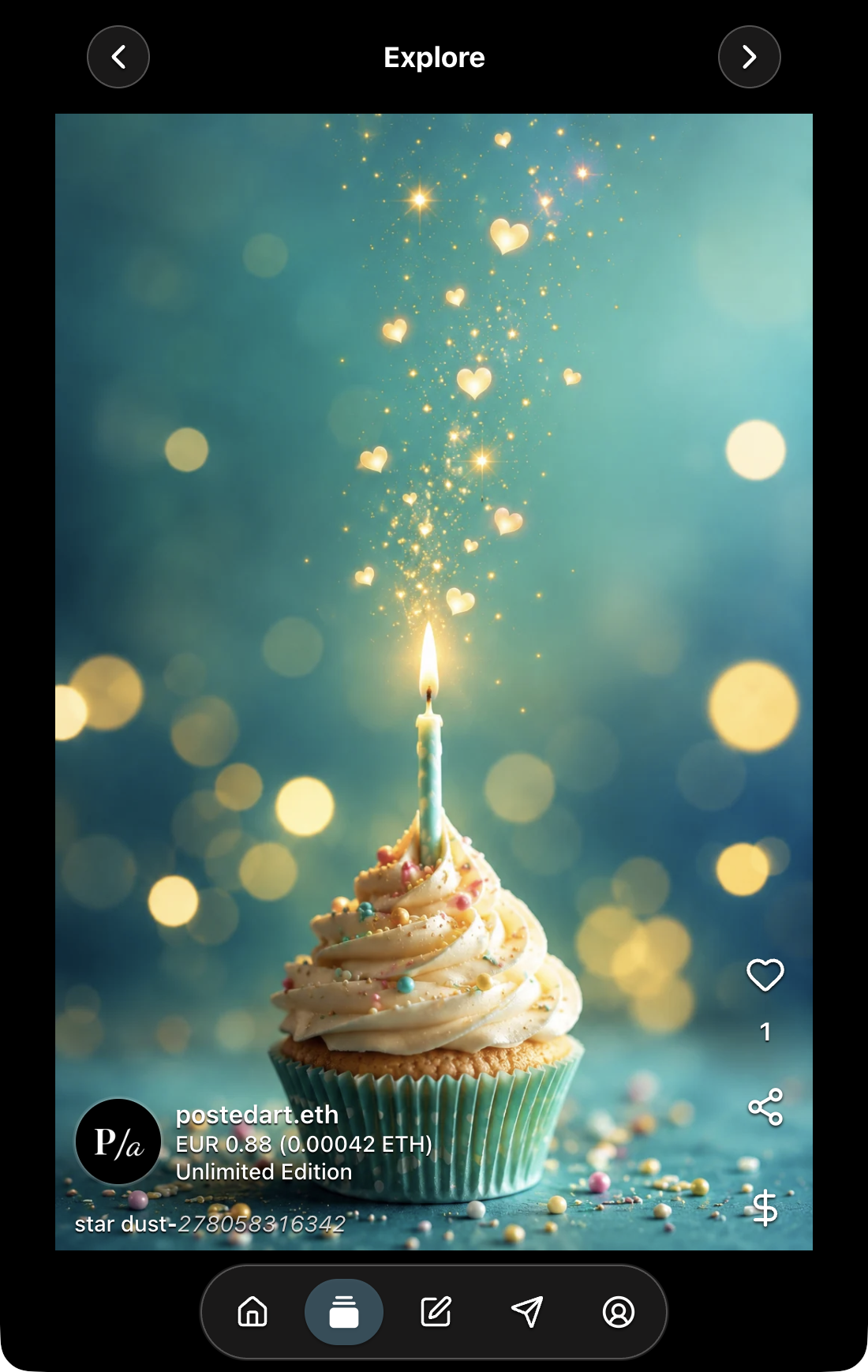
Open the artwork's Card page, headed Explore, then select the dollar-sign purchase icon. This is different from the dollar sign on Share, which is for creating a personal Postcard.
If the artwork purchase icon is missing, check that you are using the web wallet flow with a supported EVM connection. See wallet connection.
Review Confirmation
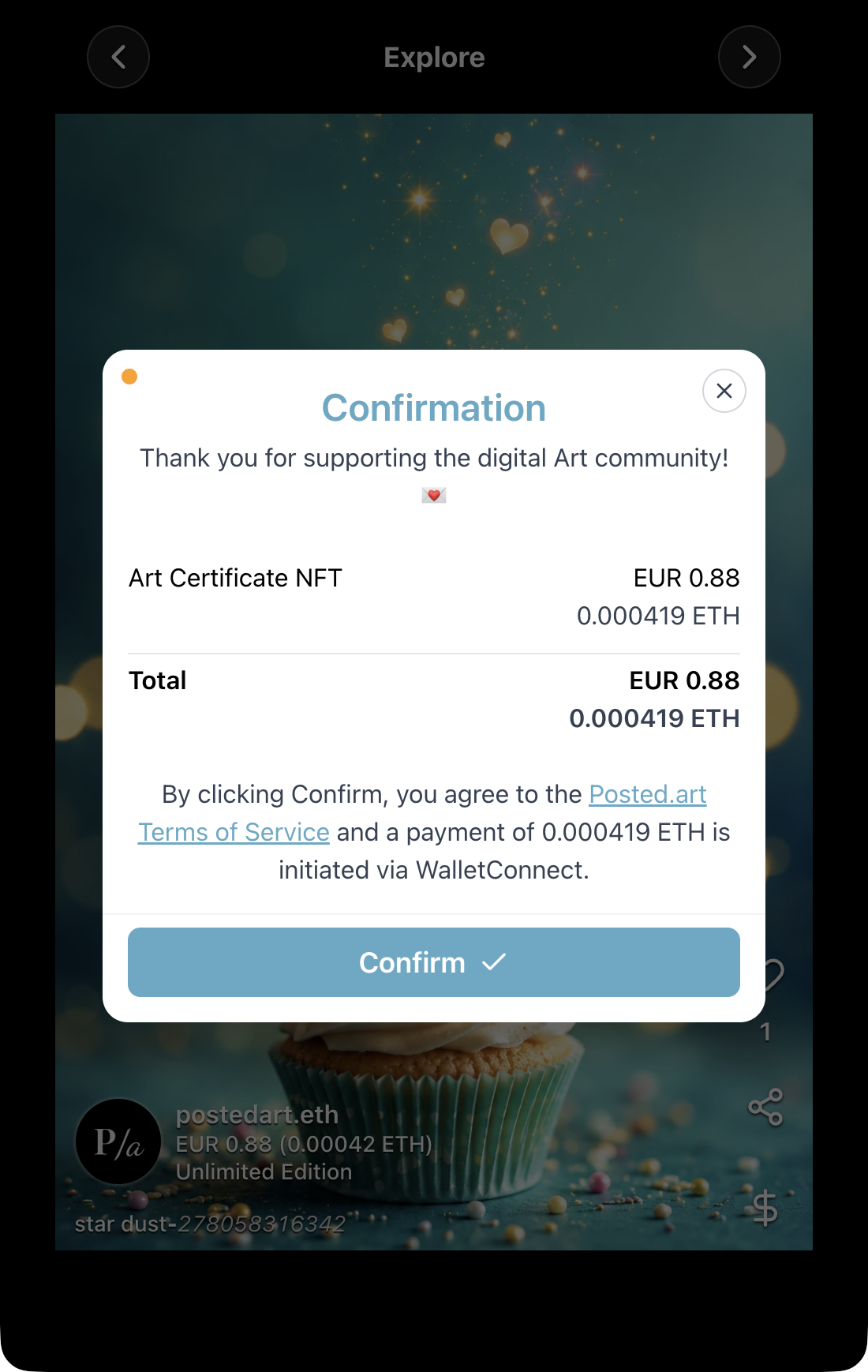
The Confirmation panel shows Art Certificate NFT, the purchase amount in the network's currency, a fiat reference and Total. It also links to the Terms of Service.
Review the current amount rather than treating a screenshot's price as fixed. See the FAQ pricing section for maintained reference prices. The Card summary may show a more rounded amount than the detailed purchase panel. Premium artworks have their own price; see pricing.
Select Confirm to begin preparation and the wallet payment flow. Opening or confirming this panel alone does not mean the wallet transaction has completed.
Review the wallet transaction
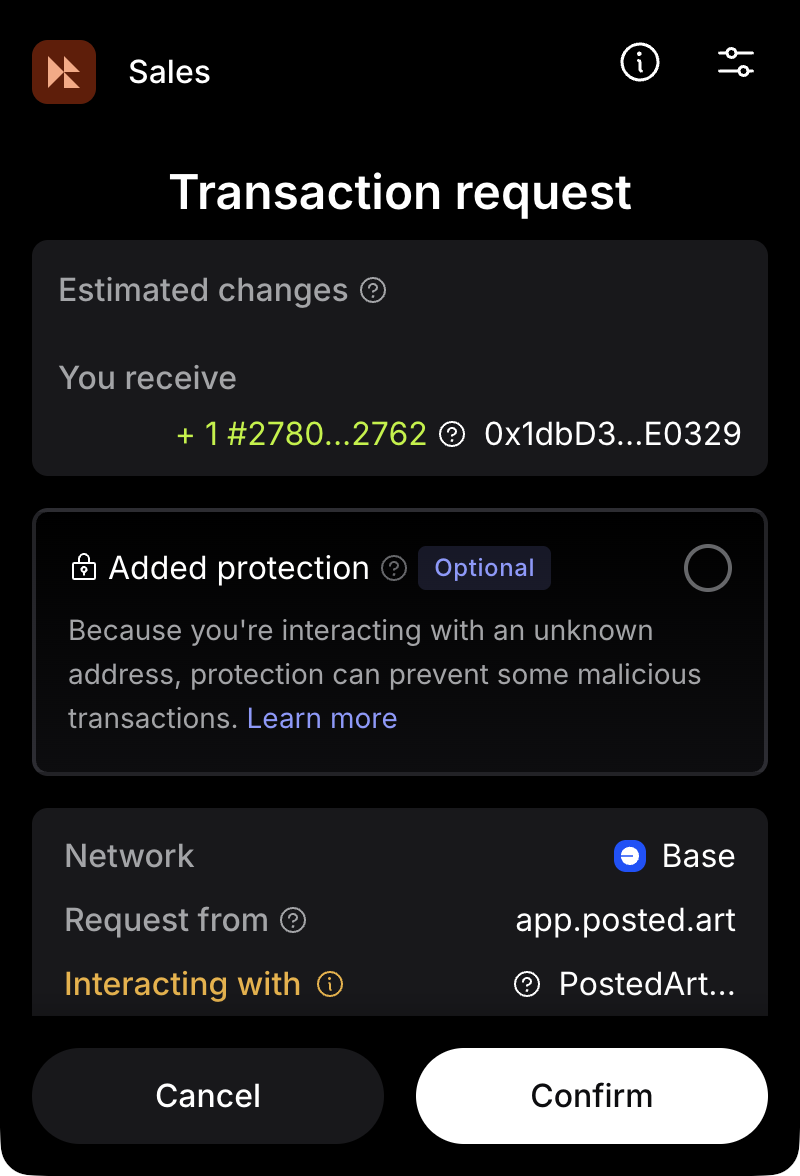
Your wallet opens a separate transaction request. This is a purchase transaction, distinct from the message signature used to sign in.
Check the requesting site, selected network, purchase amount, estimated network fee and expected NFT receipt before deciding whether to confirm. Wallet layouts and transaction estimates vary. A simulation or approval-screen screenshot is not proof of a completed purchase.
View a MetaMask transaction request on Base. This is a wallet-specific example; other wallets and Farcaster approval screens can look different. The screenshot's visible portion does not include the amount and fee rows further down in the wallet request.
After the purchase completes
The result marks Payment approved, Transferring Art Certificate to wallet, and Art Certificate is ready — Get Posted! as Done. It includes two different links:
- View payment receipt opens the purchase transaction on the network's blockchain explorer.
- View Art Certificate in your wallet, just above OK, opens the NFT's contract-and-token page on that explorer. It does not launch a particular wallet app.
The explorer depends on the purchase network: BaseScan for Base, Etherscan for Ethereum, BscScan for BNB Chain, and Arbiscan for Arbitrum.
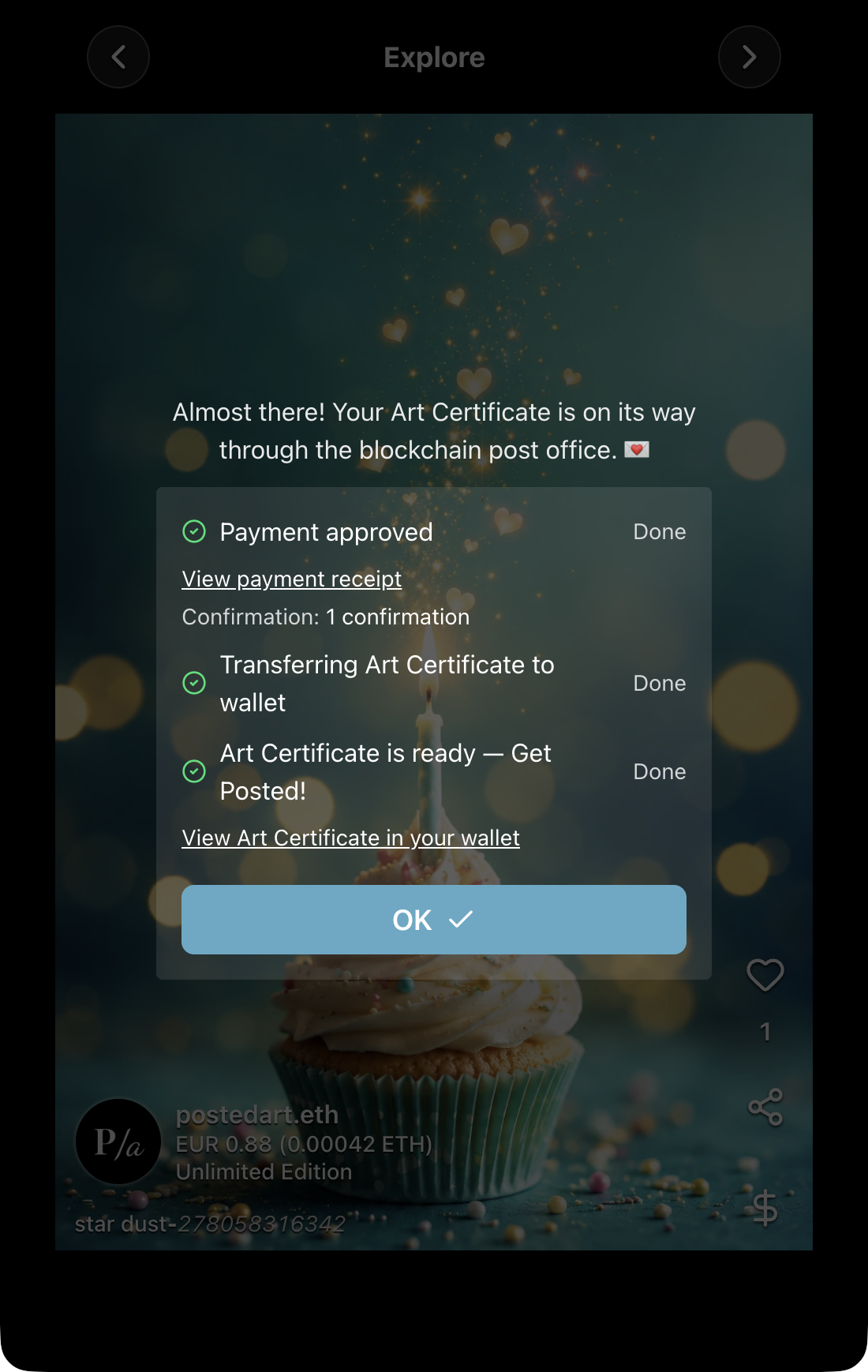
Select OK to return to the artwork's Card page. Then select Account in the bottom navigation to view Your Art Certificate NFTs on the relevant network.
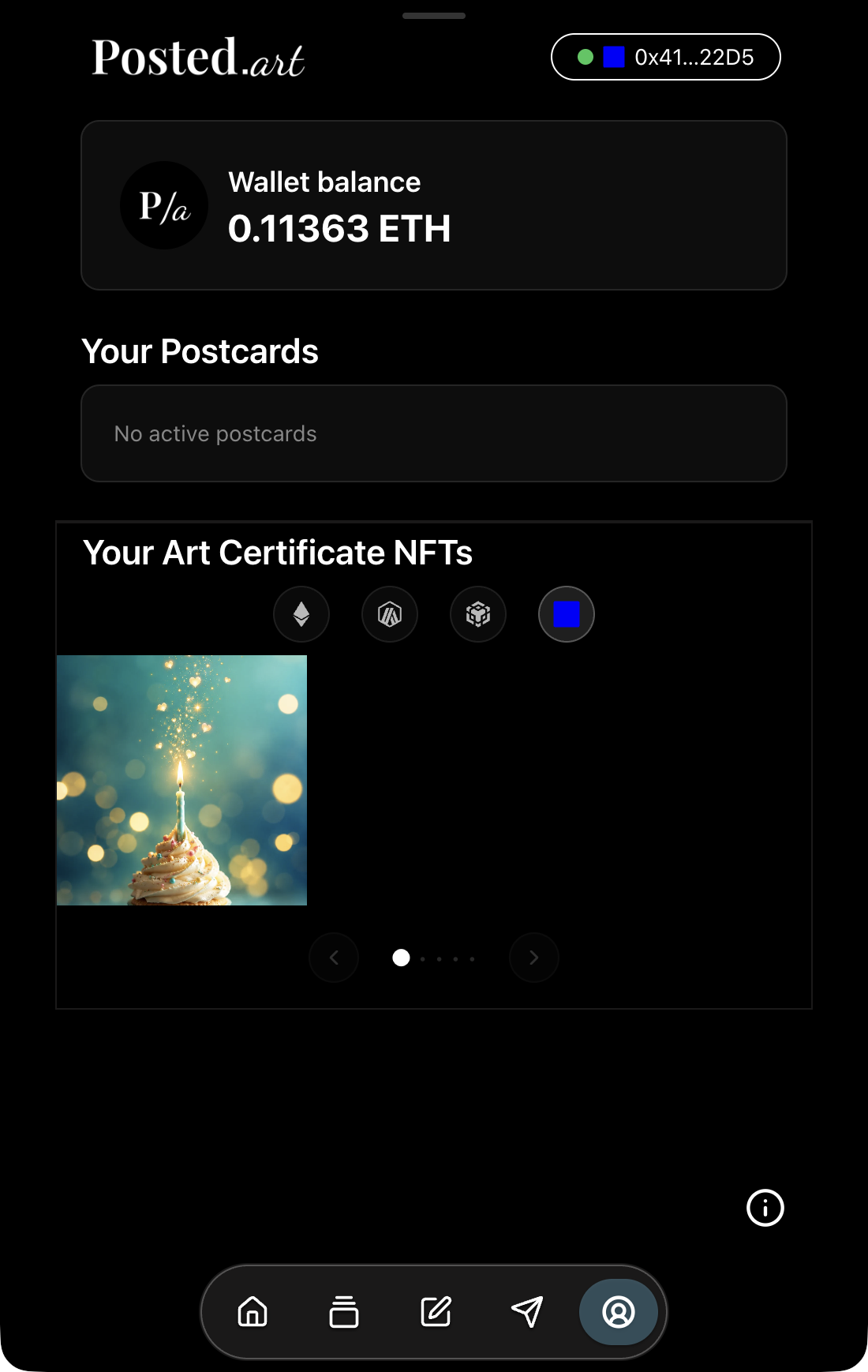
Open an owned Art Certificate
In Account → Your Art Certificate NFTs, select an artwork thumbnail to open its preview.
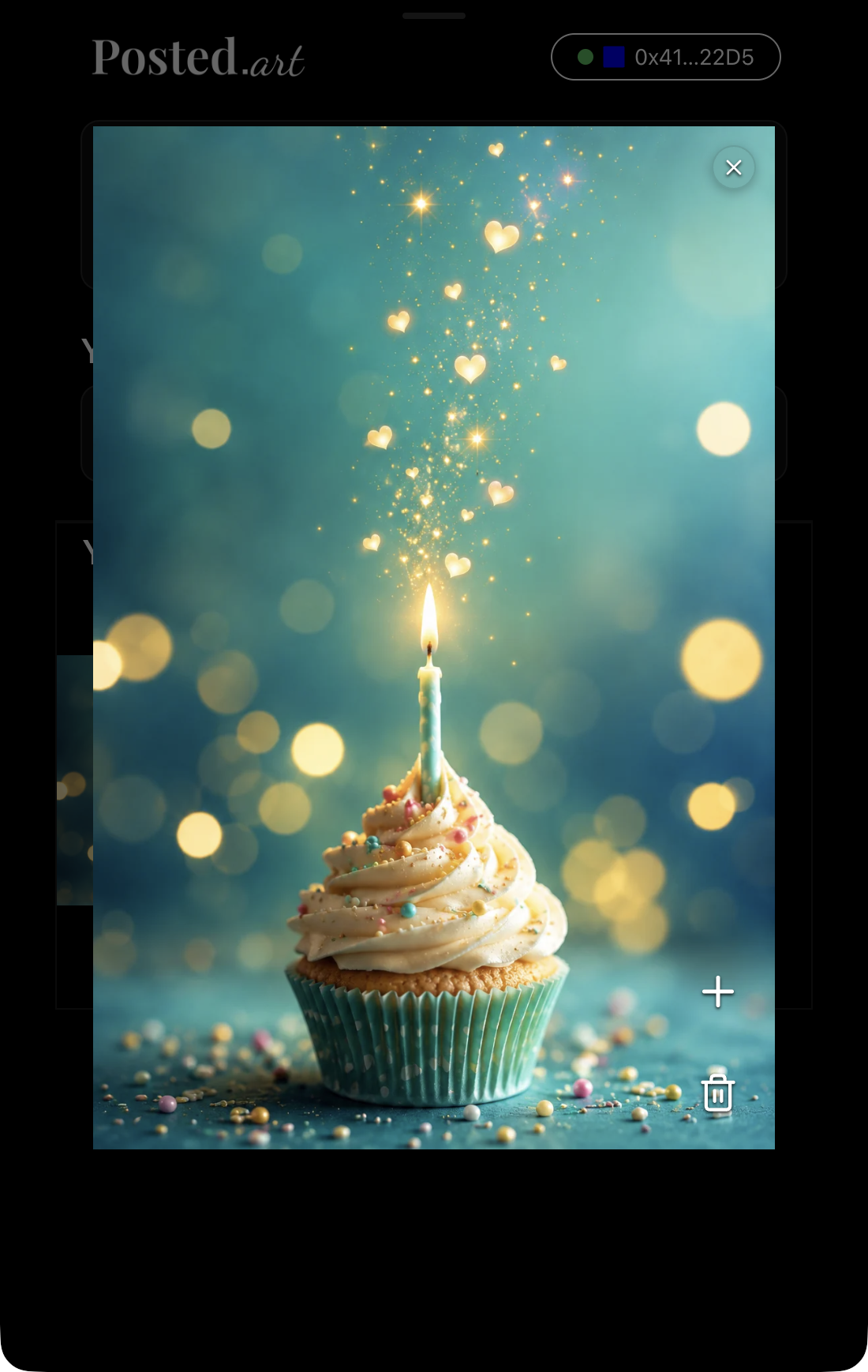
- X: closes the preview.
- Plus / Navigate to card page: opens the matching library artwork in single-artwork mode. From there, continue to Write to create a personal Postcard. This route does not open the full series.
- Bin / Delete NFT: opens a separate burn confirmation when supported by the NFT contract. Completing a burn requires a wallet transaction and destroys the relevant token quantity. It is irreversible, rather than simply hiding a thumbnail or deleting a hosted Postcard.
Unavailable plus or bin controls remain visible but muted, with a ban badge. The plus requires a matching artwork in Posted.art's library. The bin is checked separately for contract burn support; it does not require the artwork to remain in the library. An enabled control does not guarantee that every wallet transaction will succeed.
Why do several copies appear as one tile?
Art Certificates use ERC-1155 quantities. Multiple copies of the same token from the same contract and network appear as one artwork tile. When you own more than one copy, the preview's top-left quantity badge shows how many the connected wallet holds.
For example, ten owned copies appear as one tile with a quantity of ten in the preview. This is your owned quantity, not the edition's total supply or remaining availability. A quantity badge does not imply that bulk purchasing is available. The same token number on a different contract or network is a separate holding.
Why is my Art Certificate image missing?
The collection normally uses an optimized preview from Posted.art's artwork library. If that artwork is unavailable, the app also tries the permanent media referenced by the NFT's metadata. Loading or lookup failures can leave a placeholder or media error.
The thumbnail is separate from your blockchain holding. A missing image alone does not mean the NFT is gone. Use the NFT and transaction explorer links to check the relevant record. Artwork rendering on an explorer depends on its metadata and media support.
A video shows a play placeholder
Video poster thumbnails come from Posted.art's library; these separate poster images are not stored on Arweave. If the library poster is unavailable, the collection can show a play placeholder even when the permanent video remains available.
Select the video item to open its viewer inside Posted.art. It tries the available library video, with the permanent video referenced by the NFT metadata as a fallback. Loading that video does not recreate its grid poster. Playback still requires the media file to load successfully.
What does the small coloured dot mean?
The dot in the purchase confirmation is an optional storage-status indicator, not a button or proof of ownership:
- Orange: a complete stored Arweave artwork-and-metadata record is not yet available for the artwork.
- Green: the artwork and metadata are already stored on Arweave and can be reused for another purchase.
The same stored media and metadata can be reused across supported EVM networks. Arweave stores those files; the Art Certificate token is minted on the selected EVM network. The dot does not indicate that payment completed or that your wallet owns the token.
Screenshot applicability
The purchase and collection images show the EVM web interface, with Base used as the example. Reuse them for matching supported EVM steps, including within Farcaster, while identifying the example network where relevant. Use text instead of substituting MetaMask's approval screen for another wallet's actual prompt.
Do not use these images to suggest that Art Certificates are available in native Posted.art apps, Telegram or Solana. Common artwork browsing, Write and Share controls use the shared images listed in screenshot guidance.