
Screenshot Reference
Use this reference to choose an existing screenshot that matches the user's client, task and current state. The customer guides also link to their relevant images.
Help sections
| Group | Sections |
|---|---|
| Postcards — create and send | How to create and send a Postcard · Home, Search & Series · Card: View Artwork · Favorites · Write & Personalize · Preview & Share · Schedule for Later |
| Create & Earn — contribute artwork | Submit artwork with Create & Earn |
| Art Certificates — collect artwork | Buy & View Art Certificates |
| Accounts & Connections | Your Account · Connect a Wallet · Telegram · Solana · Farcaster |
| Pricing | Pricing & Hosting |
| Support | Troubleshooting |
Select the matching image
- Identify the client: iOS, Android, web/PWA, Telegram or Farcaster. Ask if that distinction changes the instructions and the client is unclear.
- Match the task and state: connected/disconnected, subscribed/unsubscribed, editing/created, and audio or gift present/absent.
- Use shared- images for matching common Home, Card, Write and Share controls across all five clients. The original capture device does not restrict this reuse.
- Use client-specific images for Account, authentication, Settings, billing, scheduling and wallet approval. Do not present another client's system prompt as the user's own screen.
- When no matching image exists, explain the step in text. An unrelated screenshot can be more confusing than no screenshot.
The focused text-editor image shows active editing, rather than every client's initial Write state or keyboard. A saved audio clip differs from the initial trimming view. The finished gift panel is read-only, unlike its upload panel. Shared screenshots do not imply that every attachment or feature is present for every user.
Current prices and networks
Use FAQ — current prices and the current checkout/store confirmation for amounts. Screenshot prices and Stars totals are examples, not authoritative current offers.
Use FAQ — supported networks for current support. A network list in an image is not a permanently complete list. Distinguish personal Postcard payments from Art Certificate/Create & Earn support, and check the network actually connected rather than inferring it from the wallet brand or host app.
Route by task and client
A request to create, make or send a Postcard belongs to the personal Postcard flow. Use the complete beginner walkthrough. The heart-plus Upload control belongs to artist contributions through Create & Earn, not to creating a personal Postcard.
| Task | Matching guide and images |
|---|---|
| Home, search, filters, series | Shared Home images for all five clients. |
| Normal Card view, likes | Shared Card images. Use the EVM Card image only when its NFT controls apply. |
| Text, stickers, music, gifts | Shared Write images, matching the editing state. |
| Share preview, QR/link, finished controls | Shared Share images, matching creation and attachment state. |
| Account, sign-in, Settings | Client-specific Account images. |
| Native scheduling and subscriptions | Scheduling and native pricing. Platform-specific system UI must match iOS or Android. |
| Telegram Stars | Telegram checkout, rather than wallet or store payment images. |
| Wallet Postcard checkout and receipts | Wallet payment steps, distinct from NFT purchase. |
| Art Certificate purchase and collection | EVM Art Certificate flow. Its success screen has both transaction and NFT explorer links. |
| Contribution | Create & Earn, only where the supported EVM feature applies. |
Client-specific limits on image reuse
- iOS and Android: Account, sign-in, Settings and billing use their own images. No iOS subscription-offer image is available; use text rather than the Android offer. iOS scheduling illustrations are not Android system-picker screenshots.
- Web EVM: use wallet Account, contribution, NFT and paid-wallet examples for matching supported EVM states. The MetaMask prompts are desktop MetaMask examples, not universal wallet or Farcaster prompts.
- Solana: use matching shared browsing/editor/result images. A connected Solana Account, SOL checkout and approval screenshot are unavailable. Do not substitute EVM NFT collections, ETH/BNB amounts or Telegram identity/Stars screens. See Solana.
- Telegram: use its connected header and Stars checkout images. Do not use native Settings/scheduling or EVM Art Certificate screens. See Telegram.
- Farcaster: use shared controls and the wallet-interface examples appropriate to the active network. Its approval UI can differ from MetaMask's extension. See Farcaster.
The free-confirmation image below applies to eligible EVM, Solana and Telegram web-app flows. It is not a paid Stars or wallet checkout, or a native send/schedule panel. Free completion can say Payment Confirmed without a wallet charge and has no wallet receipt link. Paid Postcard success includes a transaction receipt; NFT success also includes an NFT-view link.
Shared interface images
These images illustrate matching common controls across iOS, Android, web/PWA, Telegram and Farcaster. Check the state before selecting one.

Card with artwork details and fiat price 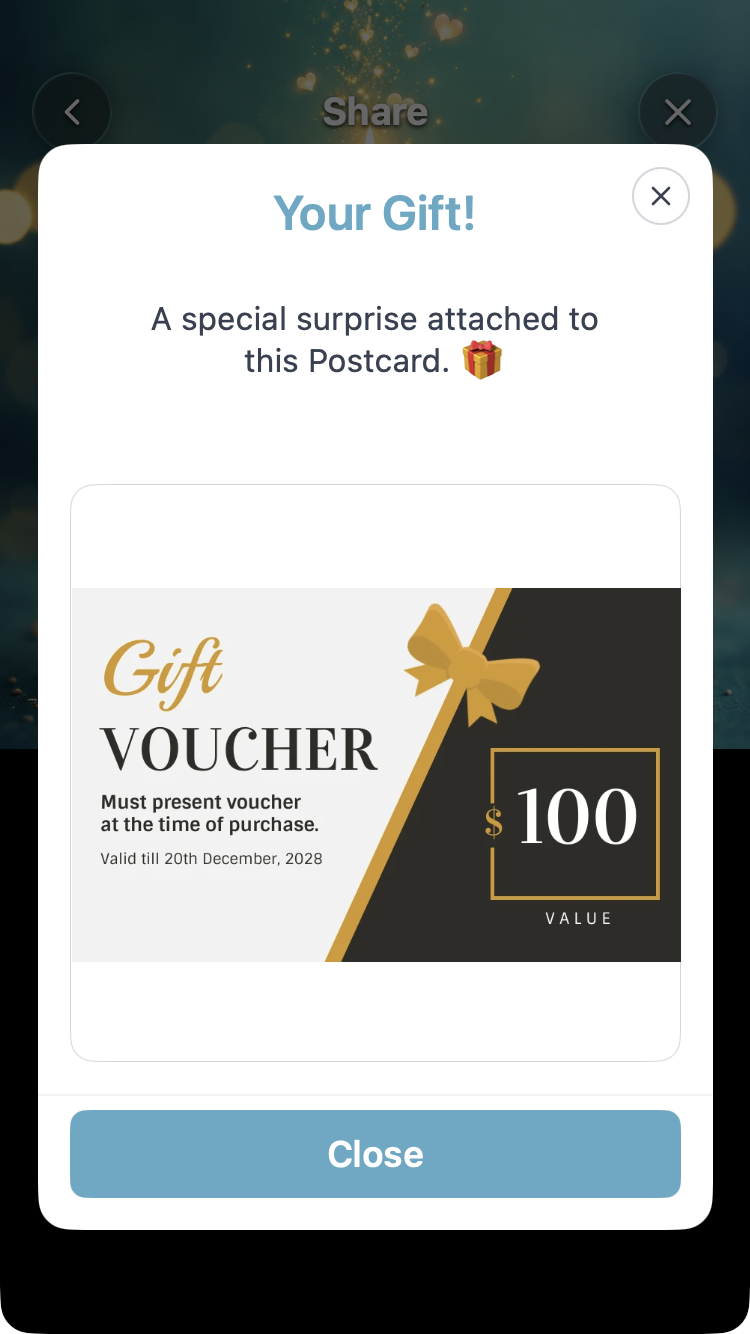
Created Postcard — read-only gift 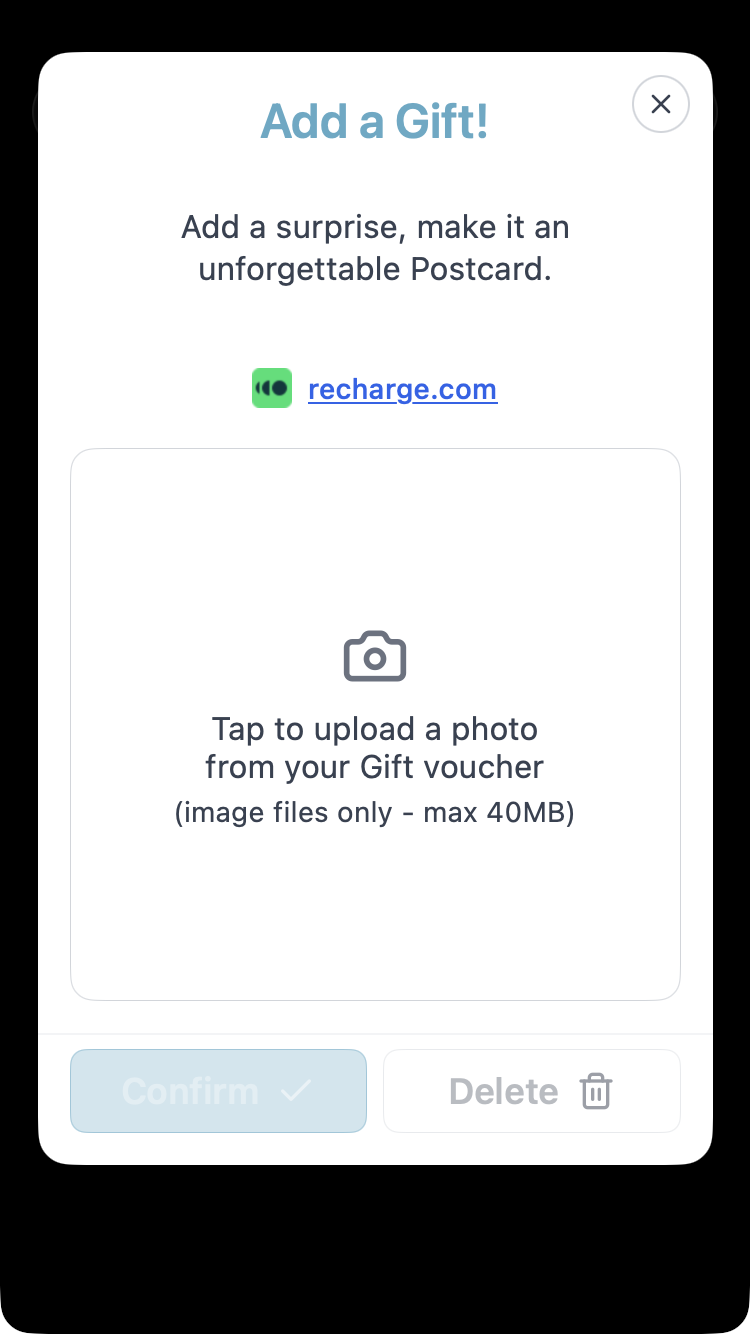
Gift upload panel 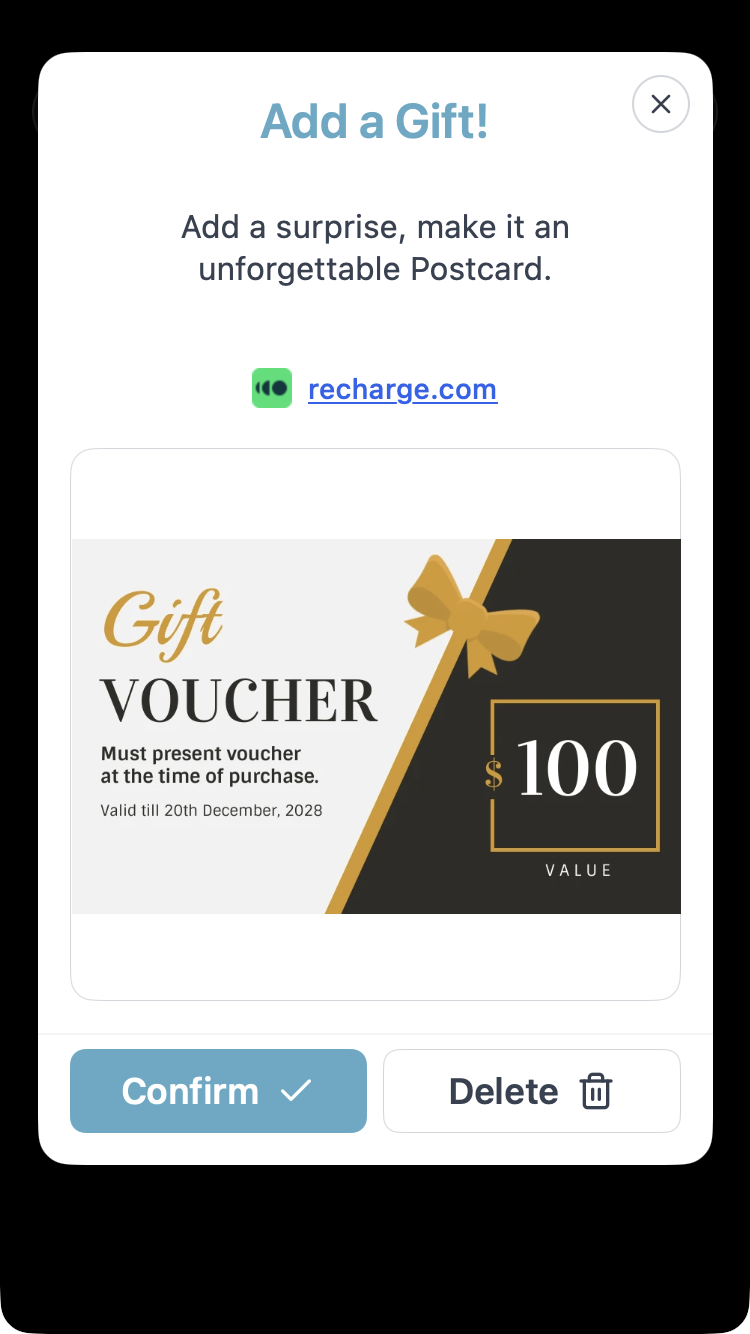
Gift voucher preview 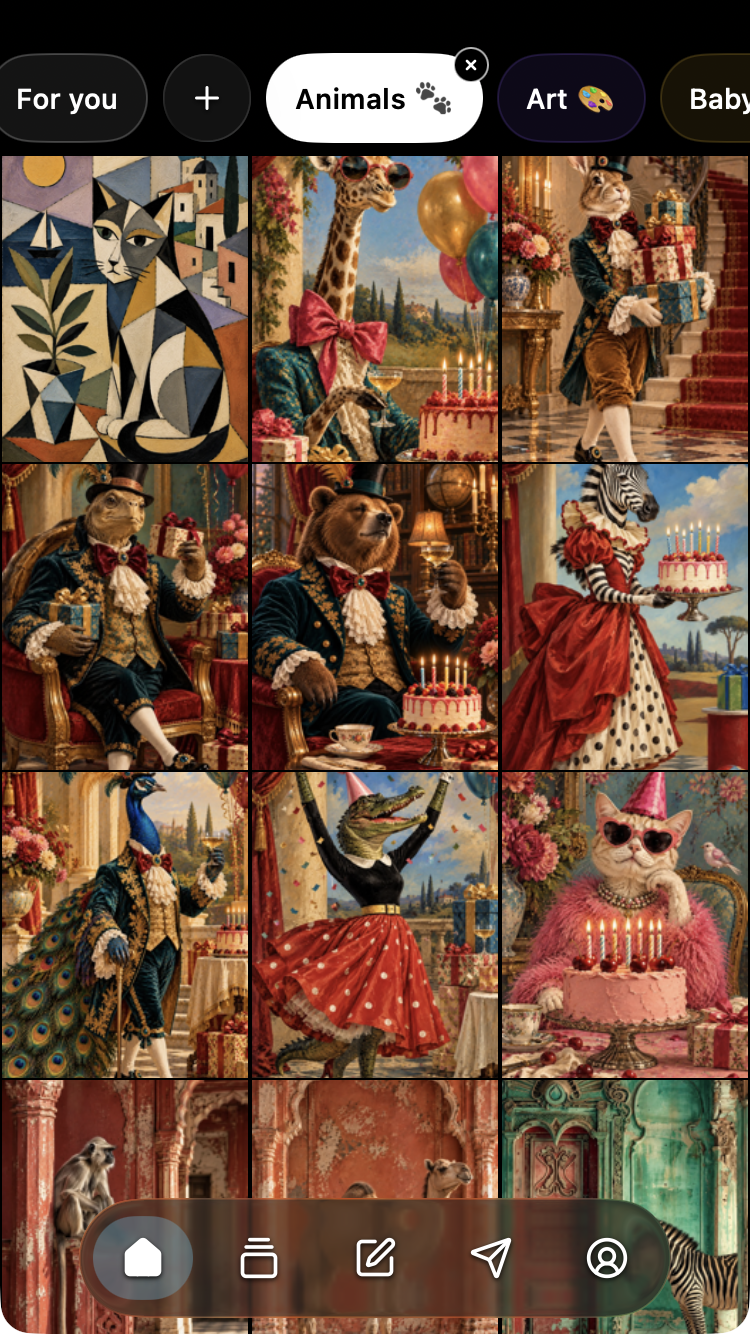
Home animals filter 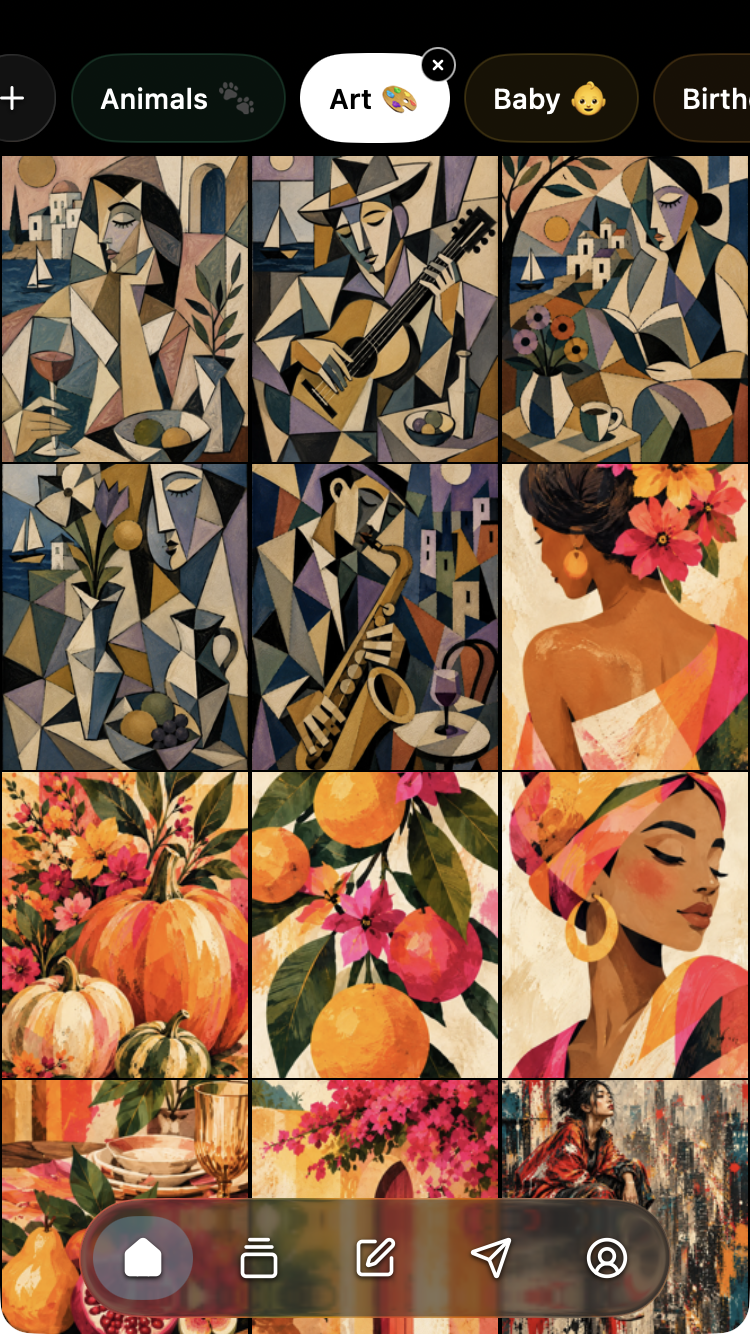
Home art results 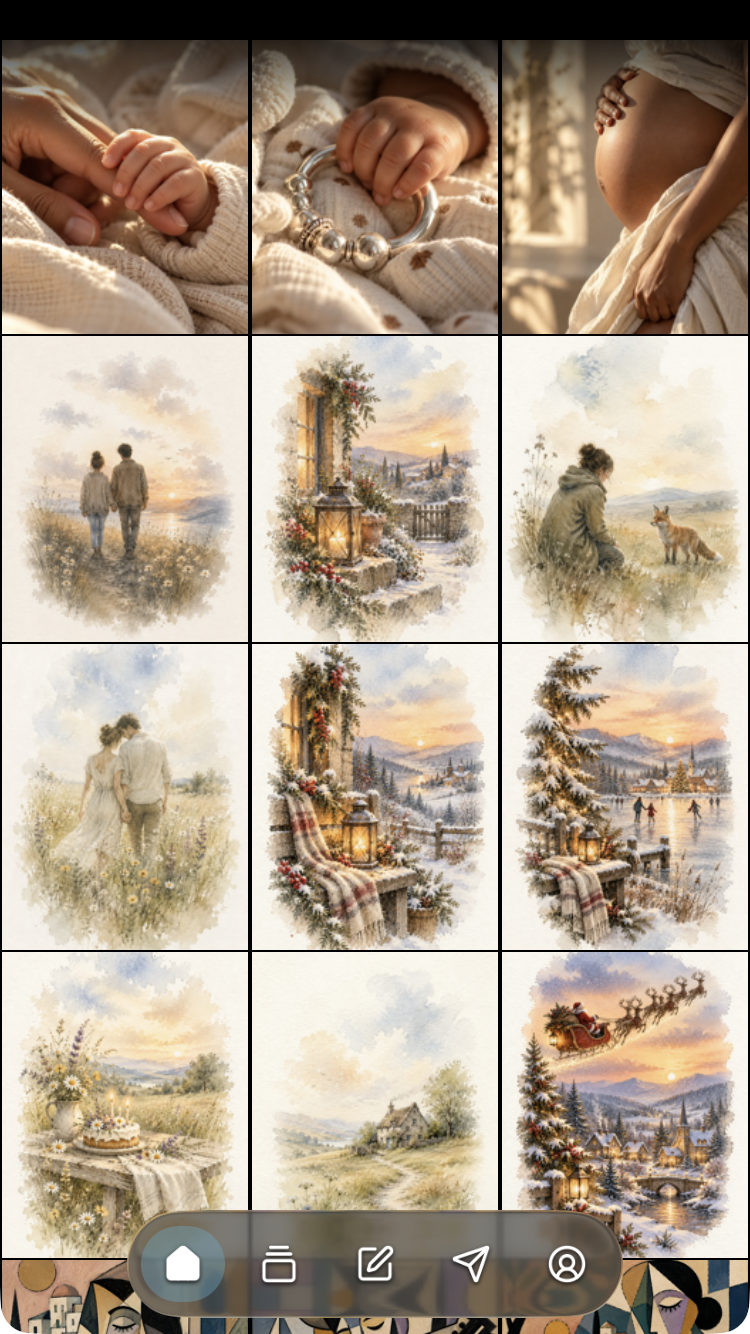
Home compact 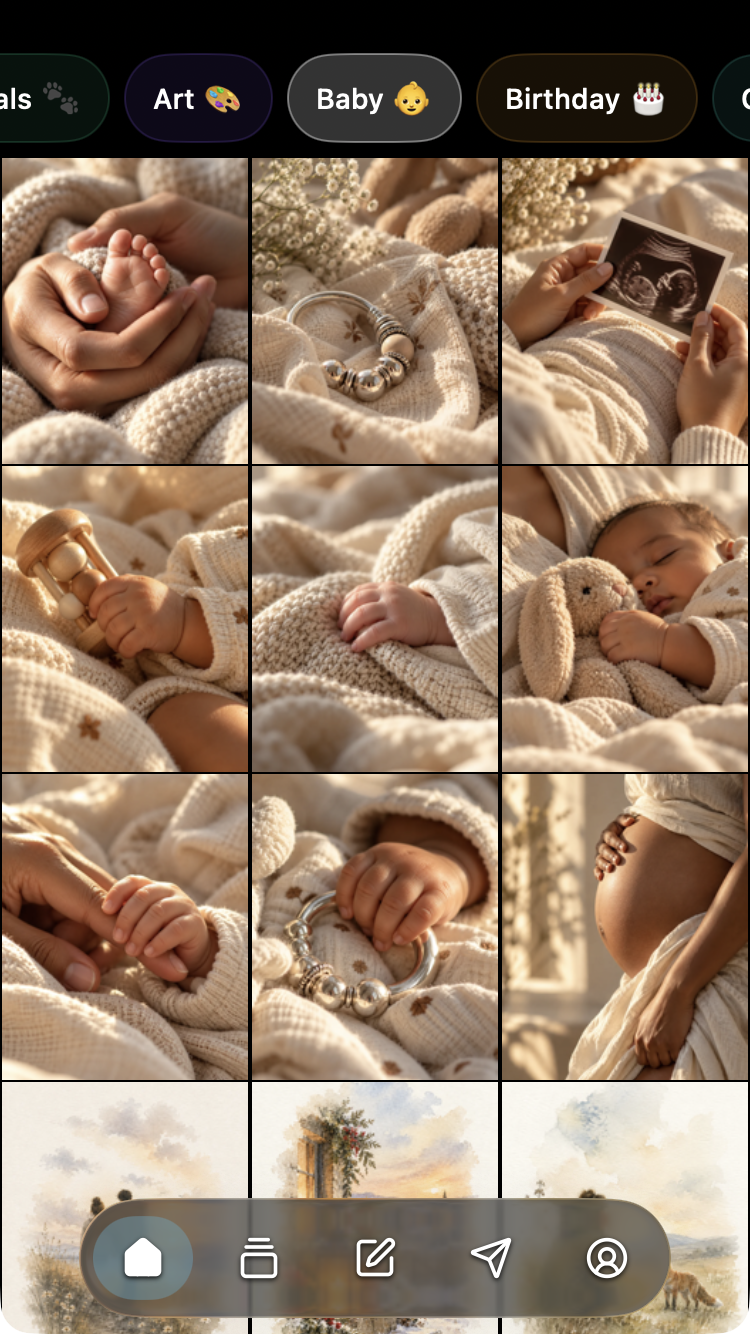
Home controls visible 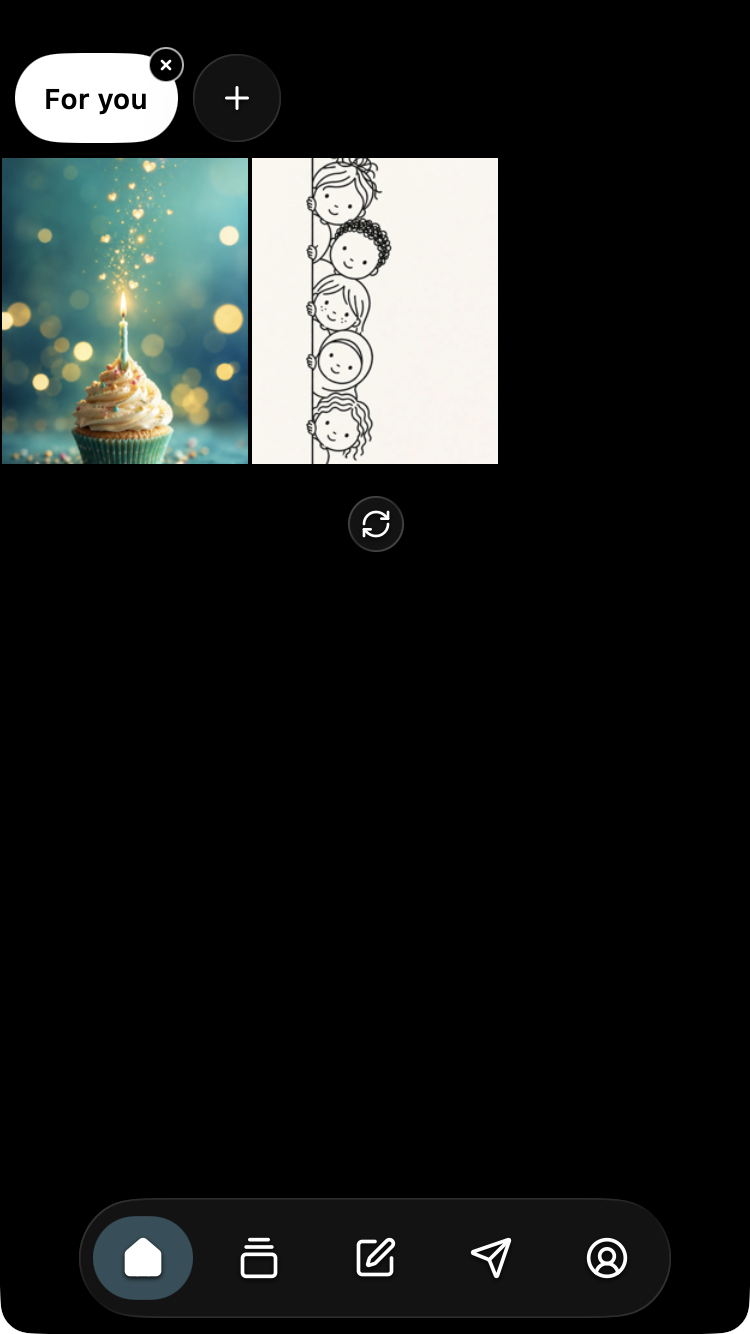
Home favorites results 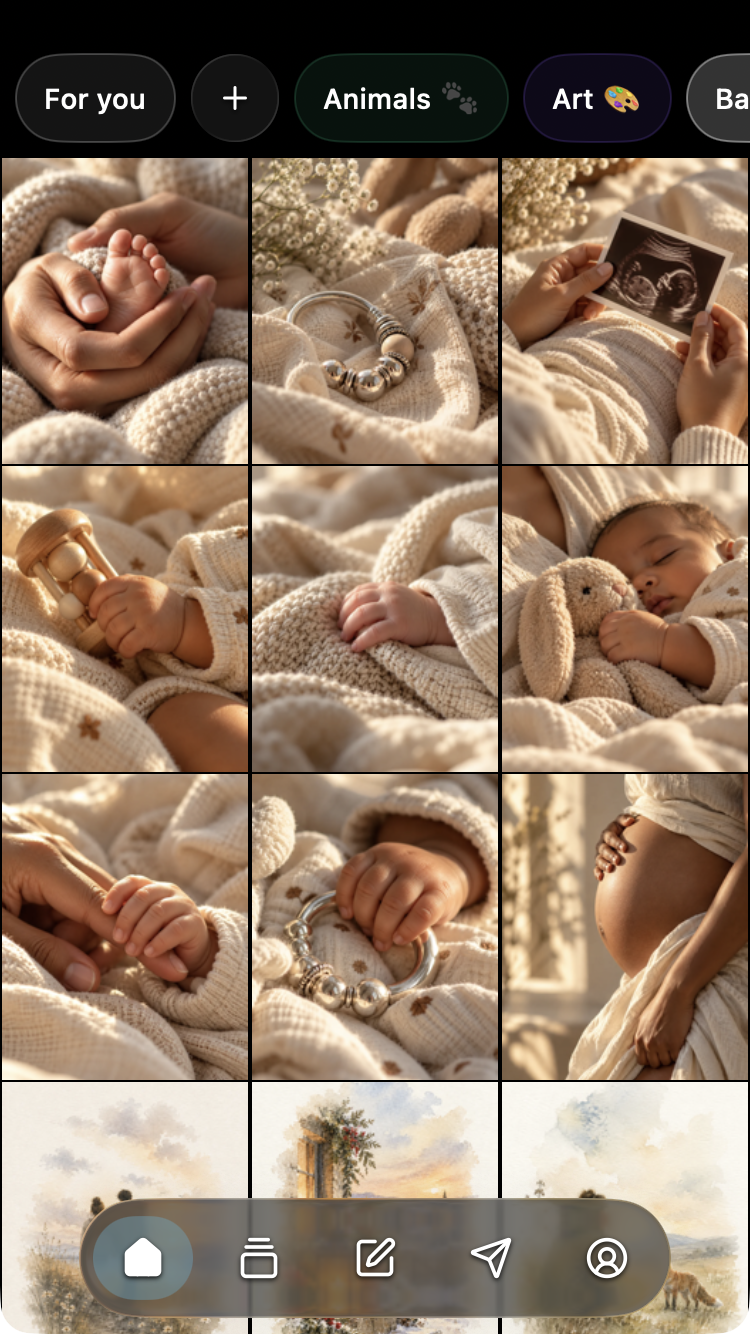
Home for you search 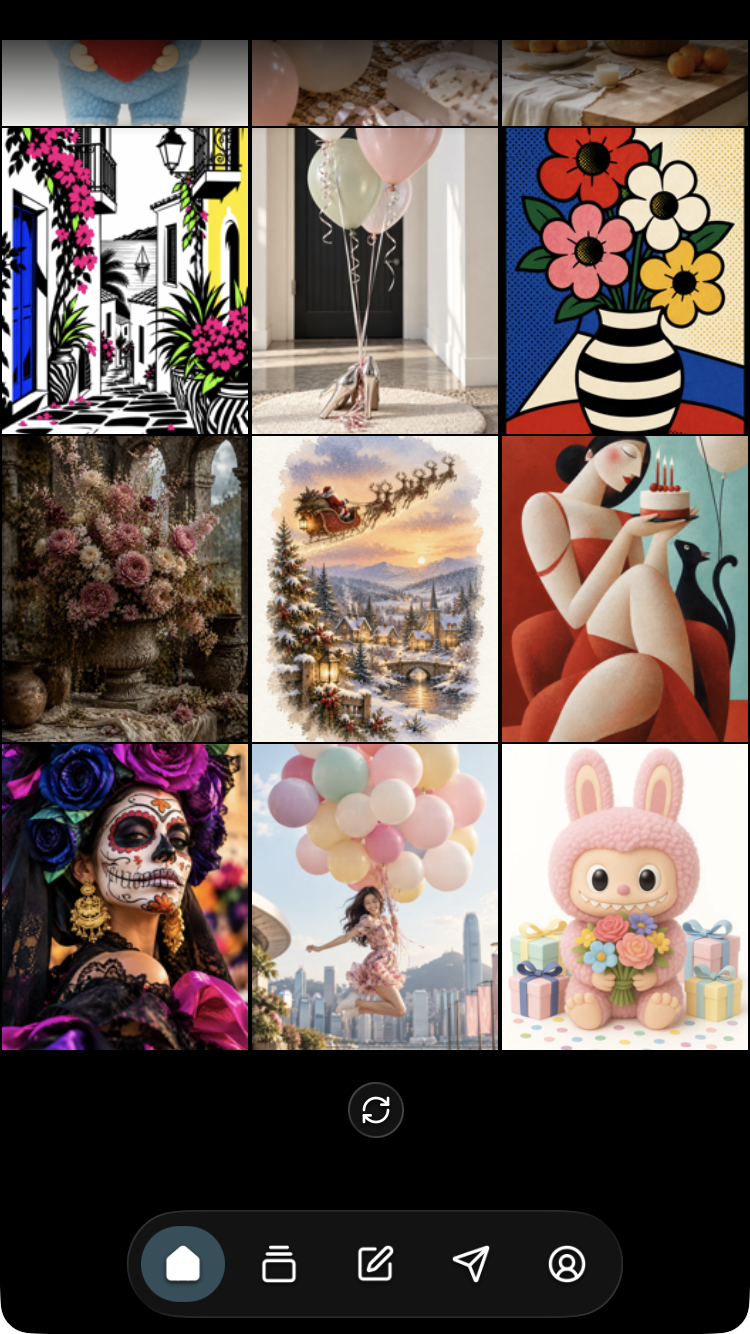
Home refresh 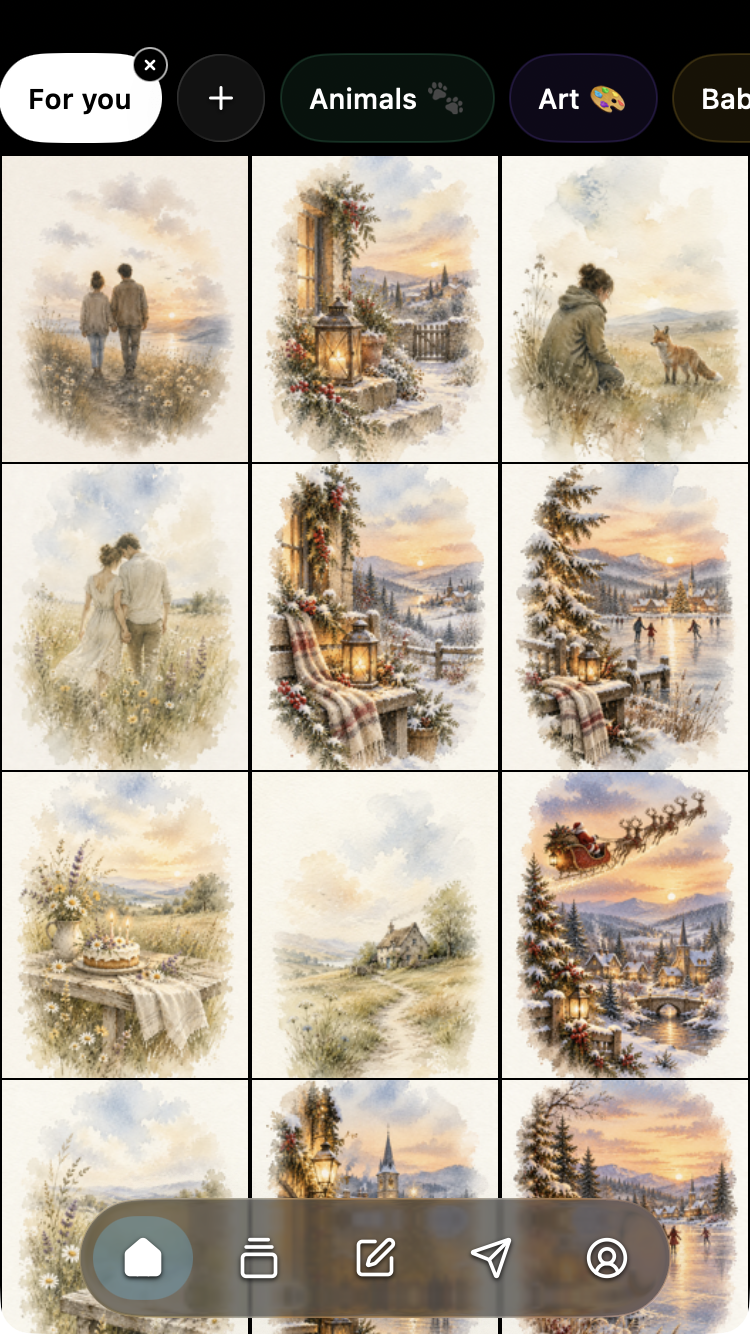
Home tender tales results 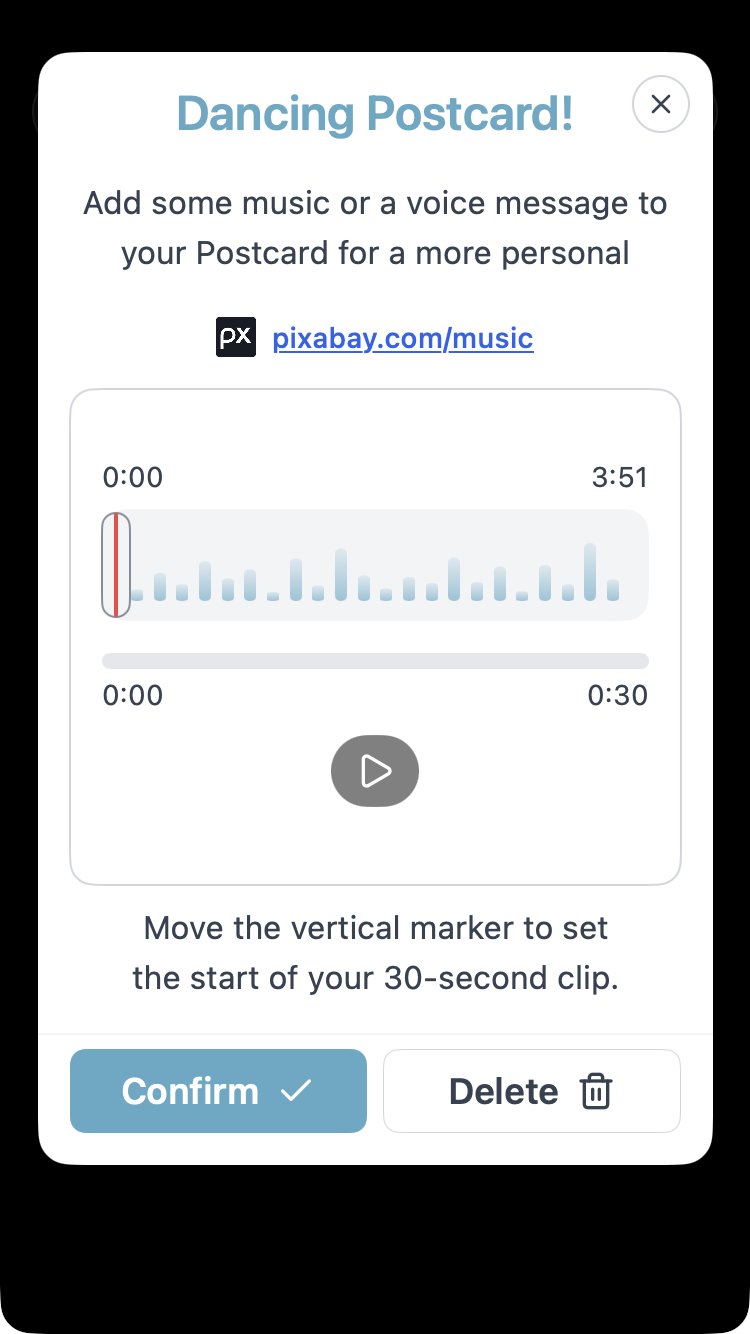
Music clip default 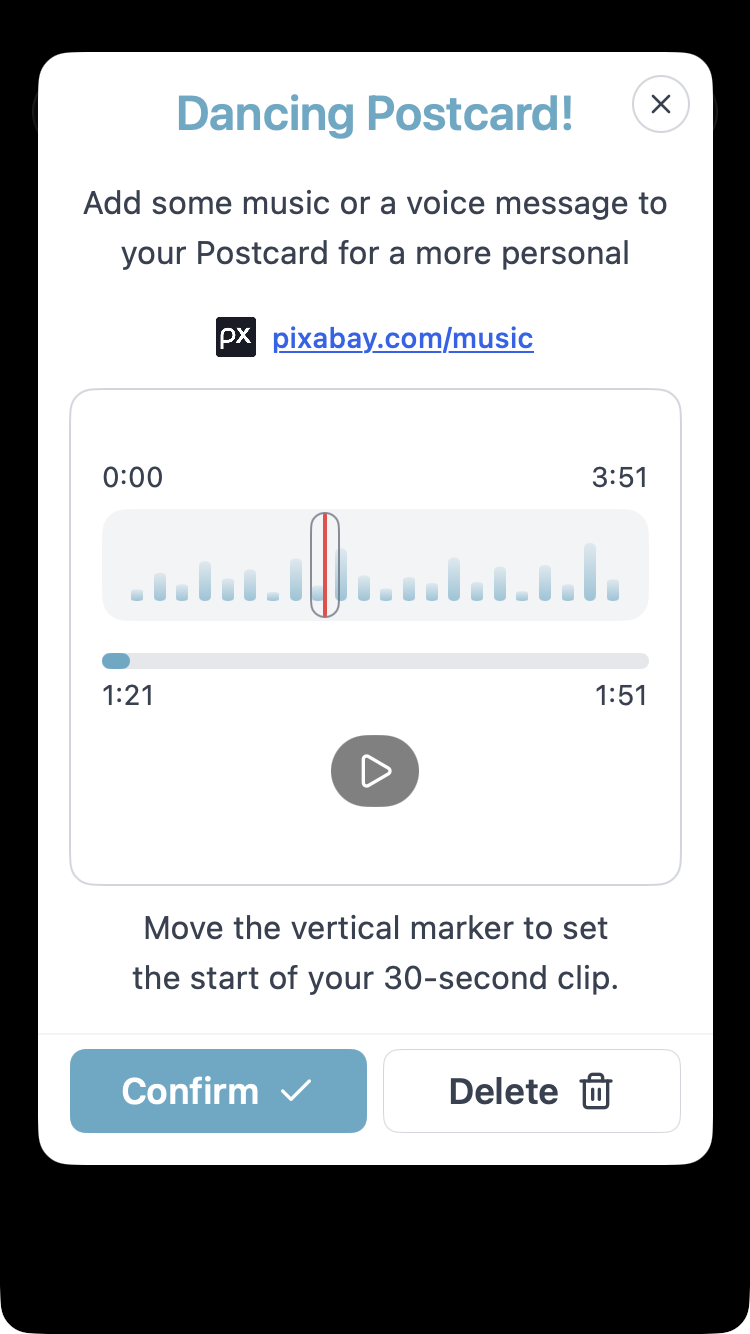
Music clip selected start 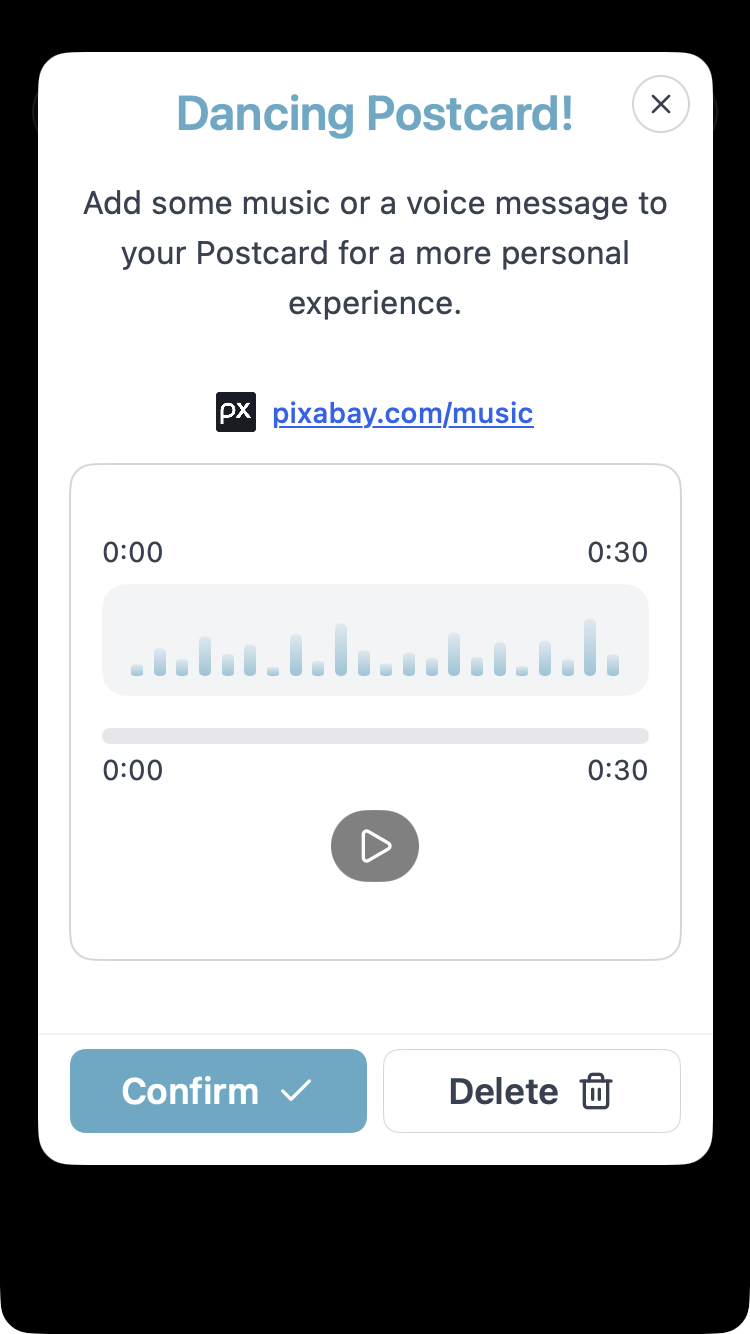
Music — saved clip, not original-song trimming 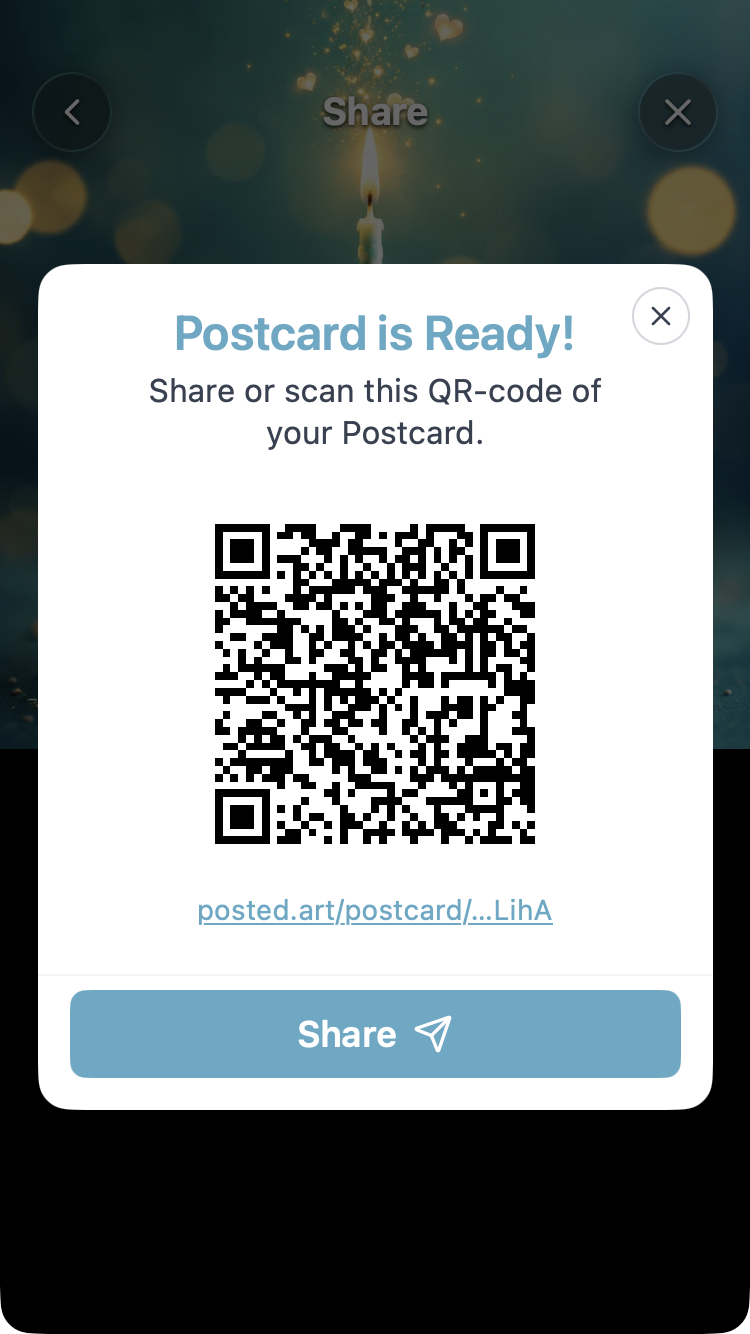
Finished Postcard — QR code, link and Share 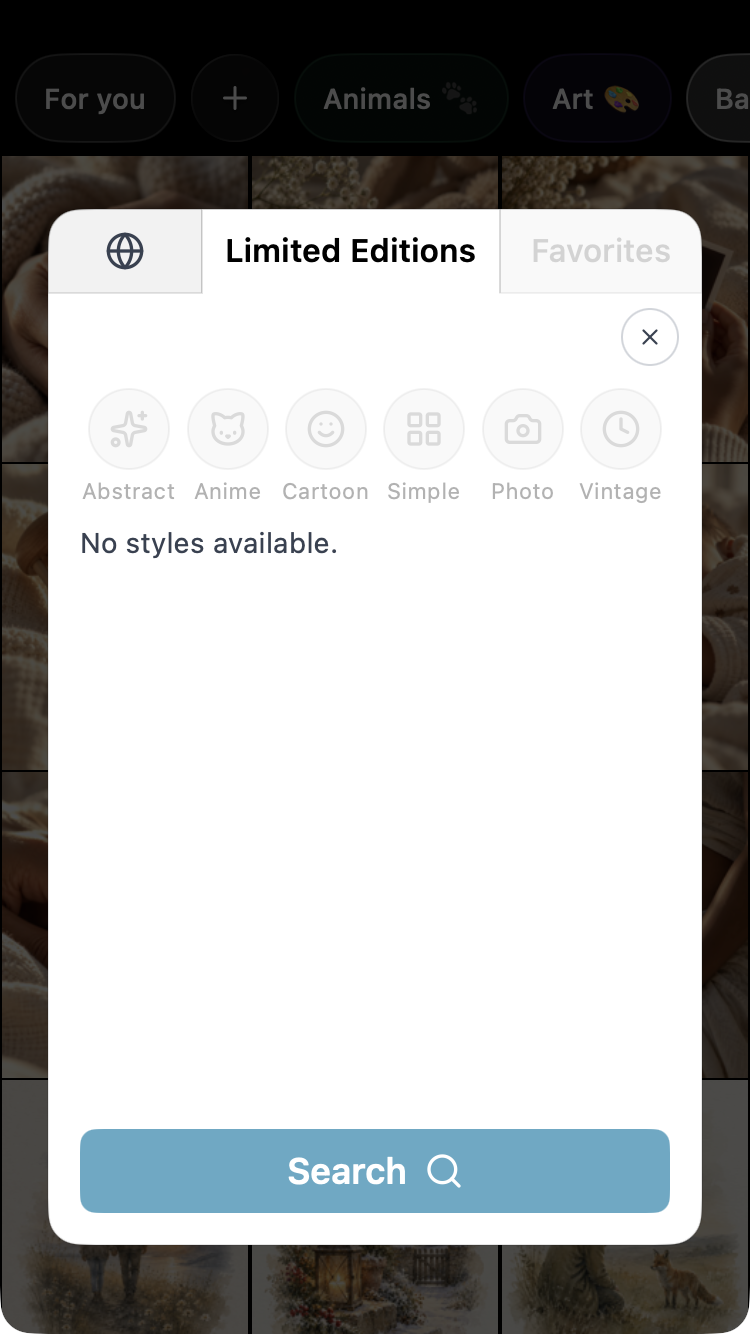
Search limited no styles 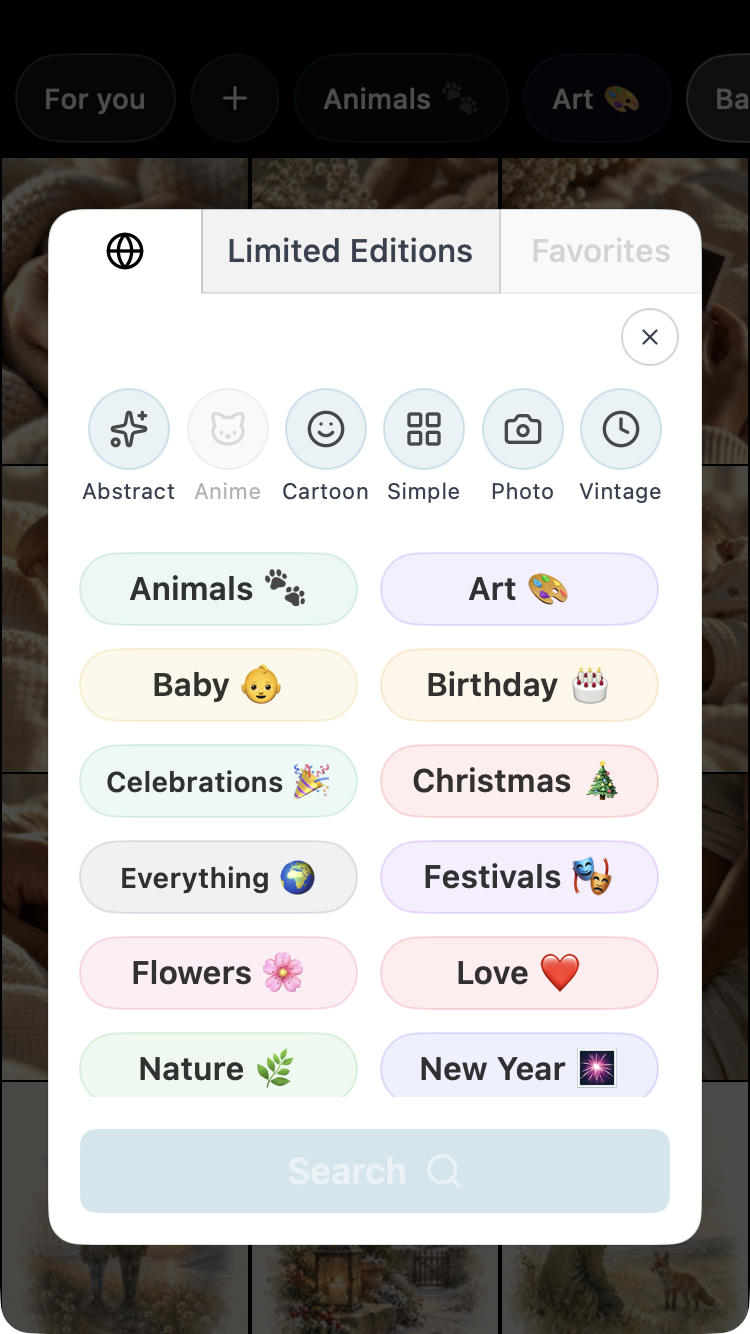
Search overview 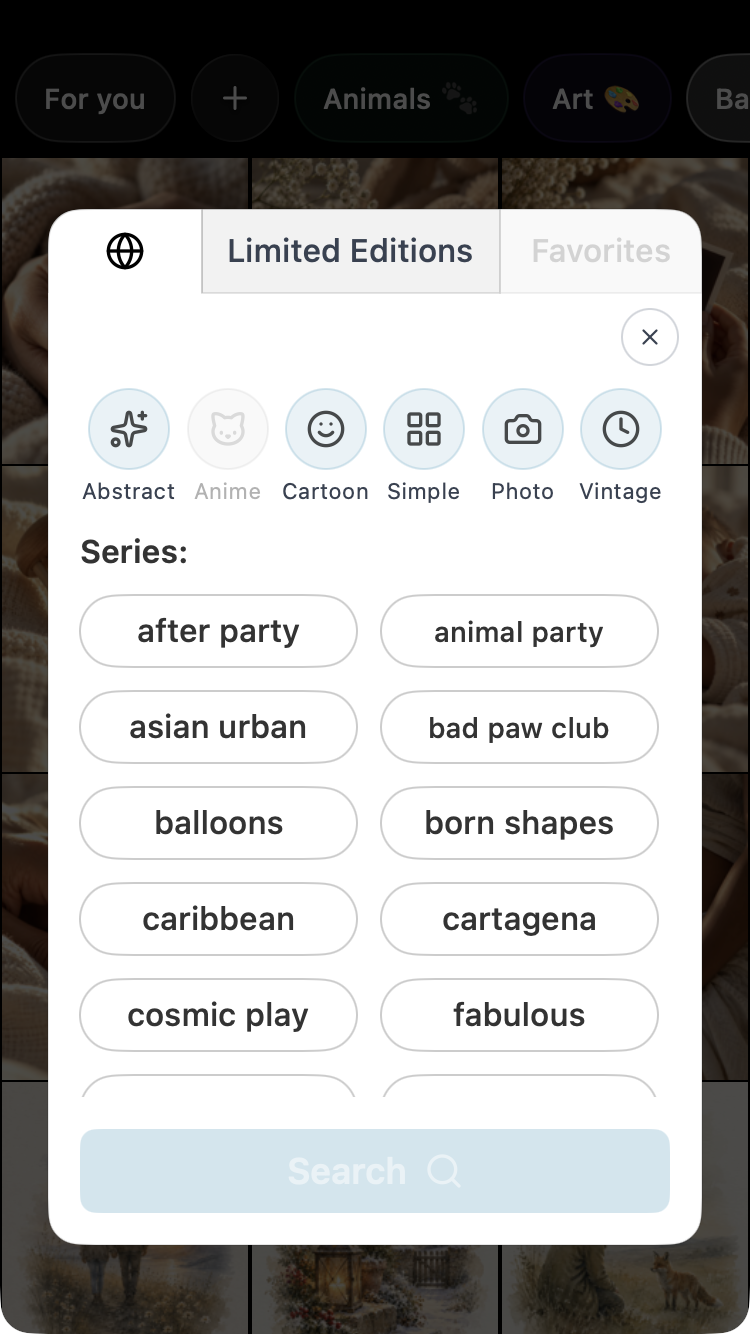
Search series 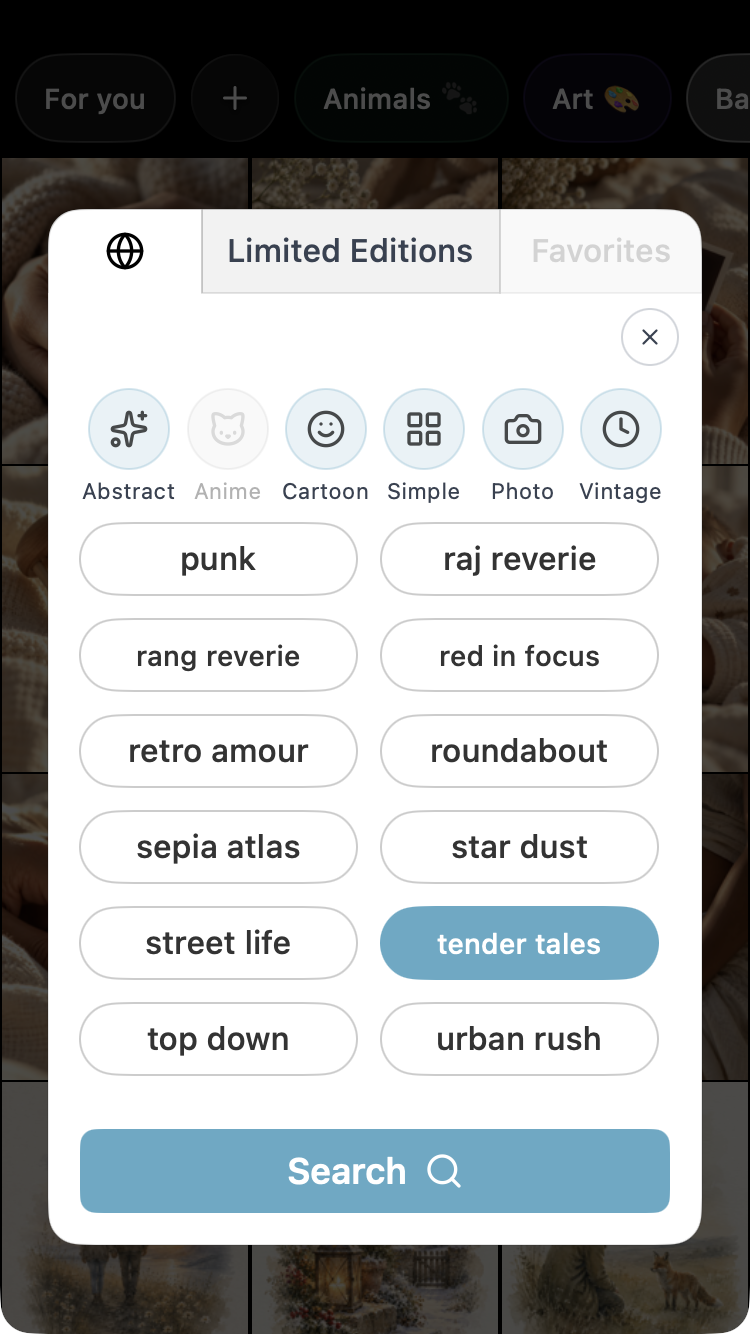
Search tender tales selected 
Share preparation — gift absent, plus badge 
Finished Share — sharing and QR controls 
Share preparation — music and gift attached 
Star dust liked 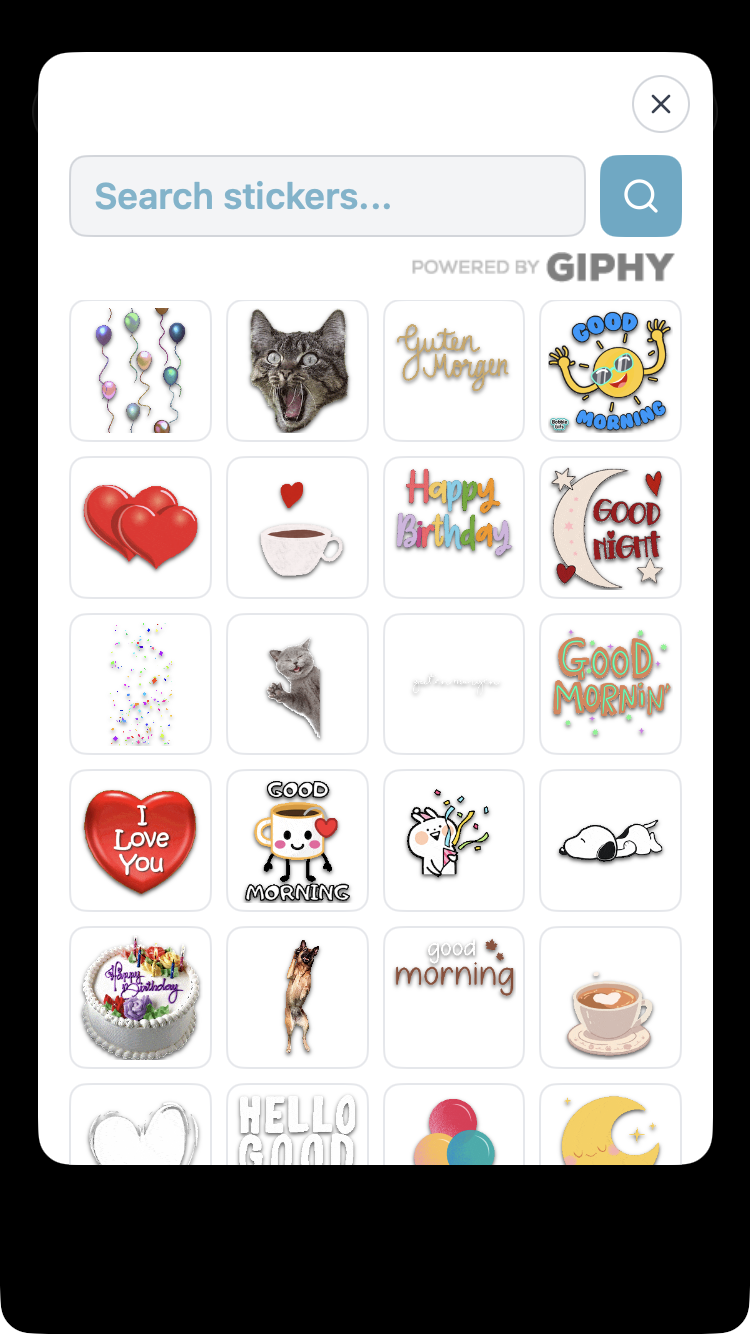
Stickers giphy panel 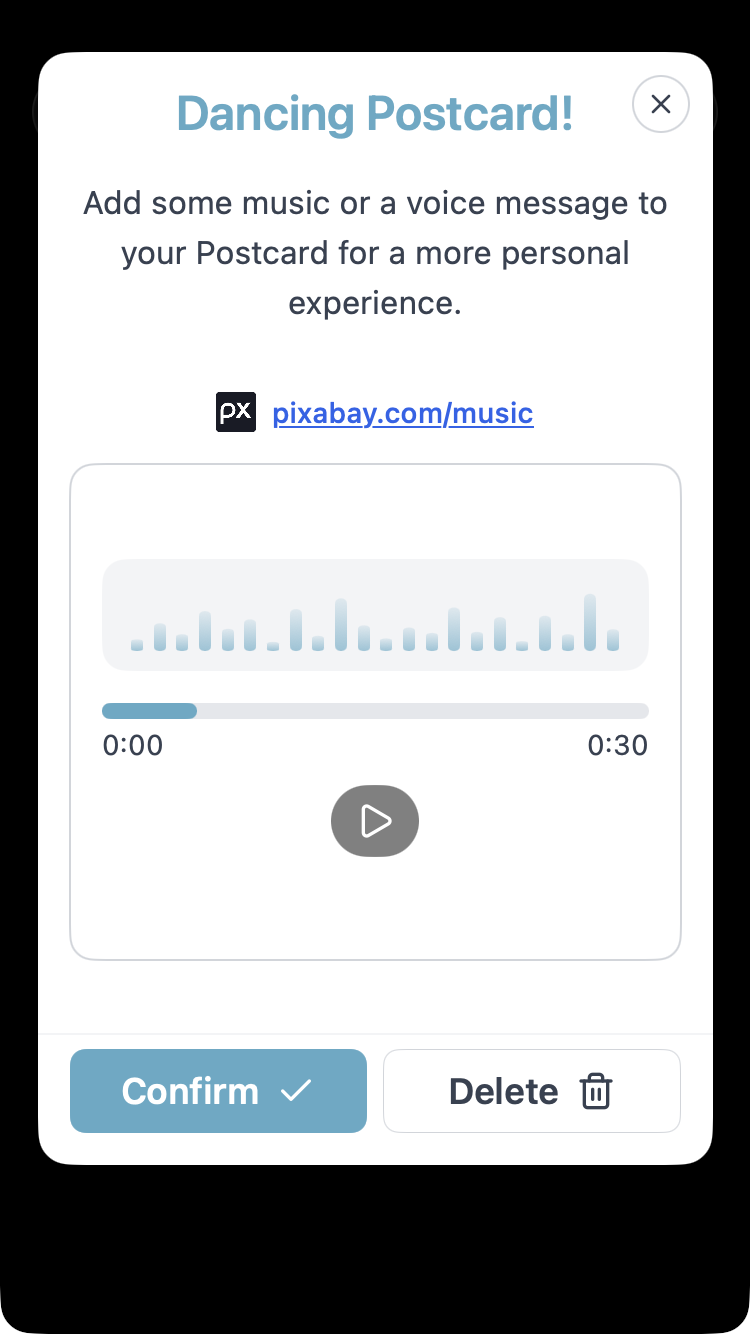
Voice — completed recording playback 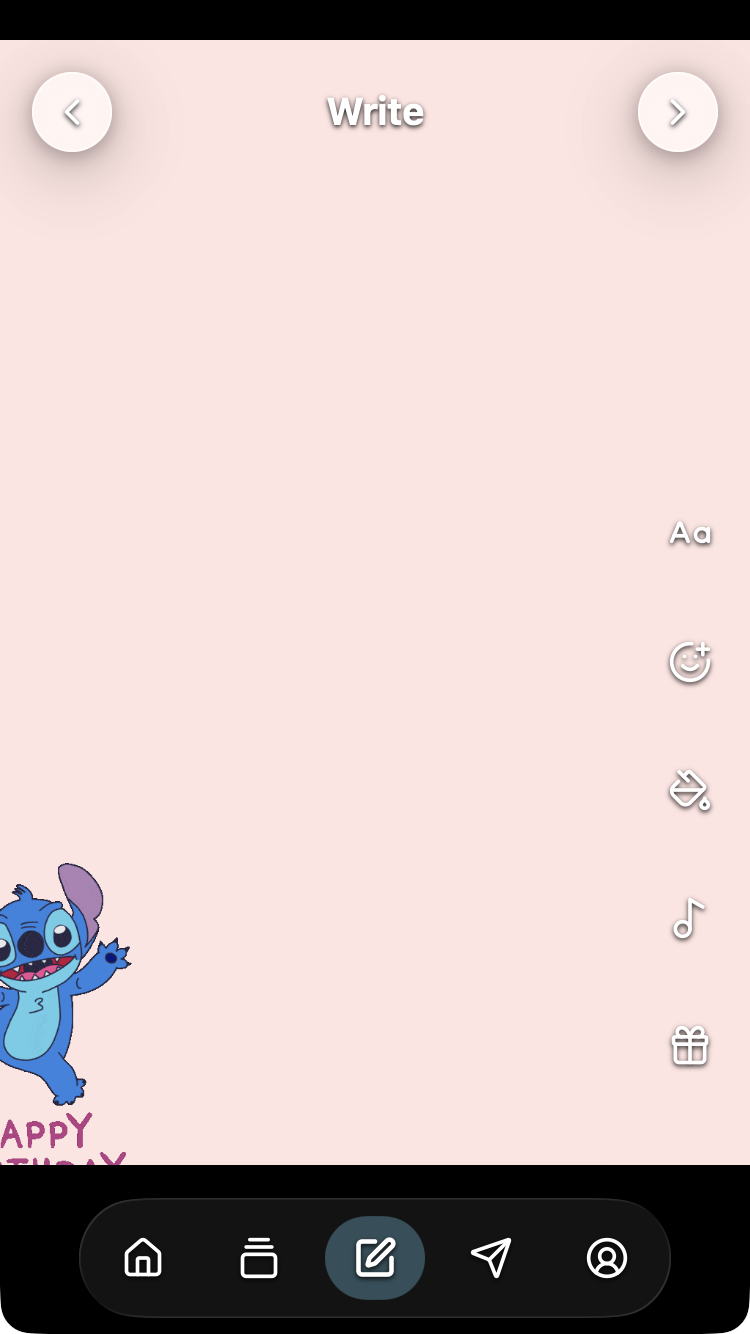
Write background clipped sticker 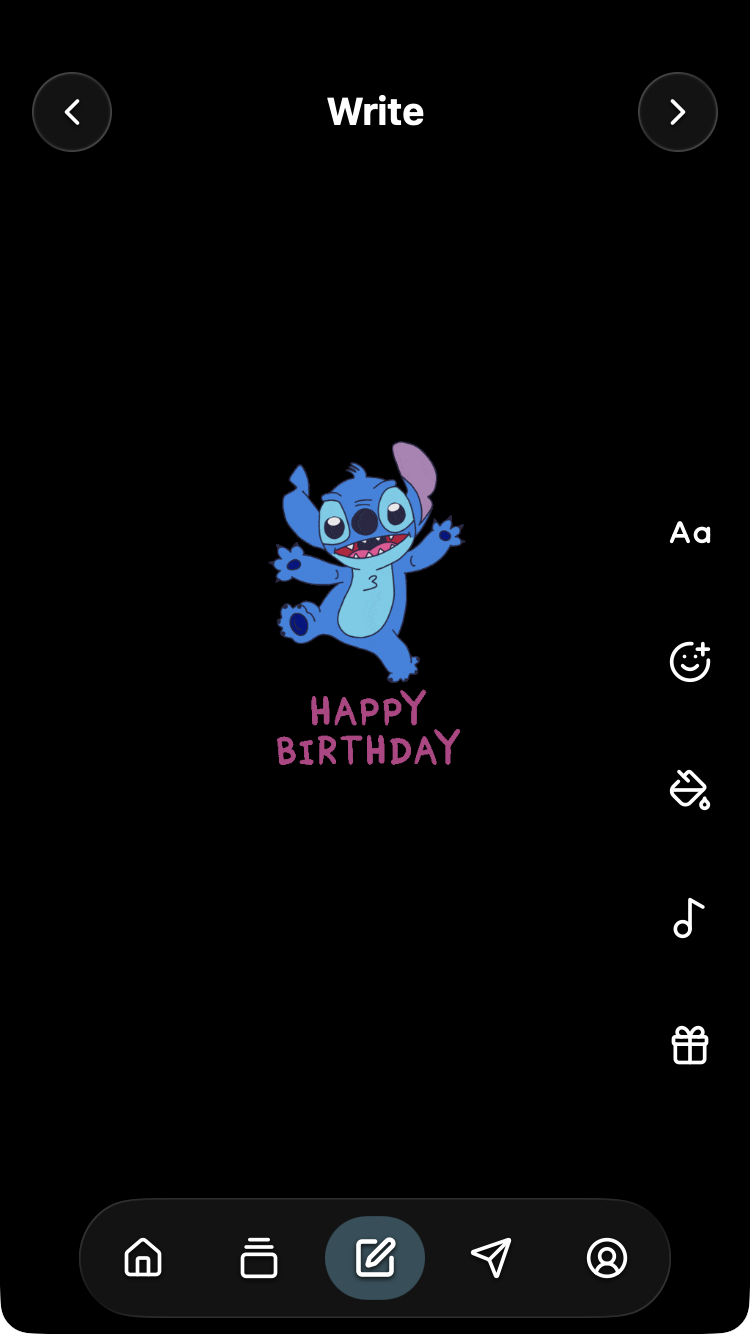
Write birthday sticker added 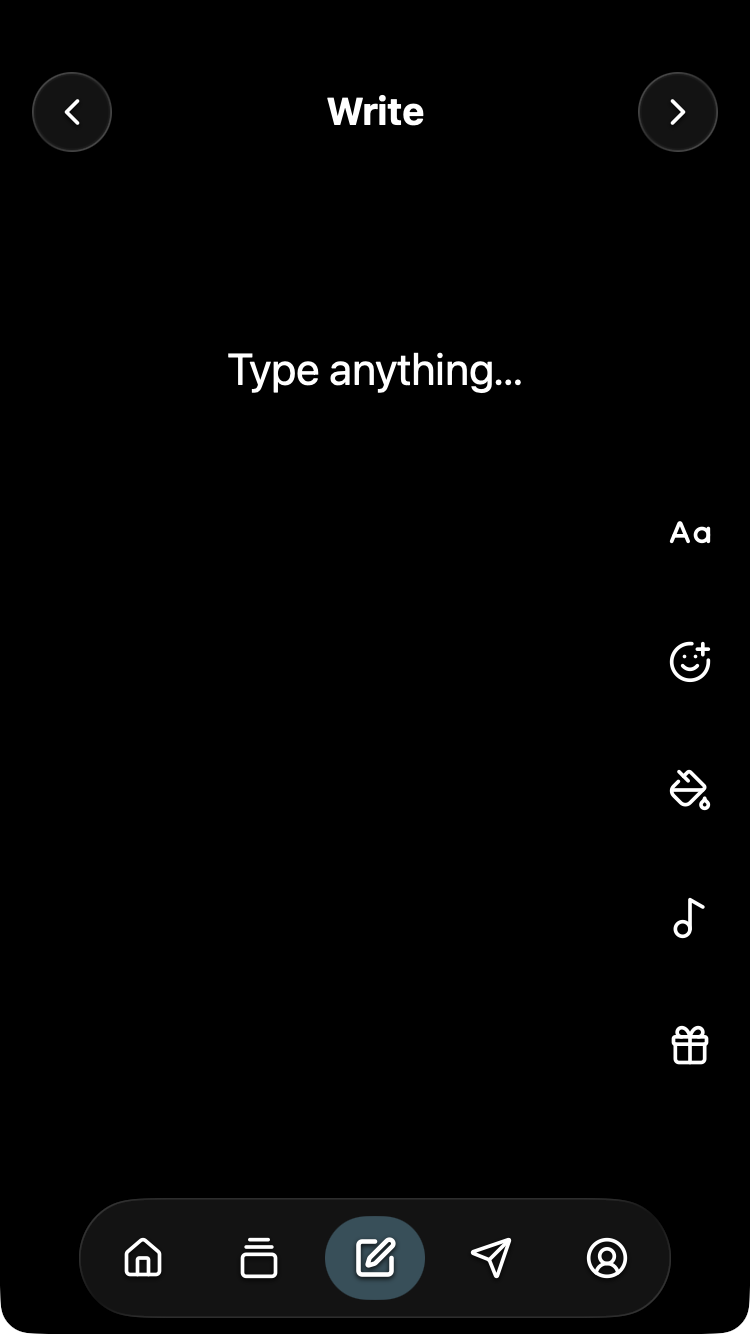
Write canvas tools 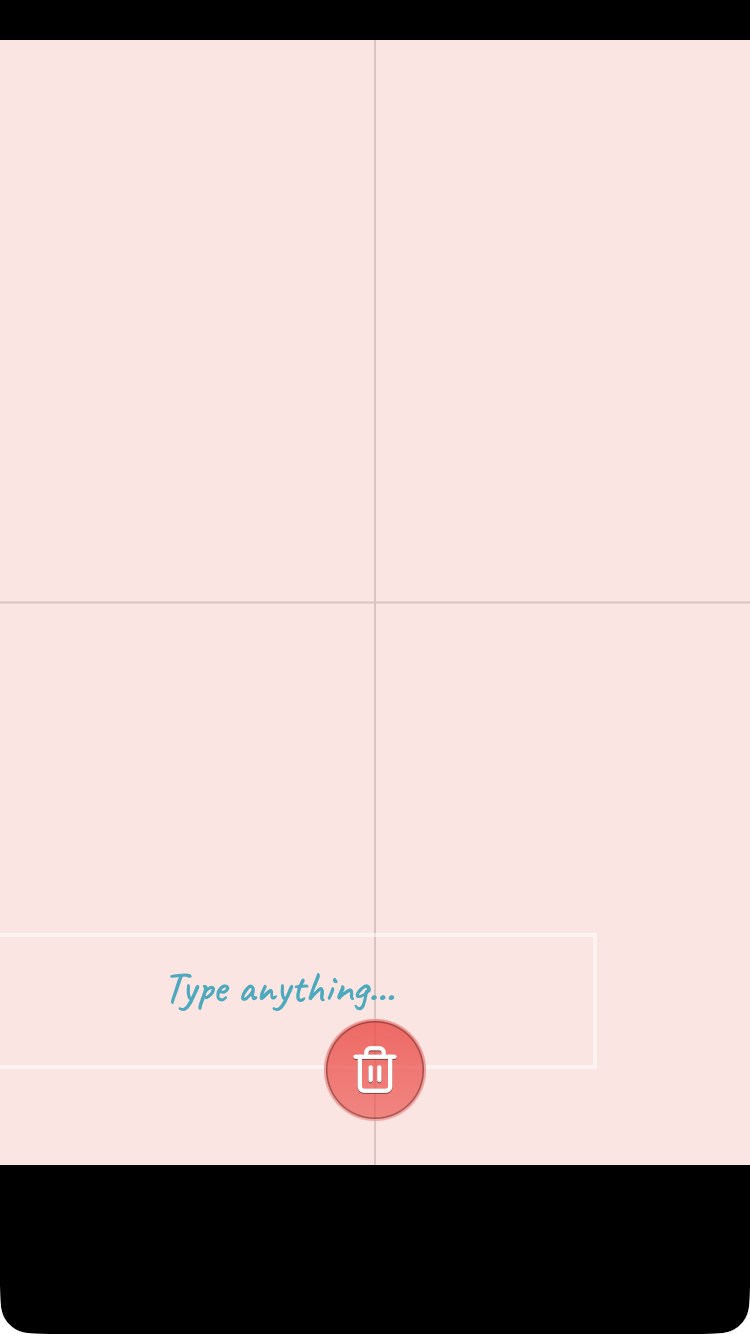
Write drag red bin 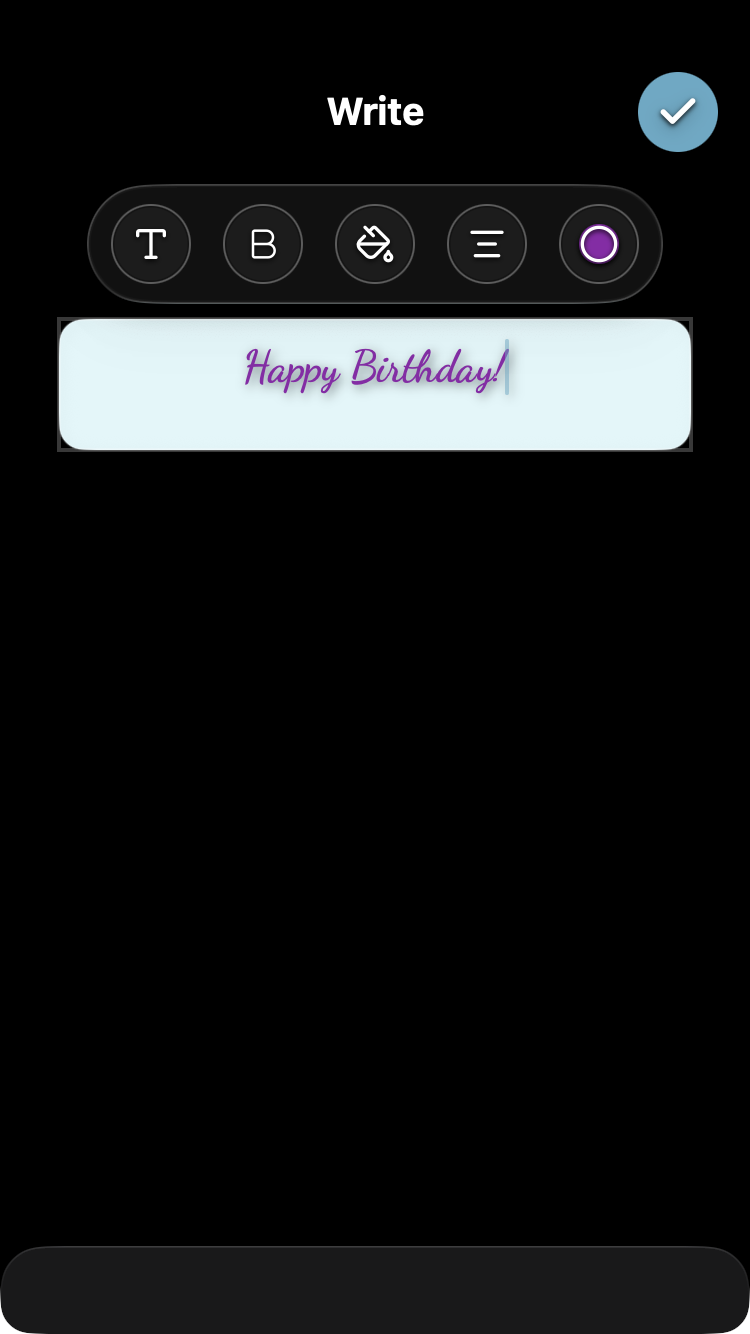
Write formatted message 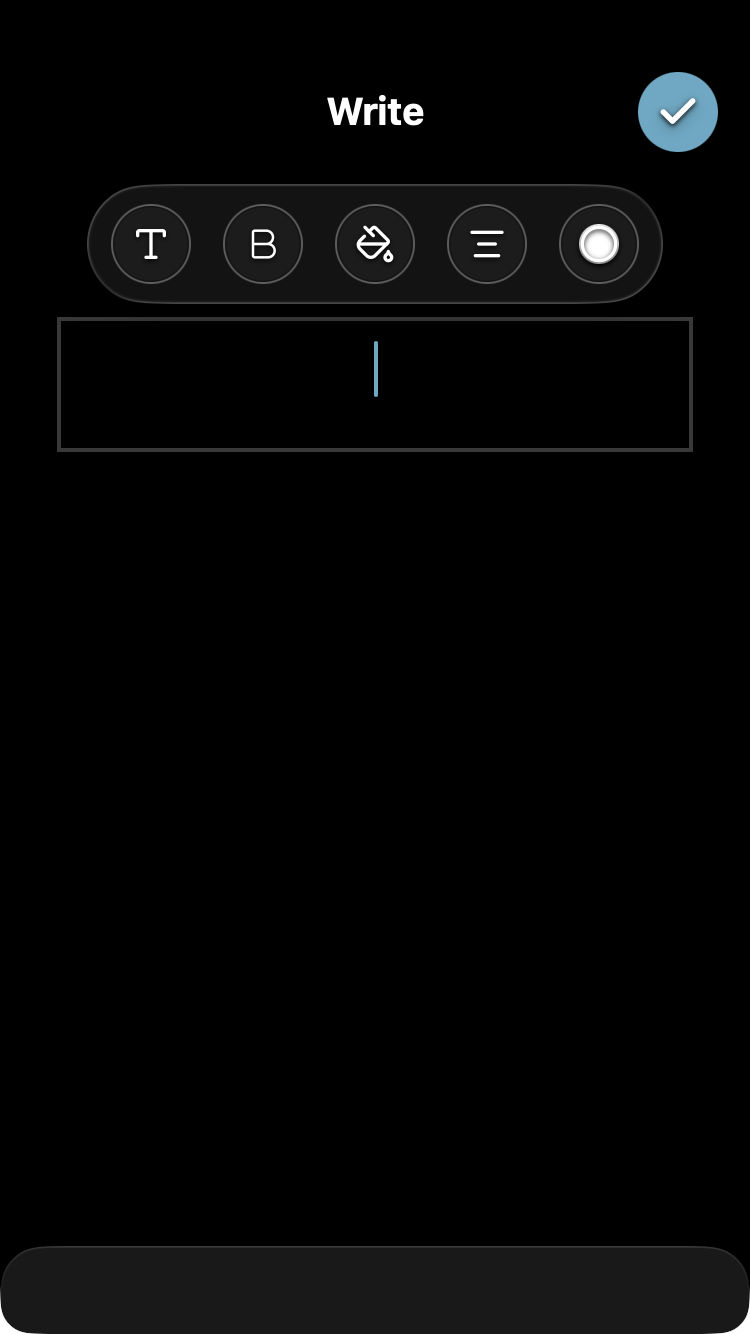
Write — active text editor 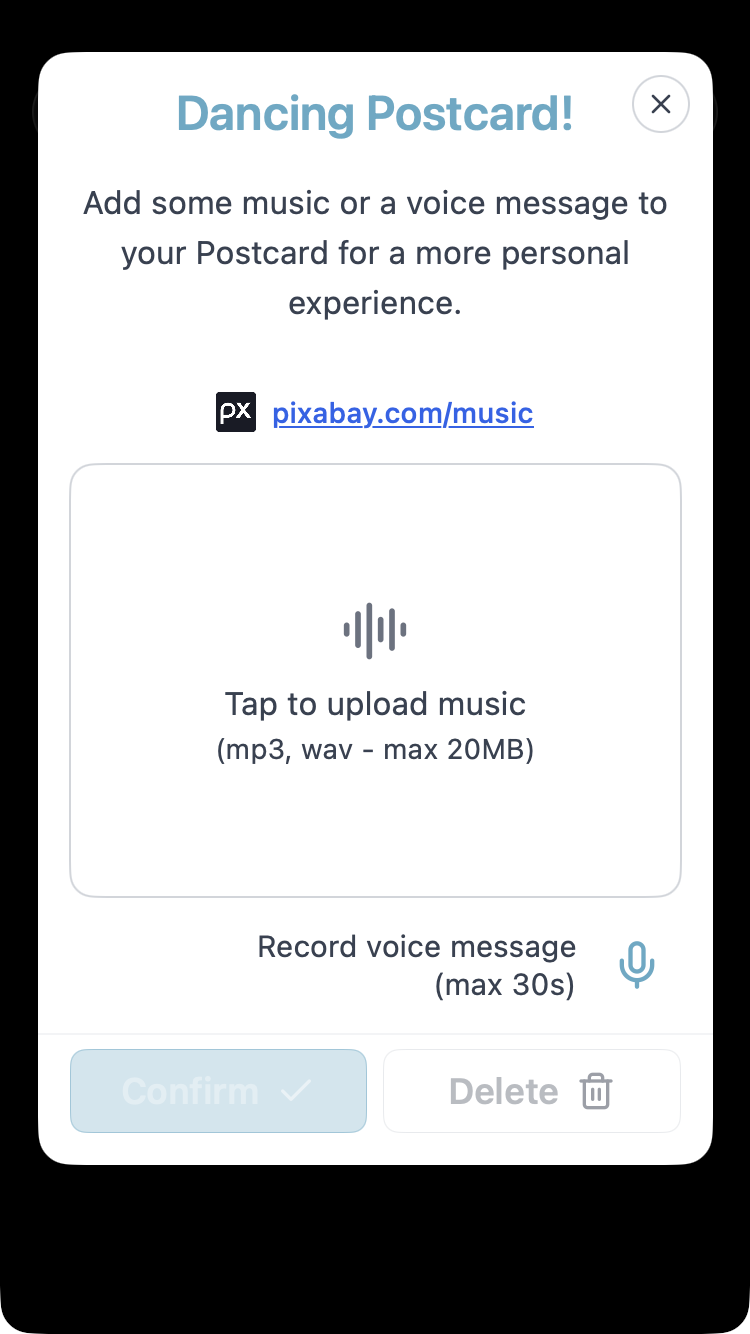
Write music voice panel
Free web-app confirmation
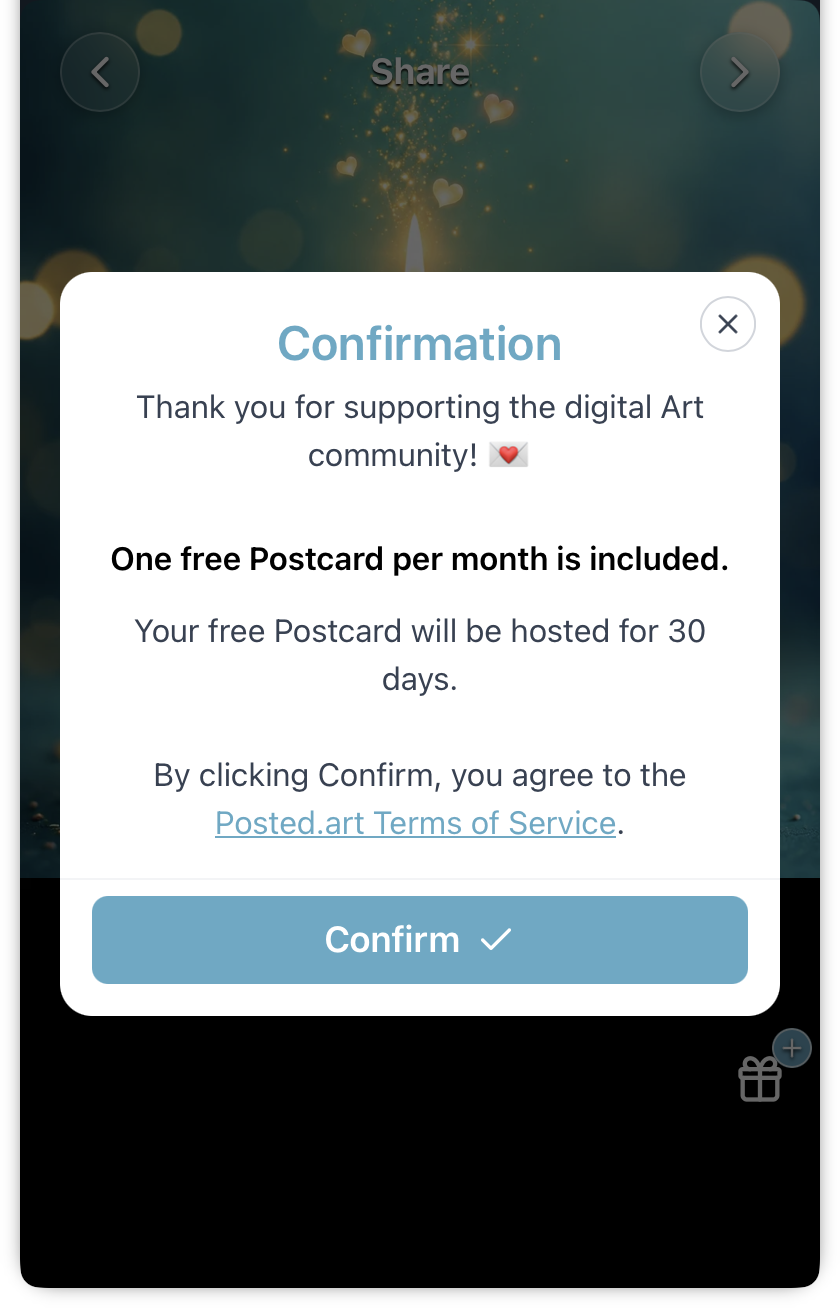
Eligible EVM, Solana or Telegram — free Postcard confirmation
iOS images
Use the image matching account and subscription state. The version 1.3 populated Account image is an older reference; prefer a matching current-layout image for specific controls.
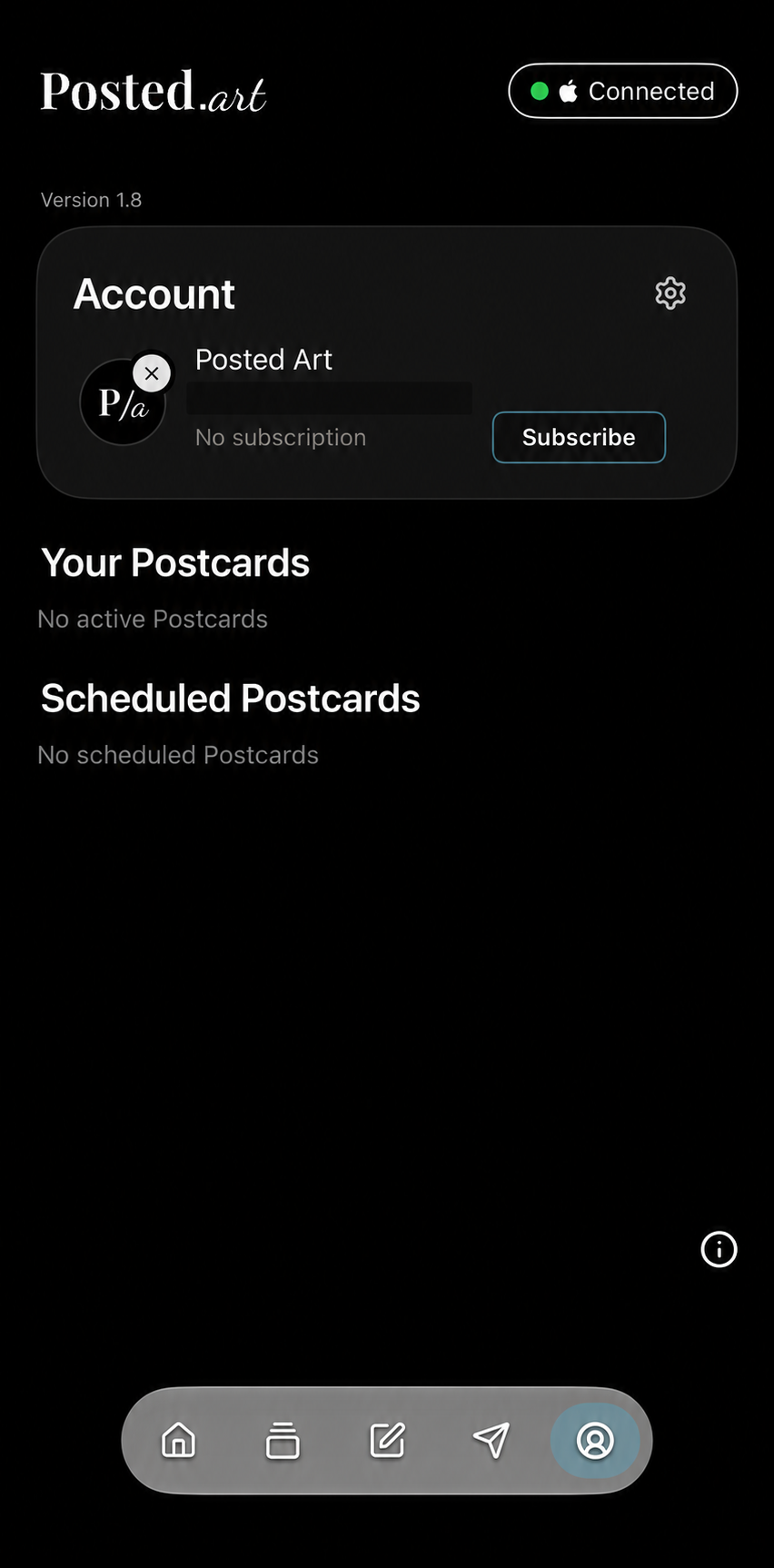
iOS — connected Account without subscription 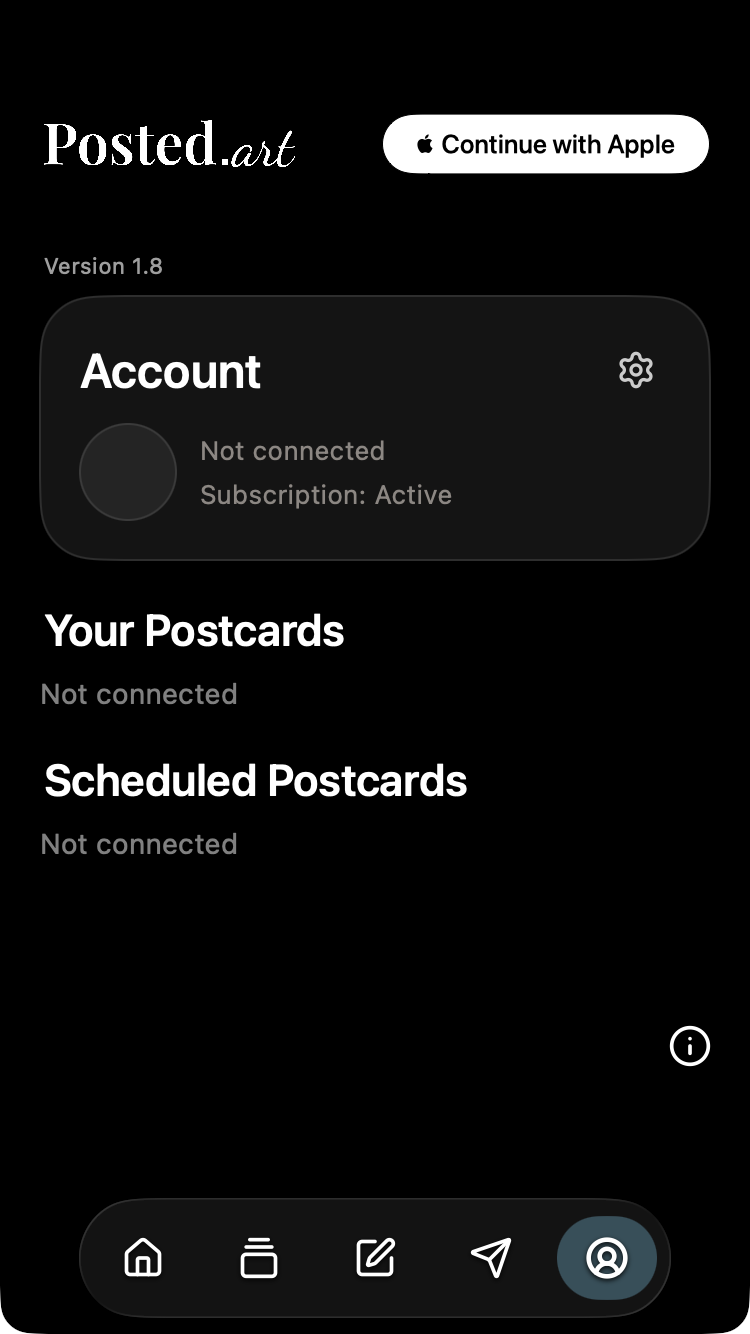
iOS — disconnected Account with recognized subscription 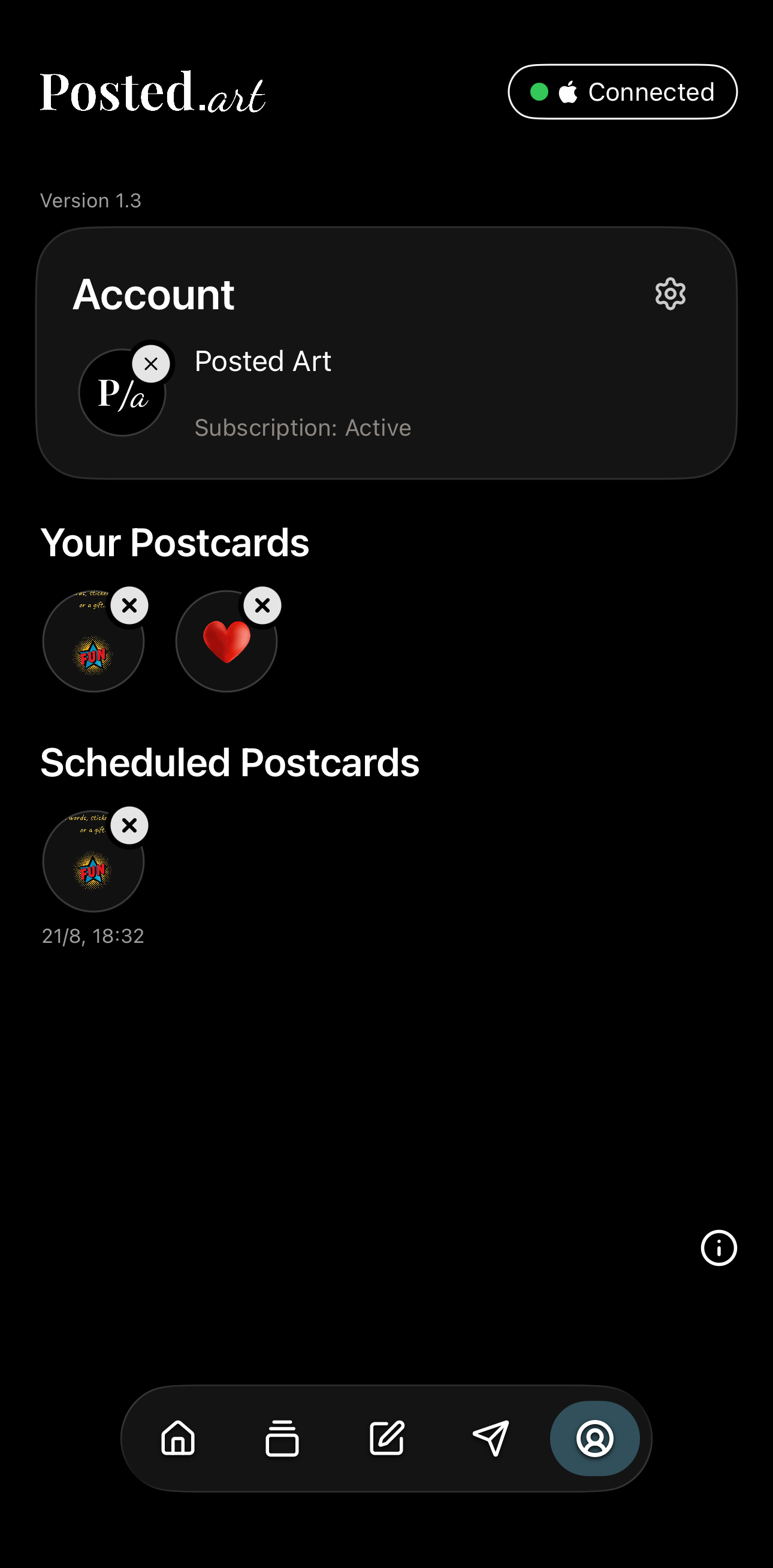
iOS — older populated Account reference (version 1.3) 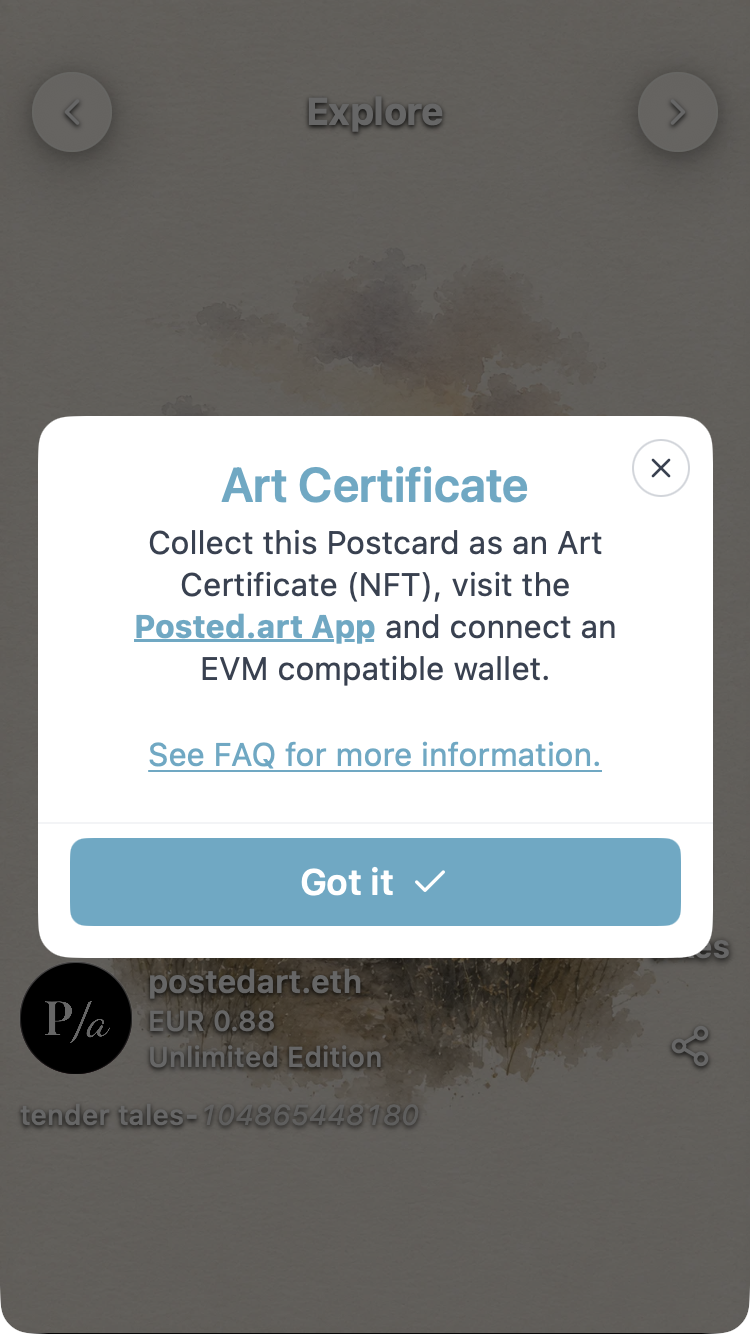
Ios art certificate 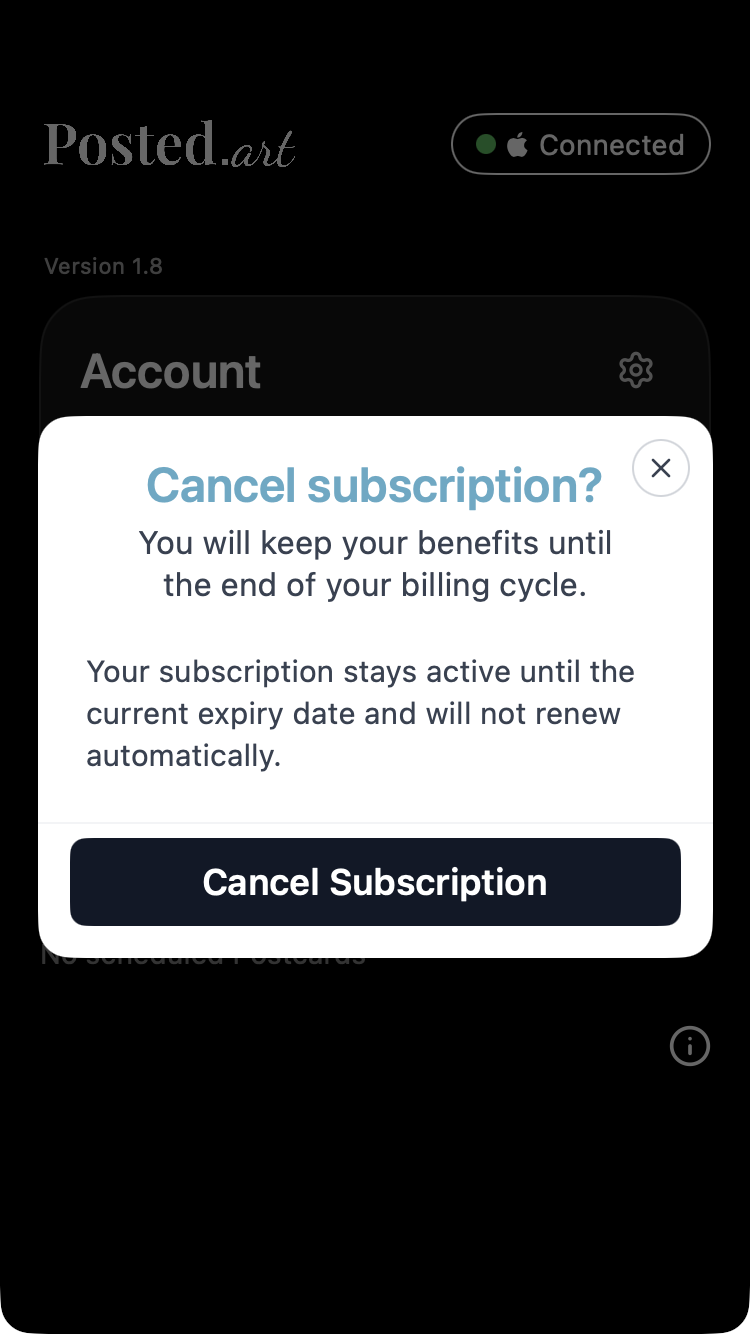
Ios cancel subscription explanation 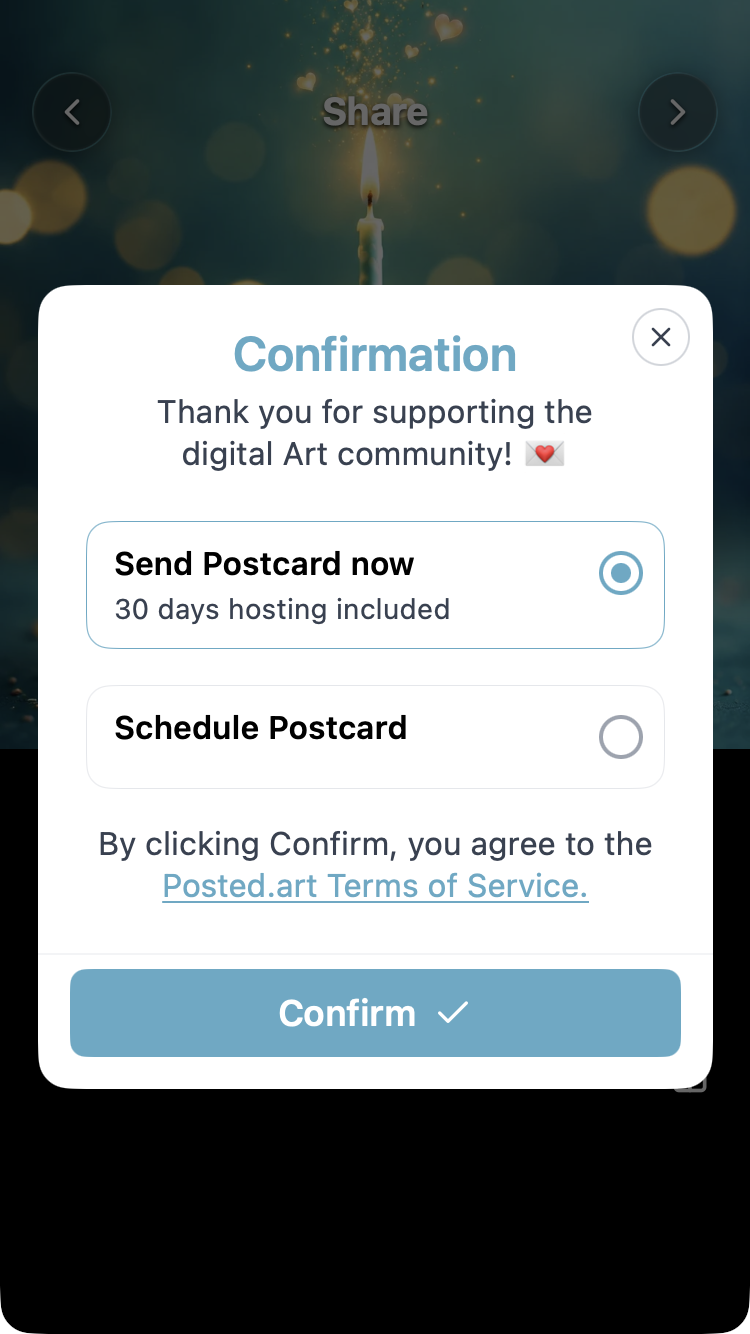
Ios confirmation send now selected 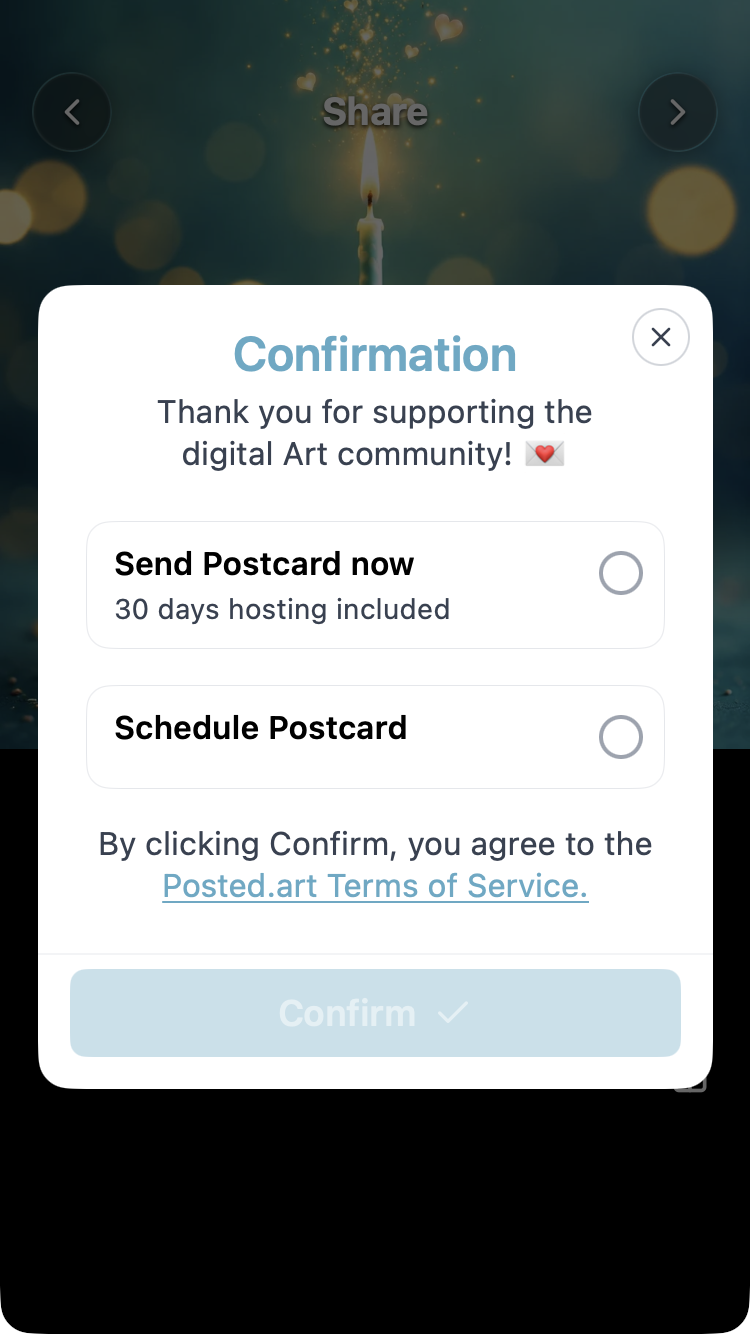
Ios confirmation send or schedule 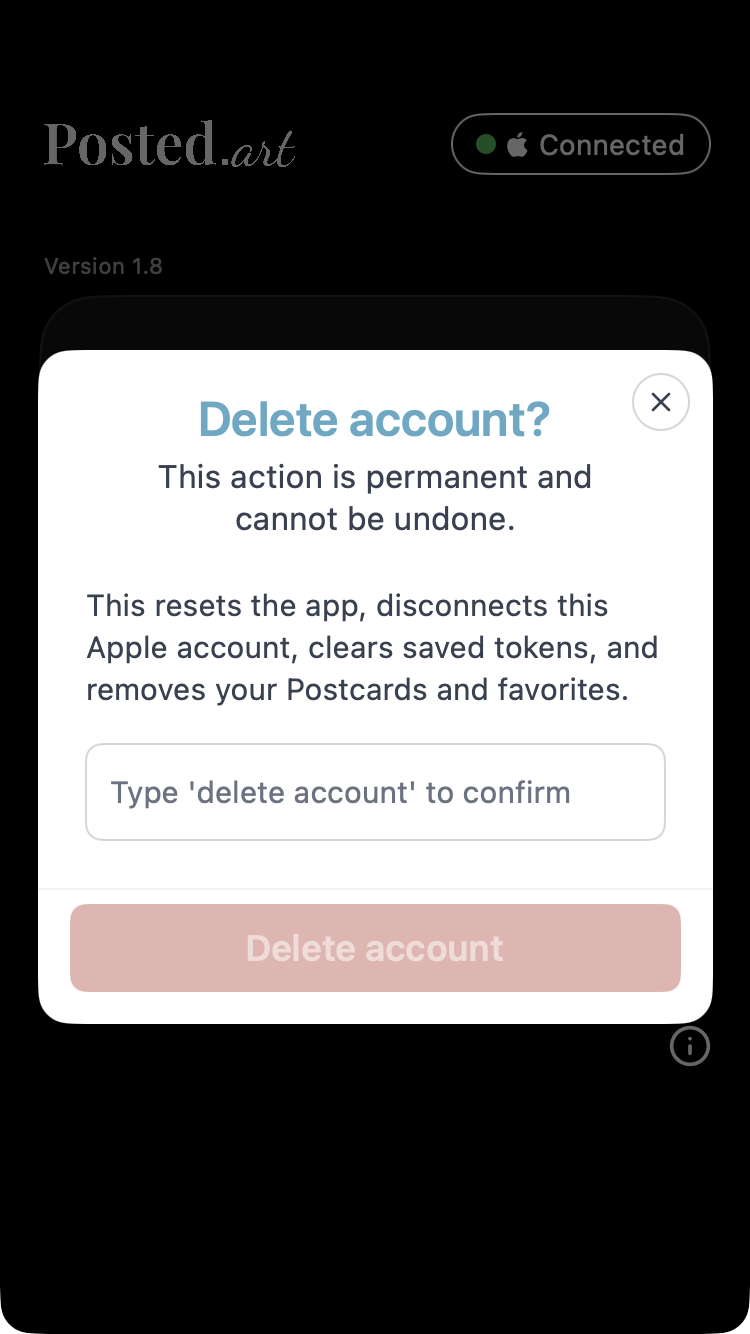
Ios delete account confirmation 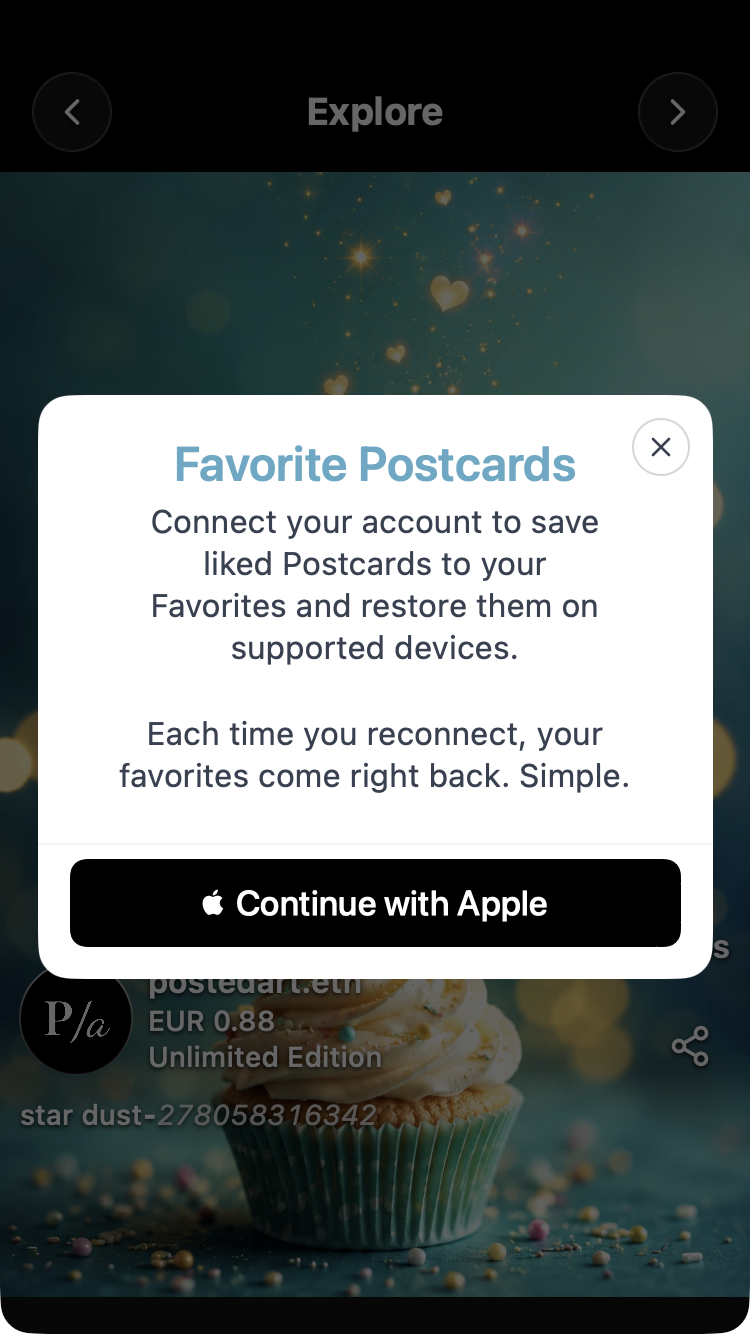
Ios favorite connect required 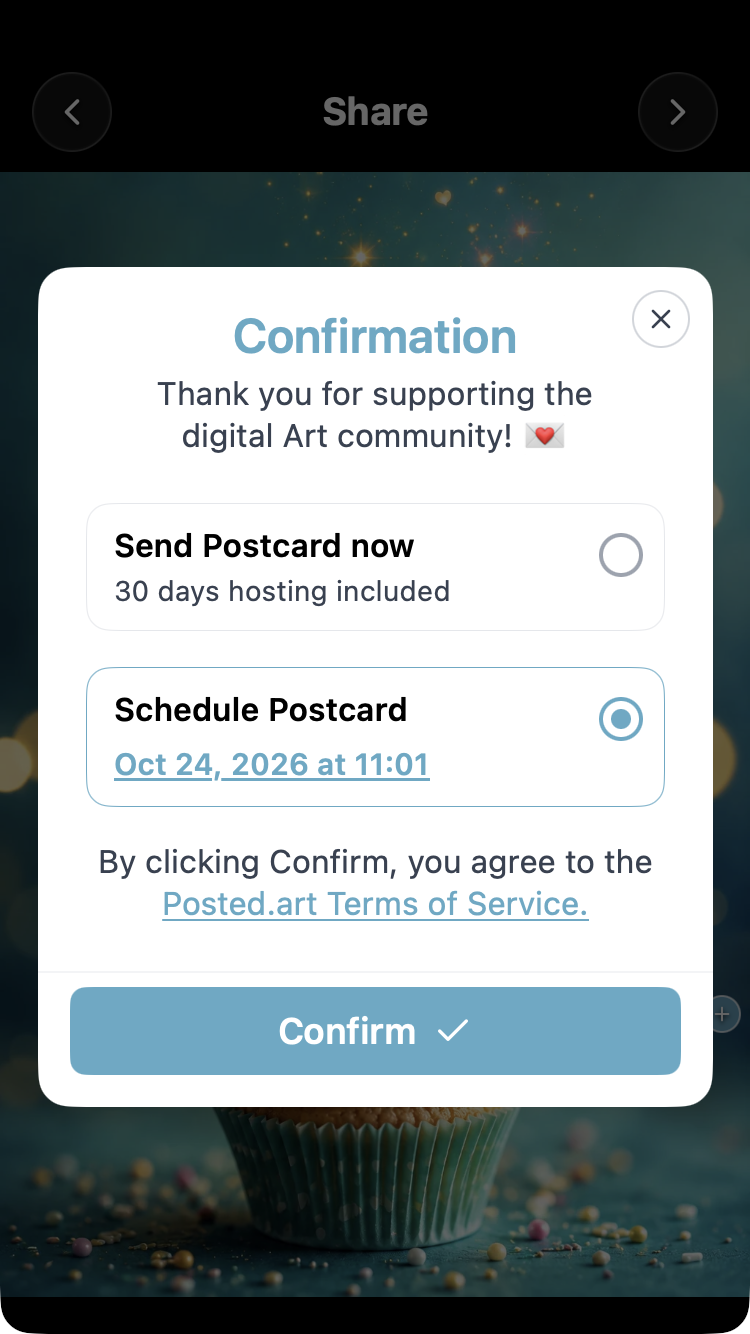
iOS — selected reminder date/time in Confirmation, not system picker 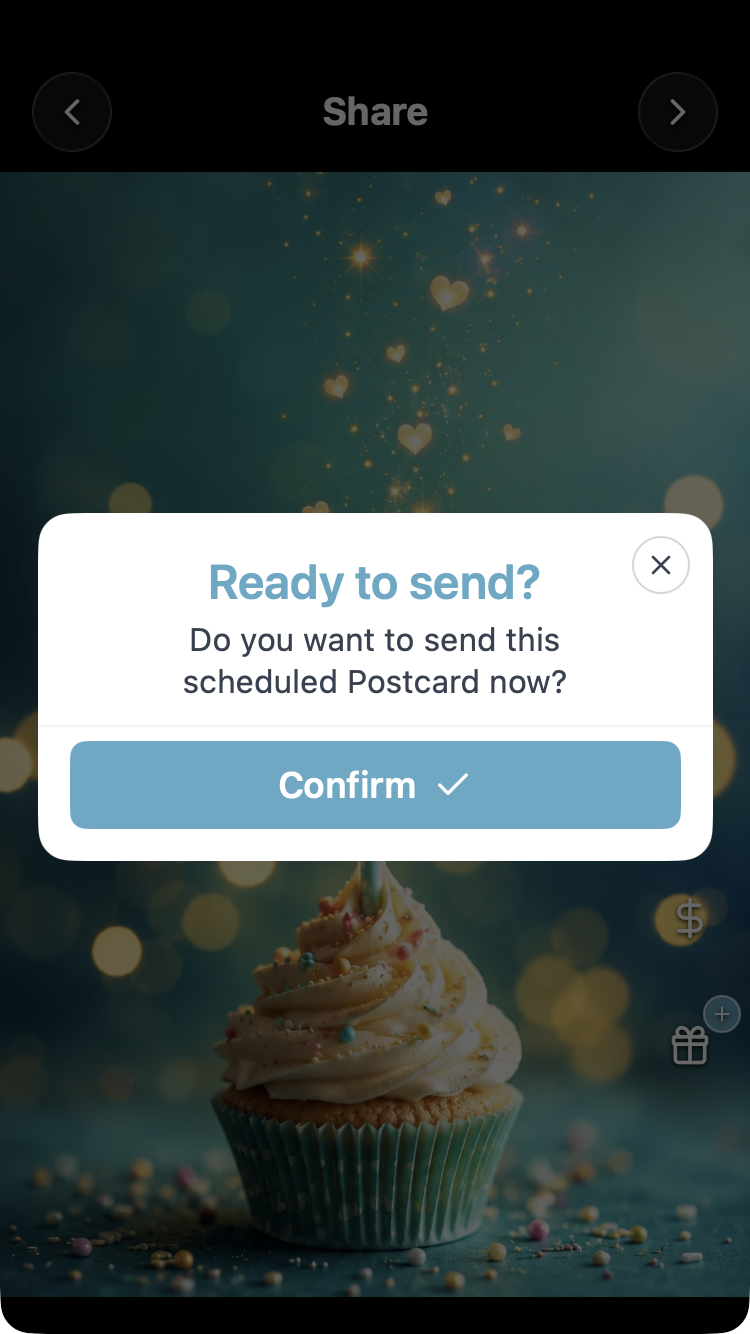
iOS — scheduled Postcard Ready to send dialog 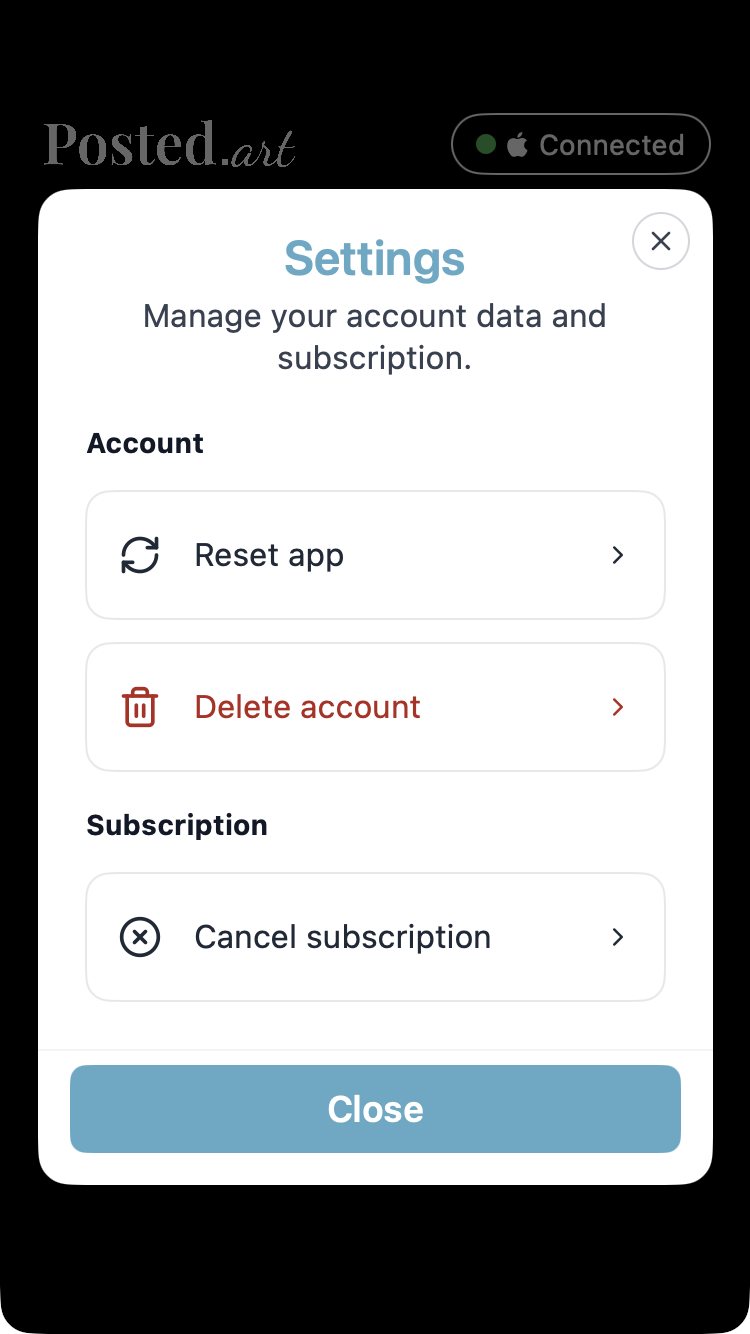
iOS — connected Settings with active subscription 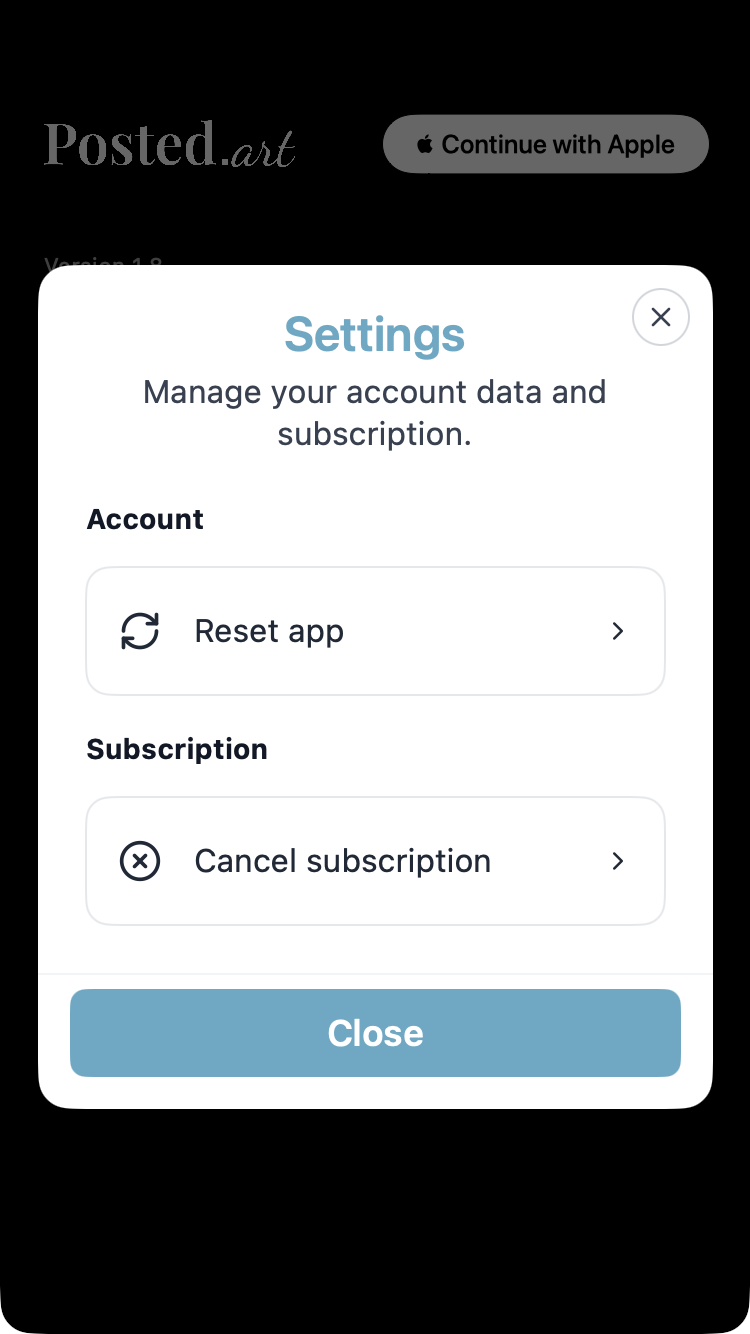
iOS — Settings while disconnected with an active subscription
Android images
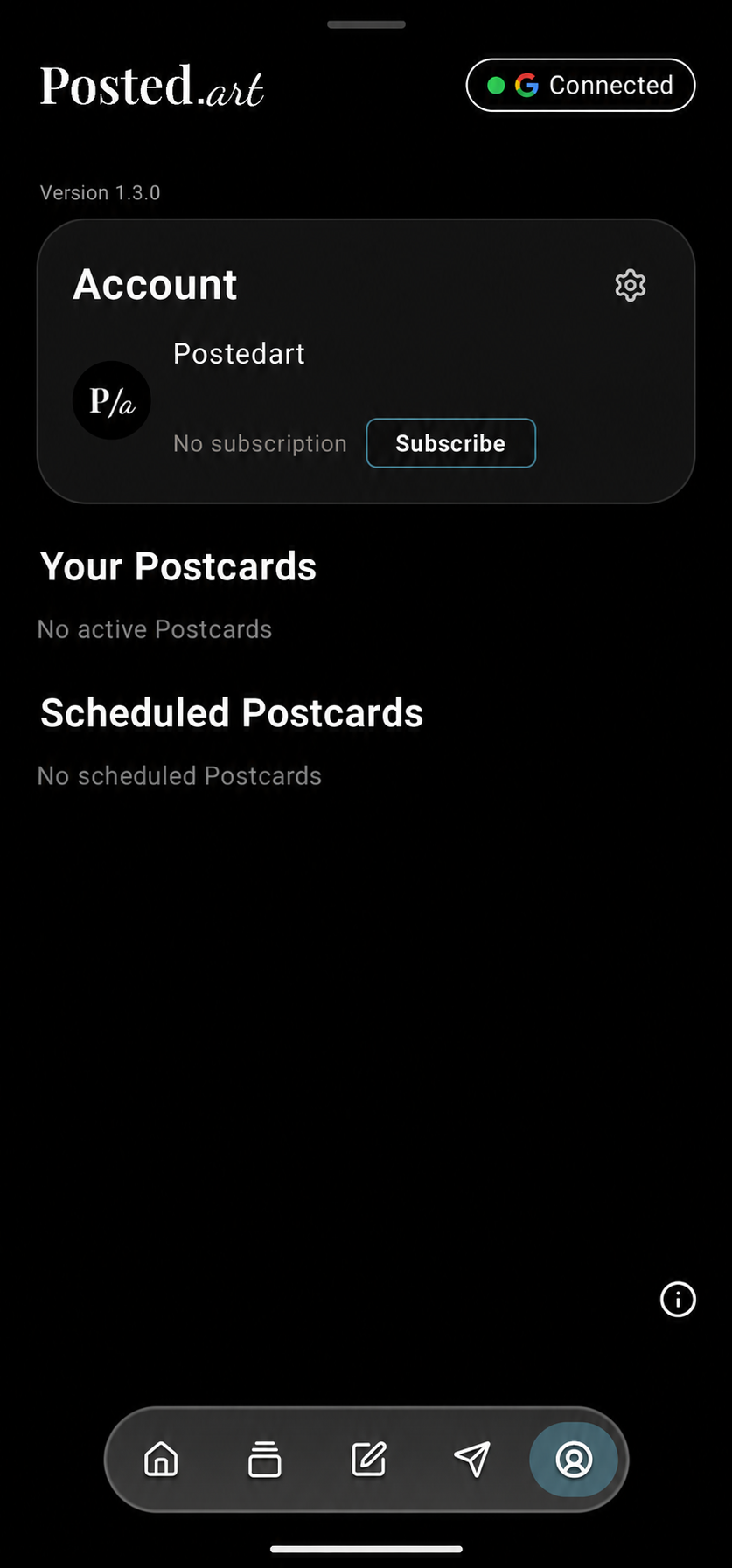
Android — connected Account without subscription 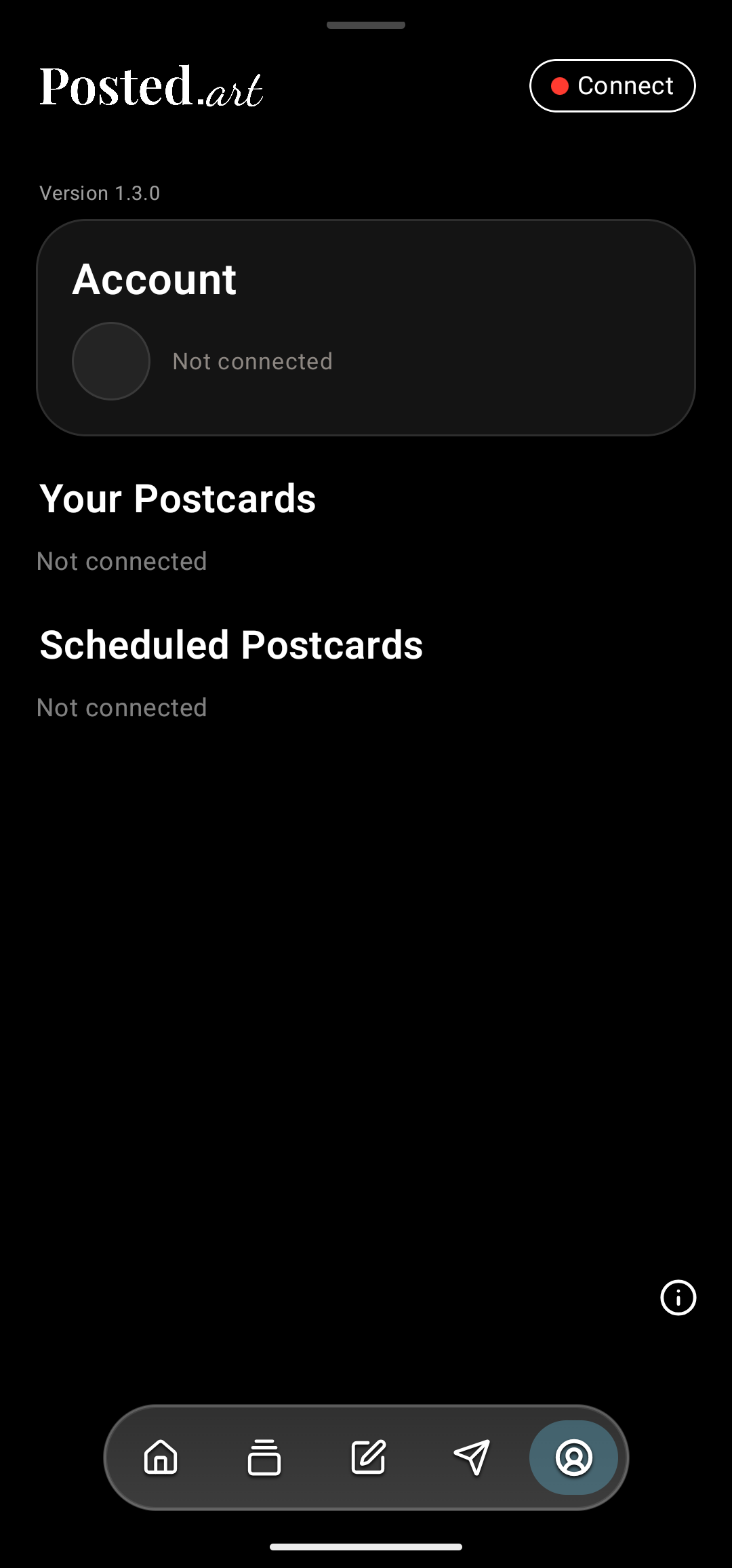
Android — disconnected Account 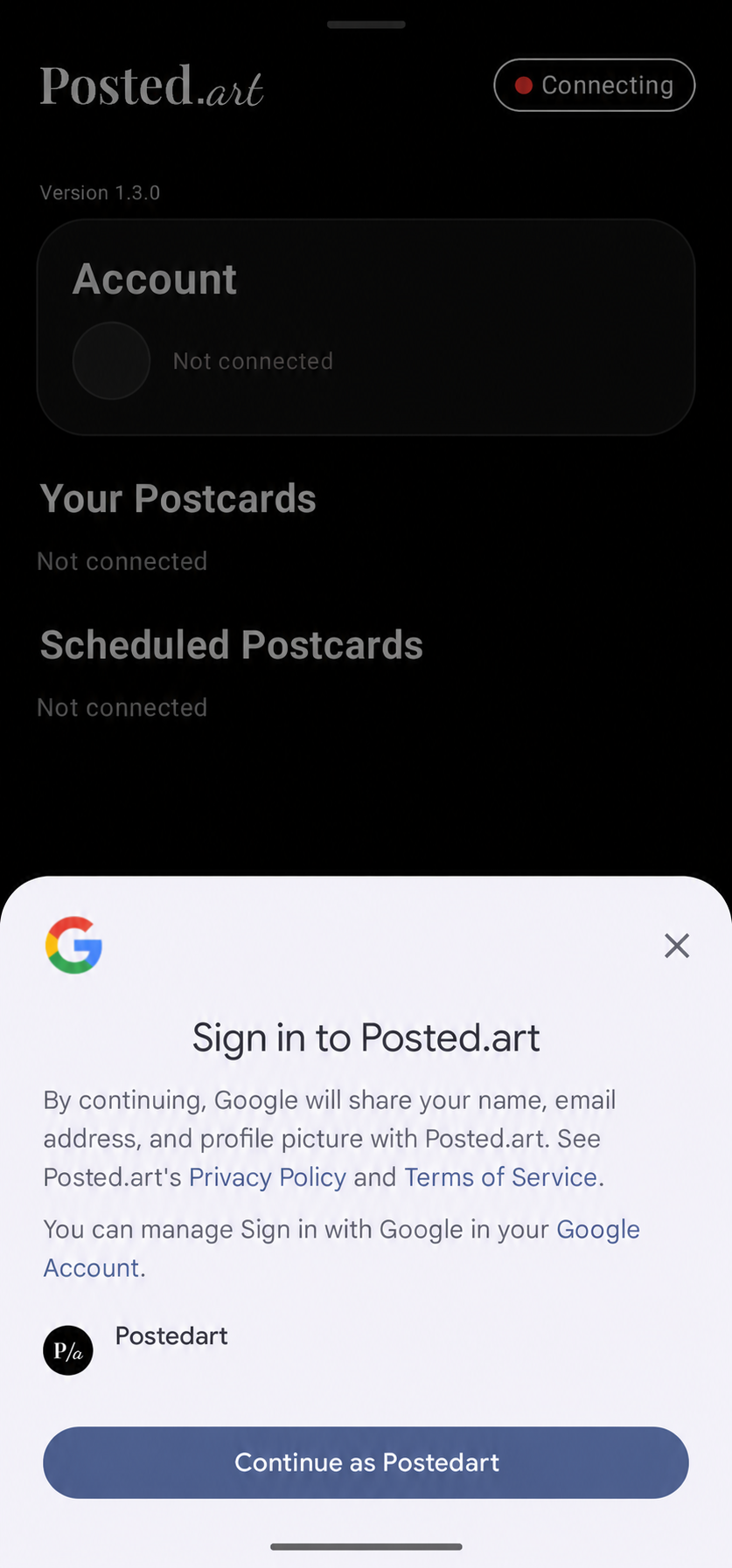
Android — Google sign-in consent 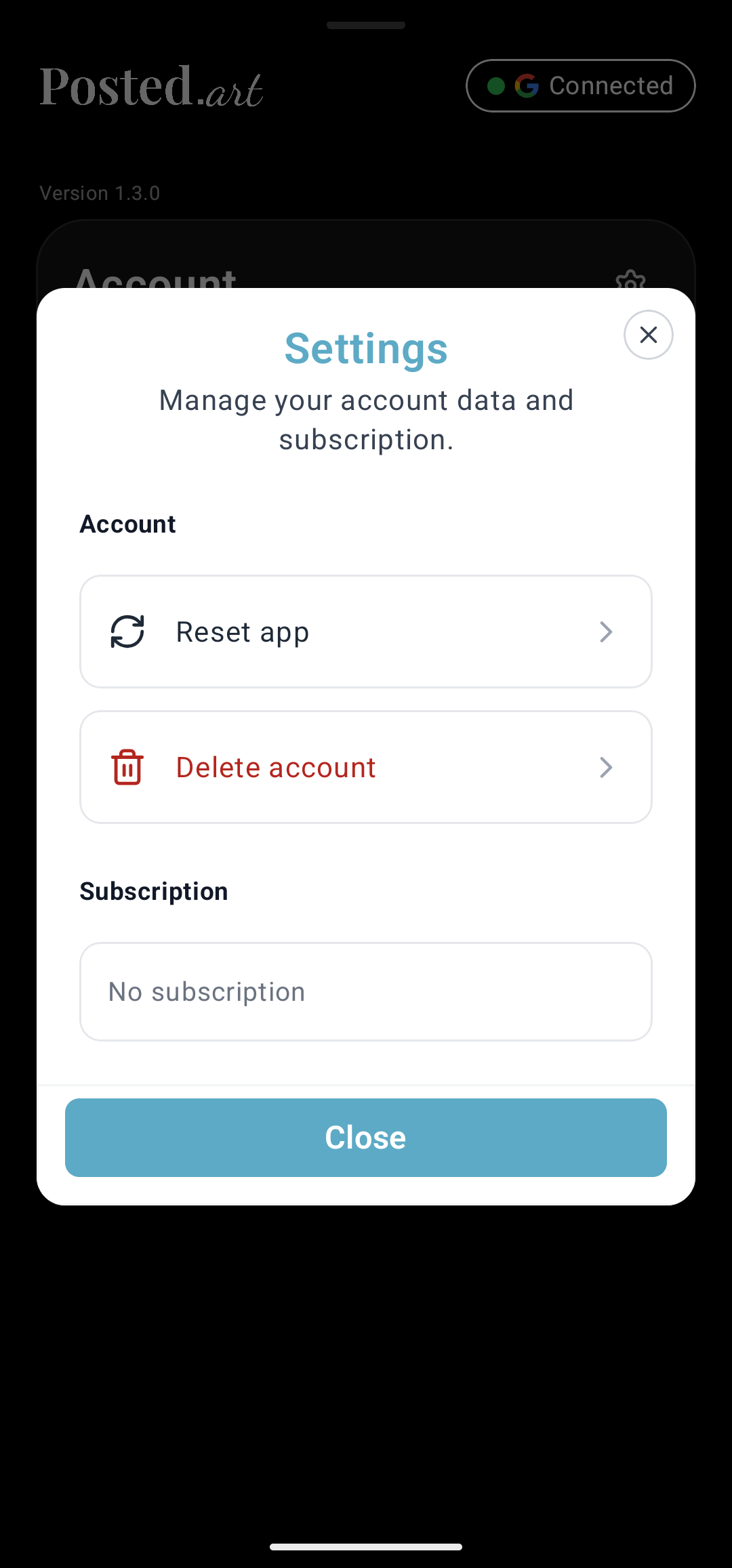
Android — connected Settings without subscription 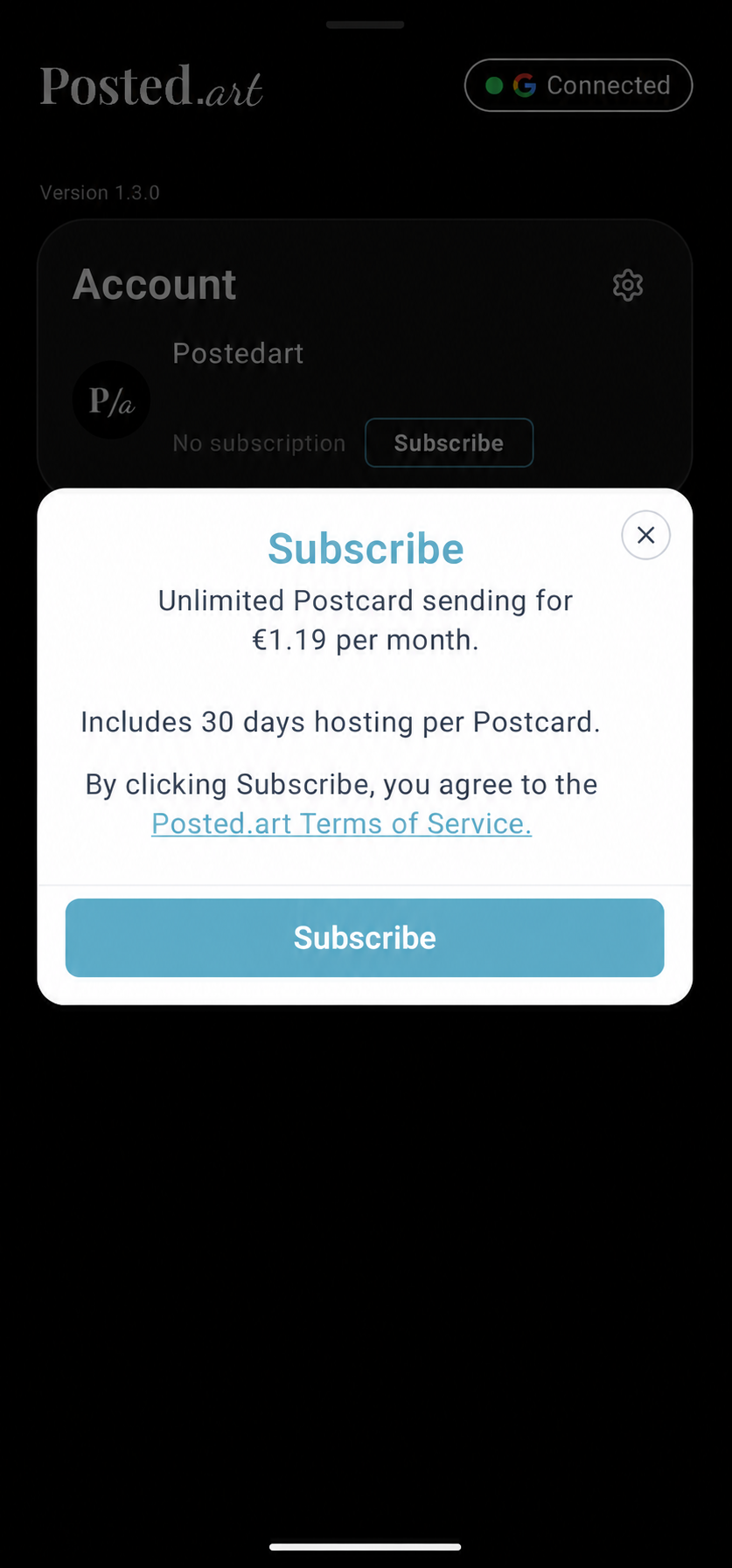
Android — subscription offer
Telegram images

Telegram — automatically connected header 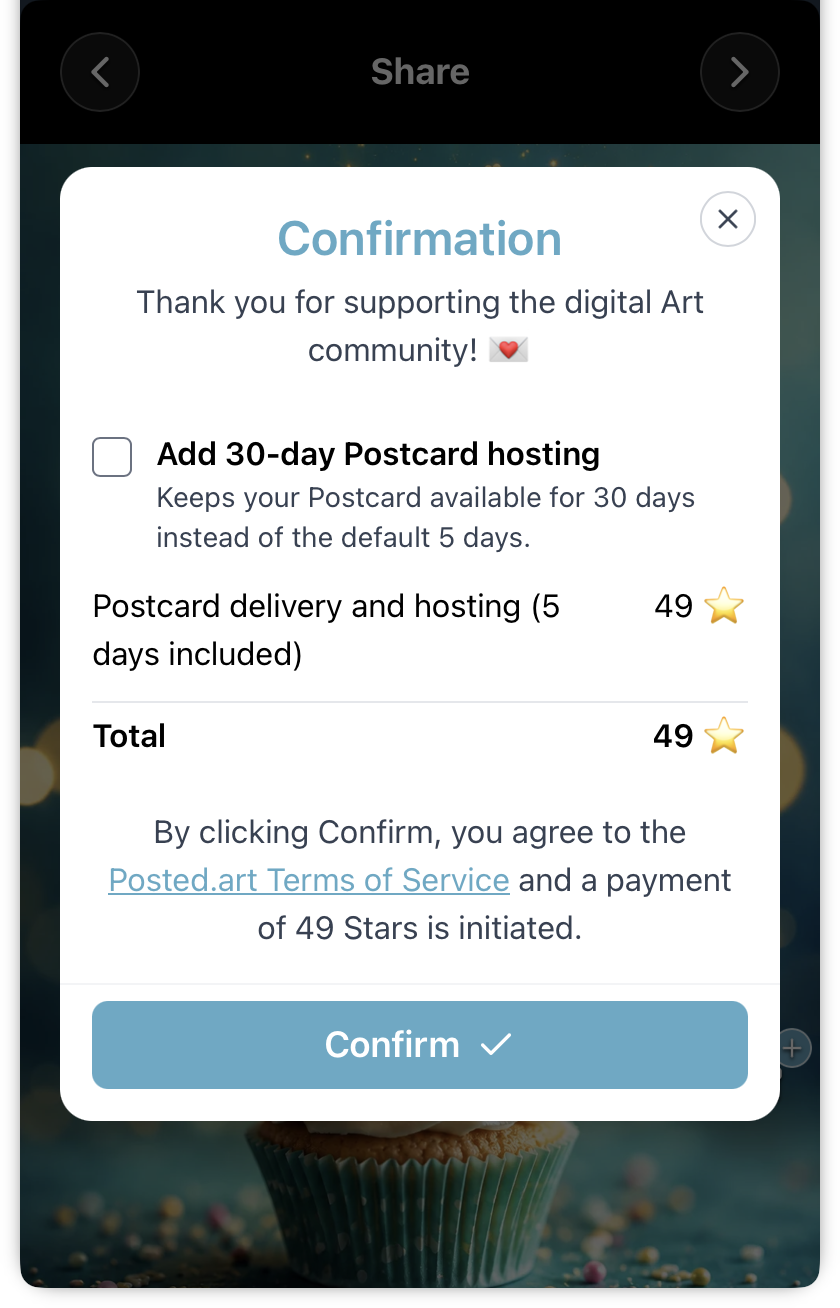
Telegram — Stars checkout with default hosting 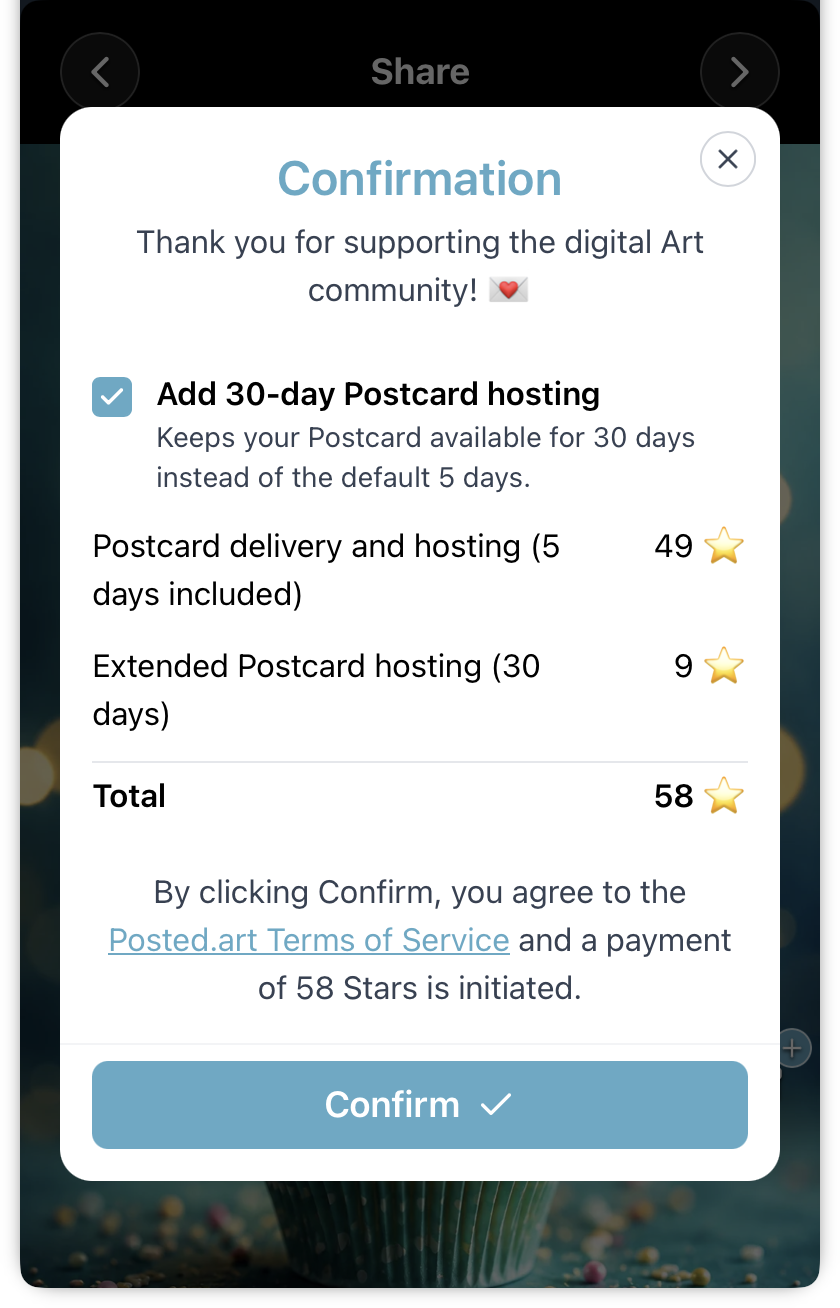
Telegram — Stars checkout with hosting extension
Web wallet and EVM images
ETH examples are not SOL quotes. MetaMask payment screenshots show the upper wallet request; network-fee details further down are not visible. The same wallet can show different sign-in and transaction requests, so match the action rather than only the wallet logo.
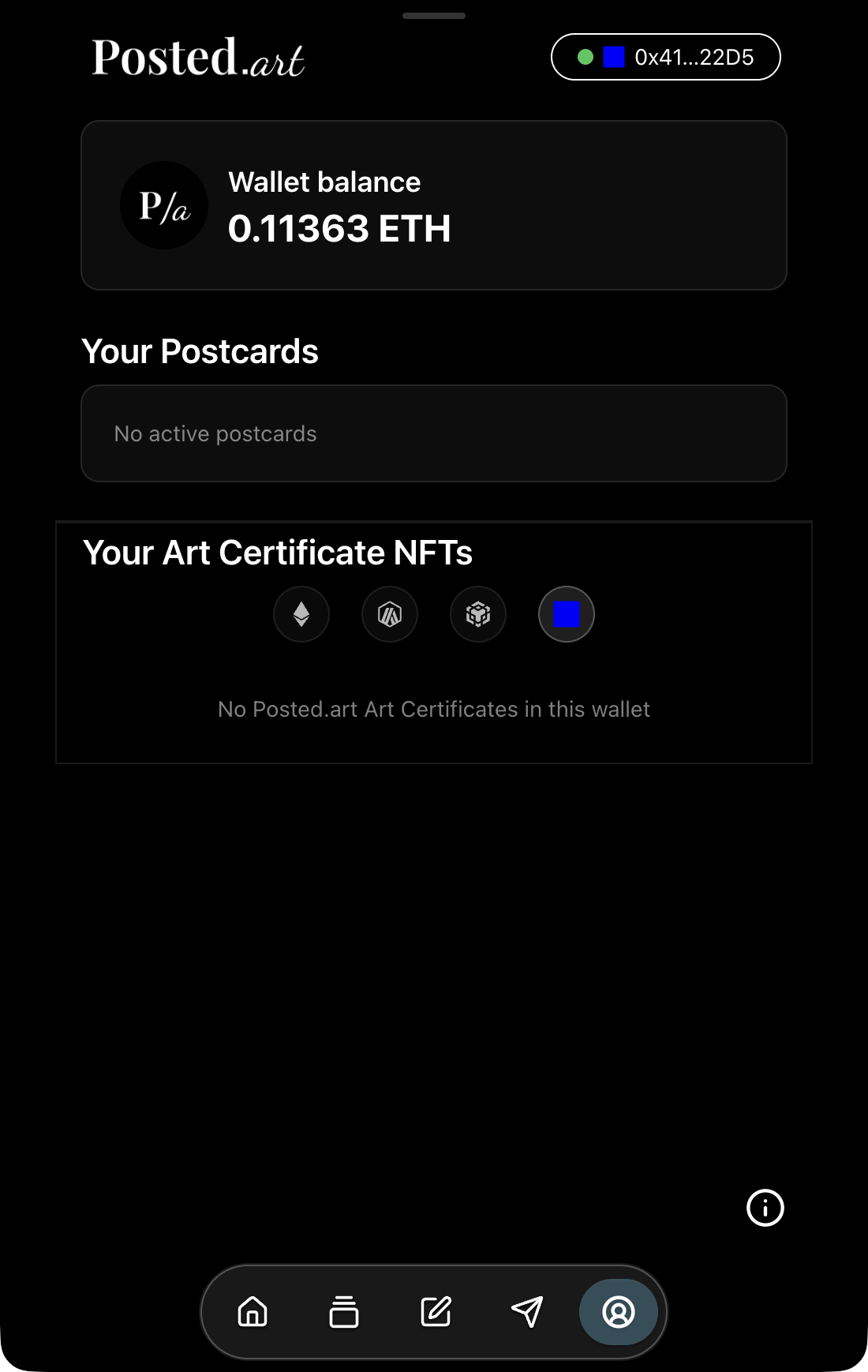
Web EVM — Base Account with empty Art Certificate section 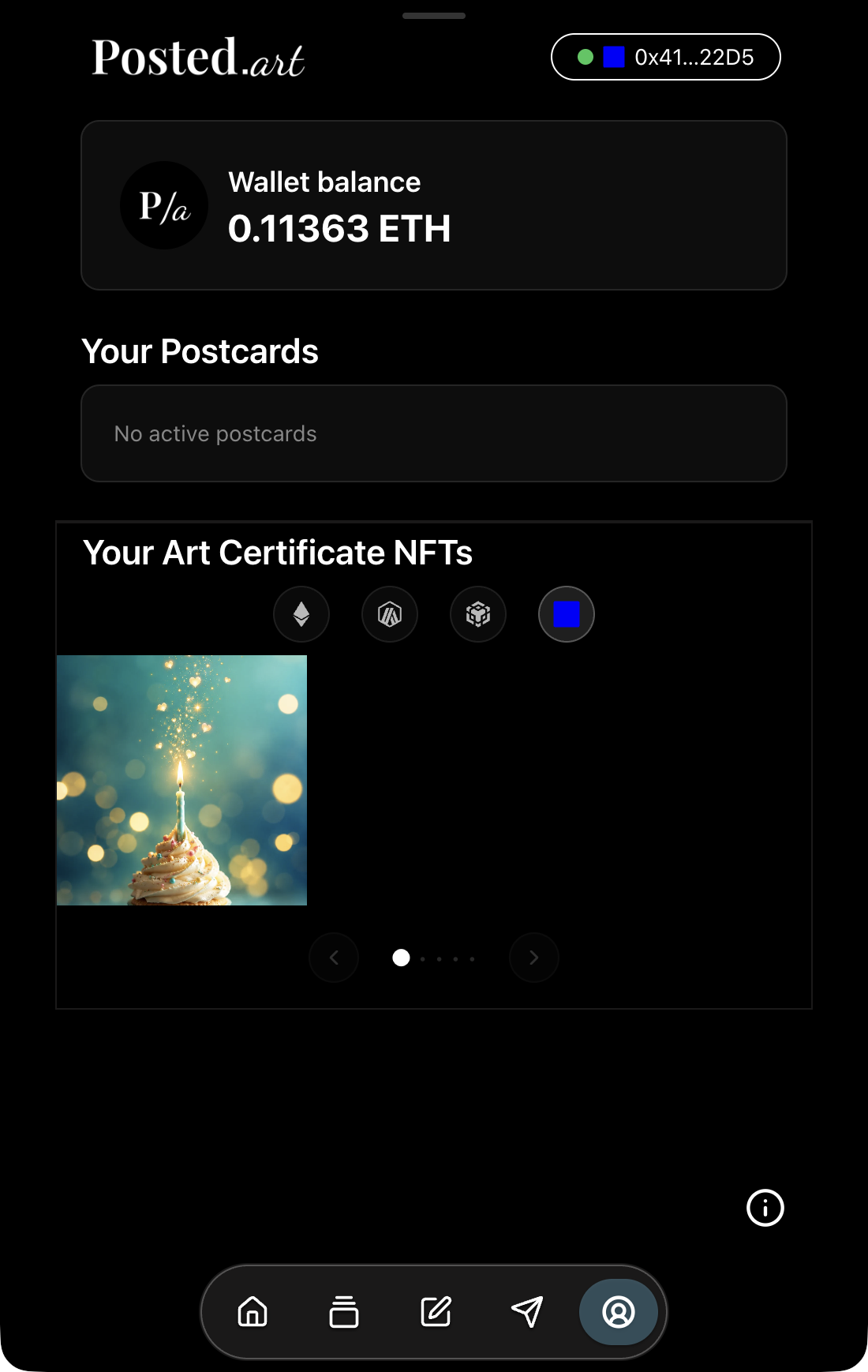
Web EVM — Base Account with an owned Art Certificate 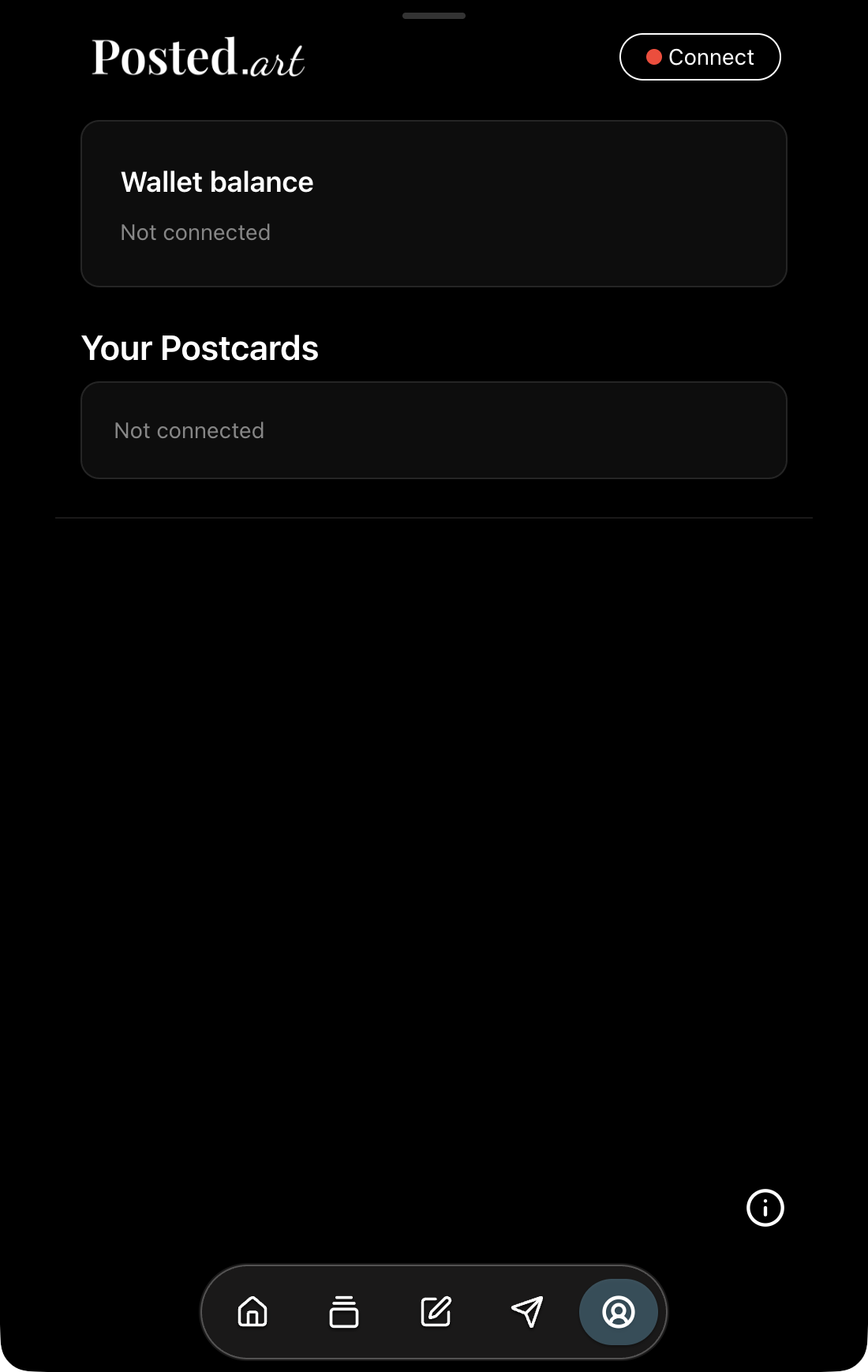
Web — disconnected Account with wallet balance section 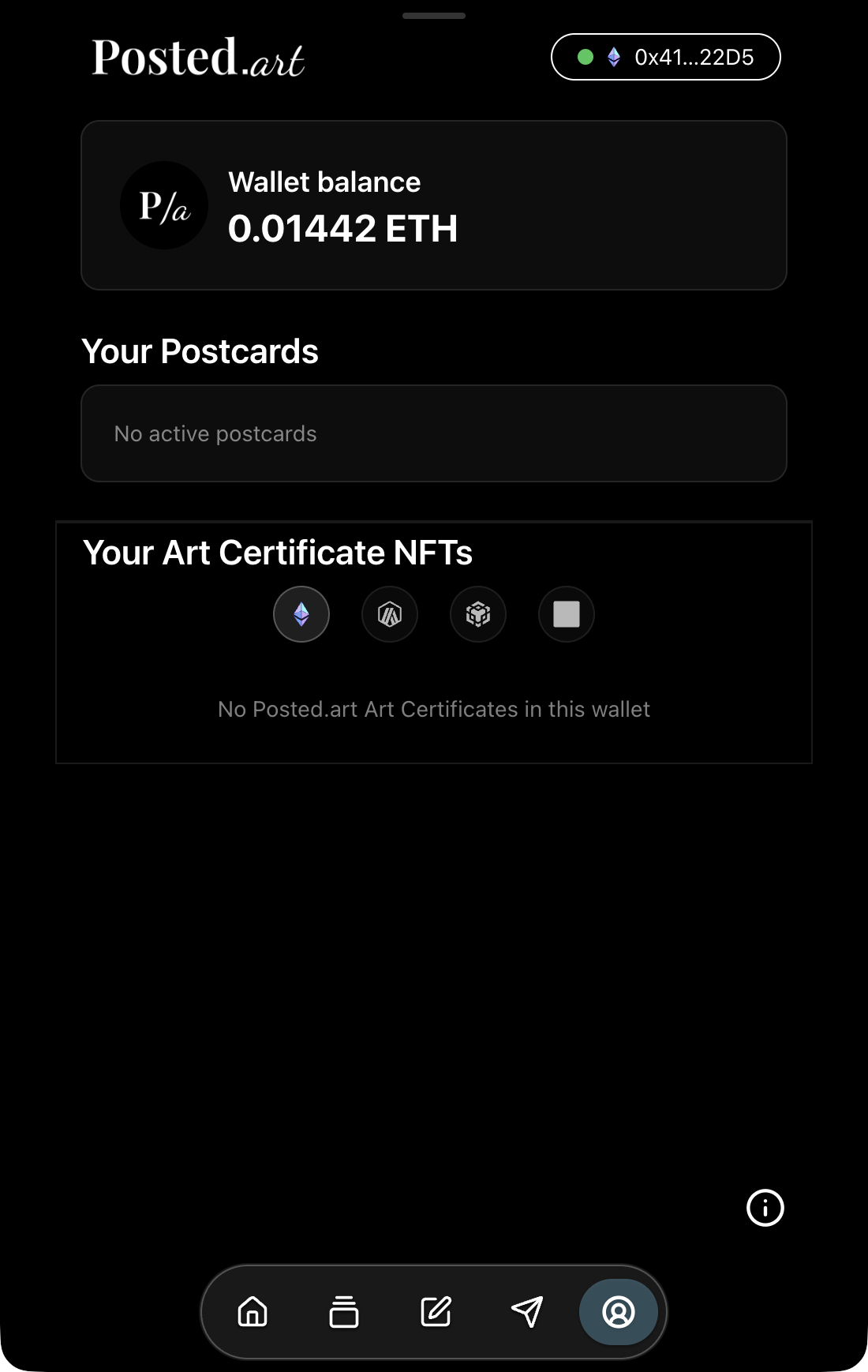
Web EVM — connected Account with ENS profile and certificate section 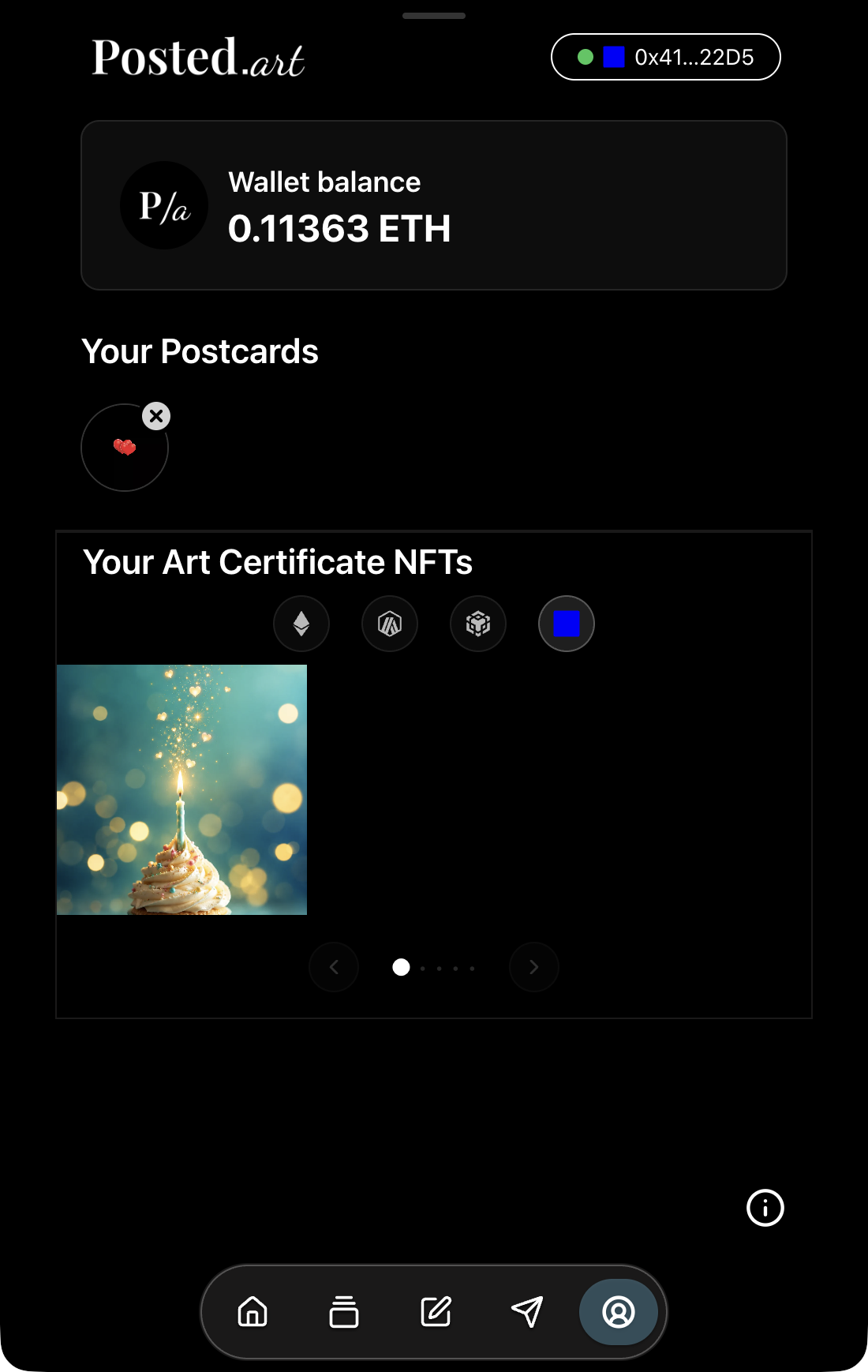
Web EVM — personal Postcard circle and Art Certificate tile 
Web EVM — Card with token price and NFT purchase icon 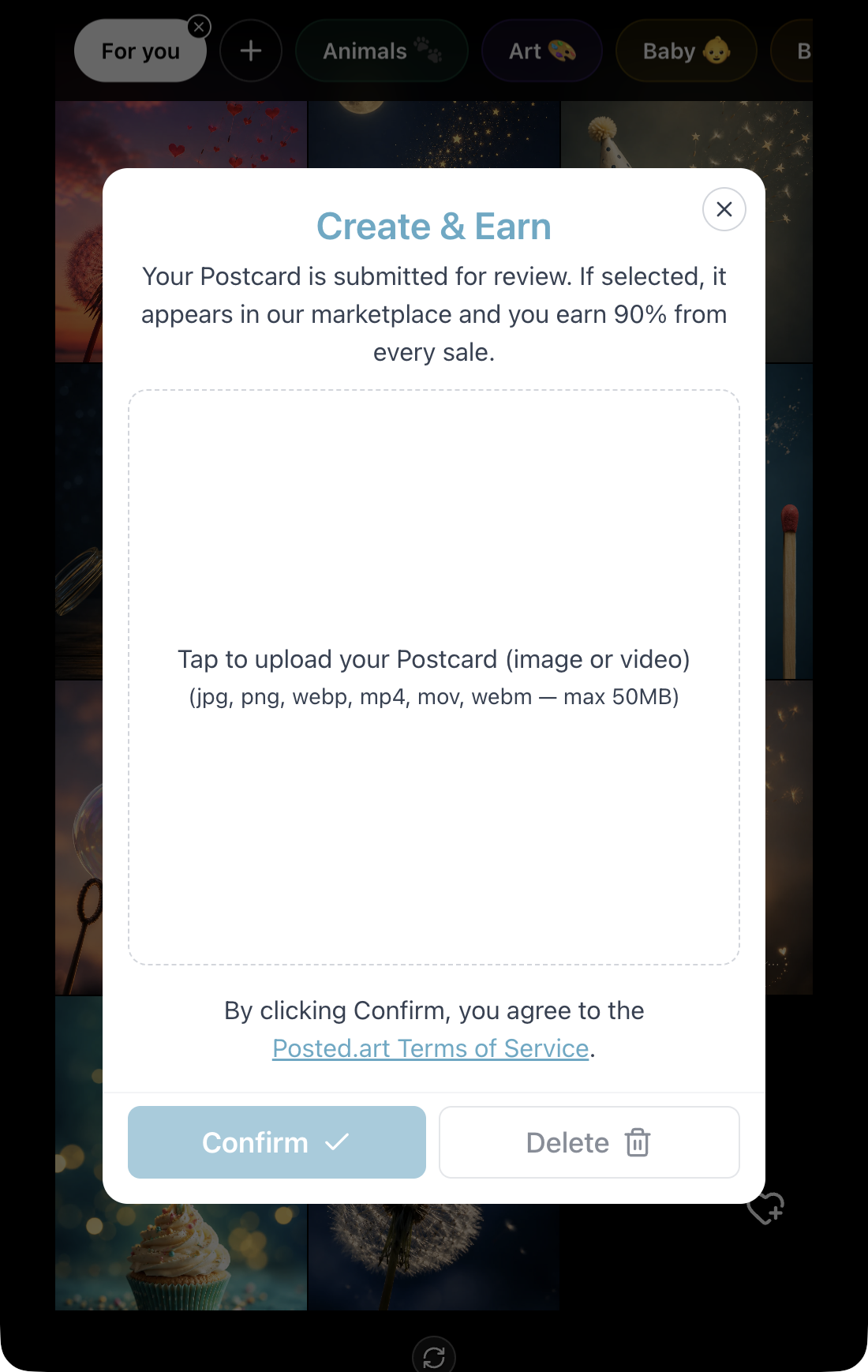
Web EVM — Create & Earn upload panel 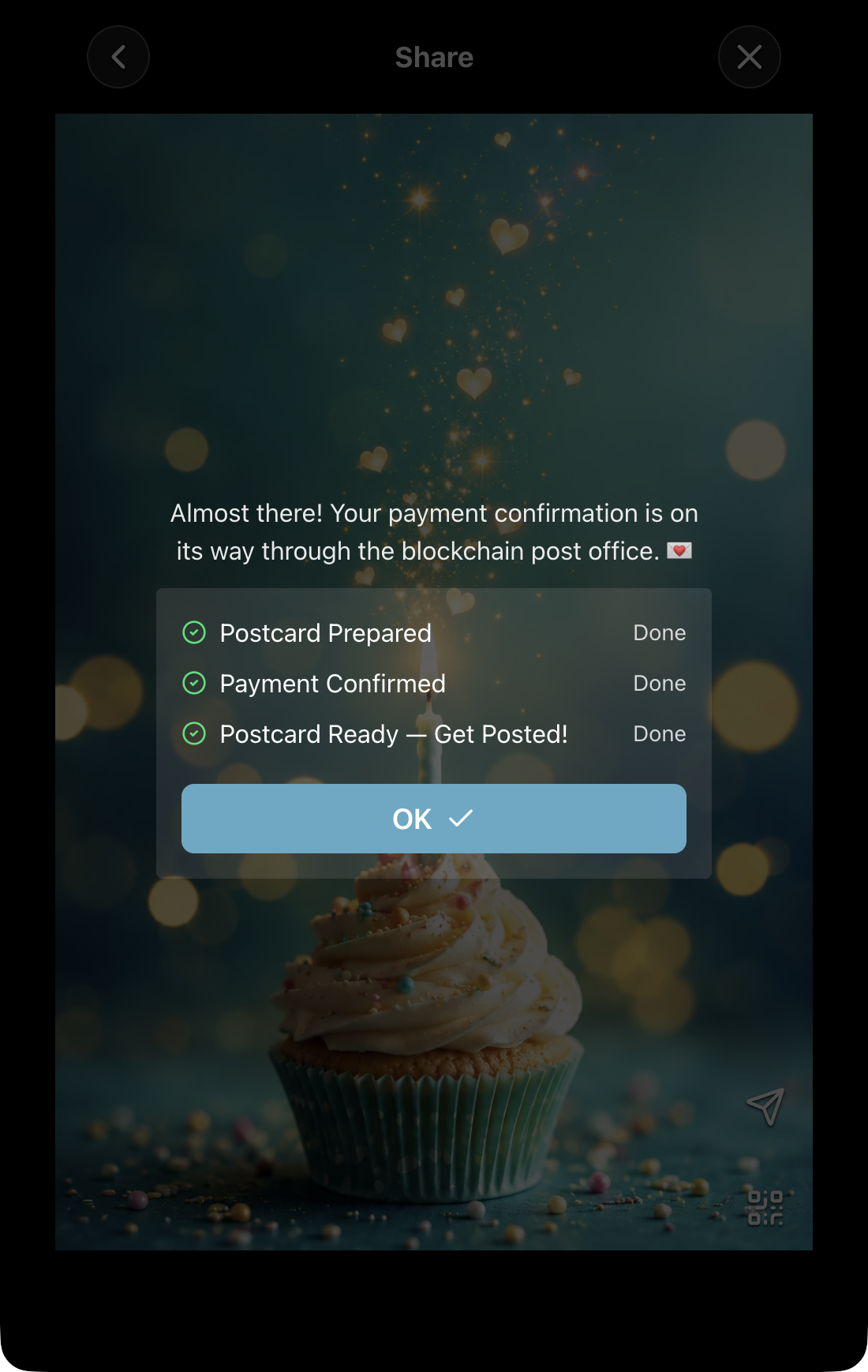
Web — free Postcard completion without wallet receipt 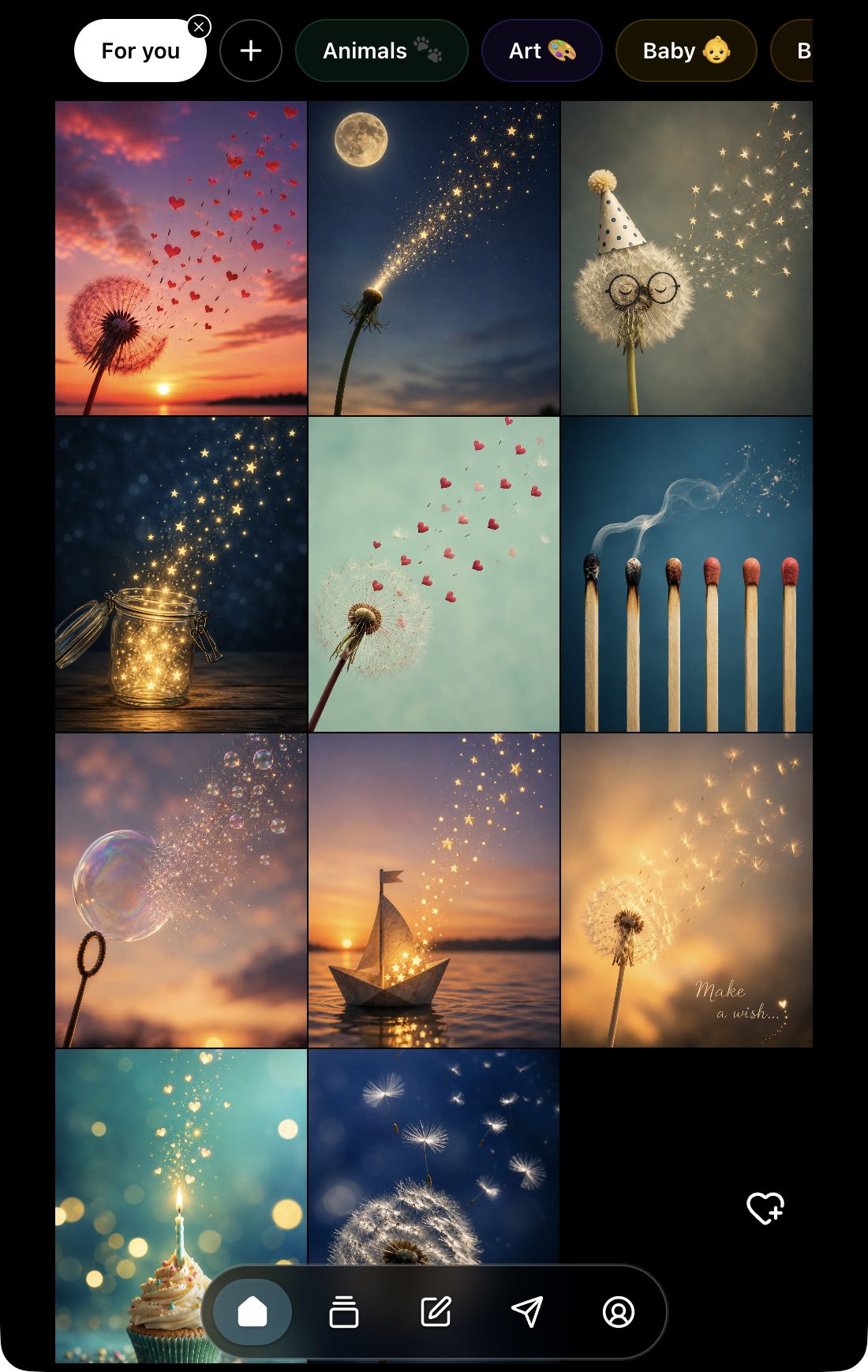
Web EVM — Home with heart-plus Upload control 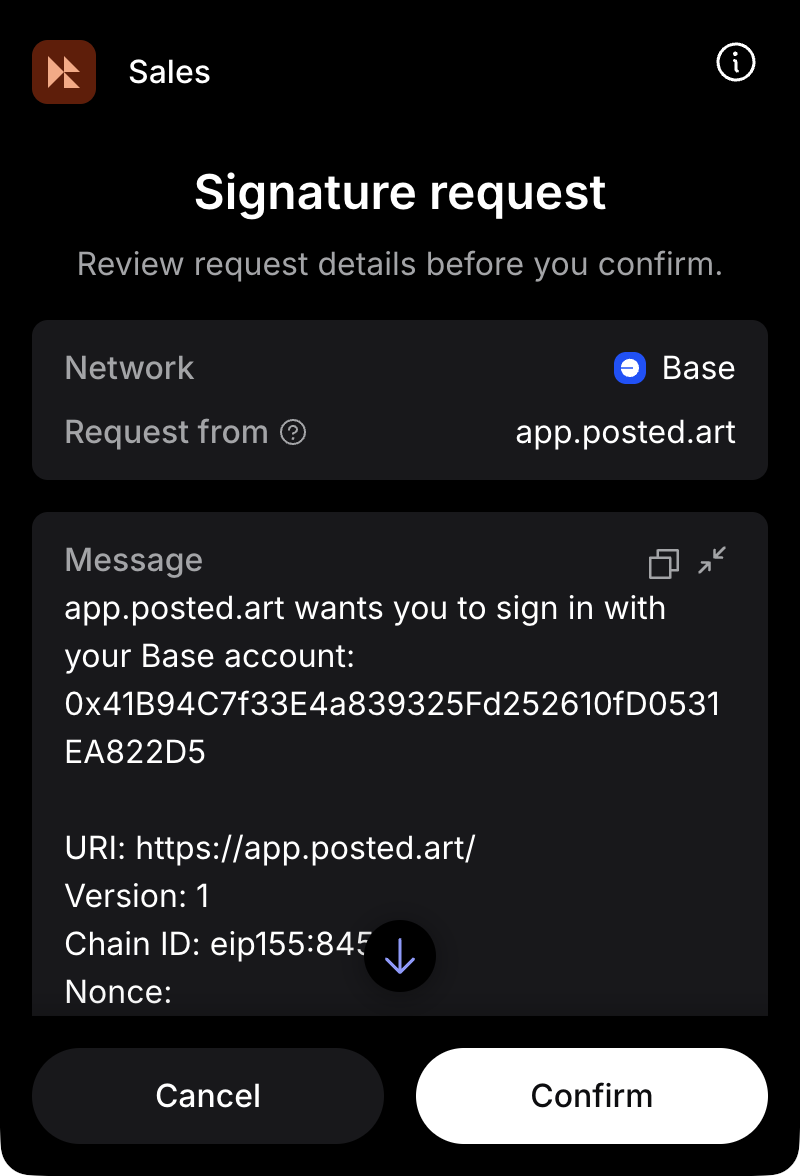
MetaMask — Base sign-in signature request 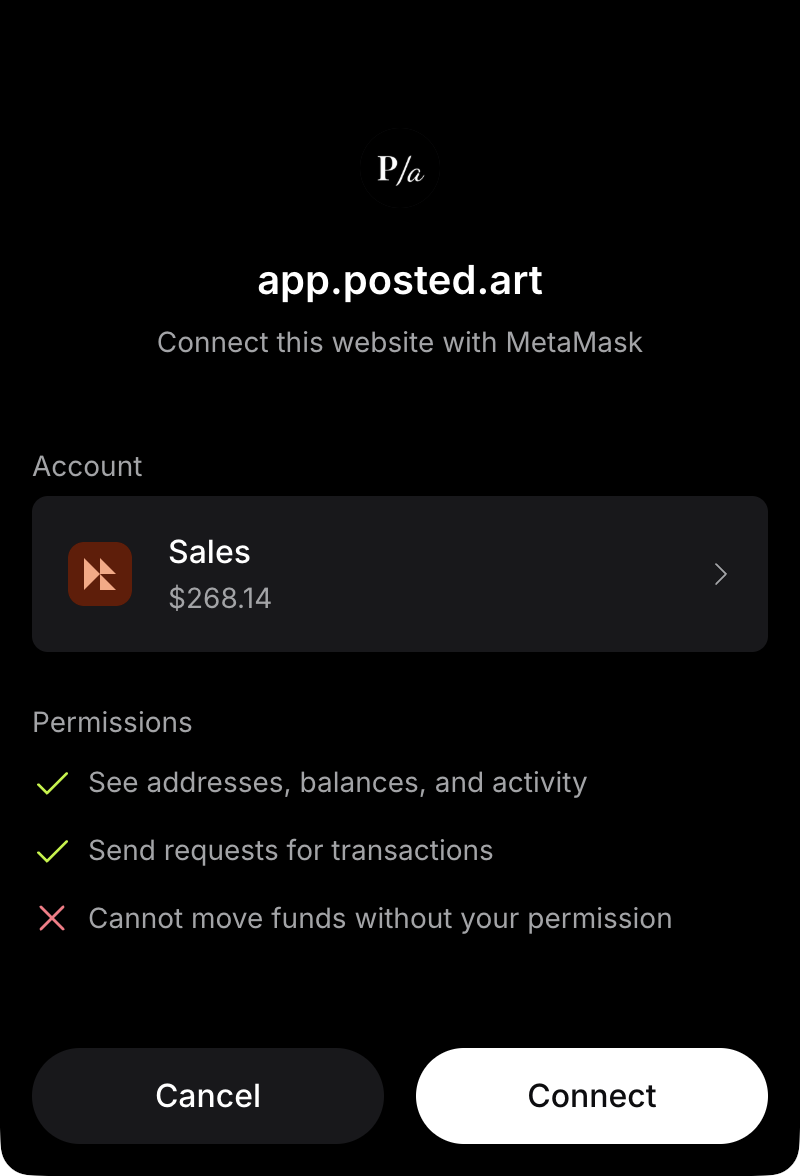
MetaMask — website connection permissions 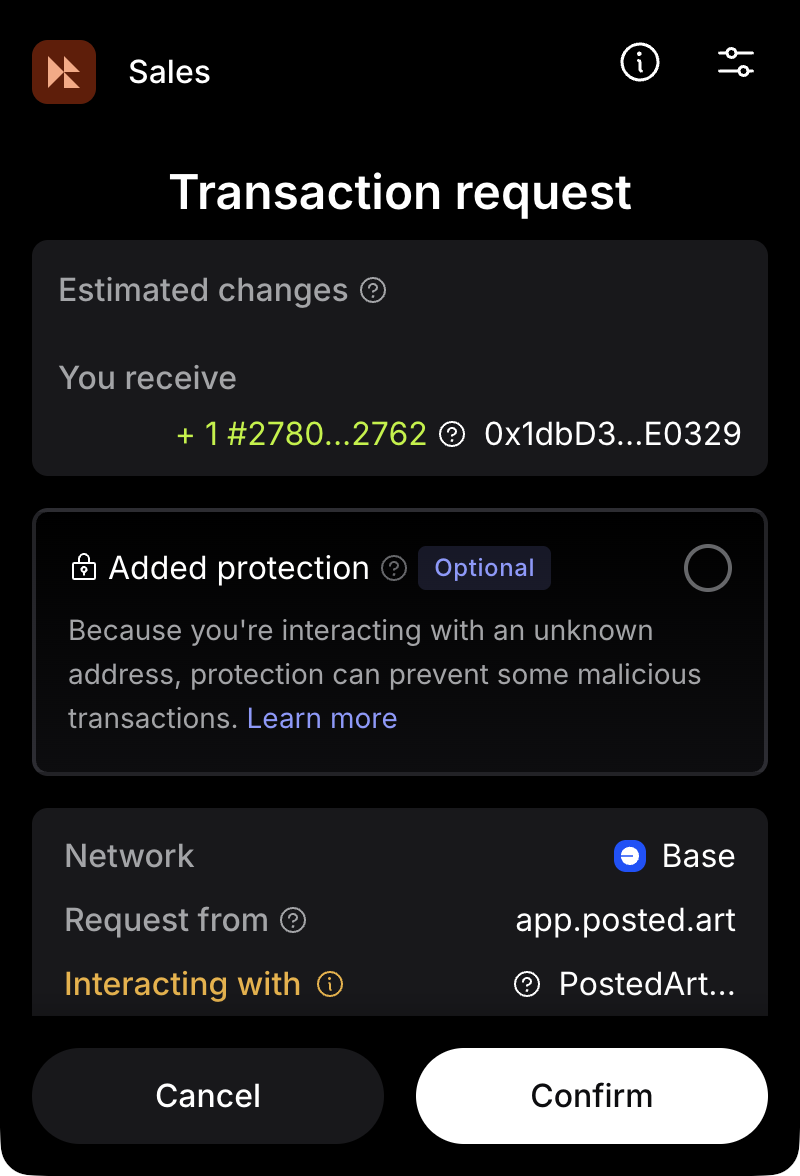
MetaMask — Art Certificate transaction request on Base 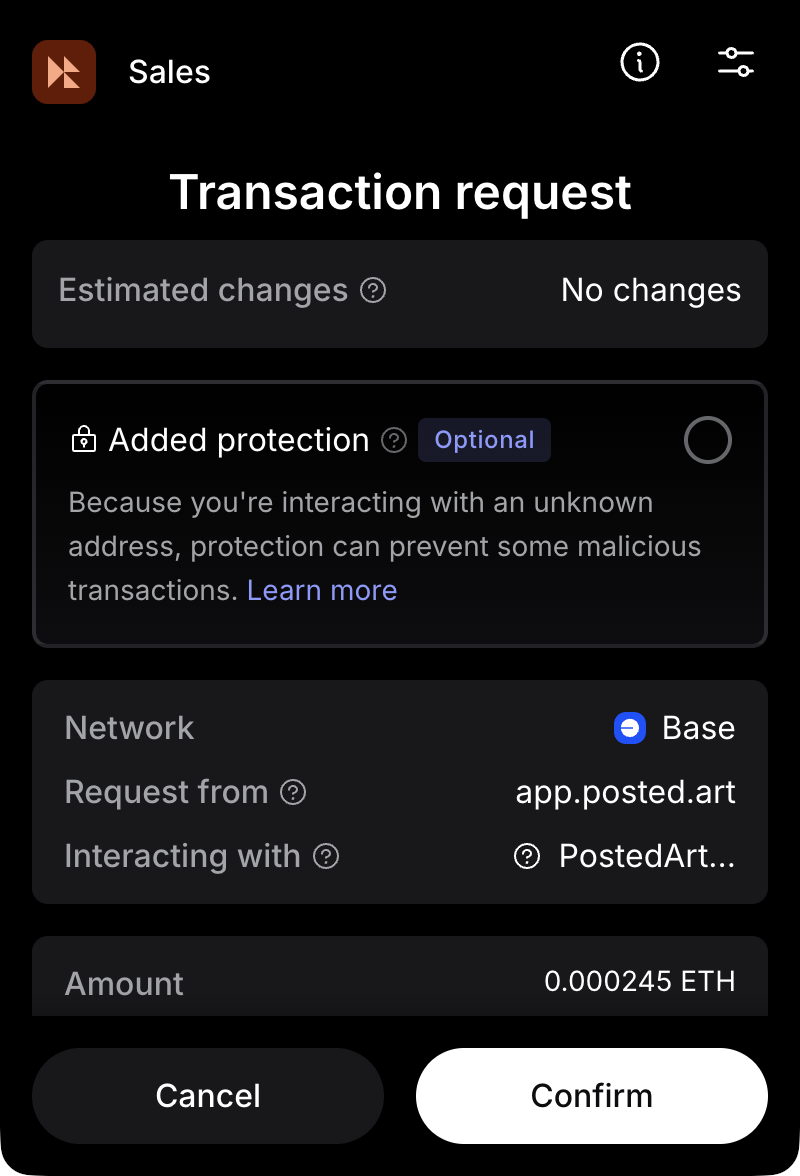
MetaMask — personal Postcard transaction request on Base 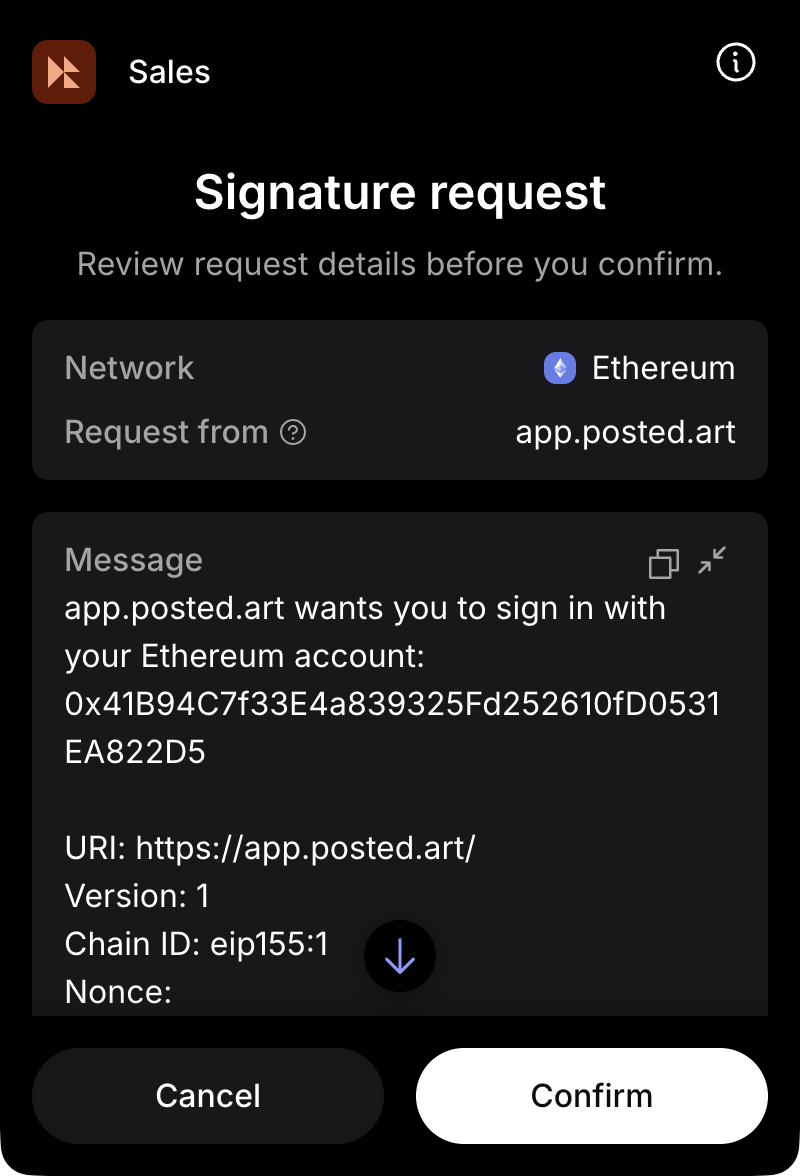
MetaMask — Ethereum sign-in signature request 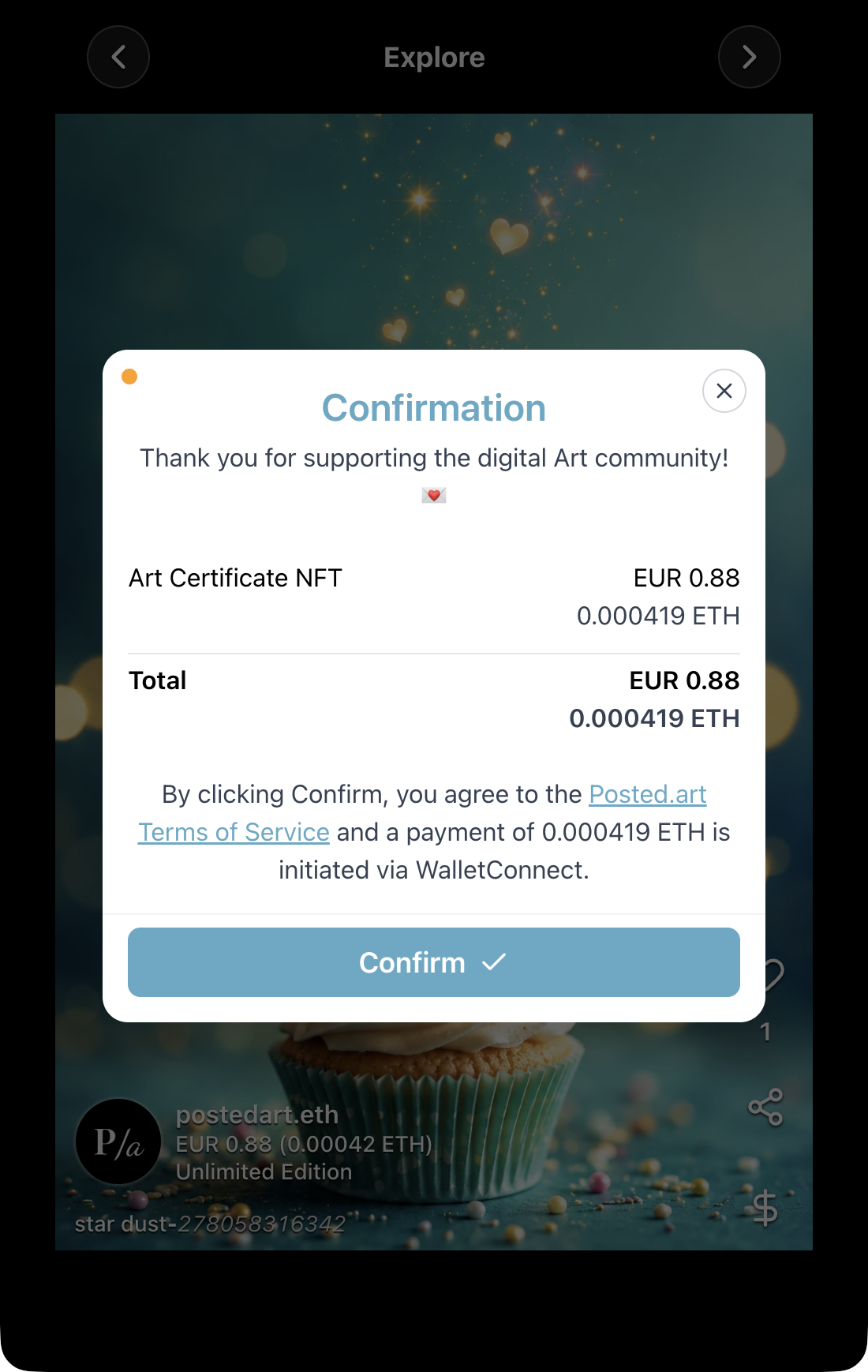
Web nft purchase confirmation 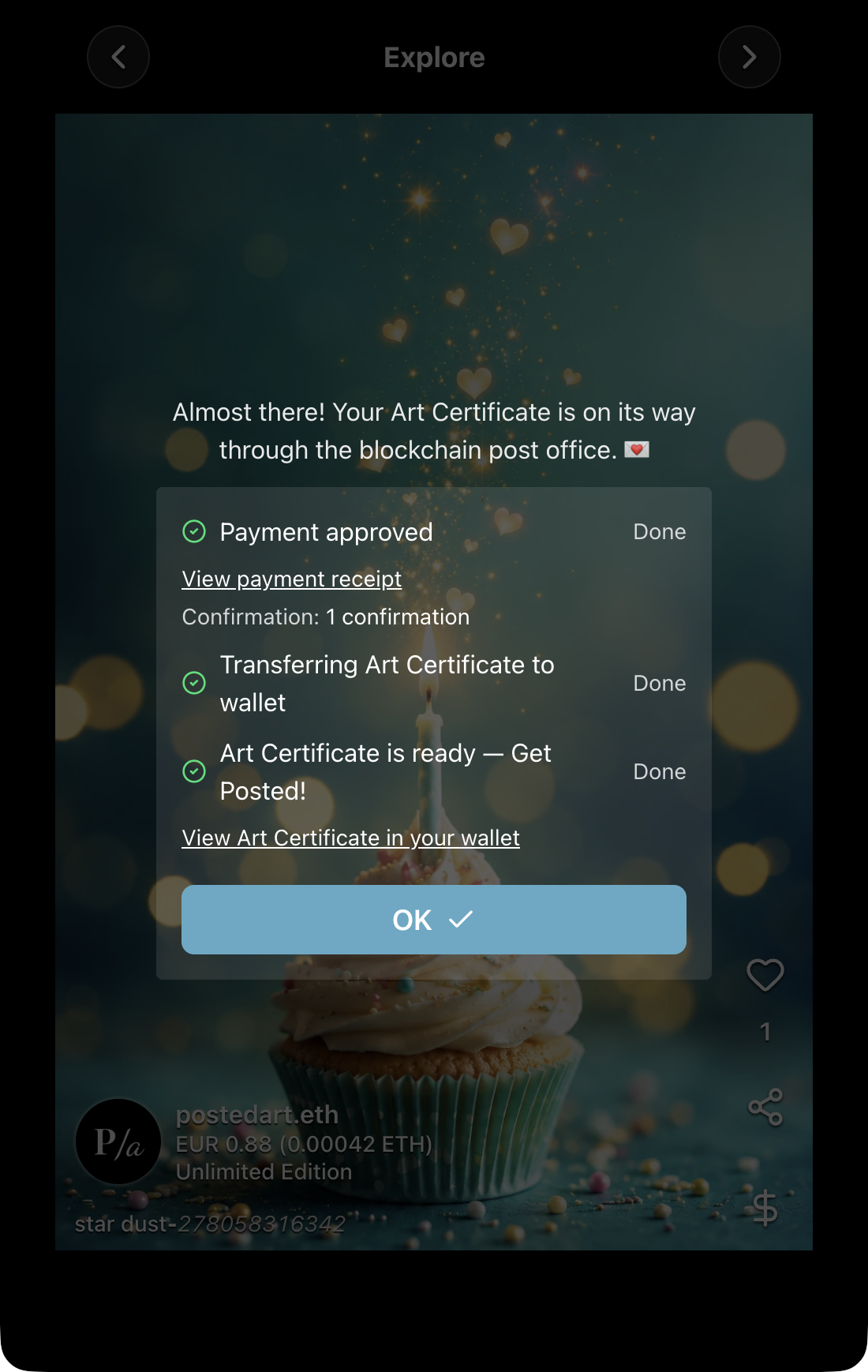
Web EVM — Art Certificate success with transaction and NFT links 
Web EVM — owned NFT preview with plus, bin and close controls 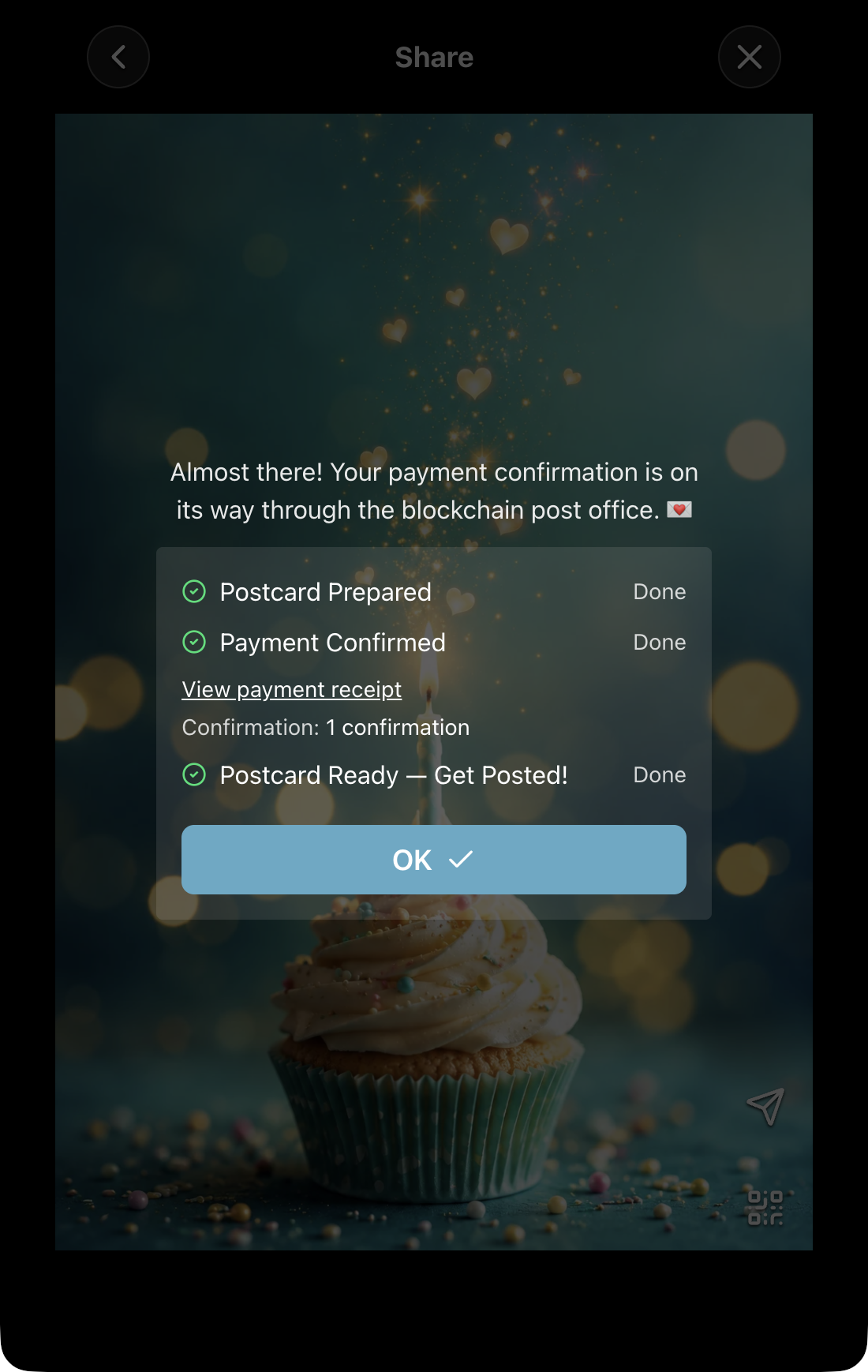
Web — paid personal Postcard success with transaction receipt 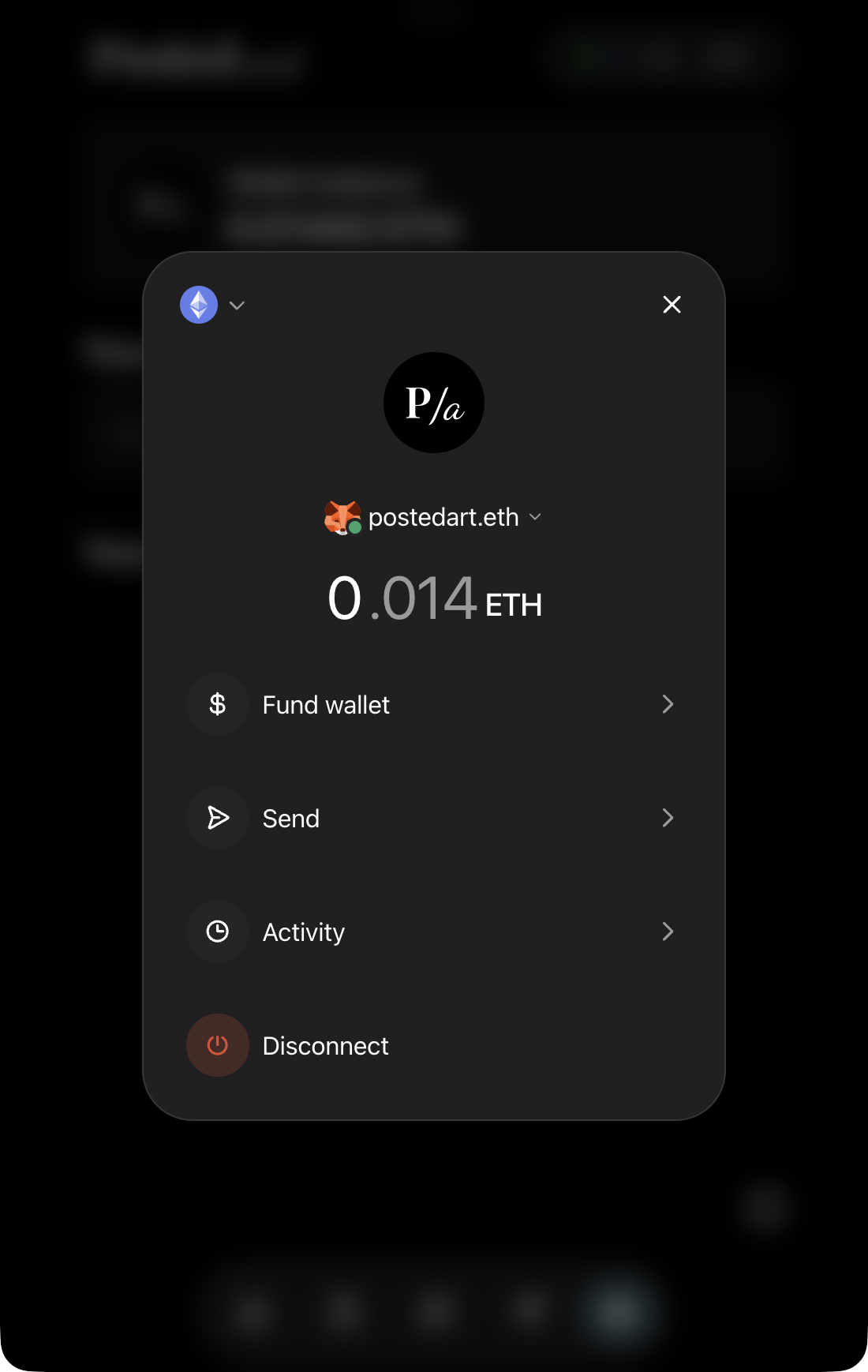
Reown — connected account menu and network dropdown 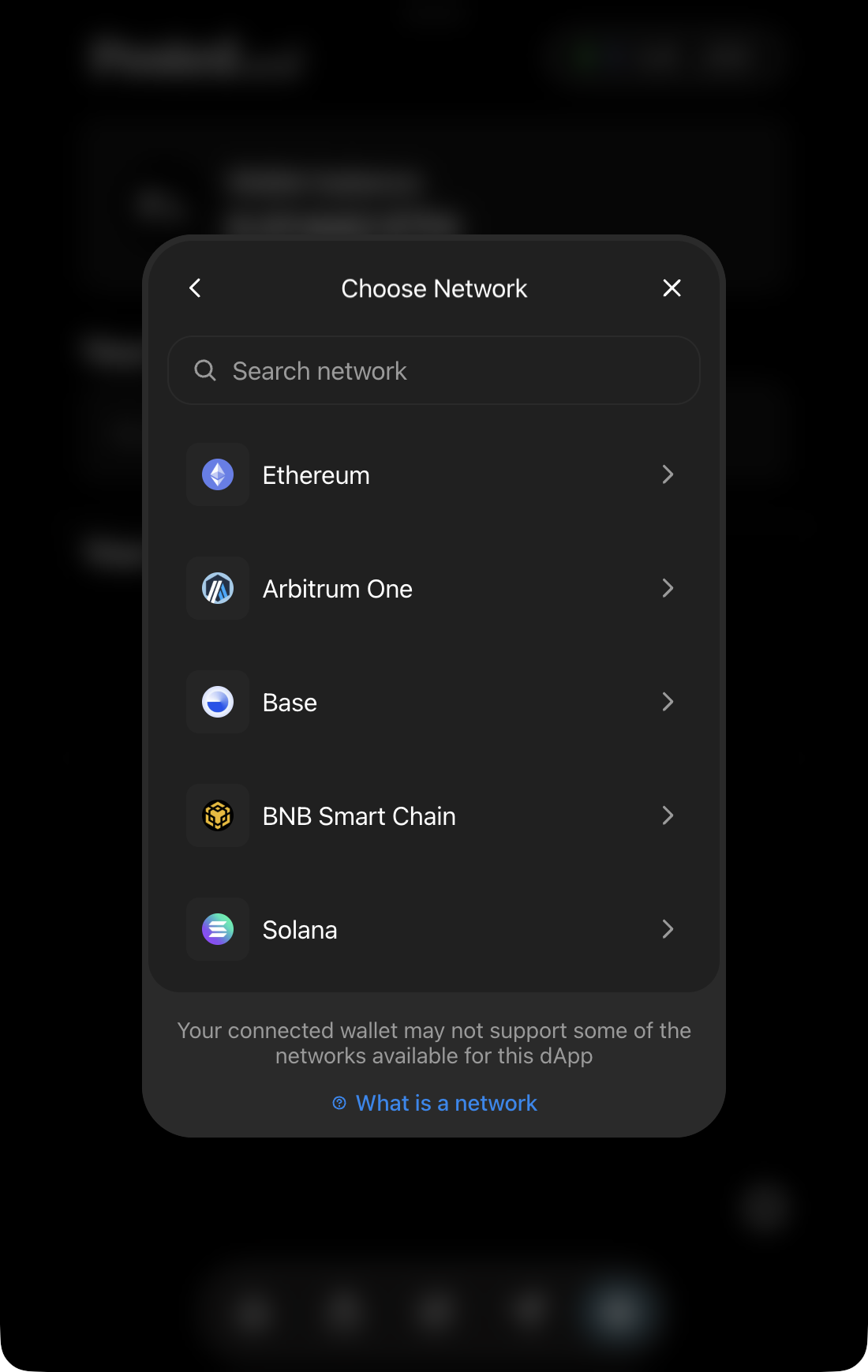
Reown — network choices 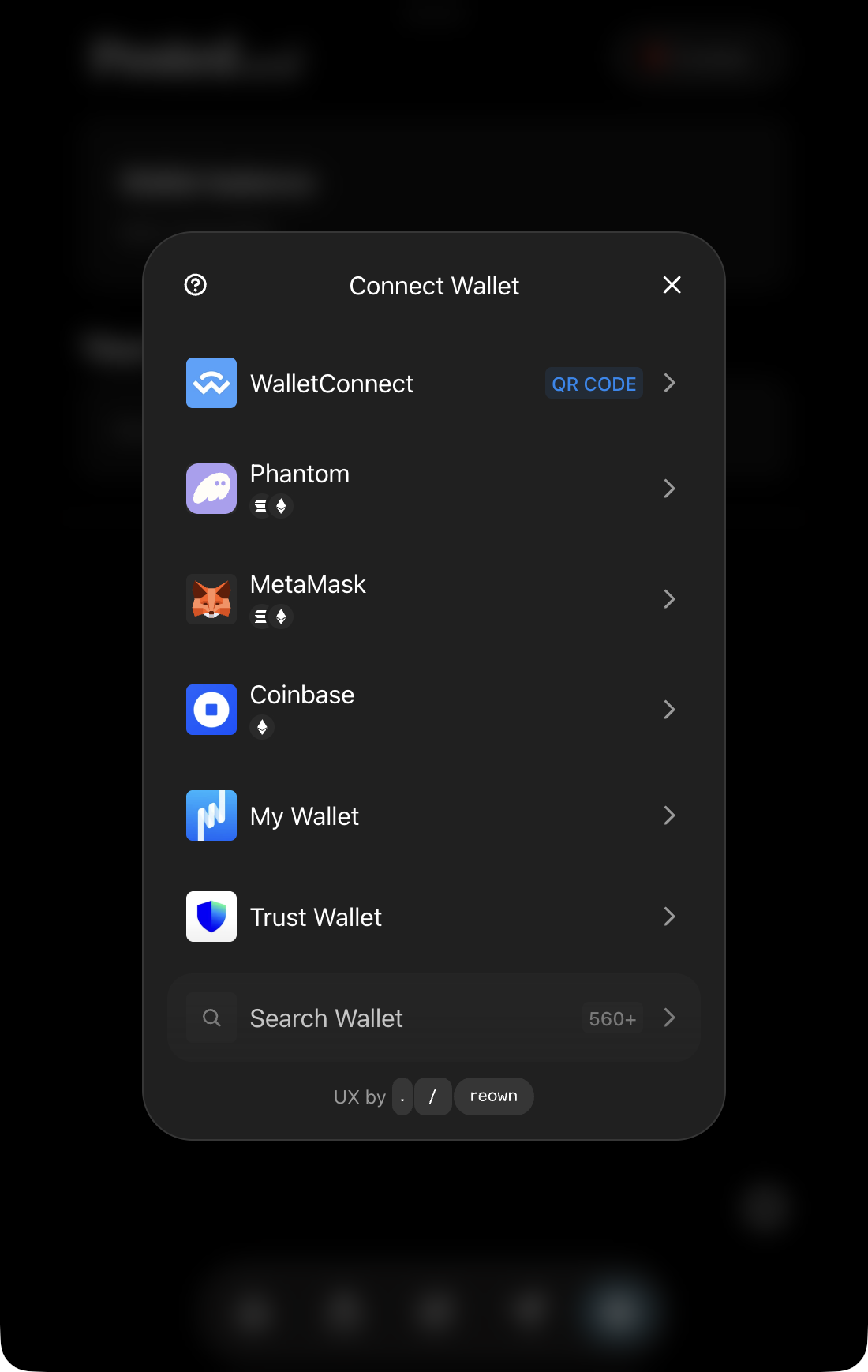
Reown — wallet choices 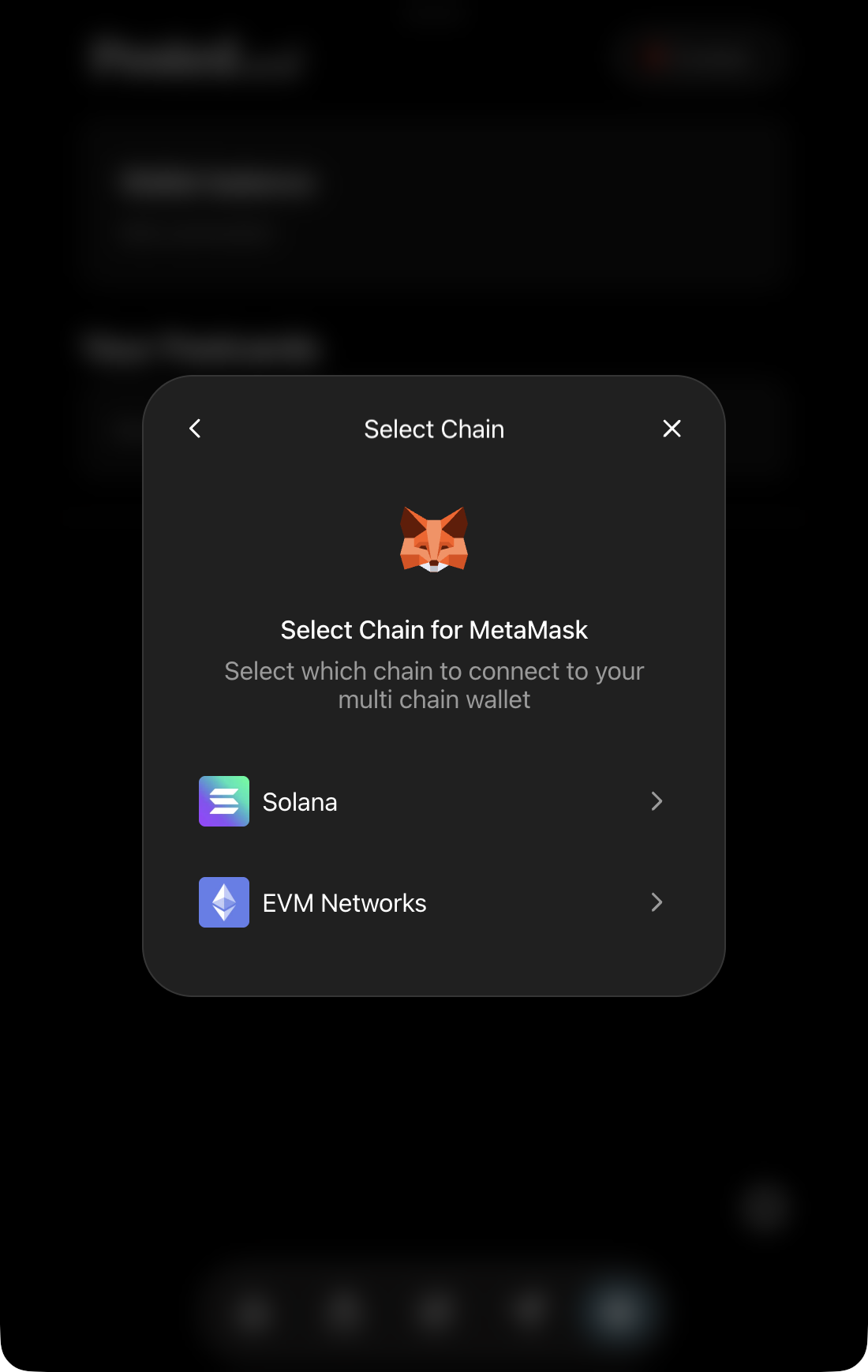
Reown — MetaMask EVM/Solana network-family choice 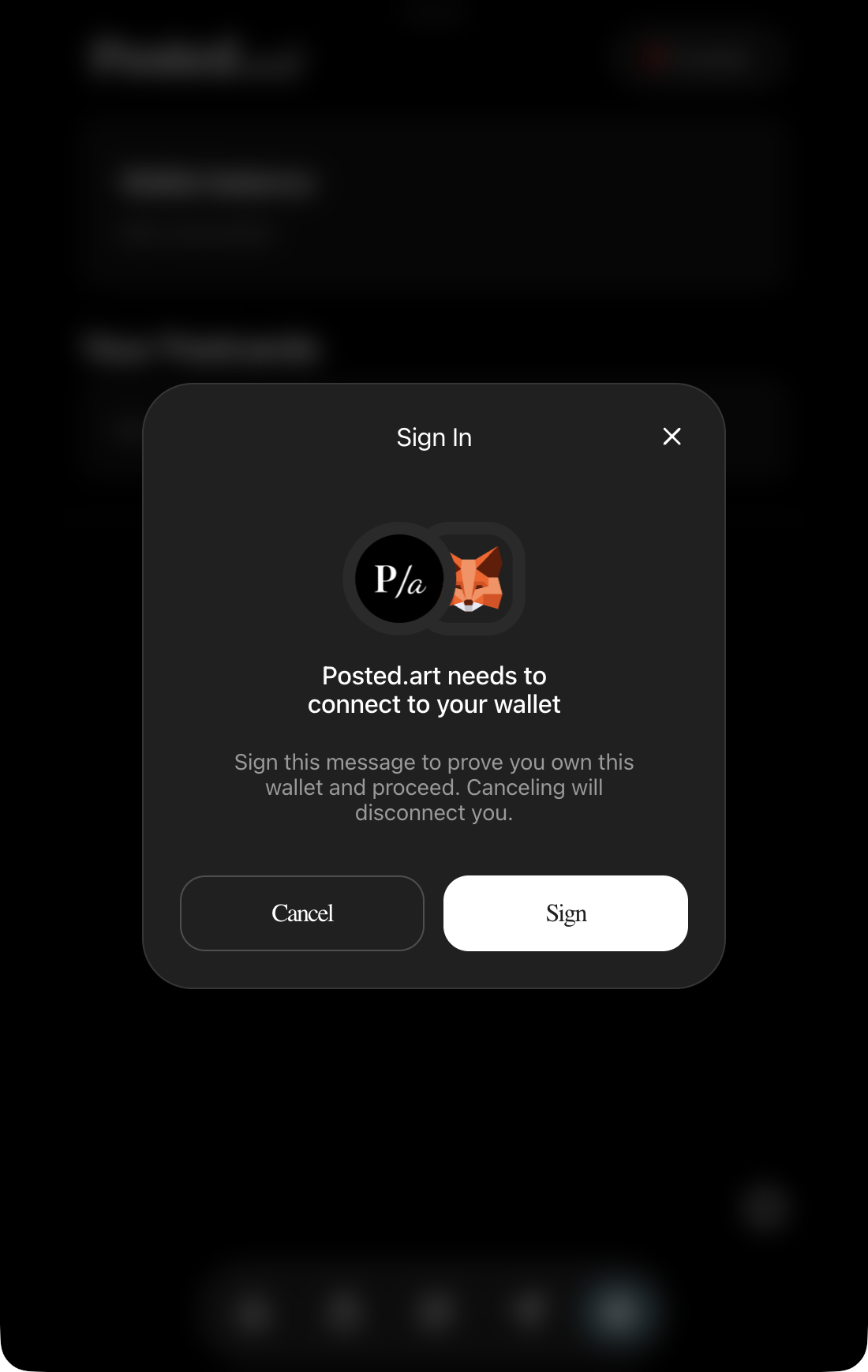
Reown — request to sign in 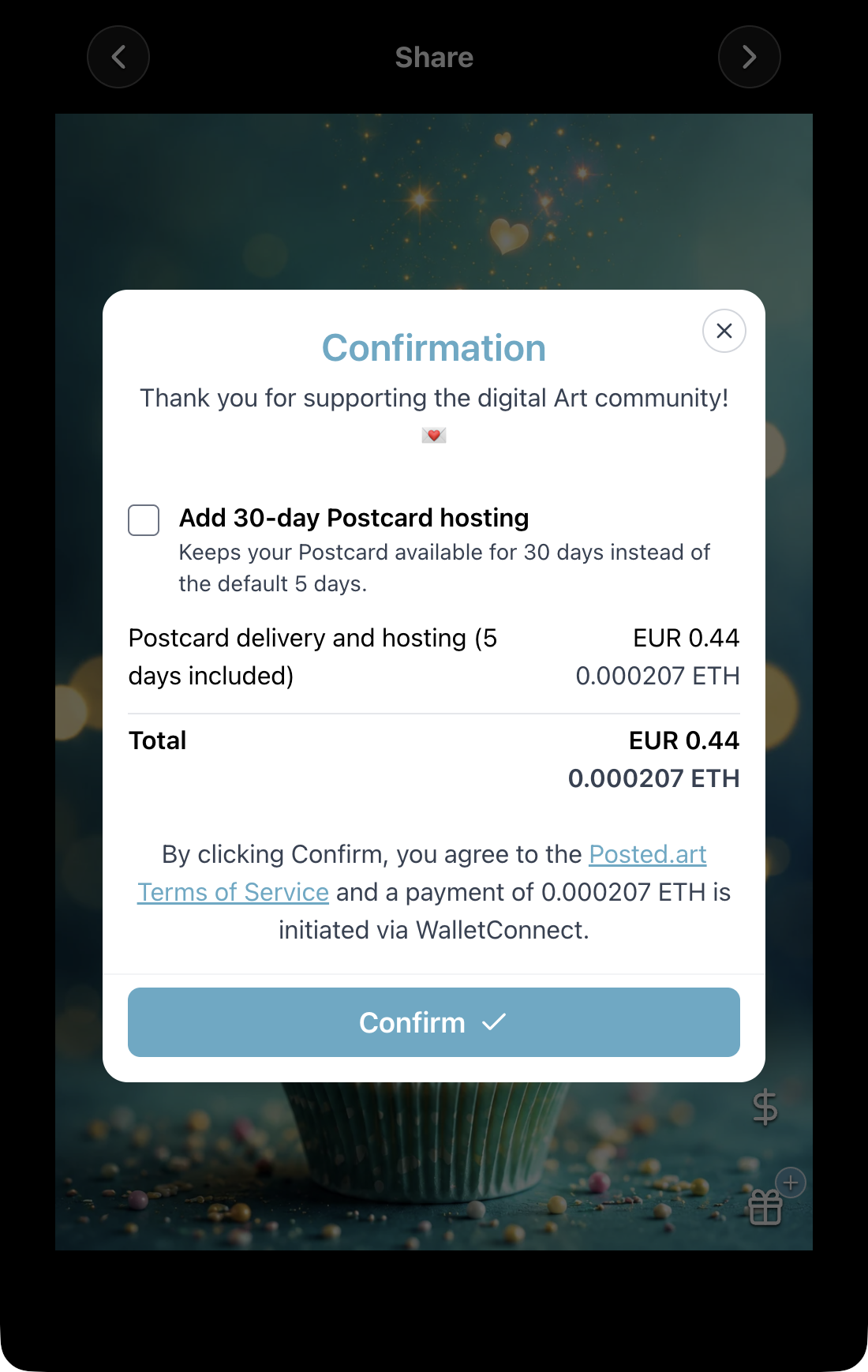
Web wallet — personal Postcard checkout, default hosting 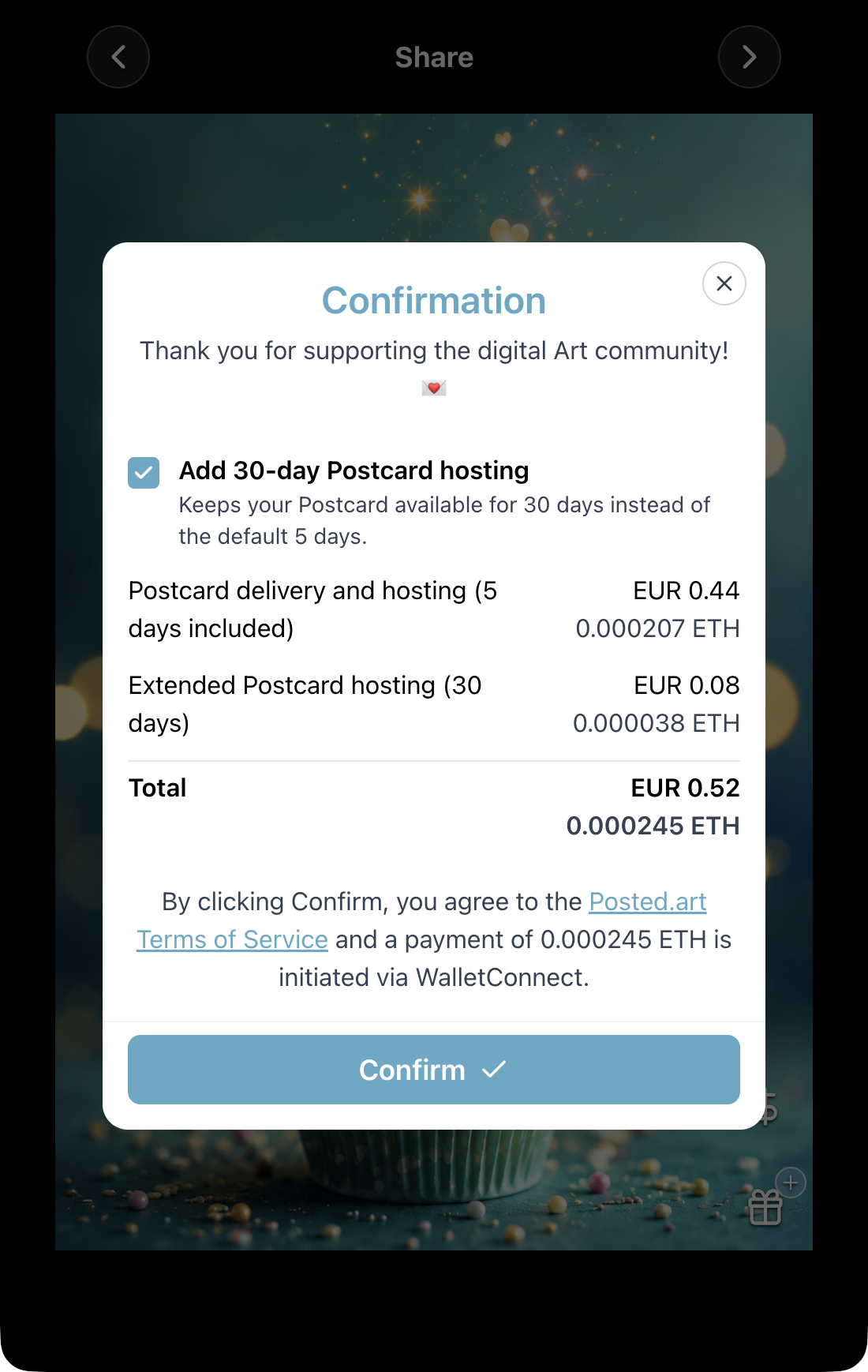
Web wallet — personal Postcard checkout with hosting extension