Preview & Share
Part of Postcards — create and send. New to Posted.art? Start with How to create and send a Postcard for the complete personal Postcard flow.
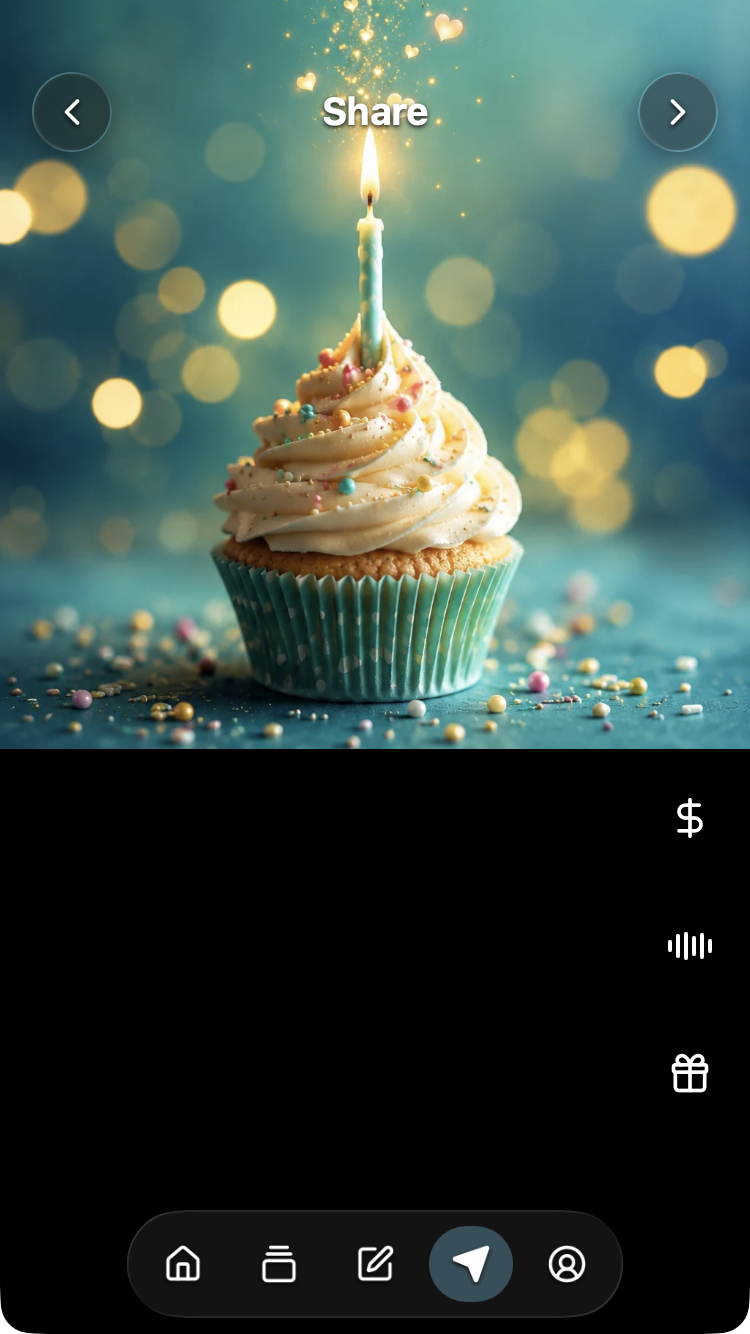
Open Share from Write using the top-right arrow or bottom paper-plane icon. Review the whole Postcard before creating it: the selected artwork appears above your canvas message, with controls for any attachments.
The creation flow is Home → Card → Write → Share. Account is a separate section. Buying an optional Art Certificate is a different purchase from creating a personal Postcard.
Preview your Postcard
Review the artwork, message, stickers and attachments for the intended recipient.
- Music: the equalizer-style control appears when audio is attached. Select it to turn playback on or off. To add or replace music or a voice recording, return to Write; Share's music control does not open an upload panel.
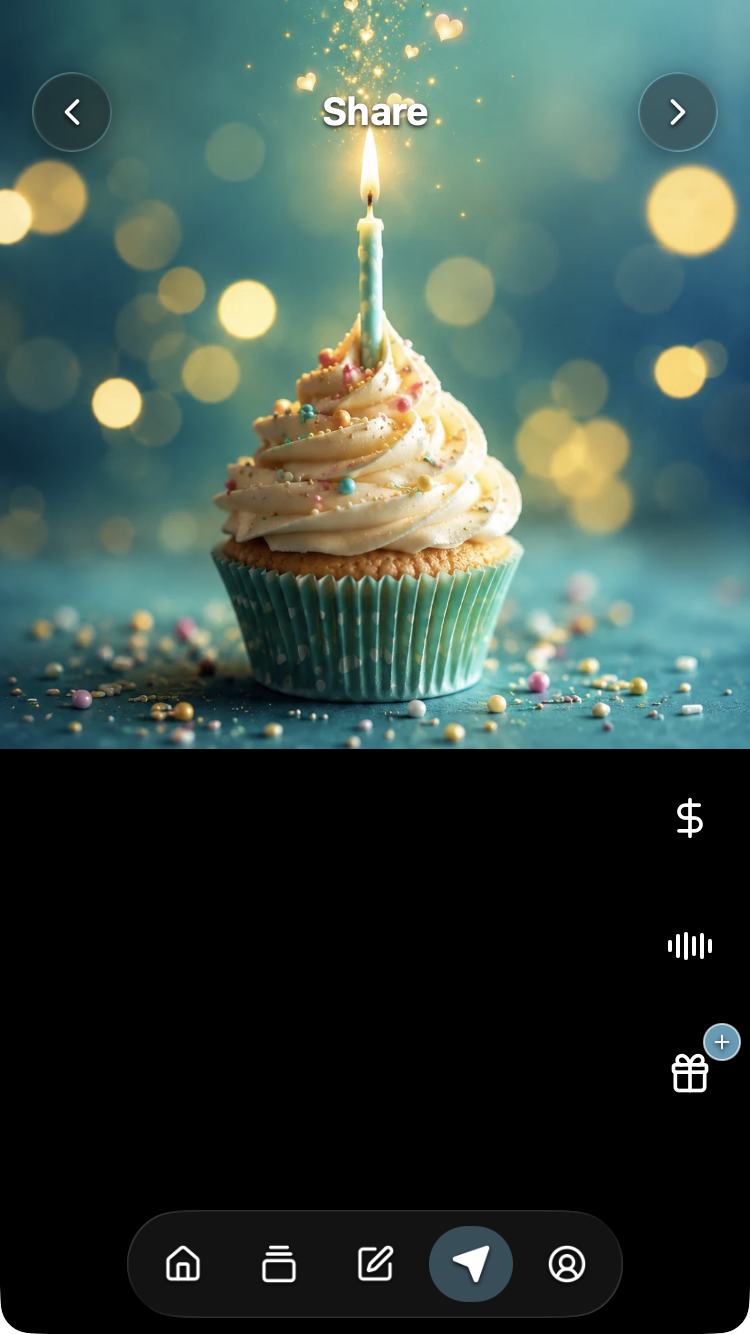
- Gift: while preparing a Postcard, this control opens the gift panel. A small plus means no image is attached. Add a voucher image or personal photo using the same panel as Write, then select Confirm. You can add a gift directly from Share without returning to Write.
Continue to creation
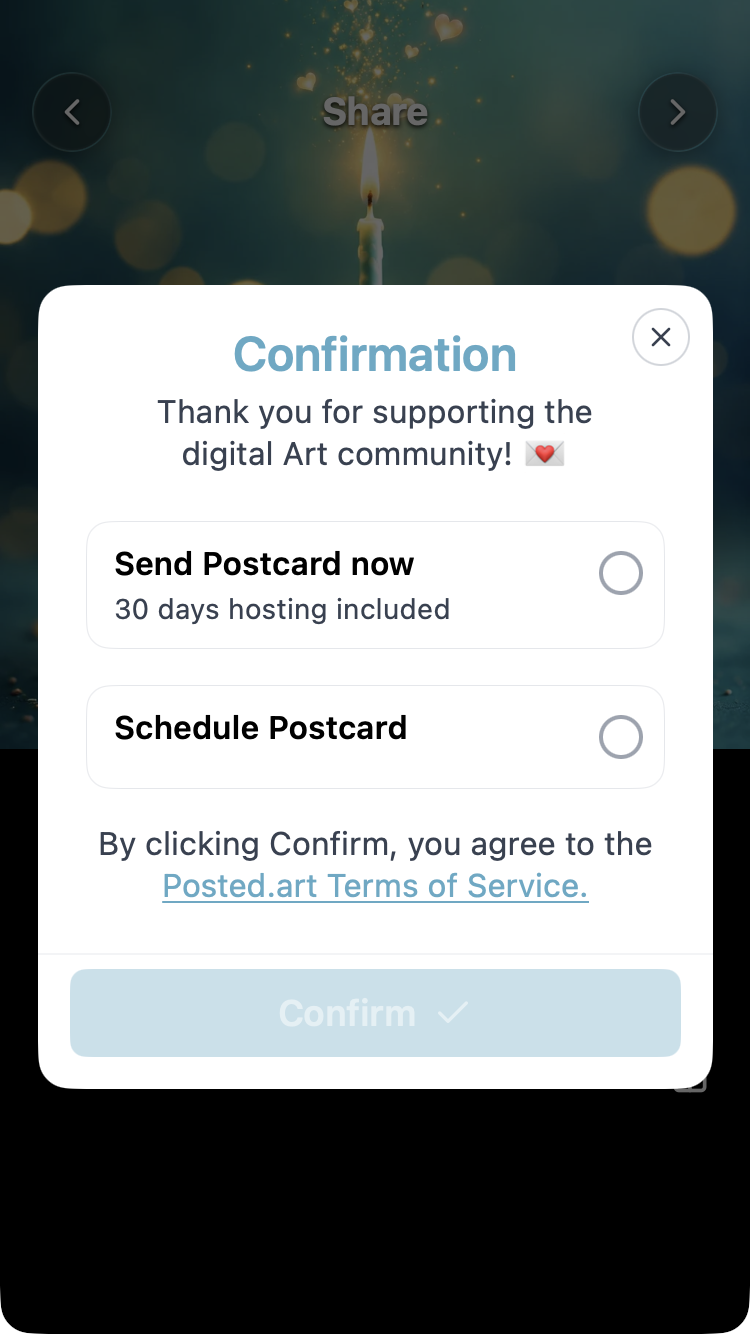
Select either the dollar sign or top-right chevron on Share. Both open the relevant confirmation or payment panel. Opening it does not complete payment or send the Postcard.
| Client or connection | Next step |
|---|---|
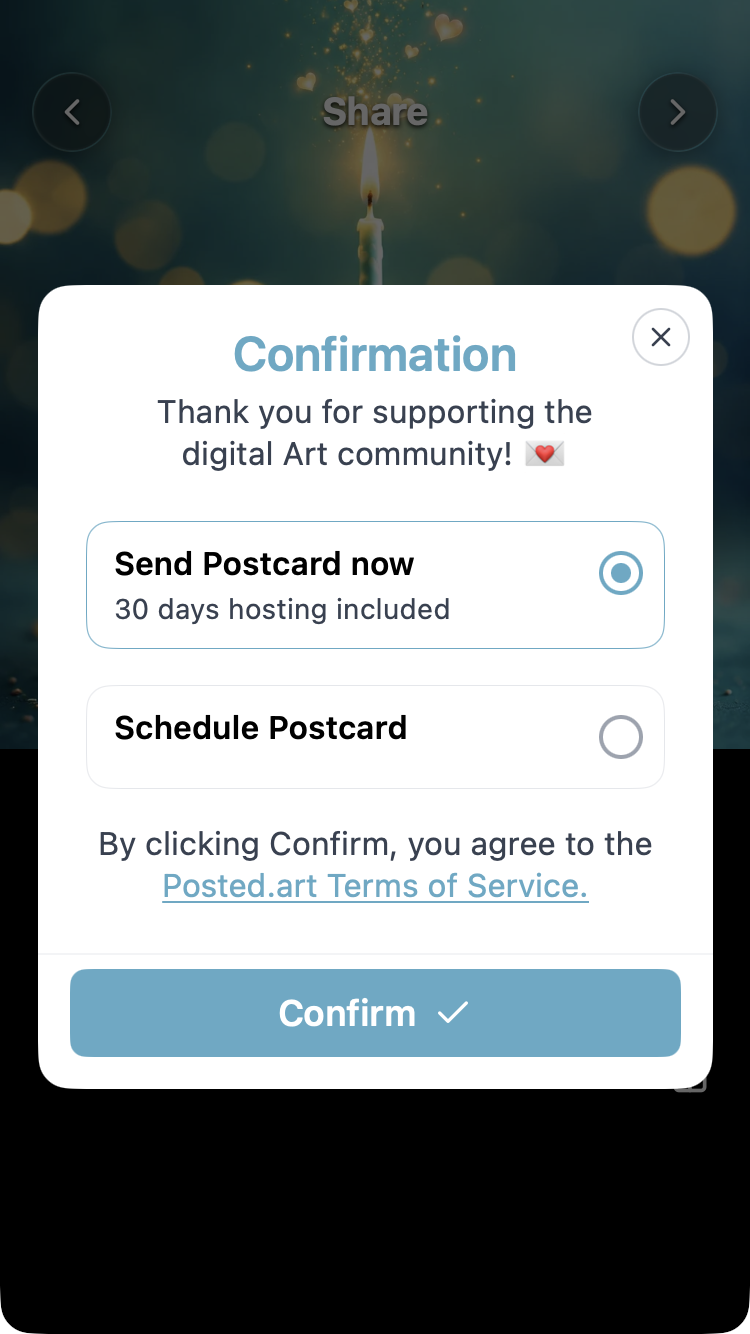
| Standalone iOS or Android app | Choose Send Postcard now or Schedule Postcard. Native subscriptions include thirty-day hosting; eligible free creation is handled by the app. |
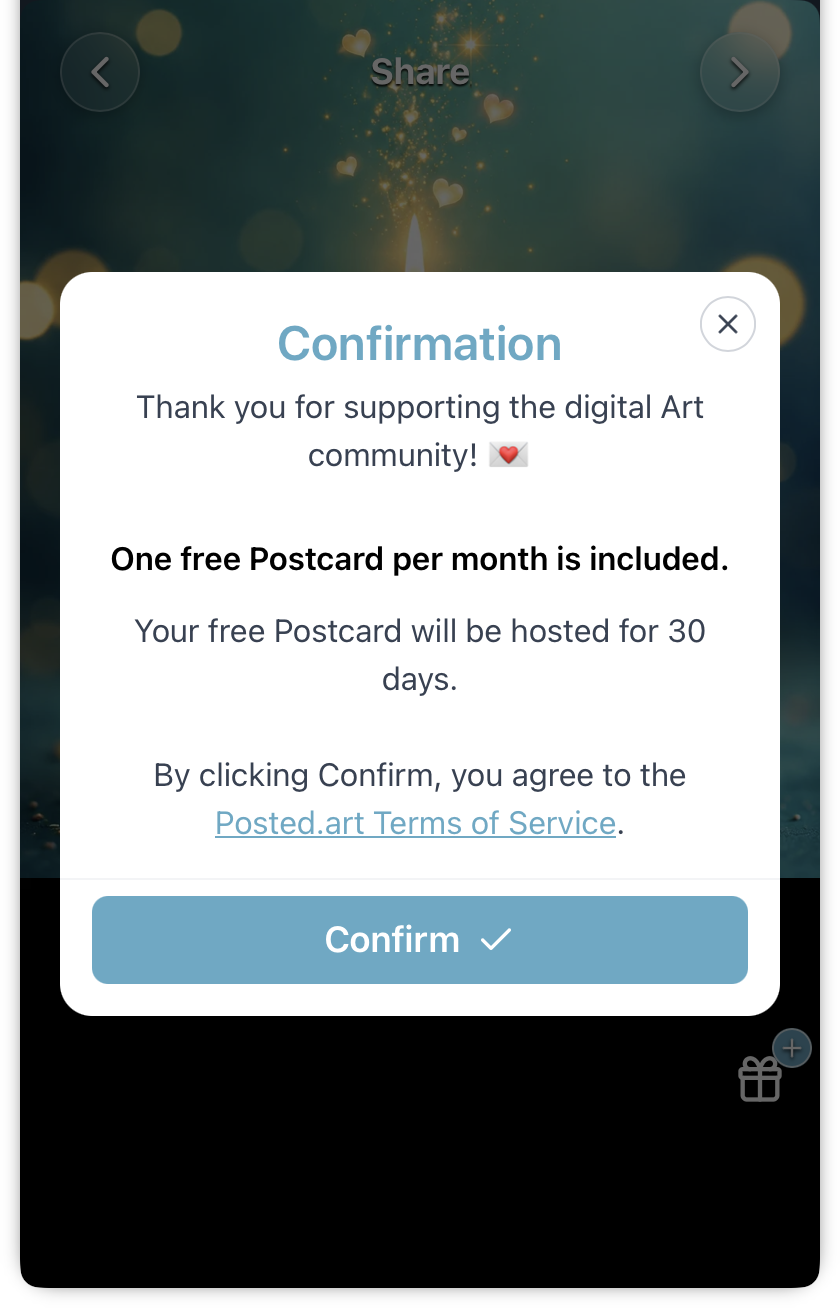
| Web EVM or Solana wallet, including inside Farcaster | Review the free offer when eligible, or the wallet payment and hosting options. |
| Telegram | Review the free offer when eligible, or the Telegram Stars checkout. |
An active native subscription does not add a separate payment for each Postcard. See pricing, scheduling or Telegram for the relevant flow.
Pay for a Postcard with a web wallet
See the FAQ pricing section for current base prices and hosting-extension charges.
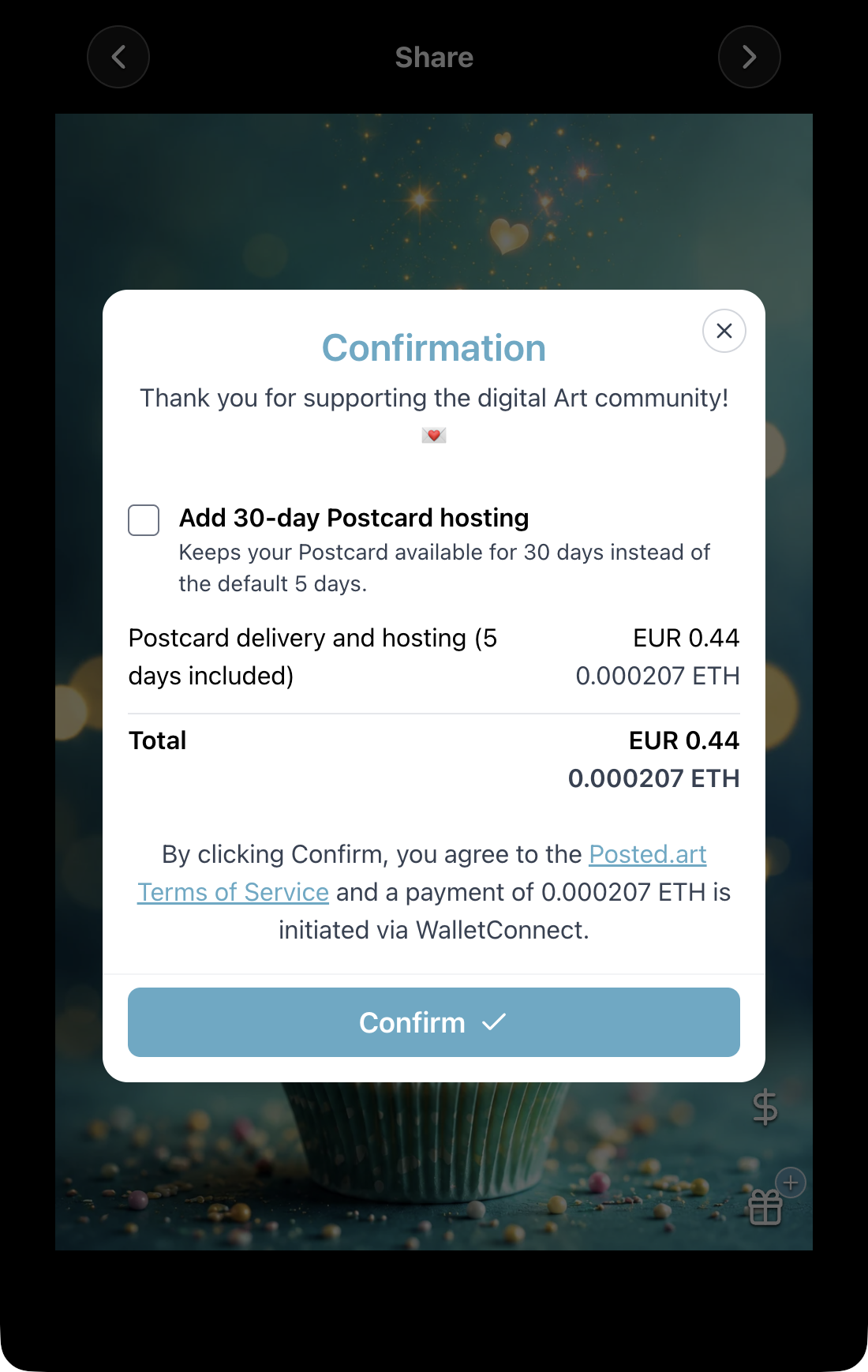
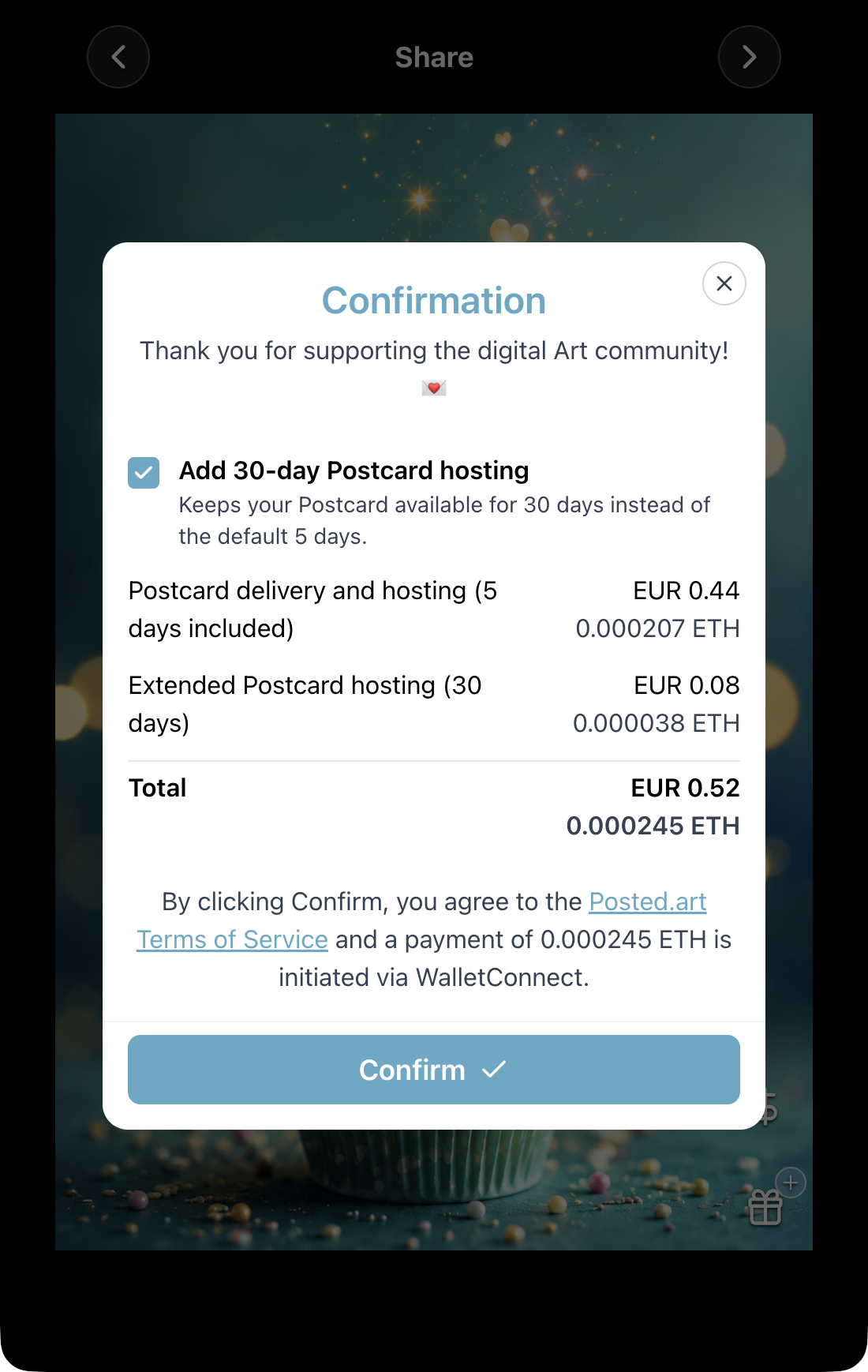
Paid wallet checkout includes five days of hosting by default. Select Add 30-day Postcard hosting for thirty days total, rather than five plus thirty. A separate hosting charge appears and the total updates.
Review the payment amount in the network's currency and the local-currency reference where displayed. Select Confirm to begin the wallet payment flow.
View five-day wallet checkout and the thirty-day option selected. These ETH examples illustrate hosting choices; the amounts are not fixed prices or SOL quotes.
Review the wallet request
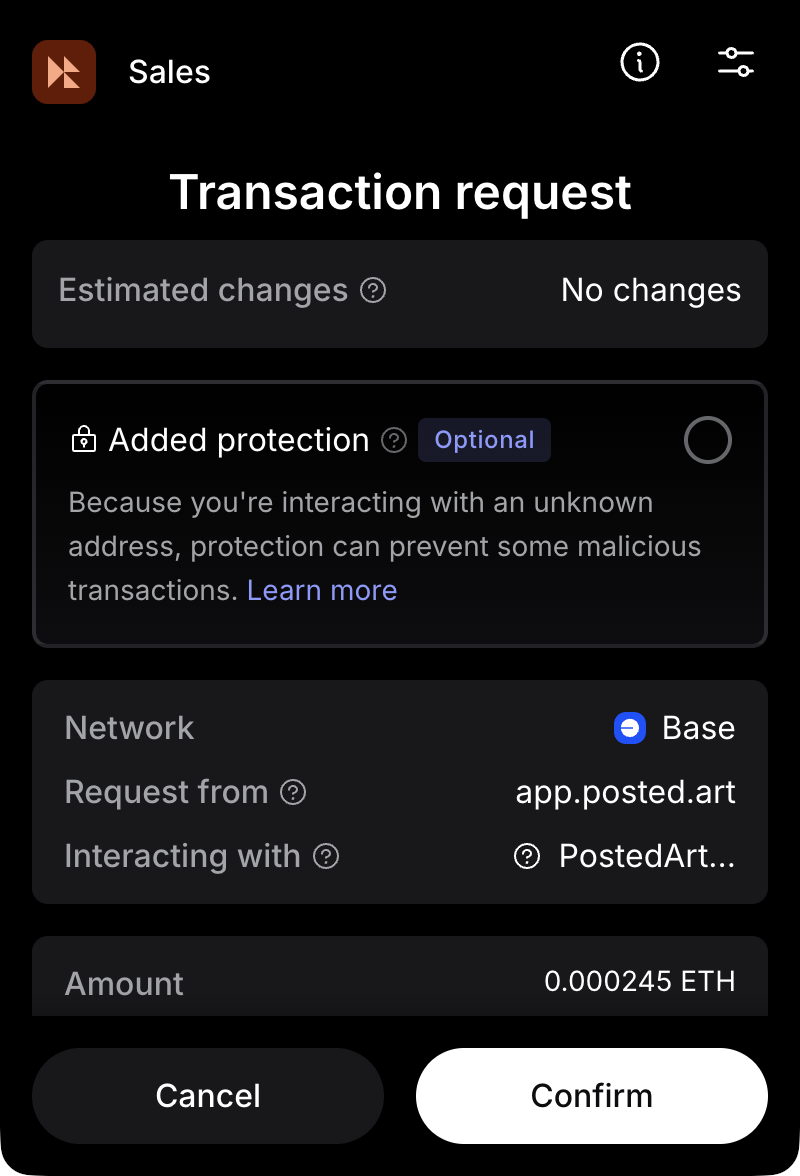
Your wallet opens a separate transaction request. Check the requesting site, selected network, payment amount and network fee before deciding whether to approve. Cancel in the wallet if you do not want to proceed.
View a MetaMask personal Postcard payment request on Base. This is a personal Postcard payment, not an NFT purchase. MetaMask's Estimated changes / No changes summary does not mean the payment amount is zero. Scroll within the wallet to review fee details not visible in the screenshot. Other wallets and embedded hosts can show different approval screens.
Paid Postcard result and receipt
After successful payment and preparation, Postcard Prepared, Payment Confirmed and Postcard Ready — Get Posted! show Done. View payment receipt opens the transaction on the payment network's explorer.
View paid Postcard completion with a receipt. The free completion layout has no wallet receipt link; an Art Certificate purchase result is separate and also includes an NFT-view link.
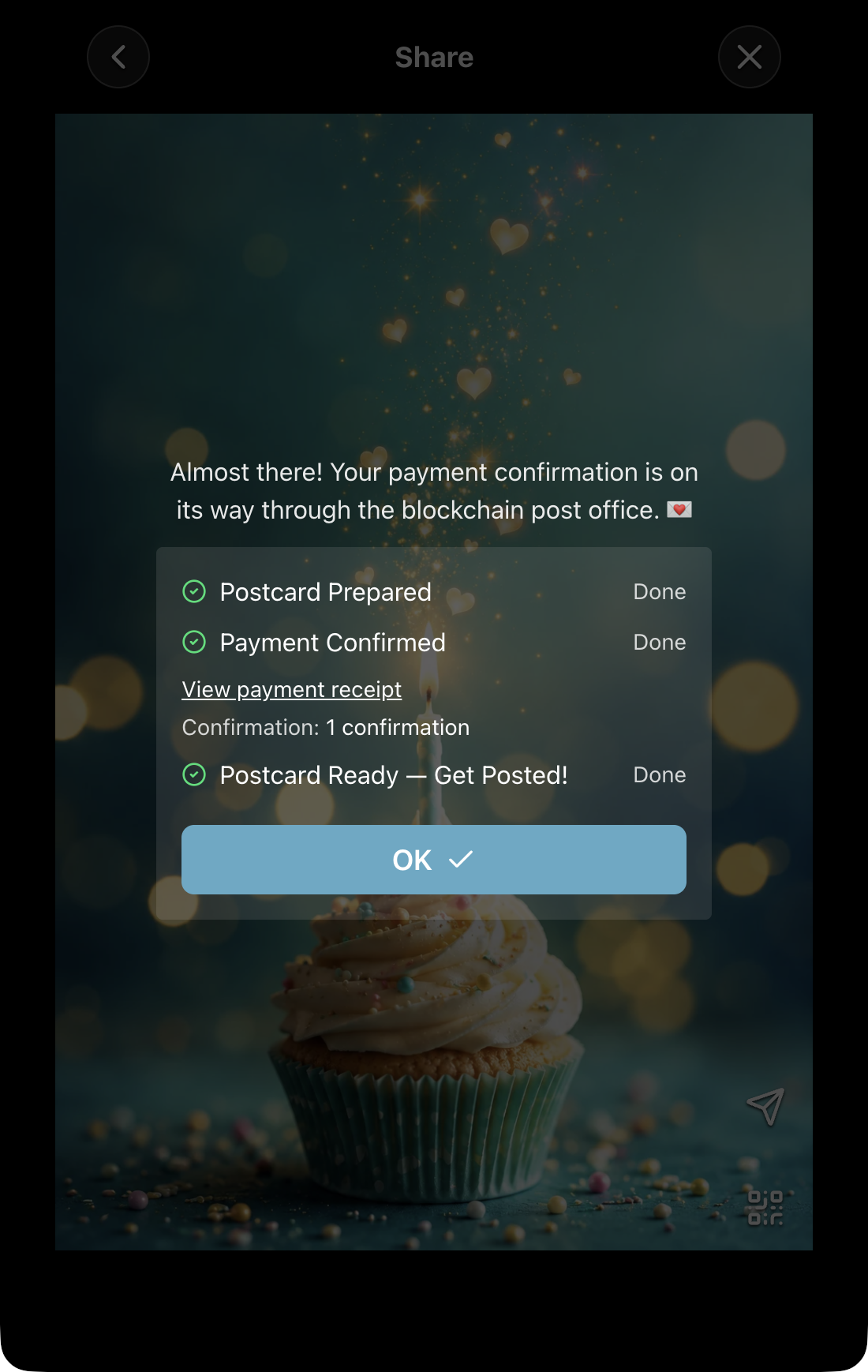
Select OK to continue to the finished Postcard sharing controls. Payment and creation do not send the link to a recipient automatically.
Payment completed but the connection was interrupted
Reopen Posted.art, reconnect the same wallet, and check Account → Your Postcards. The app checks unfinished payment attempts created within the previous three days (72 hours) and can recover the prepared Postcard once payment is verified.
Reconnect as soon as possible within that window, measured from the original attempt. Allow time for network confirmation, and do not immediately pay again for the same attempt.
If it is still missing, use the FAQ contact section and provide the transaction receipt and payment network. Recovery requires the prepared Postcard to remain stored; it is not an unlimited recovery guarantee.
When your Postcard is ready
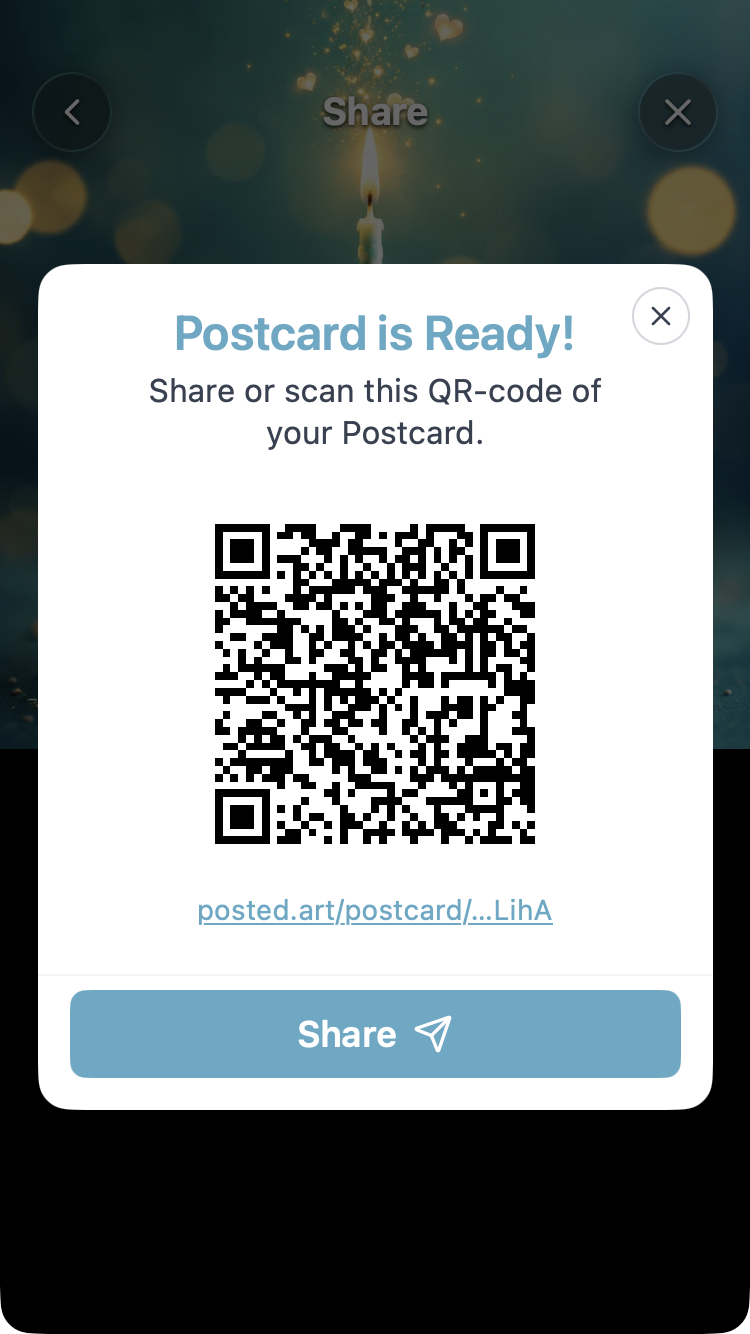
Allow time for the app to upload and prepare the artwork, message and attachments. Postcard is Ready! then displays a QR code, a clickable Postcard link and a Share button.
This means creation has completed. It does not confirm that anyone has received or opened the Postcard.
Open or send the finished Postcard
The link beneath the QR code opens the finished experience that a recipient sees. Use it to review the result before sending. You can later reopen the same link from Account → Your Postcards by selecting its circular thumbnail, while it remains hosted.
To send it:
- Show the QR code to someone who can scan it with a phone camera or QR scanner and open the detected link.
- Select Share to open the device's sharing options. Choose an available messaging app and recipient, then complete sending there.
For example, choosing WhatsApp sends the link through your own WhatsApp account. Available destinations depend on installed apps and their sharing support. Posted.art does not send an automated email on your behalf in this flow. Opening the share menu alone does not send the message.
The QR code and visible link lead to the same personalized Postcard, including its message and attached music or gift. The artwork's Card-page share icon instead shares the original artwork for browsing.
Controls after creation
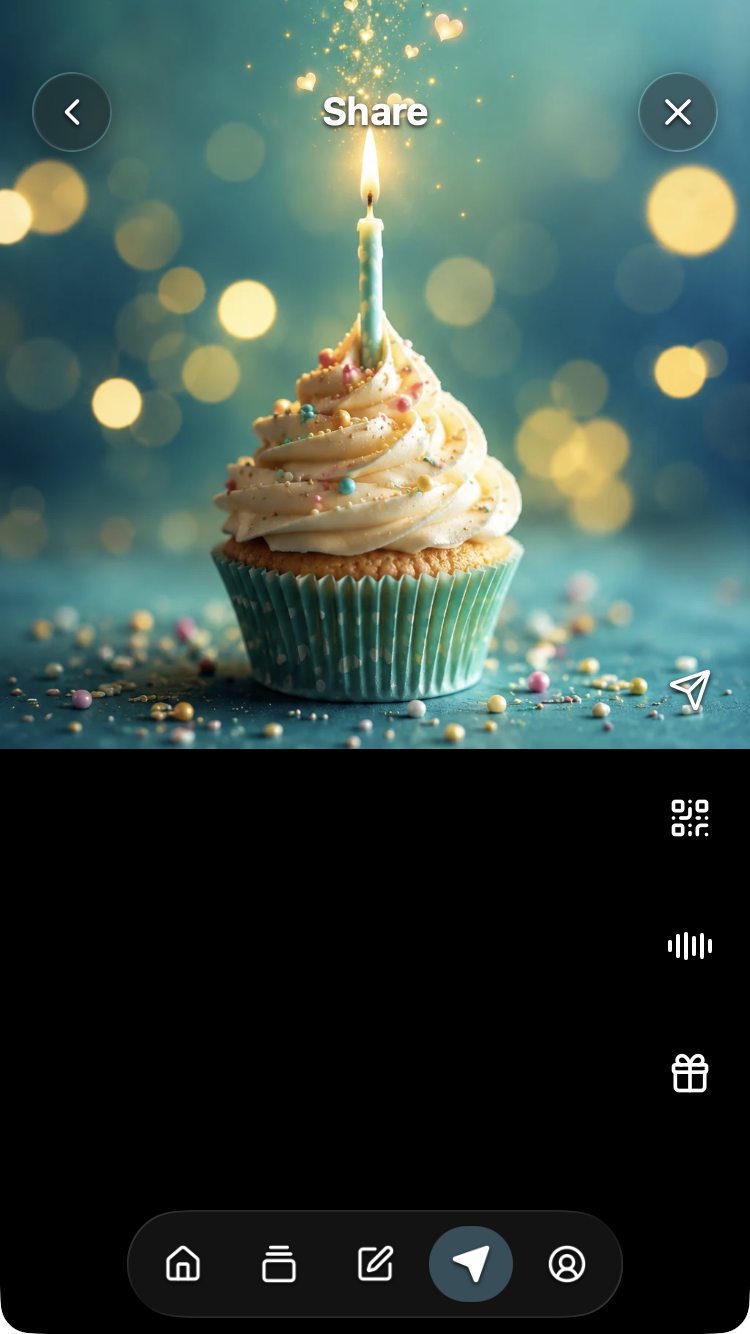
After closing the ready panel, the finished Share screen provides:
- Paper plane / Share Postcard: opens sharing options for the finished link.
- QR code: reopens the QR code and link panel.
- Music: toggles playback when audio is attached.
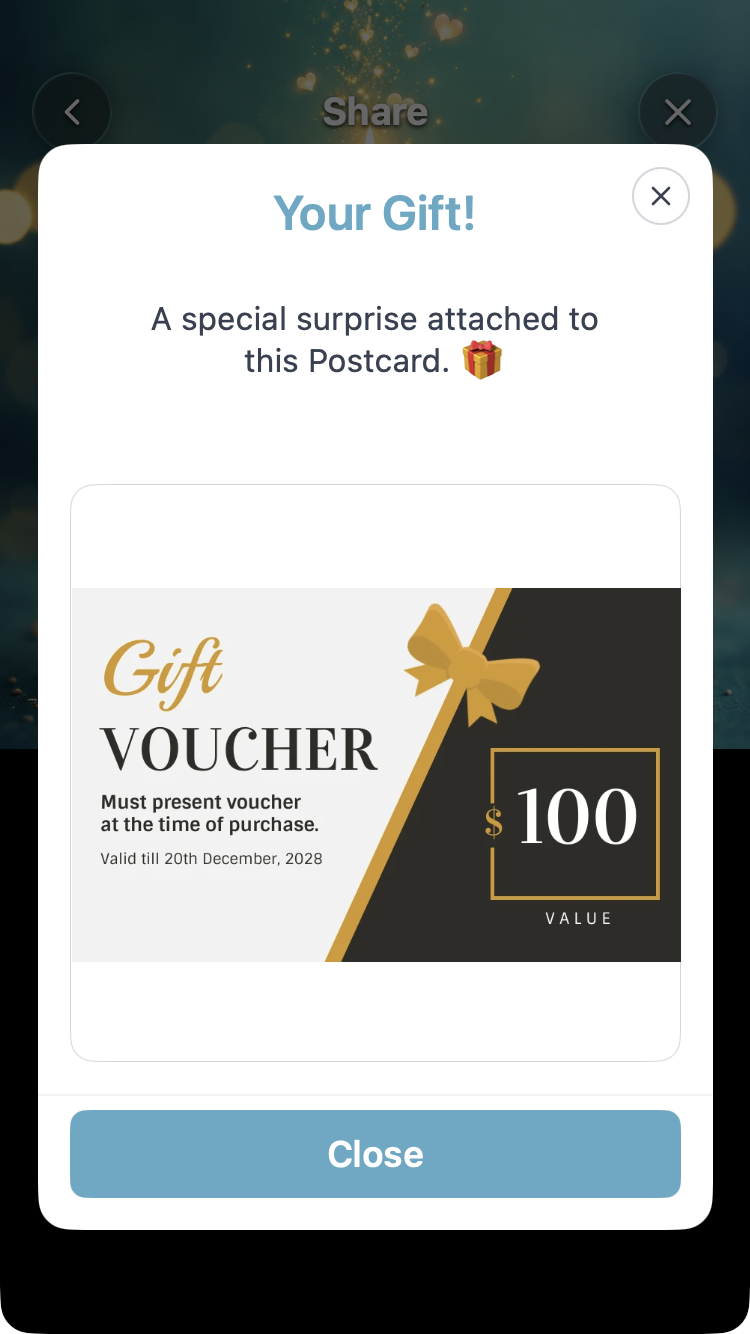
- Gift: opens an attached gift for viewing. It is read-only after creation, rather than the upload/edit panel.
The top-right forward chevron becomes an X, which closes the completed workflow, clears the working design and returns to Account.
Start another Postcard
Use Share's top-right X, then choose artwork on Home to start with a cleared working design. Switching tabs through bottom navigation alone does not close the completed workflow.
In the web flow, selecting an artwork tile on Home also clears Share's completed state without requiring X. It retains the current text, stickers, background, music and gift. Review retained content carefully for the new recipient, then continue through Write to Share; the dollar sign and chevron are available again when the artwork and canvas are ready. This creates a new Postcard and does not modify the previously created one.
Screenshot reuse across clients
The matching Share preview, gift-plus state, QR/link panel, finished controls and read-only gift apply across iOS, Android, web/PWA, Telegram and Farcaster. Match attachments and whether the Postcard is still being prepared or already created.
Native send/schedule panels, wallet payments and Stars checkout require their own client-specific images. Use the actual link and QR code generated for your Postcard; screenshot codes are examples. See screenshot guidance.