
How to create and send a Postcard
To create a personal Postcard in Posted.art, choose artwork from the library, add your message on Write, preview it on Share, create the Postcard and send its link to your recipient. The main flow is Home → Card → Write → Share.
You do not need to upload artwork or buy an Art Certificate to make a personal Postcard. Create & Earn is a separate feature for artists submitting original work to the shared library. Art Certificates are optional NFT purchases for collectors.
1. Choose artwork on Home
Open Home using the house icon. Browse the existing images and videos, or use Search to find a category or series. Select the artwork you want to use; it opens on Card, headed Explore.
Telegram starts on Account and connects automatically. Select Home to begin the same browsing flow. iOS, Android, web/PWA and Farcaster use the matching shared browsing controls.
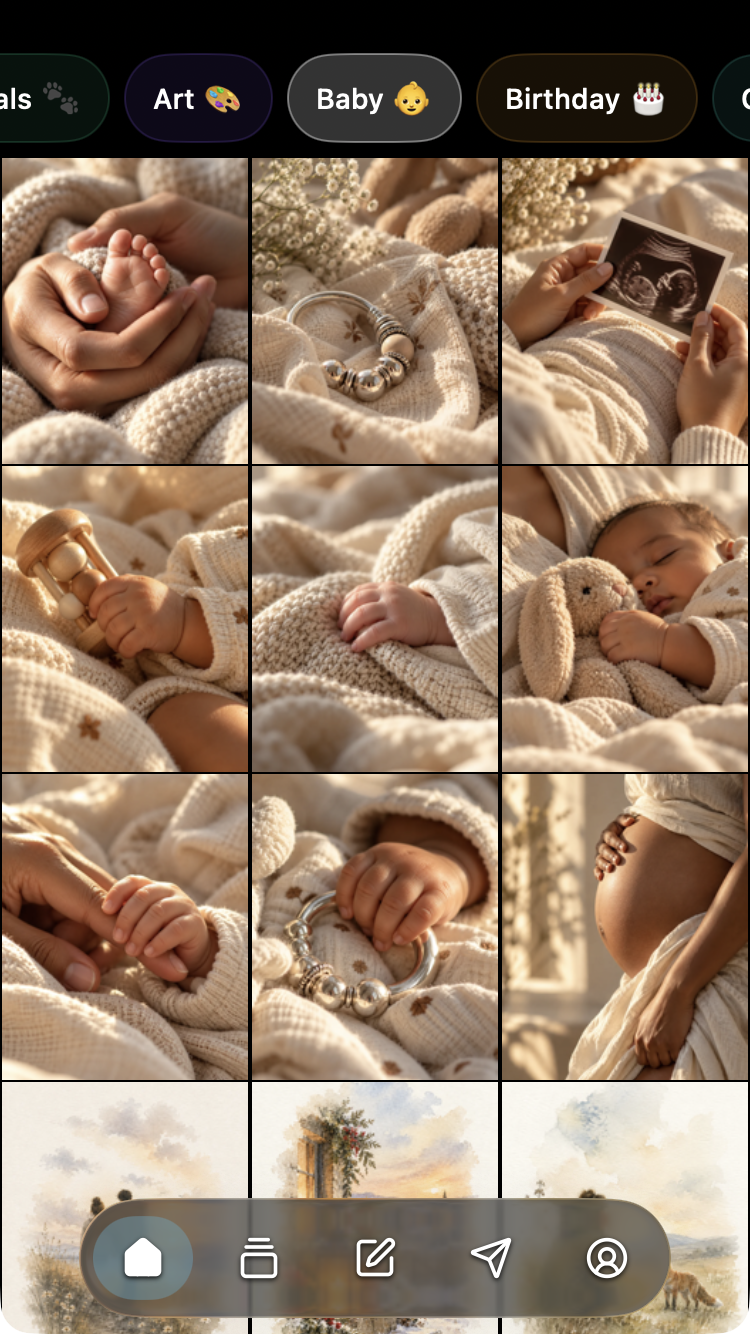
For filtering and finding a full series, see Home, Search & Series.
2. Continue from Card to Write
On Card, select the top-right arrow or the bottom pencil icon to open Write. You can use the artwork in a personal Postcard without purchasing it.
The artwork price and any NFT purchase control on Card relate to optional Art Certificates. They are not the step for making a personal Postcard.
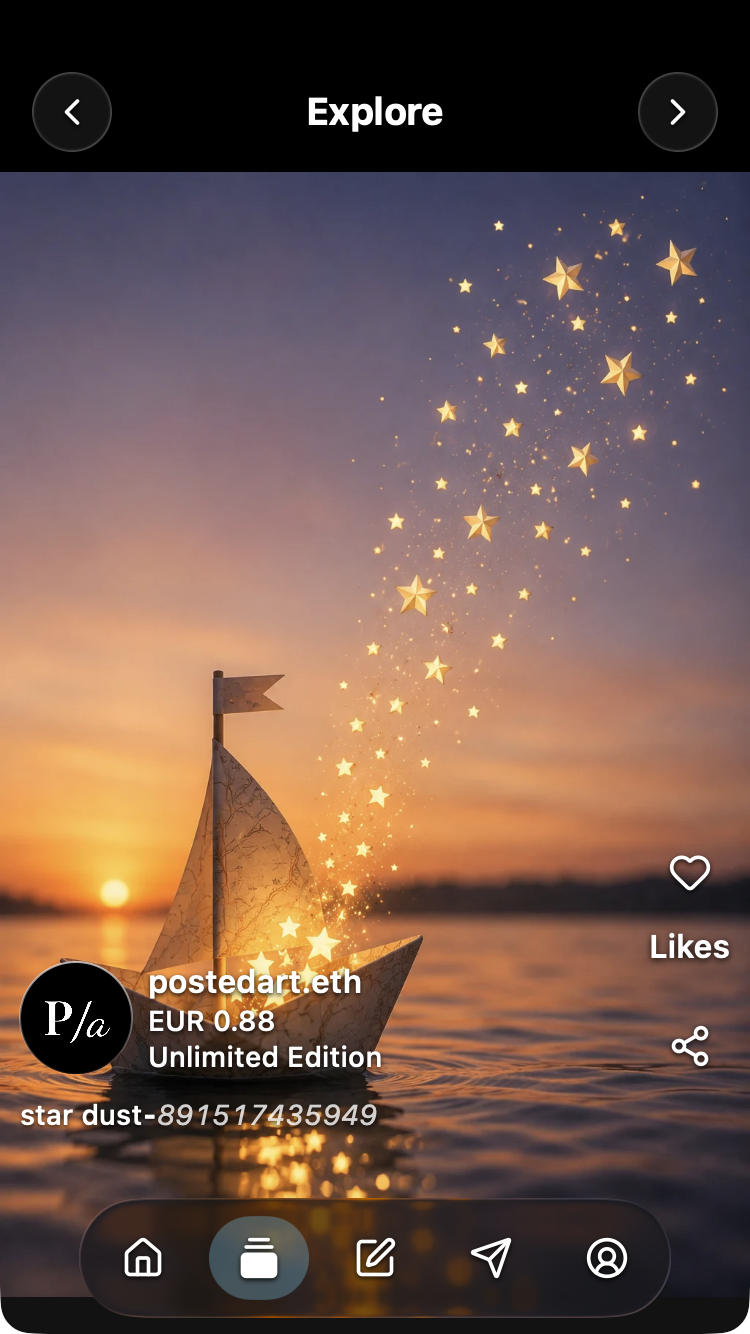
For artwork details and Favorites, see Card: View Artwork.
3. Add your personal message
On Write, enter your message. A new iOS message can start ready to type; on the web canvas, select Aa to edit text. Use the Done editing checkmark to finish text editing.
You can also add stickers, change the canvas background, attach music or a voice recording, or add a gift image. Those attachments are optional.
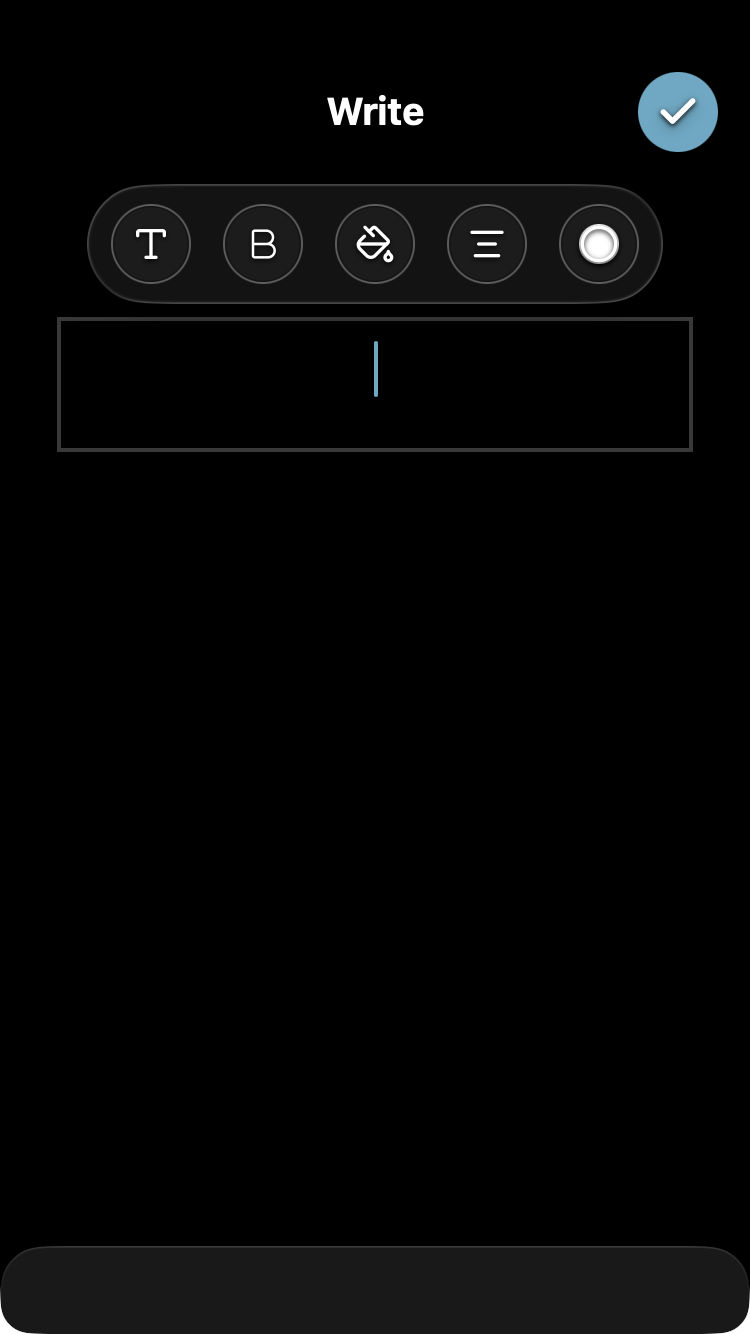
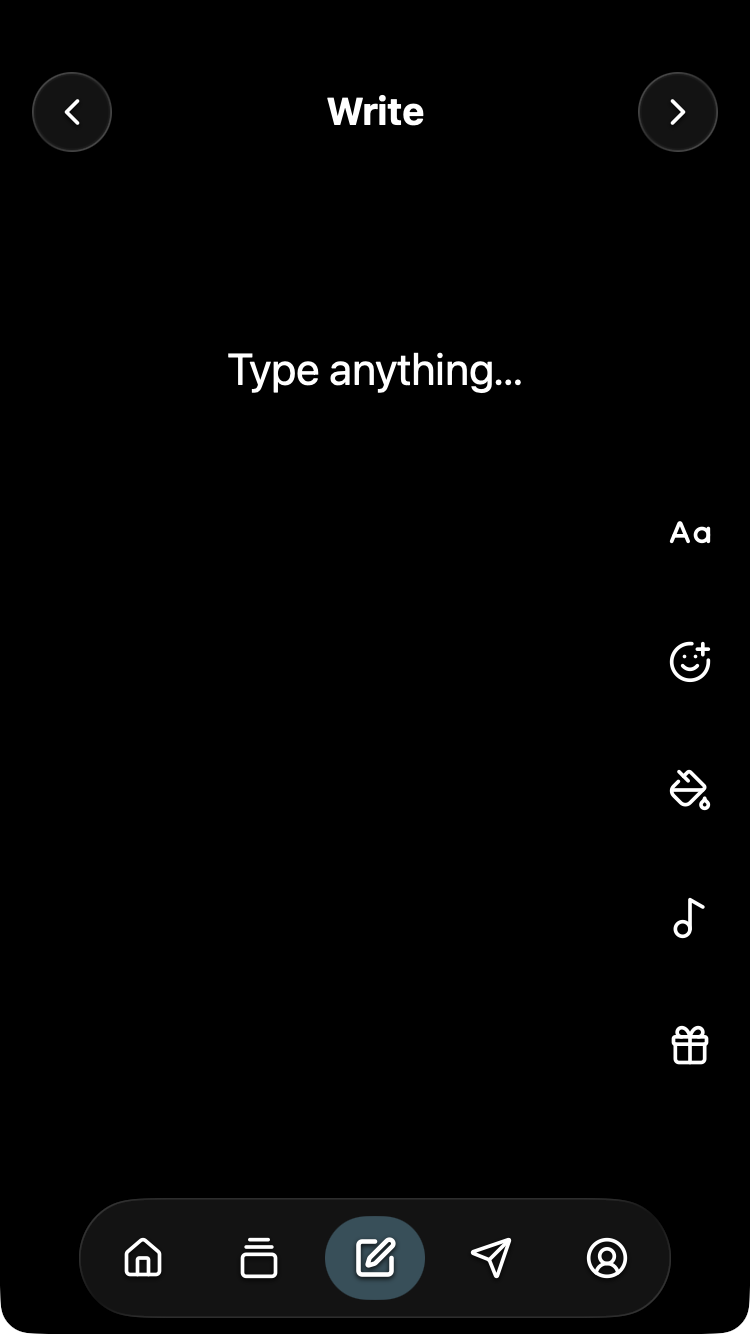
See Write & Personalize for formatting, positioning and attachment instructions. Match the screenshots to the current editing state; they do not represent every client's keyboard.
4. Review the Postcard on Share
Open Share using the top-right arrow or the bottom paper-plane icon. Review the selected artwork, your message and any attachments.
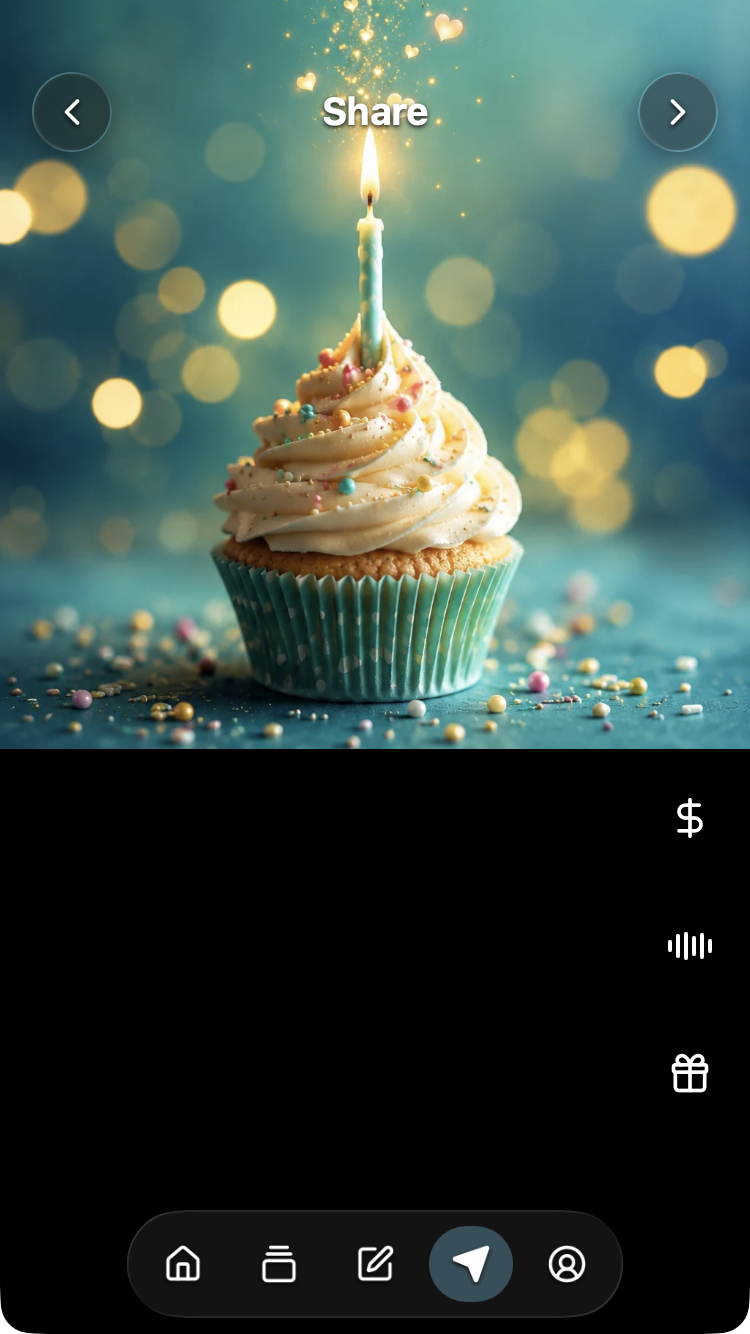
The preview screenshot includes optional attachments; your controls depend on what you added.
5. Create the Postcard
On Share, select the dollar sign or top-right chevron to open confirmation. These controls create a personal Postcard; they are different from an Art Certificate purchase on Card.
The next panel depends on your client and account state:
| Client | What happens next |
|---|---|
| Standalone iOS or Android app | Choose Send Postcard now for this flow. Scheduling is a separate native-app option. Follow any account or subscription prompts shown. |
| Web wallet, including inside Farcaster | Review the eligible free offer or the paid wallet checkout. Connect and sign in if prompted; paid creation requires approval in the wallet. |
| Telegram | Review the eligible free offer or the paid Telegram Stars checkout. A paid checkout hands off to Telegram's payment flow. |
Opening a confirmation panel alone does not complete a payment. Review the offer and follow the applicable confirmation steps. Allow the app to finish preparing the Postcard. See Preview & Share for the matching client-specific checkout screenshots and Pricing & Hosting for the current FAQ links.
6. Send the finished link
When Postcard is Ready! appears, use its Share button to choose a messaging app and recipient, then finish sending there. Alternatively, use the Postcard link or show the QR code for someone to scan.
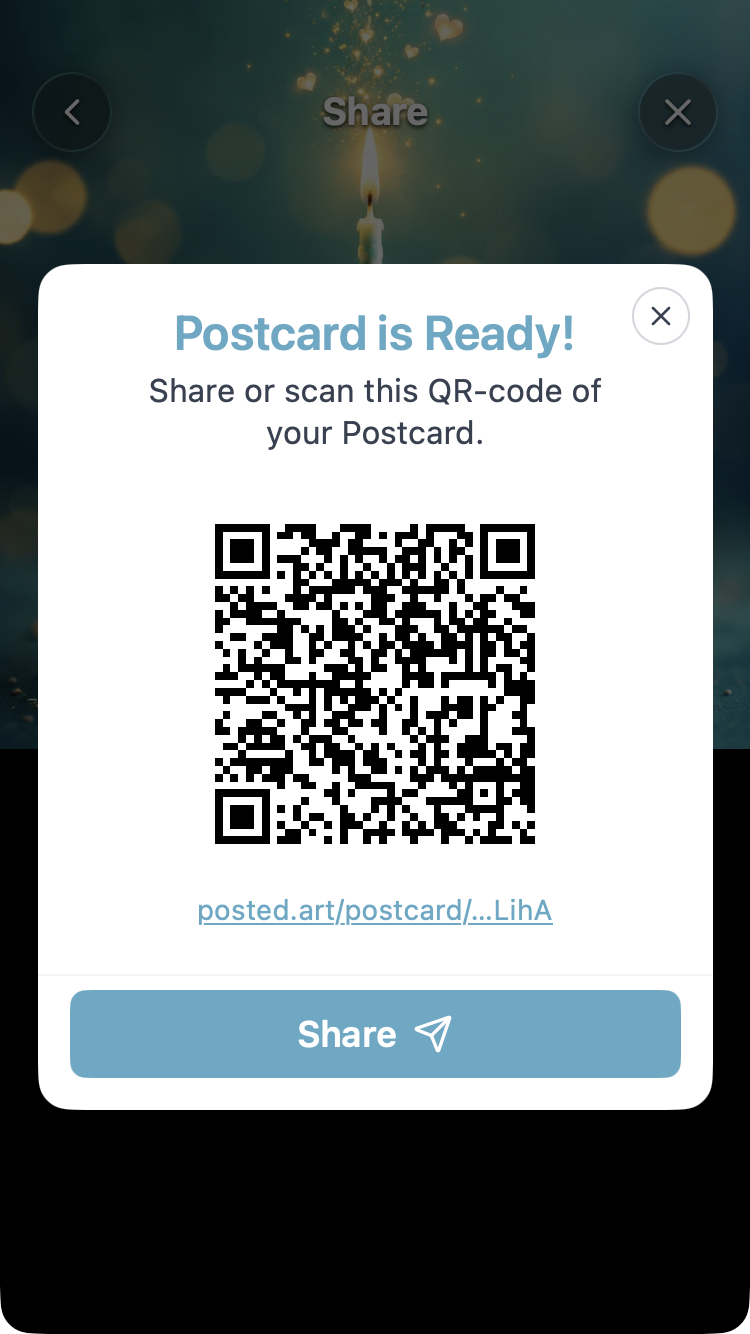
Creating the Postcard does not automatically deliver it to anyone. Opening the device's share menu alone does not send it either.
The Postcard link opens the recipient experience. You can also reopen a created Postcard from Account → Your Postcards by selecting its circular thumbnail while it remains hosted.
Which screenshots apply to my client?
The shared Home, Card, Write and Share images illustrate matching interface states across iOS, Android, web/PWA, Telegram and Farcaster. Account, authentication, scheduling and payment prompts require the matching client-specific instructions. See the Screenshot Reference when selecting an image.
Related tasks
- Schedule a Postcard in iOS or Android.
- Troubleshoot editing, payments or sharing.
- Submit original artwork through Create & Earn — a separate artist contribution flow.
- Buy or view an Art Certificate — optional artwork collecting.