Write & Personalize
Part of Postcards — create and send. New to Posted.art? Start with How to create and send a Postcard for the complete personal Postcard flow.
From the artwork's Card page, select the top-right arrow or bottom pencil icon to open Write. Use the canvas to combine your message, stickers, background, music or voice recording, and an optional gift image.
Start and format your message
In iOS, a new message can open ready to type. In the web app, Write starts with the canvas; select Aa to edit text. An existing design can open in a different state from a new blank message.
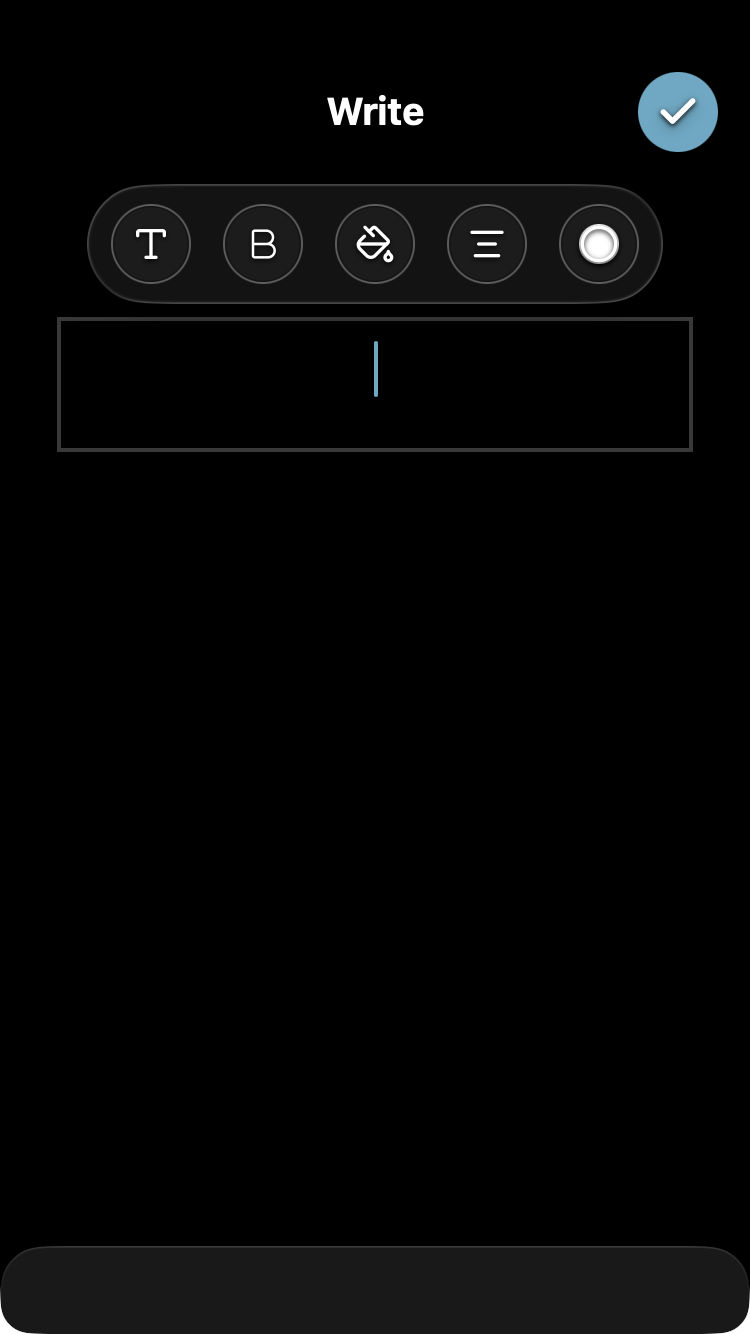
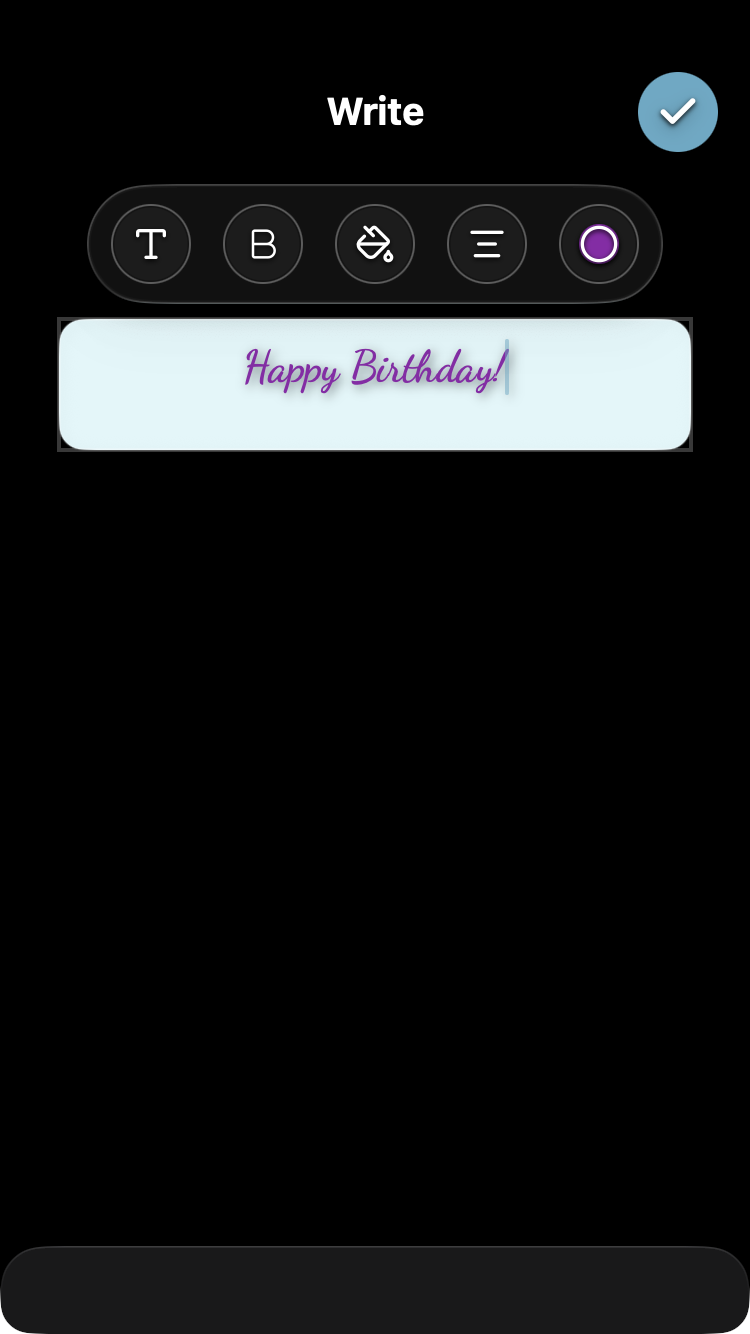
While editing, use the toolbar above the text area. Select a control repeatedly to cycle its options:
| Control | Action |
|---|---|
| Font type / T | Changes the font. |
| Bold / B | Cycles through normal, bold and shadow styles. |
| Text fill / paint bucket | Changes the colour behind the text, including no fill. It does not change the whole canvas. |
| Align | Cycles through centre, left and right alignment. |
| Font colour | Changes the letters' colour. |
Select the top-right Done editing checkmark to return to the canvas. Reopen Aa when you want to edit the message again.
View active text editing and a formatted message. These illustrate the editor controls, not the exact keyboard on every phone.
Canvas controls
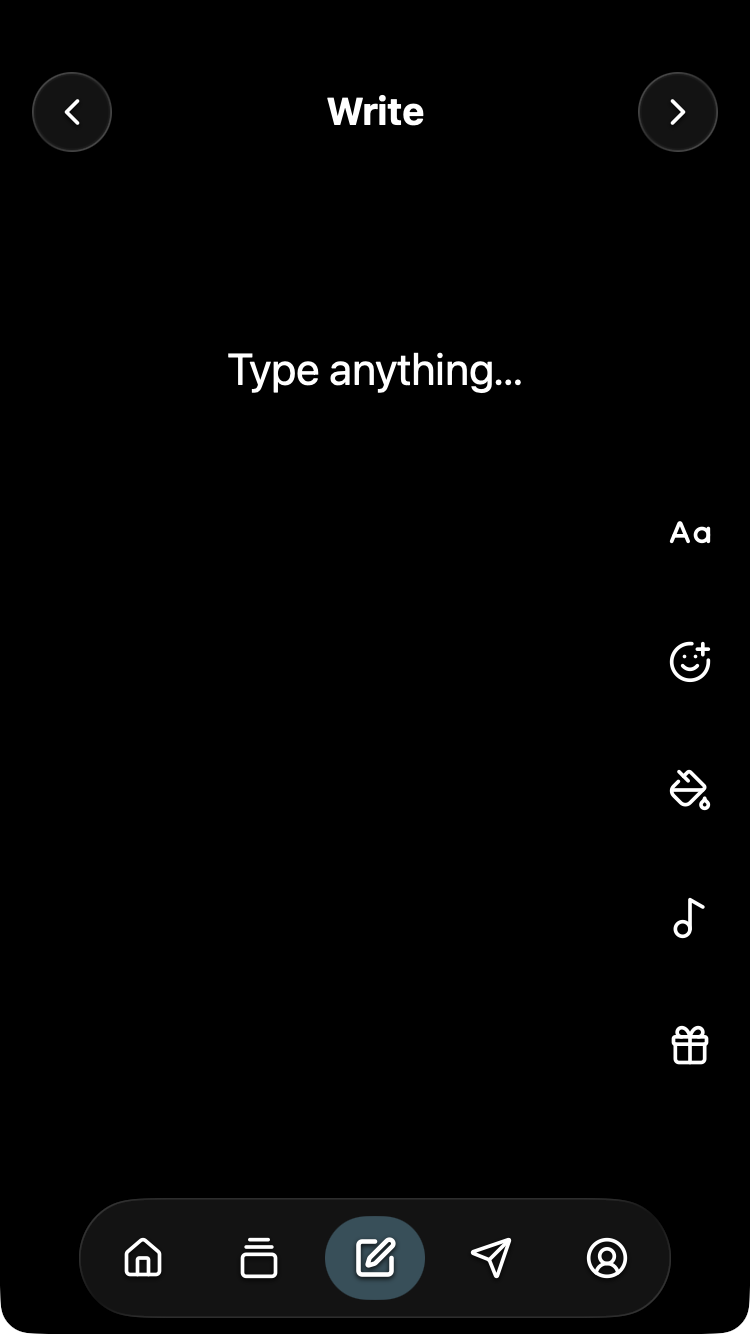
After finishing text editing, five controls appear down the canvas's right side:
| Icon | Purpose |
|---|---|
| Aa | Edit text. |
| Smiling face with plus | Add stickers. |
| Paint bucket | Change the canvas background. |
| Music note | Add music or record a voice message. |
| Gift box | Attach a gift-voucher image or personal photo. |
Position, resize or remove items
Finish text editing before arranging the message. Drag text or a sticker to position it. On a touchscreen, use a two-finger pinch to resize an item.
During a drag, a bin appears near the bottom. Move the item over it until the bin turns red, then release to remove the item. To keep it, move it away from the bin before releasing.
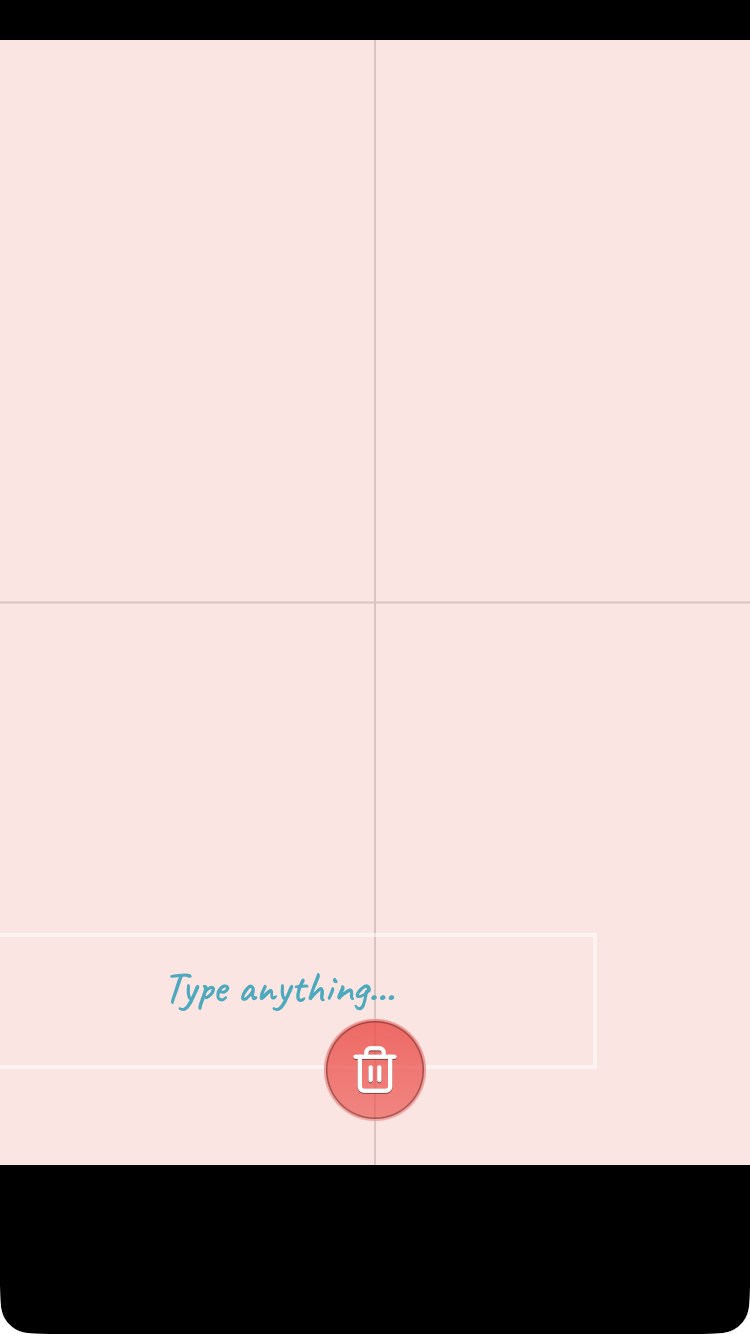
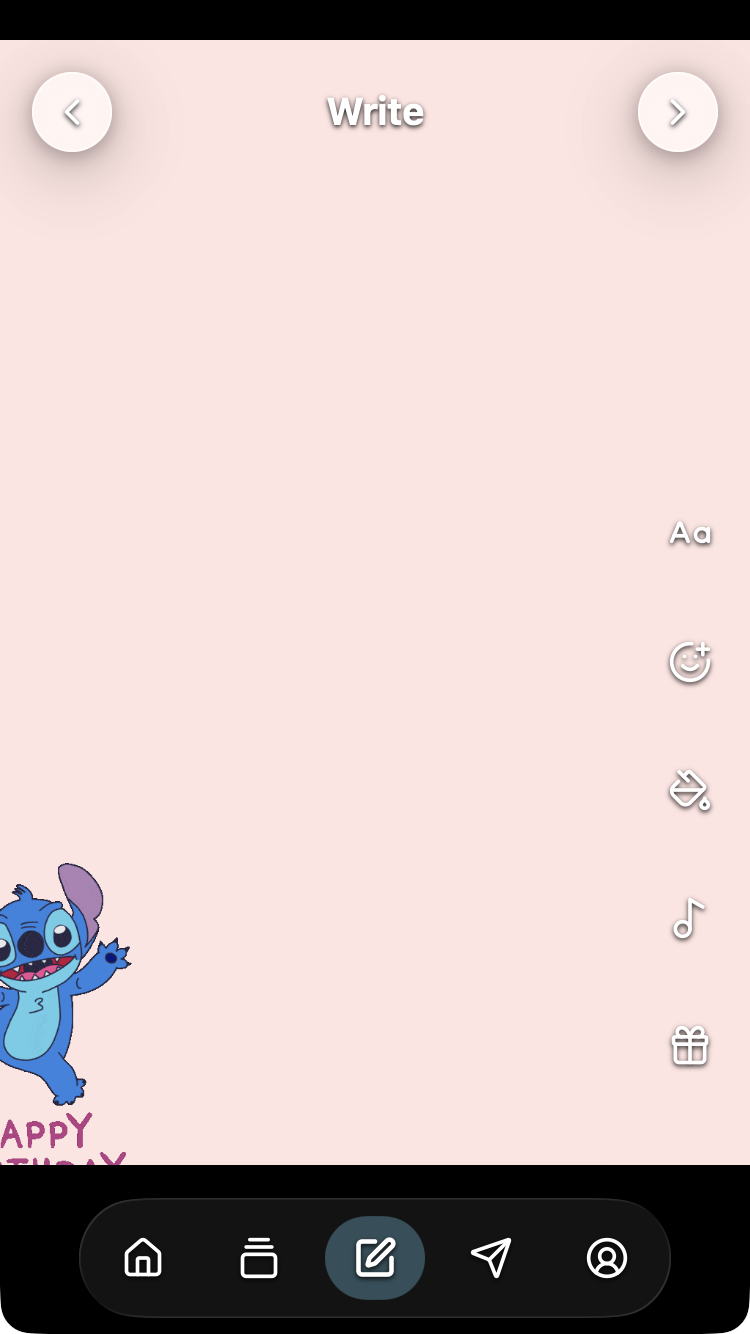
Items are clipped at the canvas edges in the finished design. Keep the entire message or sticker inside the canvas unless you want a cropped effect.
Change the background
Select the main canvas's Paint bucket to cycle background colours. This is separate from the text toolbar's fill control.
The canvas rectangle is the design area; the surrounding black app background is not part of the Postcard. View a background and clipped-sticker example.
Add a sticker
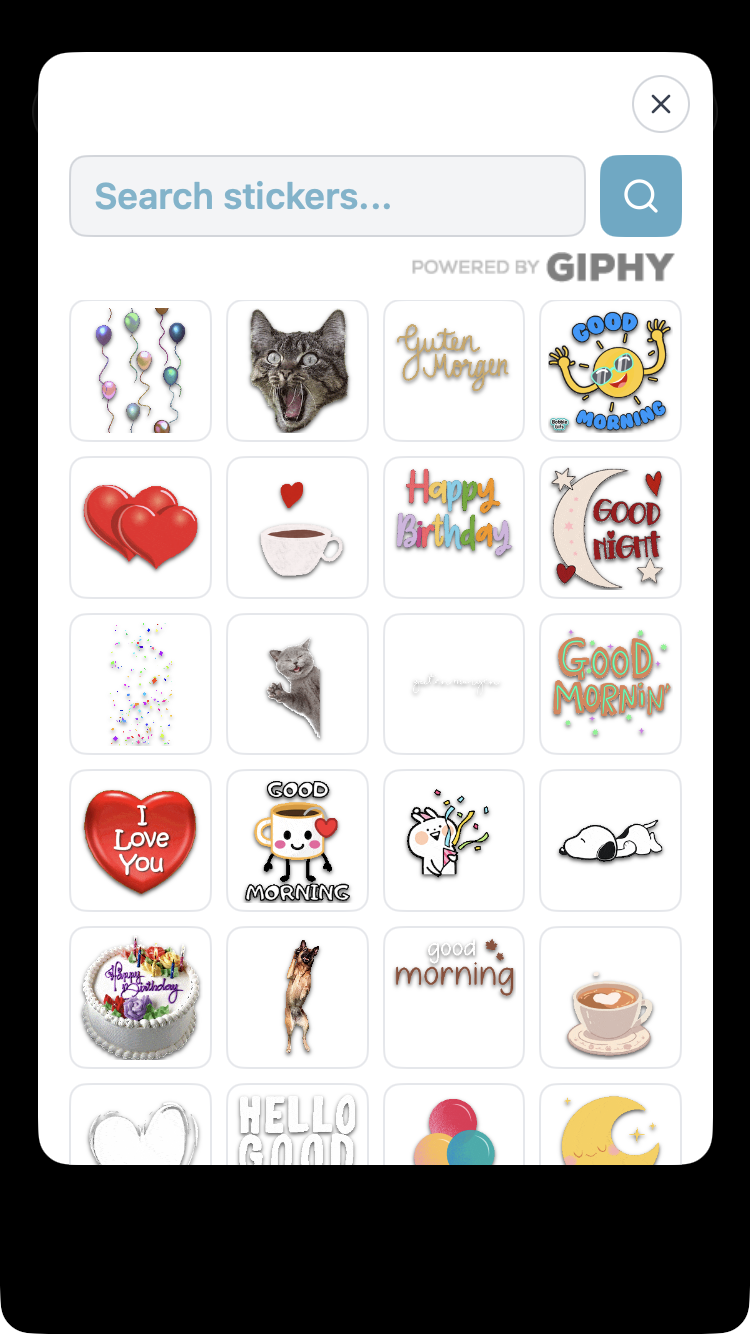
Select the smiling-face-plus control to open the GIPHY sticker panel. It initially shows trending results, which can change.
Enter a word or phrase in Search stickers..., then use the magnifying glass or keyboard Search. You can try your own language; results depend on GIPHY's available matches.
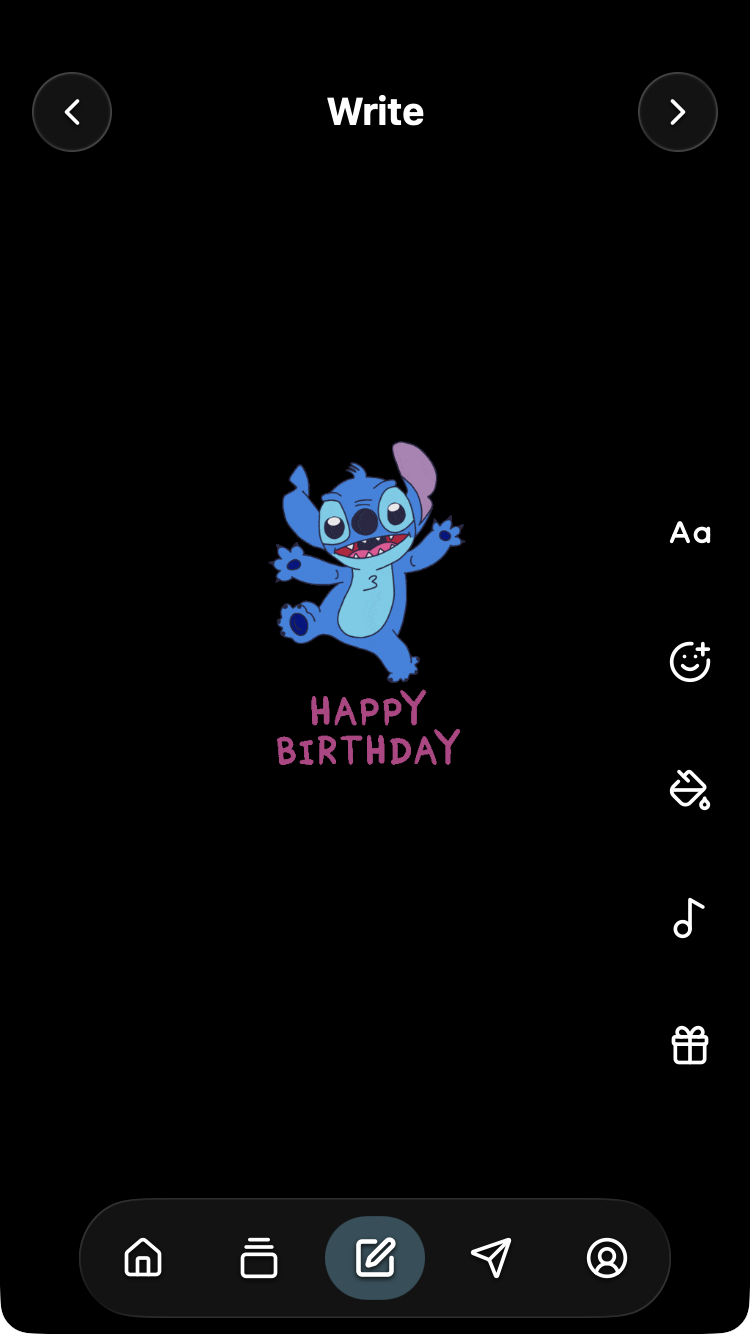
Select a sticker to add it and close the panel. Drag it into position, pinch to resize on a touchscreen, or drag it to the bin to remove it. The sticker artwork used on the canvas is a still image; GIPHY branding does not mean every sticker will animate.
Add music
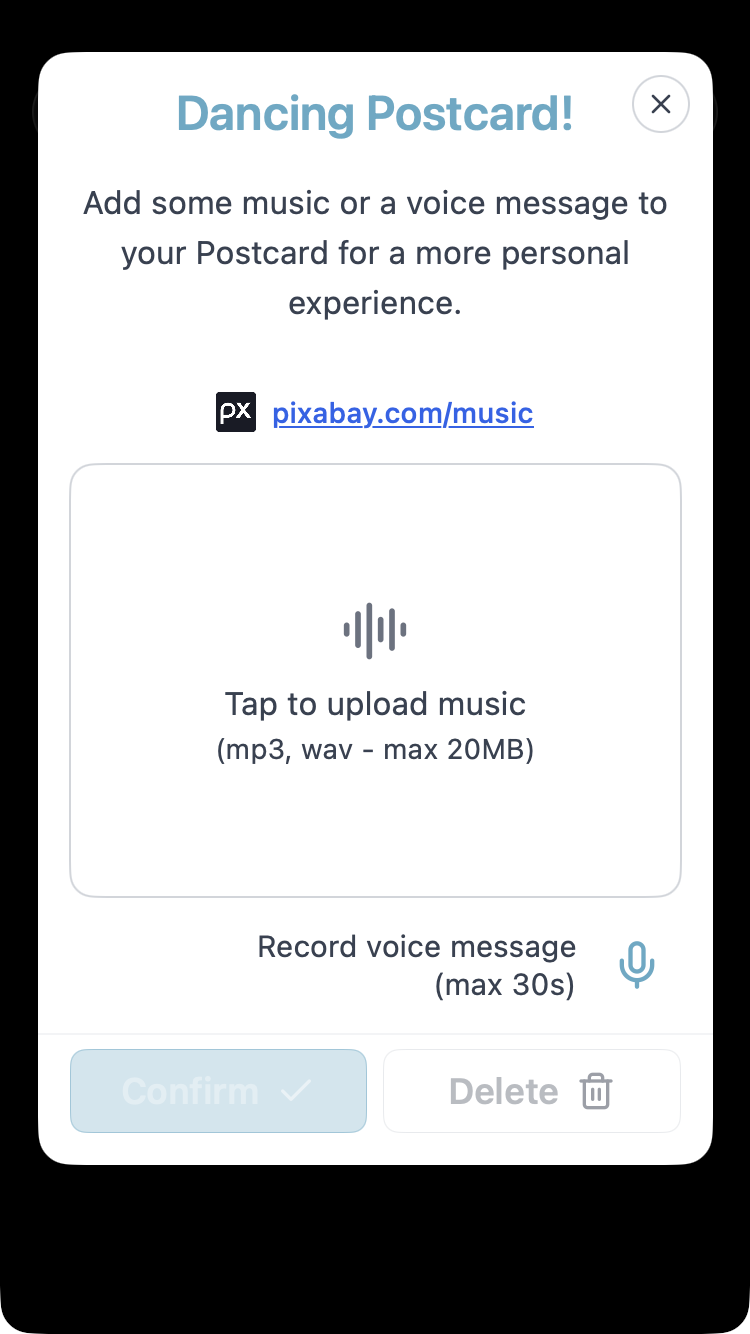
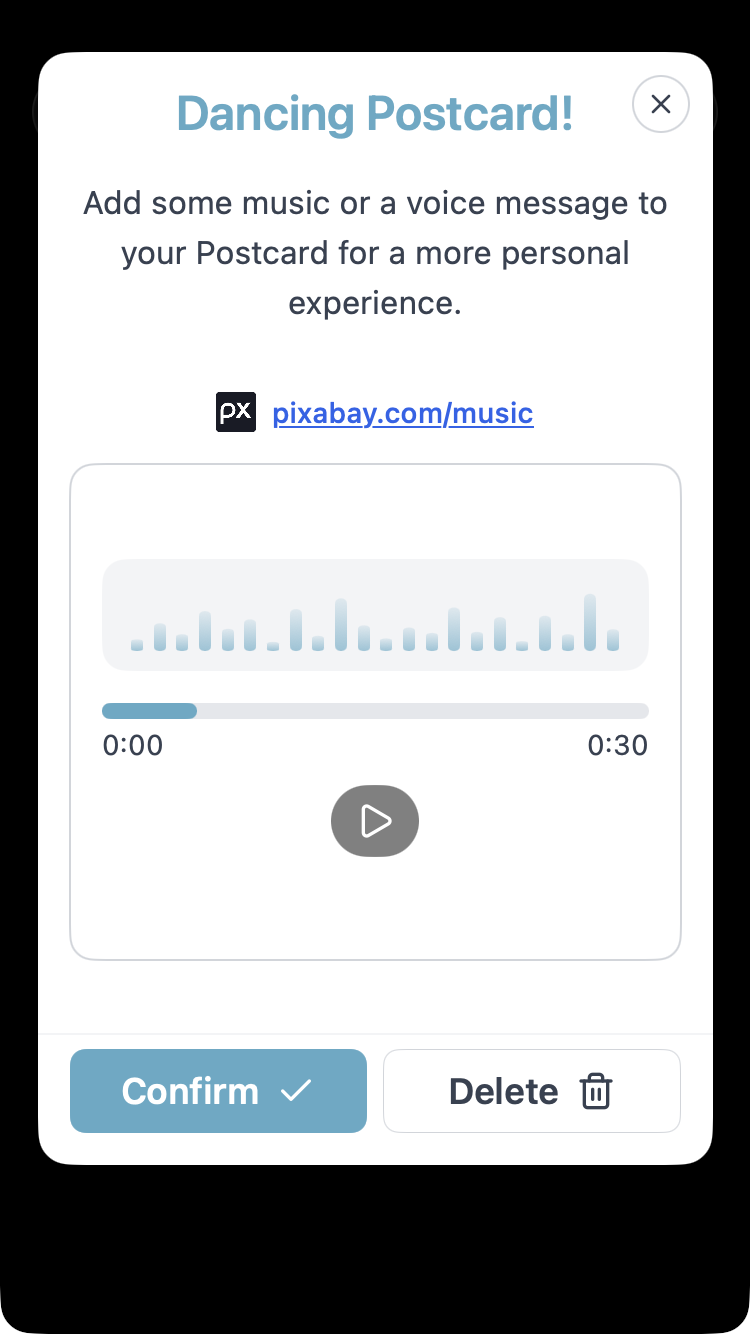
Select the music note to open Dancing Postcard!. Choose Tap to upload music to select an MP3 or WAV, up to 20 MB.
The Pixabay music link opens an external website as an optional source. Download a suitable file there, then return to Posted.art to upload it; selecting music on that site does not attach it automatically.
Choose the clip
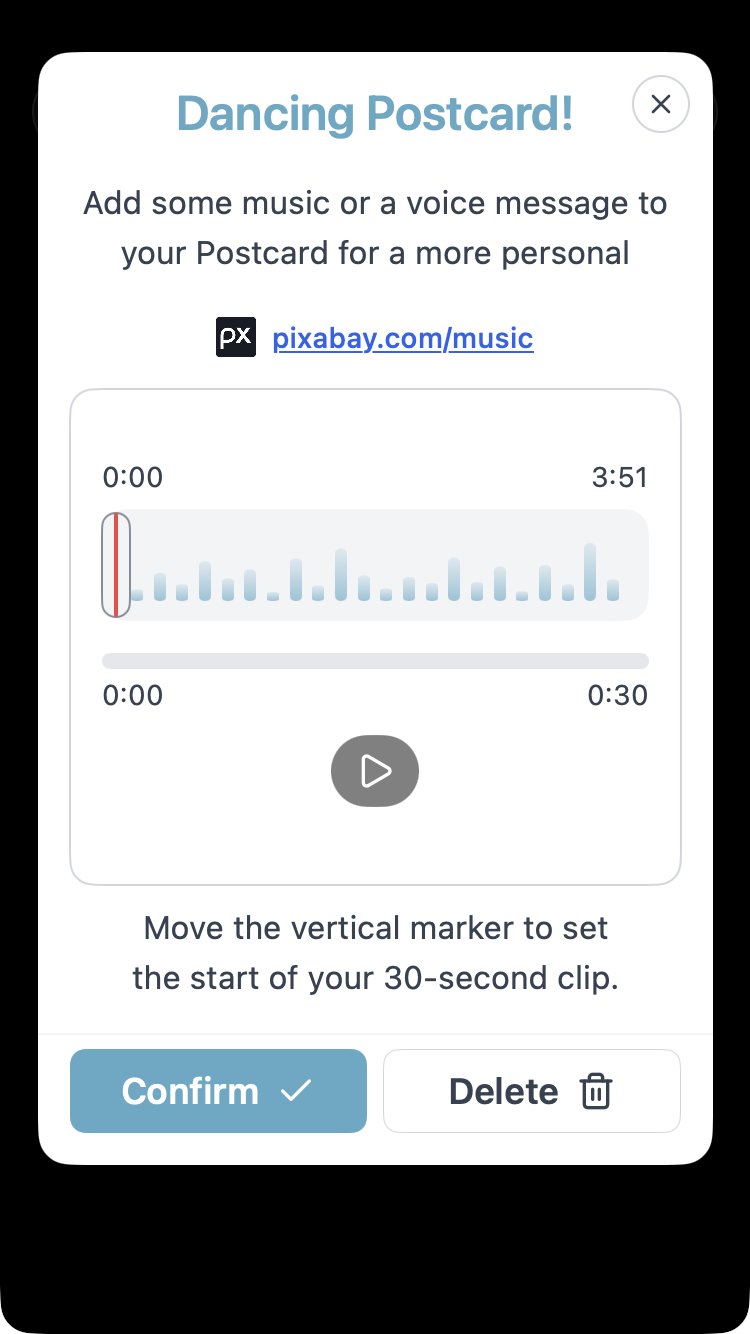
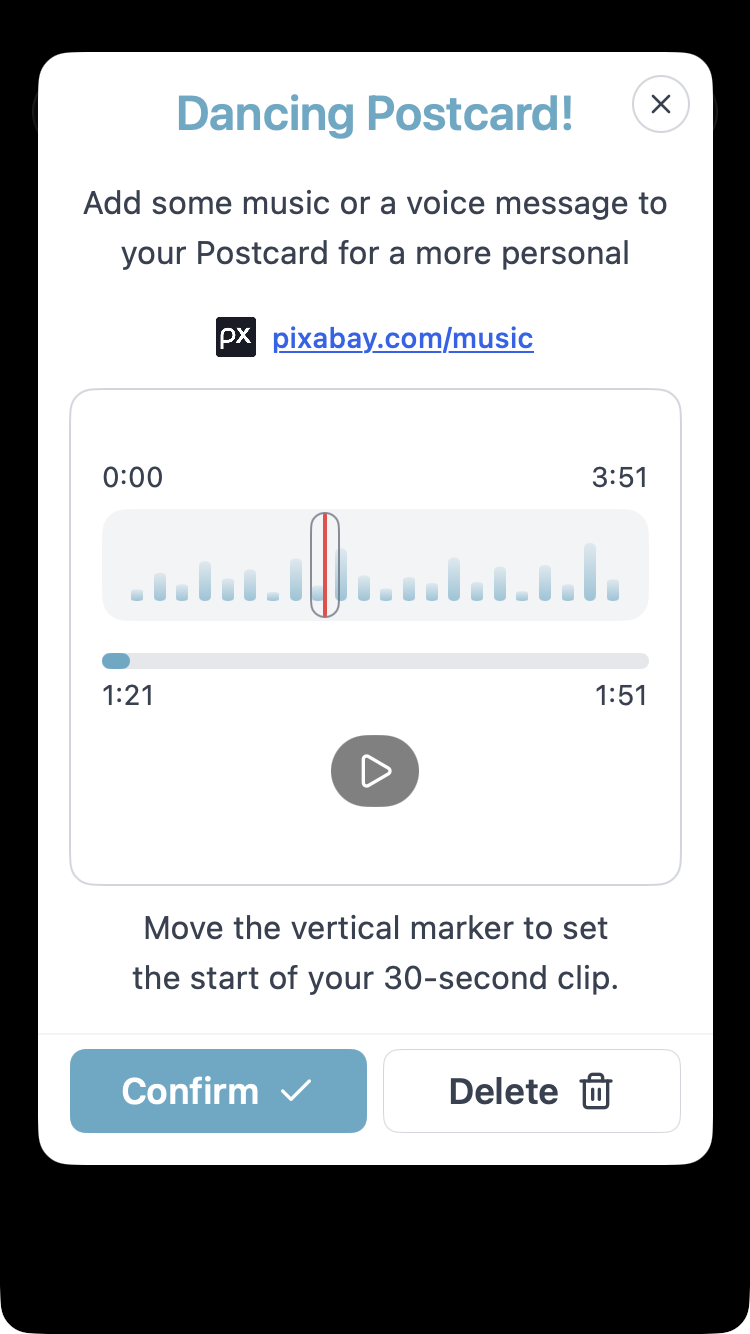
Use the upper track view to choose the start of a clip of up to 30 seconds. Drag the red vertical marker and use Play to preview the selection. The upper time labels describe the source track; the lower playback bar describes the selected clip.
Select Confirm to attach it and return to the canvas. Reopen the music-note panel to review the saved audio. On Share, the music control toggles playback; it does not replace this upload panel.
Why does my saved music start at zero?
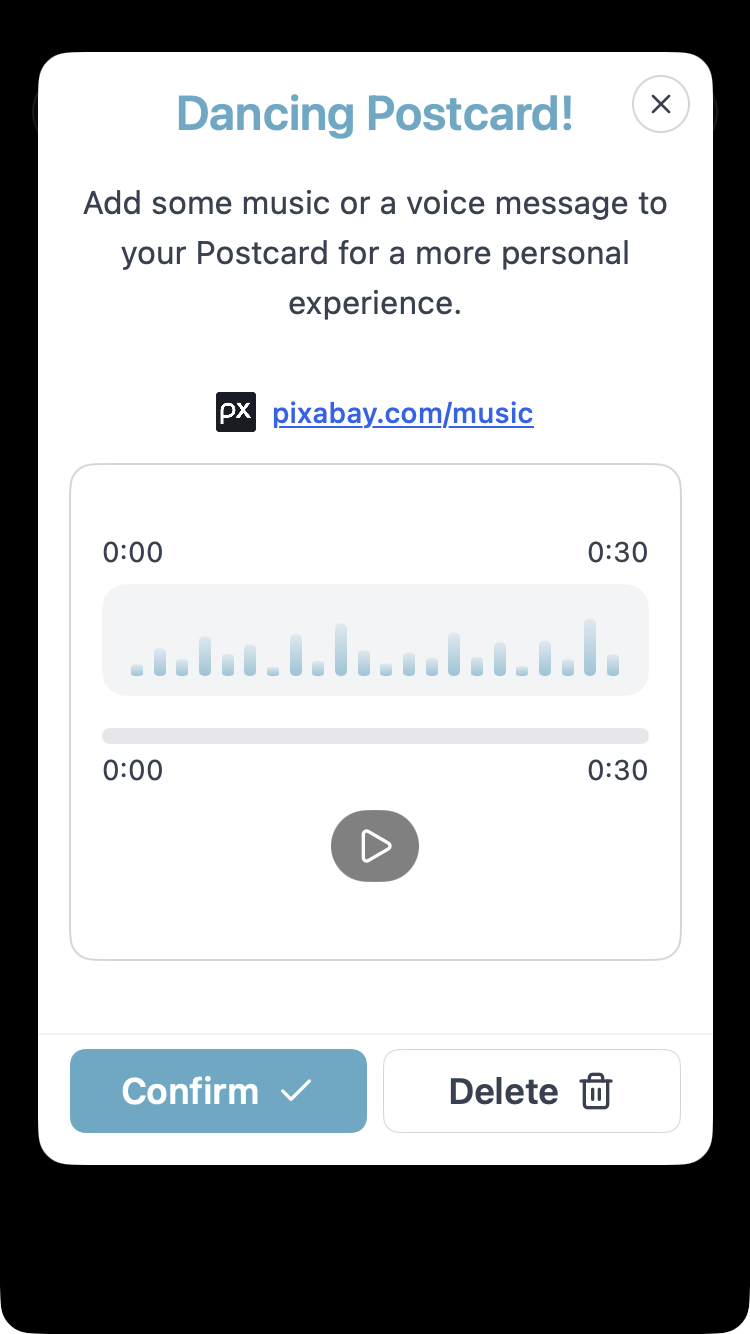
Confirm saves the selected clip, rather than retaining the full original song for future trimming. Reopening it can show 0:00–0:30 without a start marker because the saved clip itself begins at zero. It still contains the segment you chose from the original track.
To choose a different part of the original song, select Delete, upload the original file again, choose the start and confirm.
Record a voice message
In the music panel, select Record voice message and allow microphone access when requested. Use the recording control to stop, or let it reach its 30-second maximum. Review the completed recording with playback, then select Confirm to attach it. Use Delete if you want to discard it and record again.
View a completed voice recording. This image shows playback after recording, rather than the active recording button.
Add a gift voucher or photo
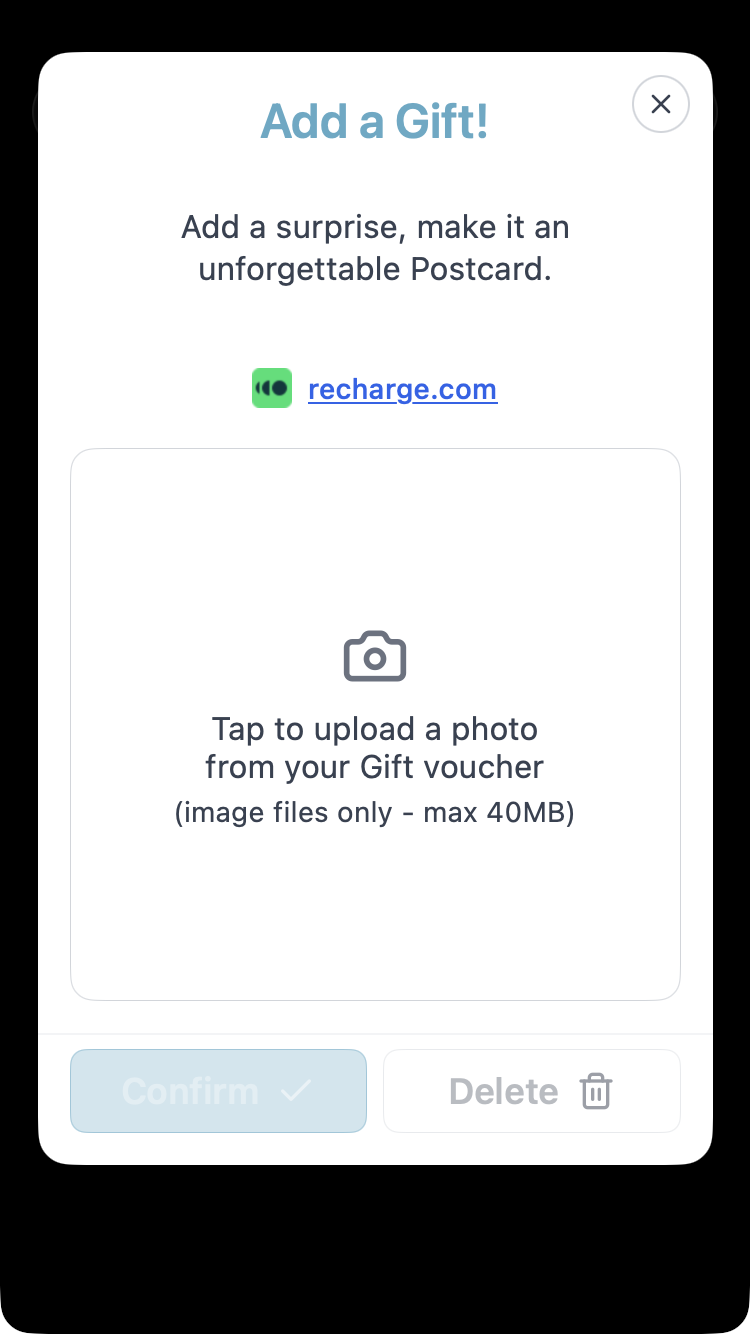
Select the gift box to open Add a Gift!. Select the upload area to choose an image, up to 40 MB.
The Recharge link opens an optional external website. You can buy a voucher from any suitable provider; you do not need to use that link. Buying a voucher externally and attaching its image are separate steps.
Save the voucher image or take a clear screenshot. If it is a document, capture the relevant voucher details as an image. Check that the barcode, voucher number, PIN and any other redemption details are complete and readable. Include instructions the recipient needs. You are responsible for providing a usable image; the provider's terms determine where and how the voucher can be redeemed.
The attachment may also be a personal photo instead of a voucher. It accompanies the artwork and written message in the same Postcard.
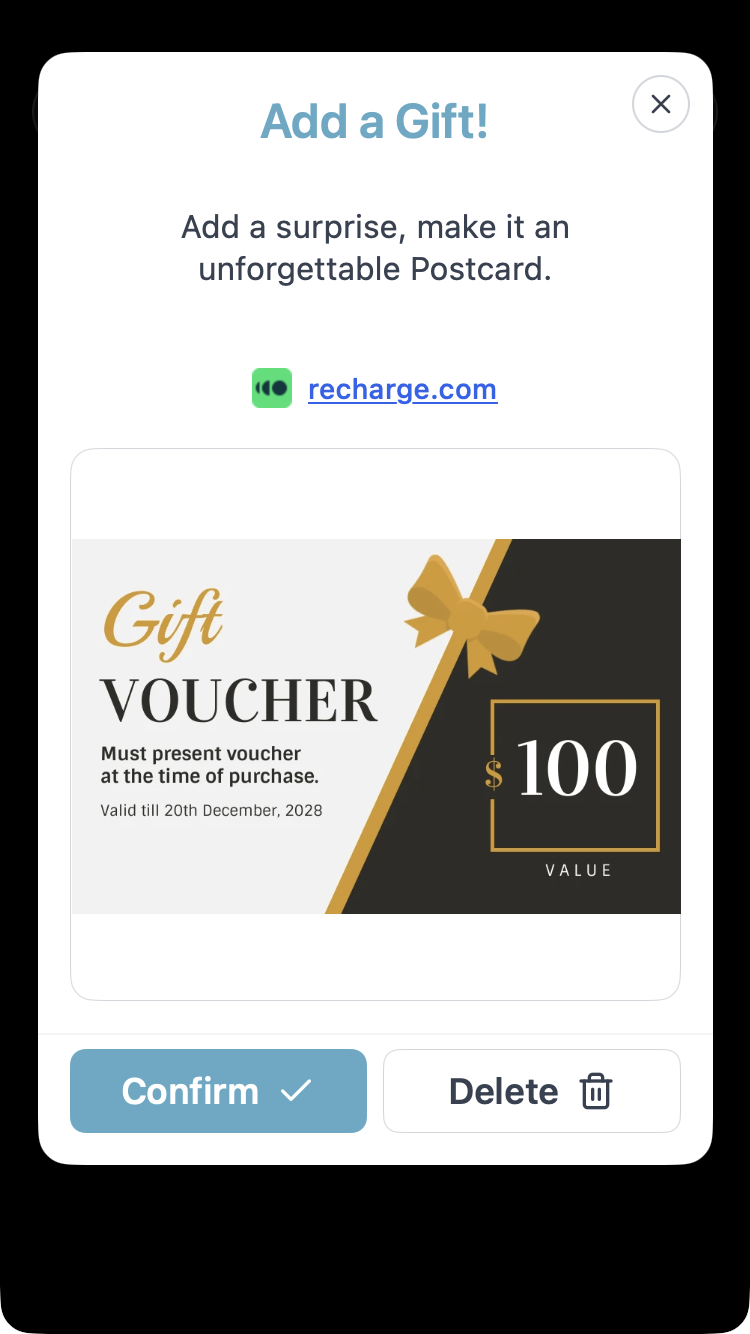
Review the image, then select Confirm. Reopen the gift panel to check the attachment. To replace it, select Delete and upload another image.
Screenshots: gift upload panel and example image preview. The sample voucher illustrates attachment preview, not a redeemable offer.
You can also attach a gift while preparing the Postcard on Share. After the Postcard is created, its gift view is read-only. See Share.
Continue to Share
Finish editing and use the top-right arrow or bottom paper-plane icon to review your artwork, message and attachments on Share. Check the complete design before creating it. Audio can be previewed there; change the attached audio back in Write.
Creating a new Postcard does not edit one you already created. Closing the completed Share workflow with its top-right X clears the working design. In the web flow, selecting artwork on Home instead clears the completed sharing state but retains the canvas and attachments; review them for the new recipient. See starting another Postcard.
Can I save an unfinished Postcard?
Your current design is temporary working state, not a durable saved draft. Returning after more than one hour in the background resets that working state; this is not a timer that resets during active editing. Reset app also clears the working design. Do not rely on it surviving a reload, app restart or session end.
To keep a prepared design for later, use Schedule Postcard in the standalone iOS or Android app. Up to five scheduled drafts are stored locally and survive the ordinary Reset app and background-timeout reset. Account deletion, app removal or clearing stored app data can remove them.
Scheduling is not available in web/PWA, Telegram or Farcaster. It provides a reminder to send rather than automatic recipient delivery. See scheduling.
Locally scheduled drafts are separate from the twenty active hosted Postcards limit for native sending. See pricing and Account for hosting and deletion.
Screenshot reuse across clients
Use matching shared canvas tools, text editing, stickers, audio panel and gift panel across iOS, Android, web/PWA, Telegram and Farcaster.
Match the state, rather than the original capture device. Active editing is different from the canvas overview; a saved clip is different from the initial trimming view. Phone keyboards and permission prompts can vary. See screenshot guidance.
For unexpected movement or wrapping while typing, see troubleshooting.