Schedule for Later
Scheduling is available in the standalone Posted.art iOS and Android apps. It saves a prepared Postcard locally and reminds you when you want to send it. It is not available in the web app, Telegram, a wallet browser or Posted.art inside Farcaster.
Scheduling does not automatically send a message to a recipient. You create the finished Postcard and share its link yourself.
Save a scheduled Postcard
- Choose your artwork and prepare the message, music or gift you want to include.
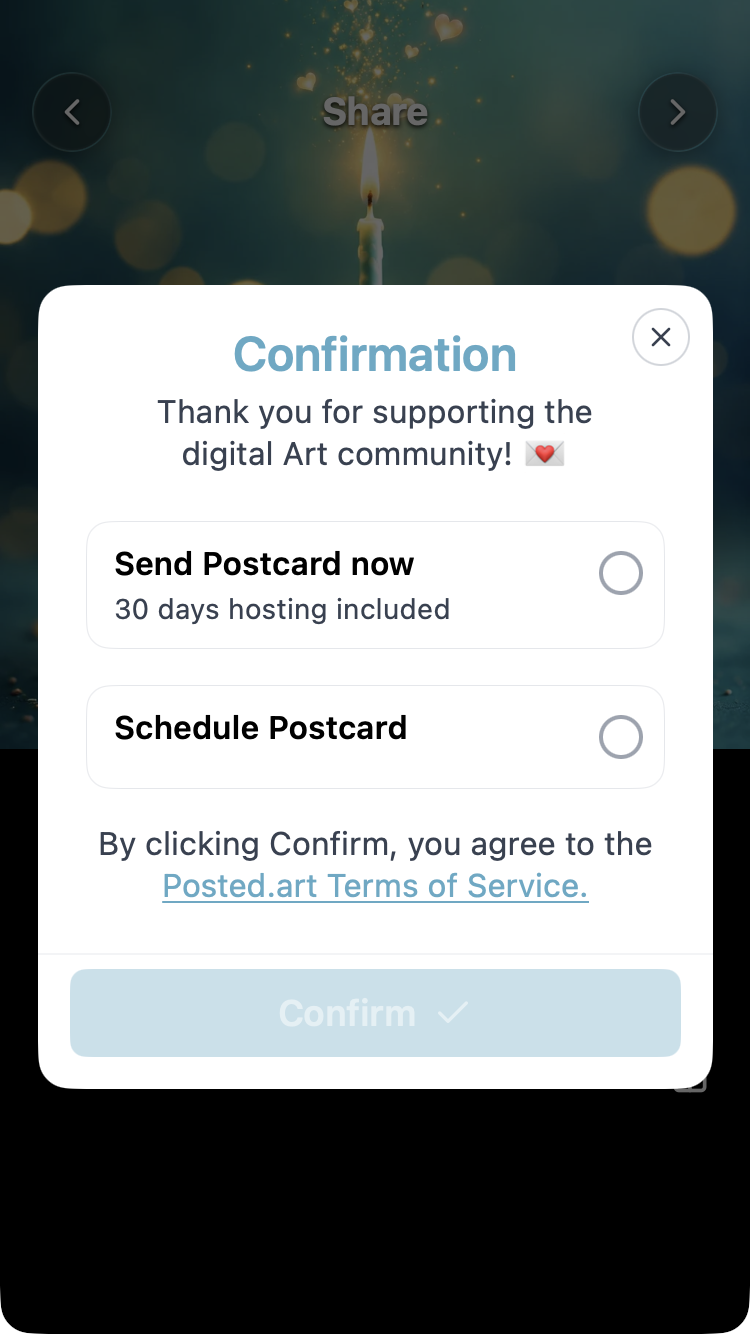
- On Share, select the dollar sign or top-right chevron to open Confirmation.
- Choose Schedule Postcard.
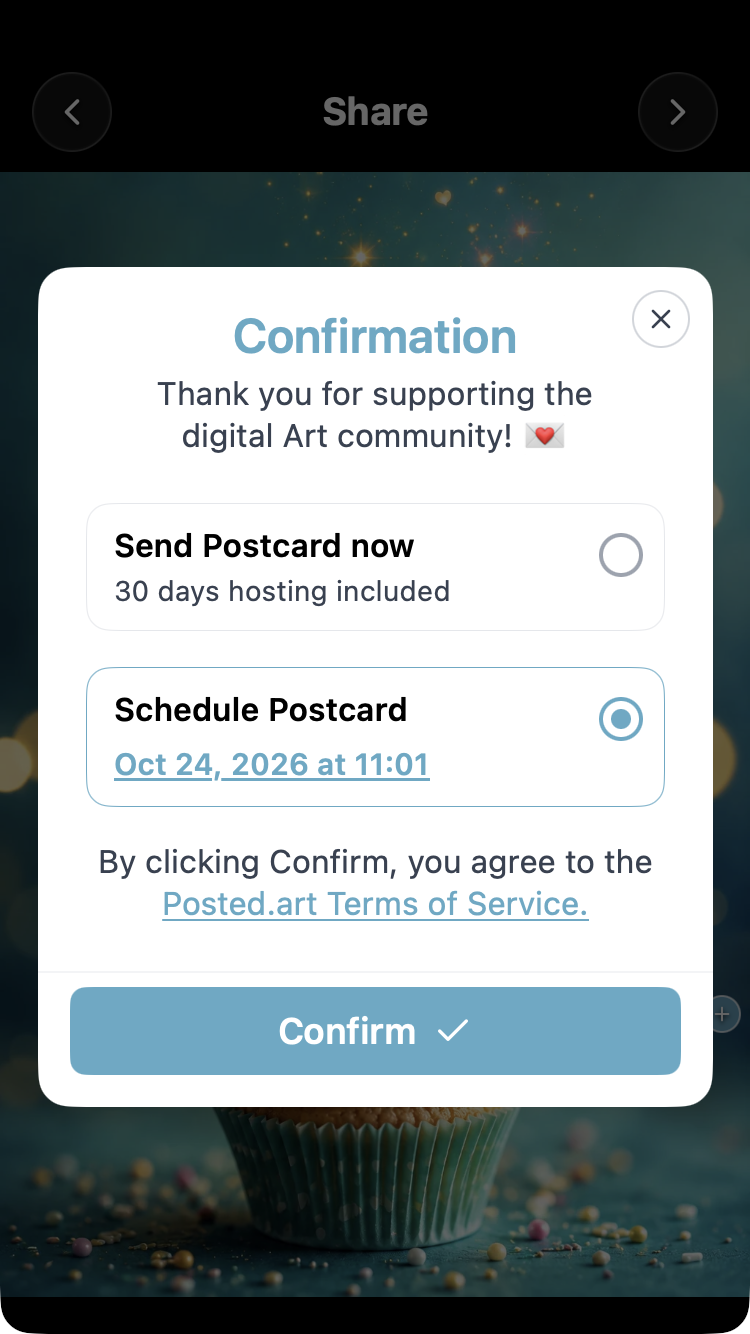
- Select a date and time from one hour ahead to one calendar month ahead using the device's picker.
- Review the selected date and time, then select Confirm to save the scheduled Postcard.
The app returns to Account, where the item appears under Scheduled Postcards.
Screenshots: iOS send-now or schedule choices and iOS selected reminder date and time. The second image shows the selected value in Confirmation, rather than the system date/time picker itself. Android provides the same scheduling feature, but its system picker can look different.
Find and open a scheduled Postcard
Before the scheduled time, the item shows its date and time. After that time passes, its label becomes Ready. If you miss the notification, the item remains available in Account; it has not been sent automatically.
Open the notification or select the scheduled thumbnail in Account to reach Ready to send?. You can also open a scheduled item before its reminder time.
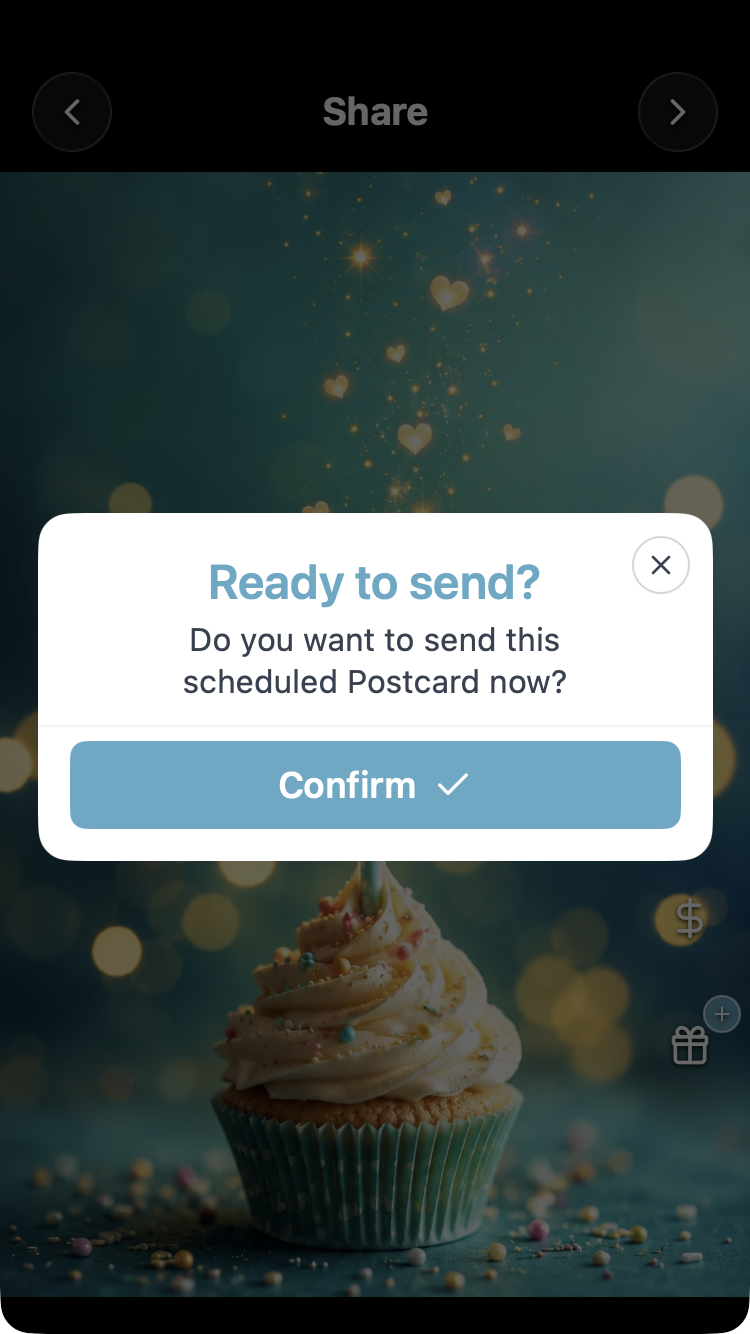
To review or change the design before creation, close that dialog using its X or by tapping outside it. This opens the prepared Share view. You can add a missing gift there or return to Write to change the message or audio before continuing.
Create and share it
For current subscription reference prices, see the FAQ pricing section. The app store shows your final local offer.
Select Confirm in Ready to send when you want to create the finished Postcard. An active native subscription does not require a separate per-Postcard payment. If a subscription or free-offer decision is needed, follow the app's current instructions; see pricing.
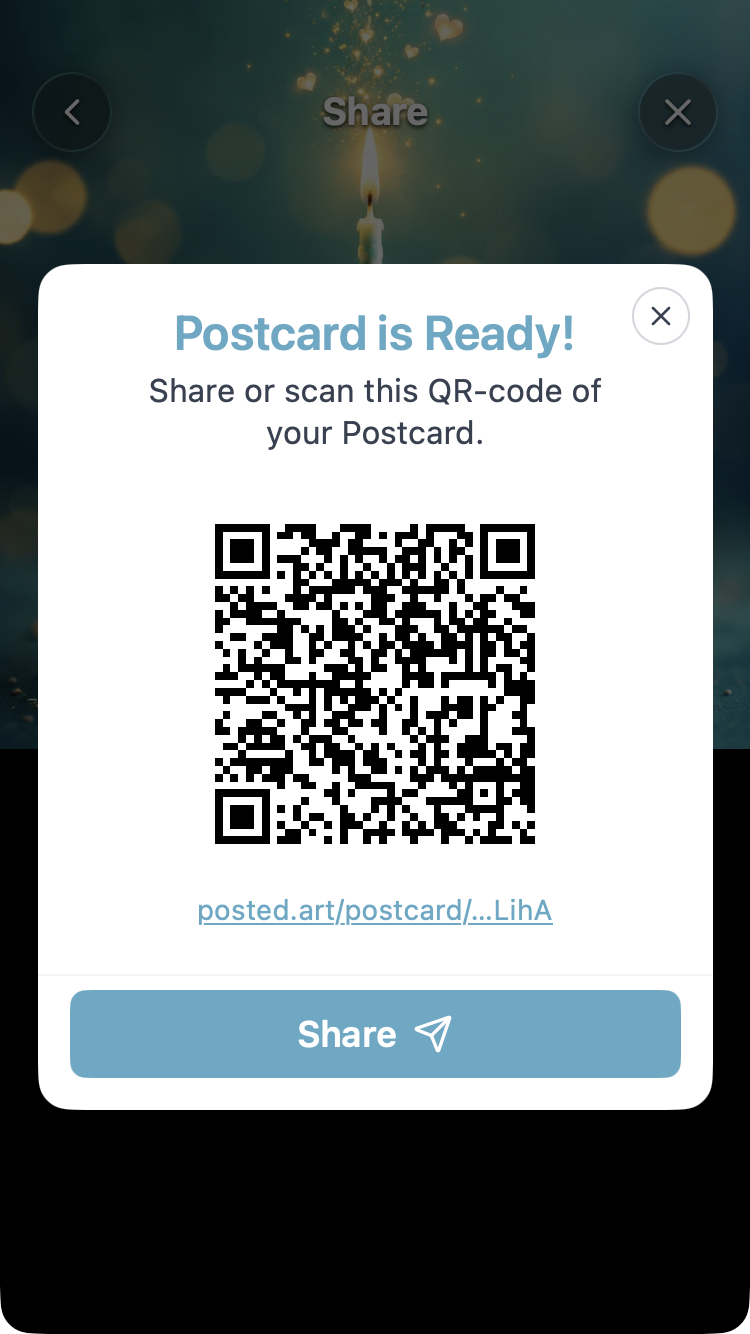
Once creation finishes, Postcard is Ready! provides the QR code, link and Share control. Choose how and to whom to send the link through your device's sharing options. Confirming creation does not deliver it to a recipient.
View the shared finished-Postcard panel. See sharing.
Notifications
Allow notifications if you want a reminder. Device notification settings can affect whether and when you see it; scheduling does not bypass silent modes or guarantee priority delivery. You can still find the item under Scheduled Postcards in Account.
Storage and limits
You can keep up to five scheduled drafts locally on the device. They are separate from the limit of twenty active hosted Postcards.
Scheduled items survive Posted.art's ordinary Reset app action and the working-state reset after more than one hour in the background. These resets clear the current working design instead.
Deleting your account clears scheduled drafts. Removing the app or clearing its stored data can also lose them. Local scheduling is not a cloud backup or a promise of access from another device.
See Account for Reset app and deletion behaviour.
Screenshot applicability
Use the iOS scheduling screenshots for iOS instructions. For Android, reuse common artwork, Write, Share and finished-Postcard illustrations, but do not present an iOS system picker or platform-specific dialog as an Android screenshot. Where an Android-specific capture is unavailable, explain the step in text. See screenshot guidance.