
Your Account
Account shows your connected identity and the Postcards you have created. Its connection controls and available sections depend on the client and wallet network you use.
Connect your account
| Client | Connection and Account features |
|---|---|
| iOS | Select Continue with Apple and complete Apple's sign-in prompt. Settings and subscription management can also be available while disconnected when an active App Store subscription is recognized. |
| Android | Select Connect and use your Google account. The Settings gear appears after connection. |
| Telegram | Opening the Posted.art Mini App connects using your Telegram account and starts on Account. If connection fails, close the Mini App and reopen it. |
| Web/PWA | Select Connect, choose your wallet and complete the connection and ownership-signing requests. Account includes wallet information and Your Postcards. |
| Farcaster | Posted.art runs inside Farcaster using the web wallet flow. Follow the instructions for the wallet network actually connected. |
A supported EVM connection also shows Your Art Certificate NFTs. Solana and Telegram do not show this section. The wallet's brand alone does not determine which features are available: check the active network.
See wallet connection, Telegram, Solana or Farcaster for the relevant connection steps.
Why does iOS show Subscription: Active and Not connected?
Your App Store subscription and your Posted.art account connection are separate. The iOS app can recognize an active subscription while you are disconnected from your Posted.art account.
Subscription: Active describes your subscription. Not connected means you still need to connect for account features such as Favorites and Your Postcards. Select Continue with Apple to connect.
Find and review your Postcards
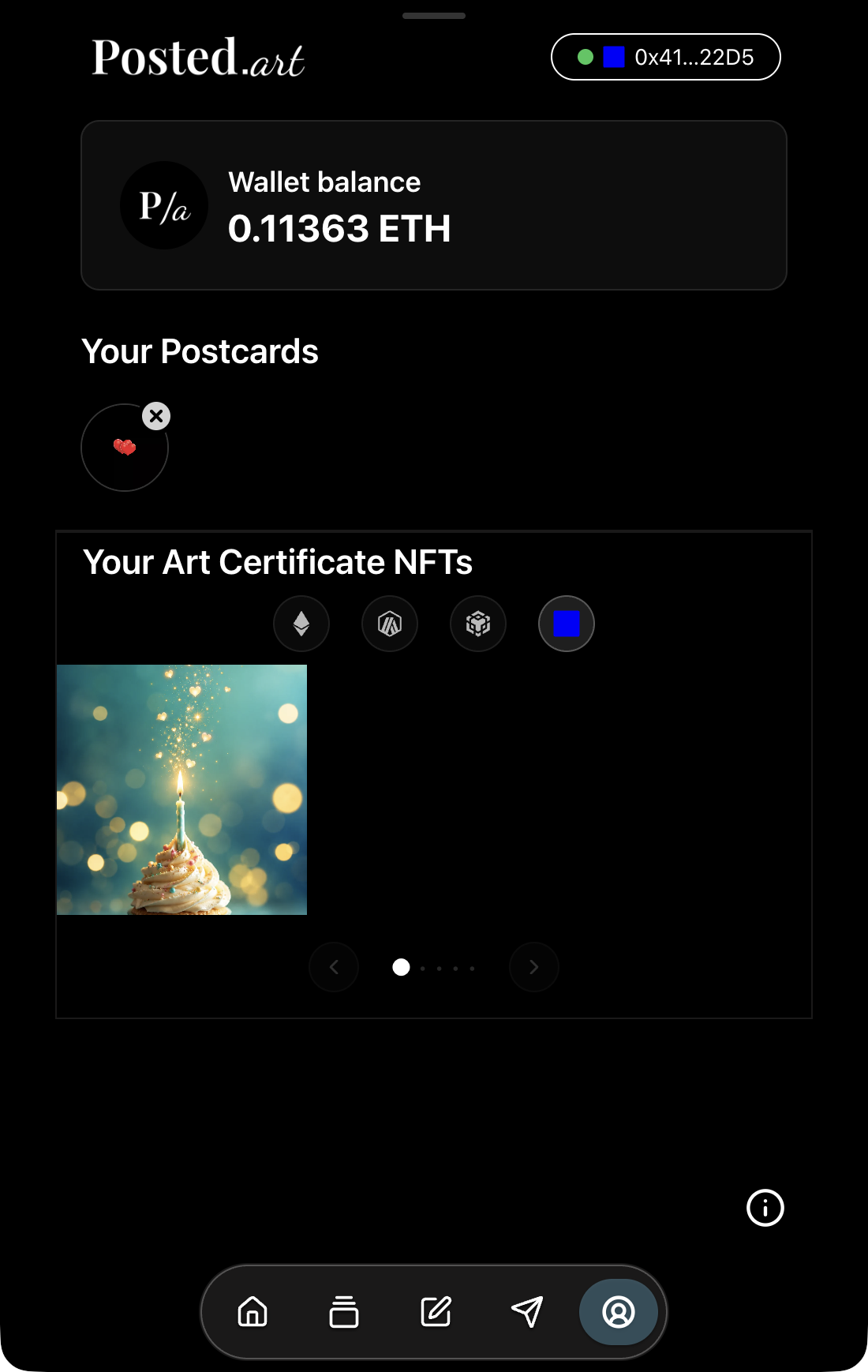
After creating a Postcard, select the top-right X on Share to close the completed workflow and return to Account. Find it under Your Postcards.
Select a Postcard's circular thumbnail to open its link and review the same finished experience a recipient sees. You can reopen it while it remains hosted. Its presence in Account confirms creation; it does not confirm that a recipient received or opened the link.
The circular Postcard thumbnails are separate from locally saved Scheduled Postcards in the native apps and from Art Certificate NFTs shown for supported EVM wallets.
View a web EVM Account with a personal Postcard and an Art Certificate. This image includes the EVM-only certificate section; it does not represent a Solana or Telegram Account.
Delete a Postcard
Select the small X on a Postcard thumbnail, then select Delete within a few seconds to confirm. If you do not confirm, the control returns to an X and the Postcard is kept. Select the thumbnail itself when you want to open the Postcard instead.
Deleting a hosted Postcard removes it from Your Postcards and ends access through its link for both you and recipients. It does not remove copies someone has already downloaded or saved separately.
Personalize your sender photo
Your account name and profile photo personalize the recipient's Postcard experience.
| Connection | Profile photo |
|---|---|
| iOS / Sign in with Apple | Add an optional photo using the plus on your Account avatar. |
| Android / Google | Uses the profile photo supplied by your connected Google account, when available. |
| Telegram | Uses the name and profile photo supplied by your Telegram account, when available. |
| EVM wallet | Uses the connected wallet's resolved profile image, such as its ENS avatar, when available. |
| Solana wallet | Uses the connected wallet's resolved SNS avatar, when available. |
| Farcaster | Follow the profile behaviour of the connected wallet network. |
For a personalized wallet image, configure the avatar for your connected address through the relevant ENS or SNS identity service. Having an ENS or SNS name is optional for connecting a wallet. If no wallet profile image is available, a generated geometric avatar is used.
In iOS, remove an uploaded photo by selecting its small X, then Delete within a few seconds. The add-photo plus returns. Removing a photo is separate from deleting a Postcard or deleting your account.
Recover a Postcard after an interrupted wallet payment
If payment completed but the app disconnected before showing your Postcard:
- Reopen Posted.art and reconnect the same wallet.
- Go to Account → Your Postcards and allow time for payment verification.
- Reconnect as soon as possible, within three days (72 hours) of the original attempt. Recent unfinished payments are checked during reconnection.
Do not immediately pay again for the same attempt. Recovery requires the prepared Postcard to remain available and the payment to be verified. See payment recovery if it is still missing.
Native-app Settings
Settings is available in the standalone iOS and Android apps. It is not part of the Telegram or web wallet Account interface. Android requires account connection to show Settings; iOS can also provide subscription management while disconnected.
Reset app
Settings → Reset app runs immediately, clears the current working design and temporary working files, and returns to Home. Avoid using it while you still need an unscheduled design.
Reset app preserves locally saved Scheduled Postcards and does not delete hosted Postcards. See scheduling for saving a prepared Postcard locally in iOS or Android.
Delete account
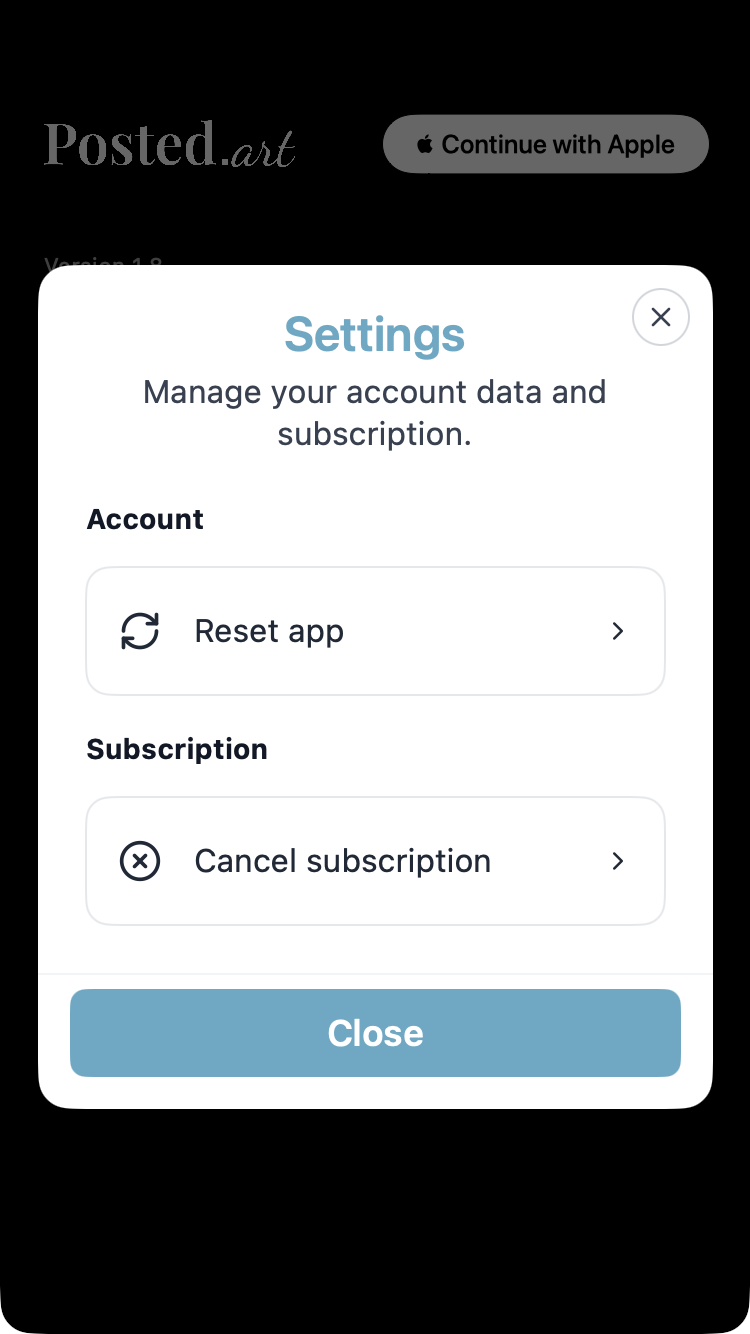
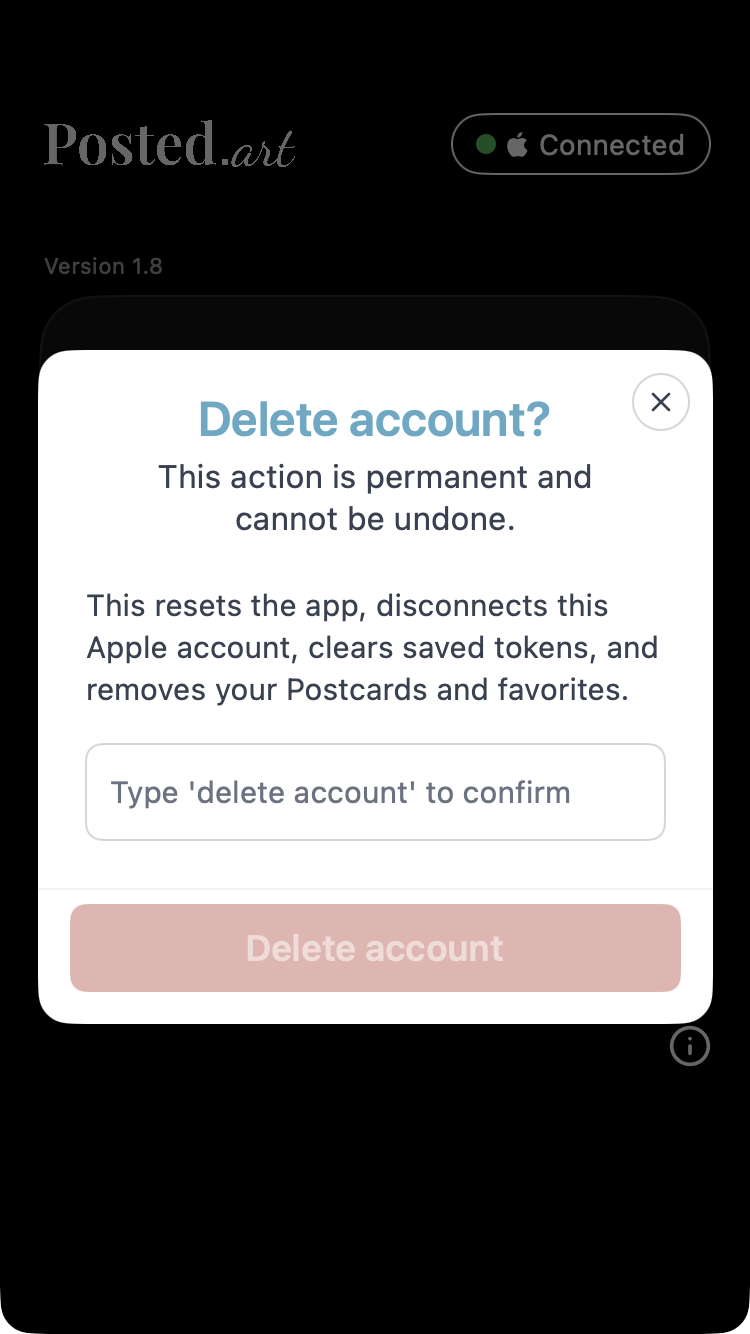
Settings → Delete account opens a separate confirmation. Deletion removes your account data, including Postcards, Favorites and locally saved scheduled drafts, and disconnects the account. Read the permanent-deletion warning before proceeding.
In iOS, type delete account as requested before the deletion button becomes available. Close the dialog with its X if you do not want to proceed.
Cancel a subscription
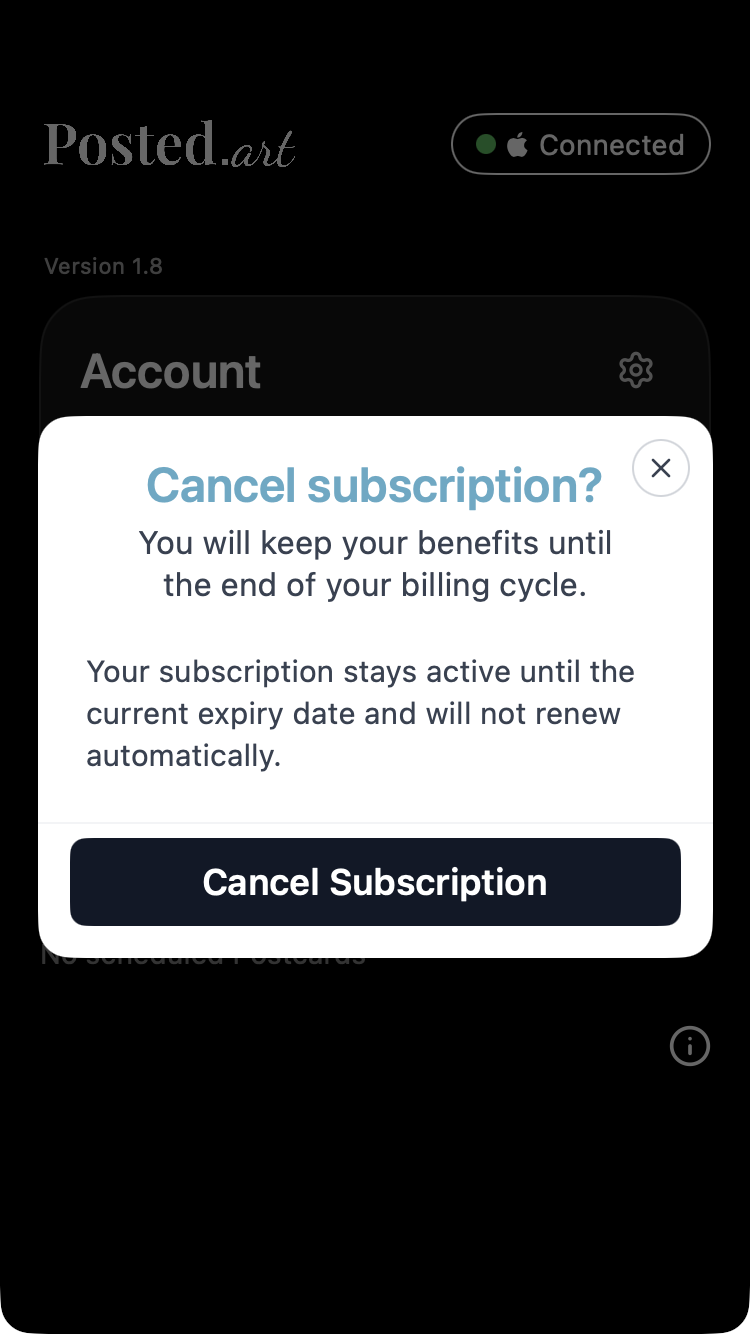
Use Settings → Cancel subscription to open the subscription-management flow for your app store. Complete cancellation in the store's management screen; opening Posted.art's menu or explanation does not itself cancel the subscription. Benefits continue until the end of the paid billing period.
In iOS, this option is also available while disconnected when the app recognizes an active App Store subscription.
Subscription price and hosting
See the FAQ pricing section for maintained reference prices.
Native subscriptions are billed through the Apple App Store or Google Play. The store handles the final local price, currency and applicable taxes. Review the price in its purchase confirmation.
Each created Postcard includes 30 days of hosting. Normal subscription sending is subject to a limit of 20 active hosted Postcards at once. At the limit, delete an existing Postcard or wait for expiry before creating another. The separate limit of five locally scheduled drafts is explained in scheduling. See pricing for the differences between native subscriptions, web wallet payments and Telegram Stars.
Disconnect
In iOS and Android, select the Connected button at the top to disconnect immediately. Reconnect when you need account features again. Disconnecting is separate from deleting your account or cancelling a subscription.
Telegram reconnects automatically when you navigate through the Mini App. Web wallets have their own connection menu; follow wallet connection rather than assuming the native button behaviour applies.
Open the documentation
Select the small ⓘ information icon on Account to open the Posted.art website's Docs section.
Select screenshots for the user's client
Use the matching client and account state:
iOS: connected, disconnected, Settings with an active subscription.
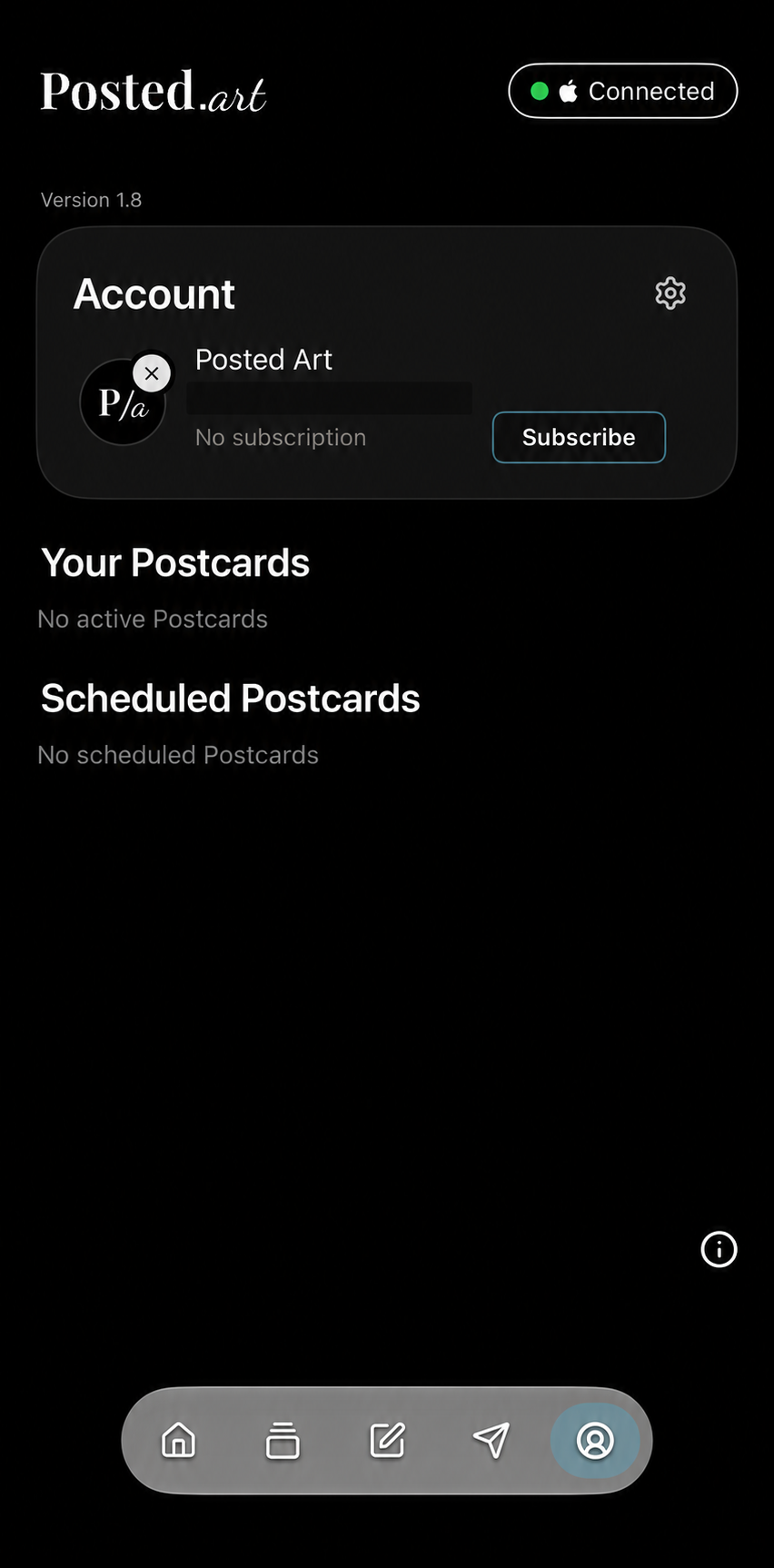
connected 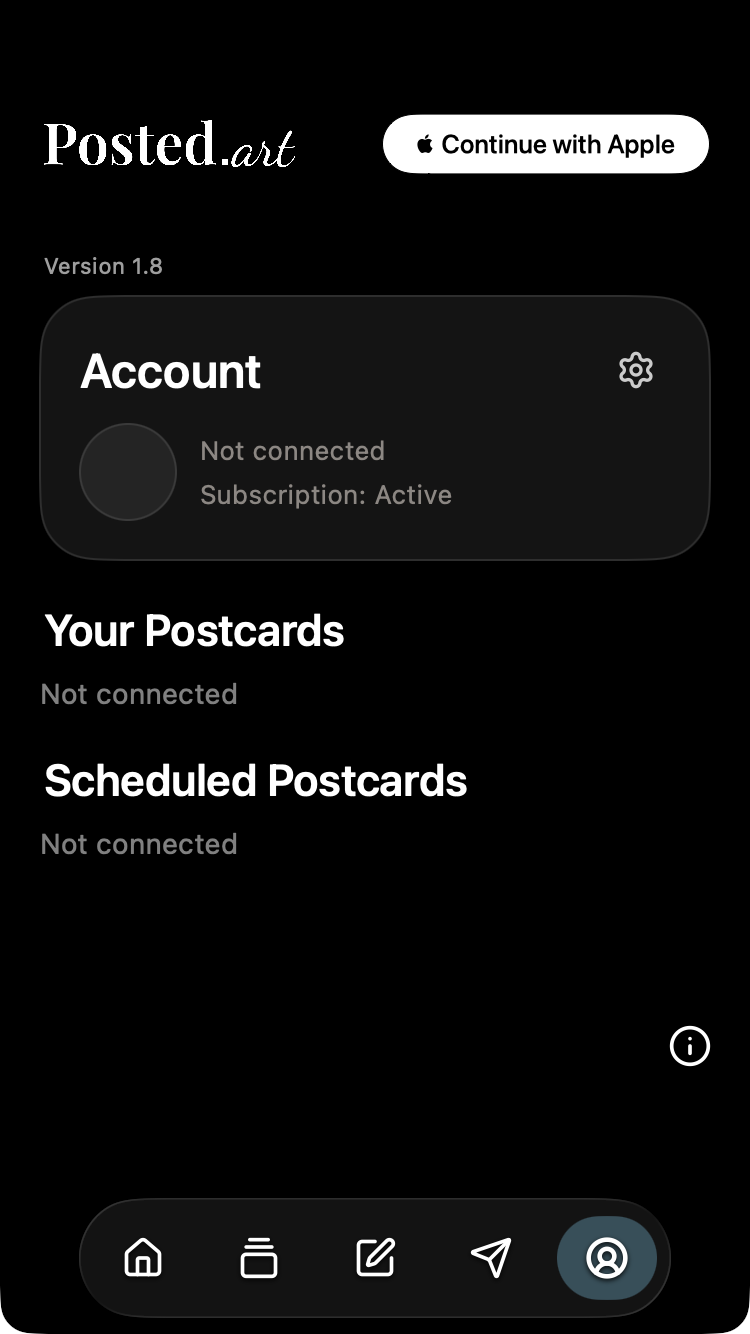
disconnected 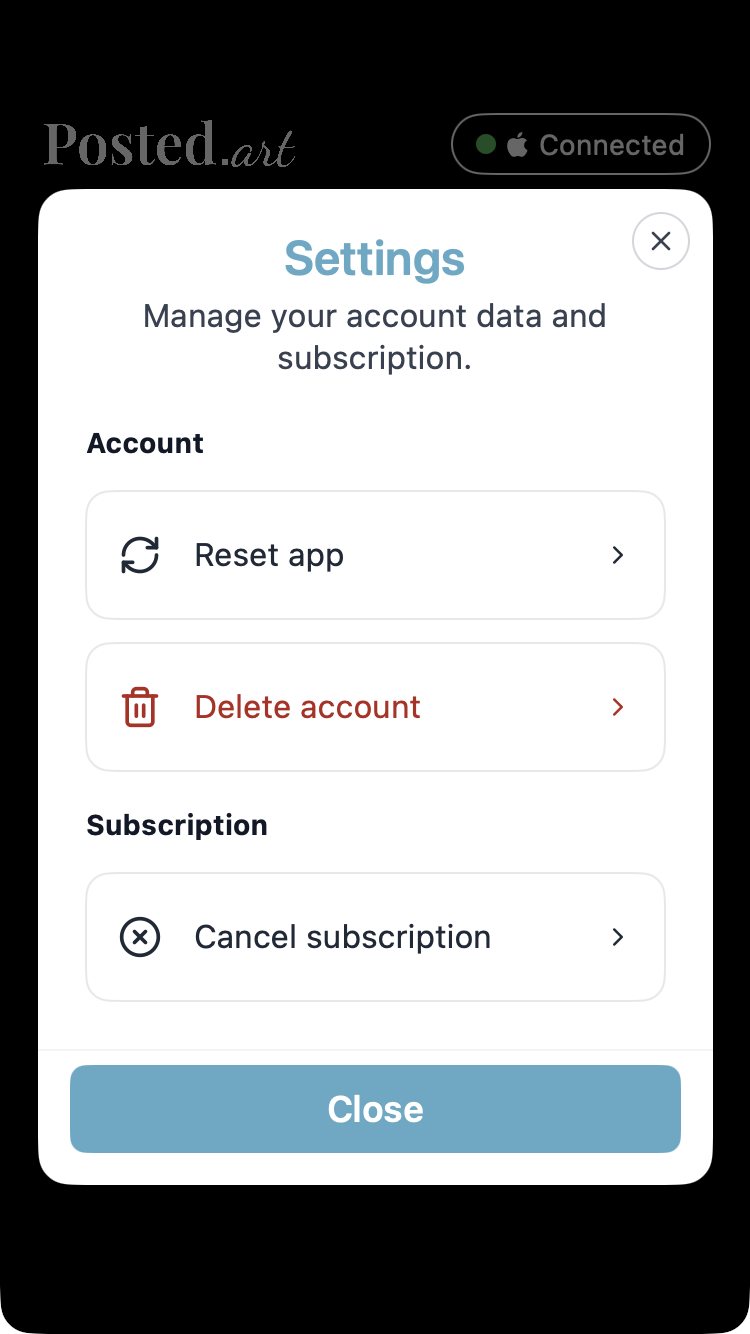
Settings with an active subscription Android: connected without a subscription, disconnected, Settings without a subscription.
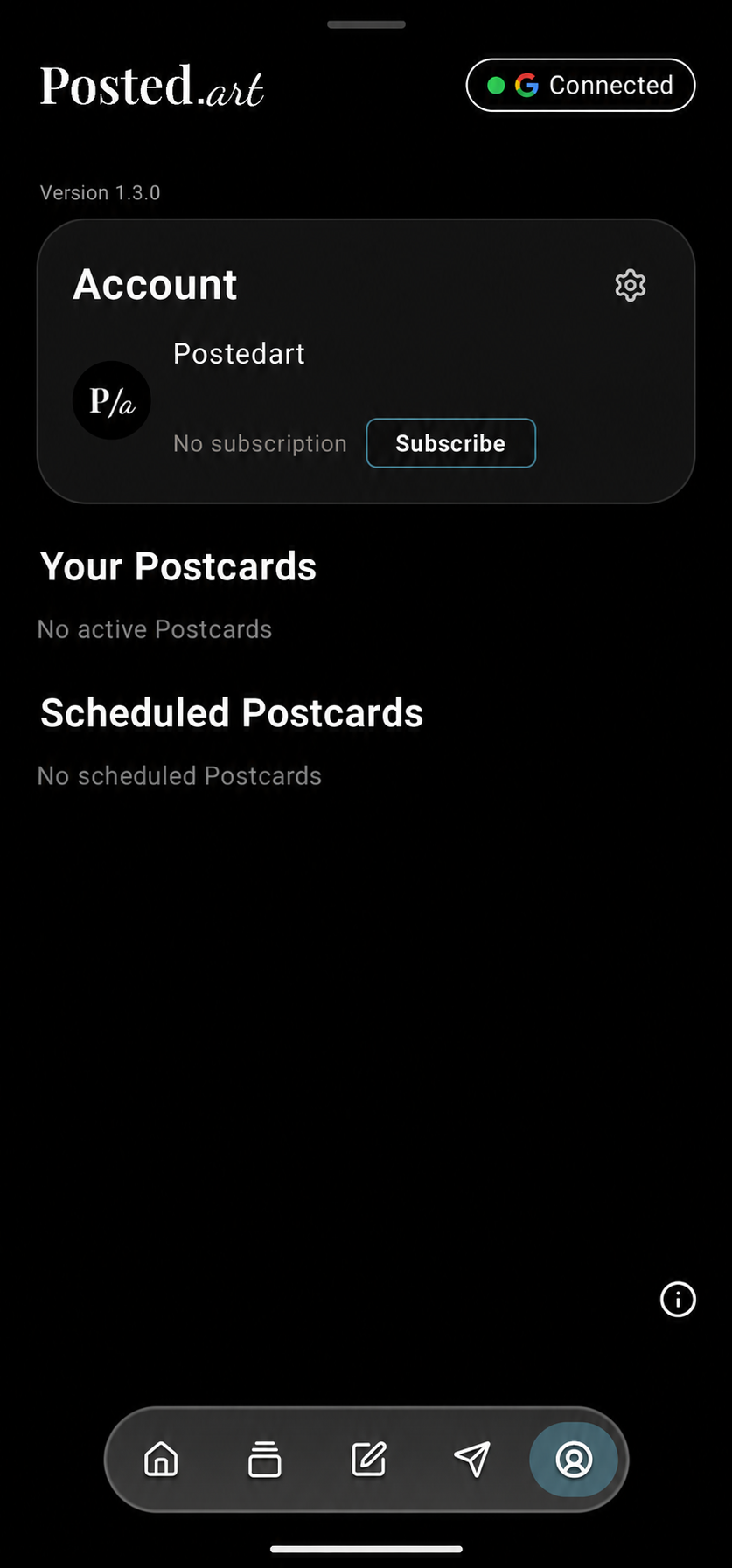
connected without a subscription 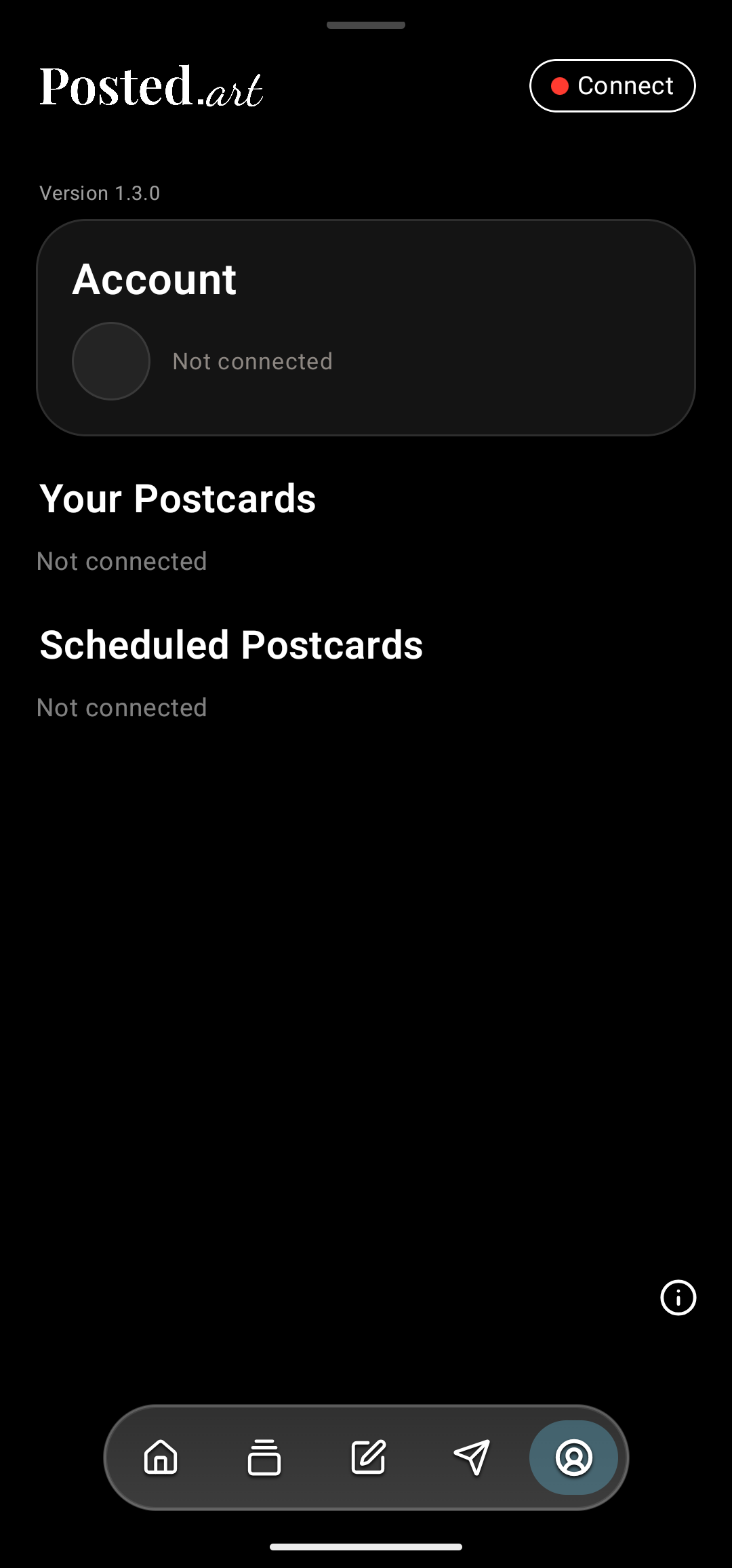
disconnected 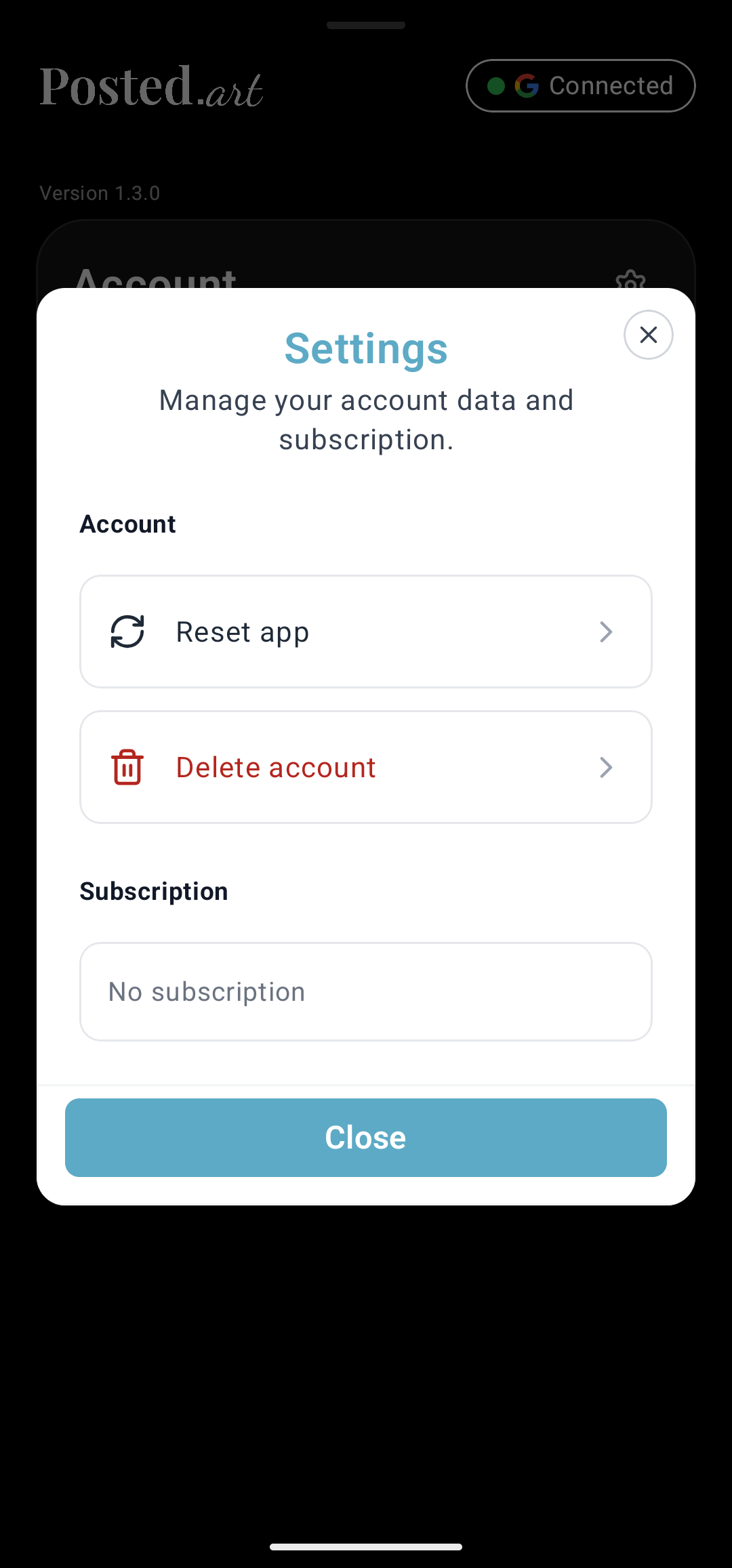
Settings without a subscription Telegram: automatically connected header.

automatically connected header Web EVM wallet: connected Account, disconnected Account.
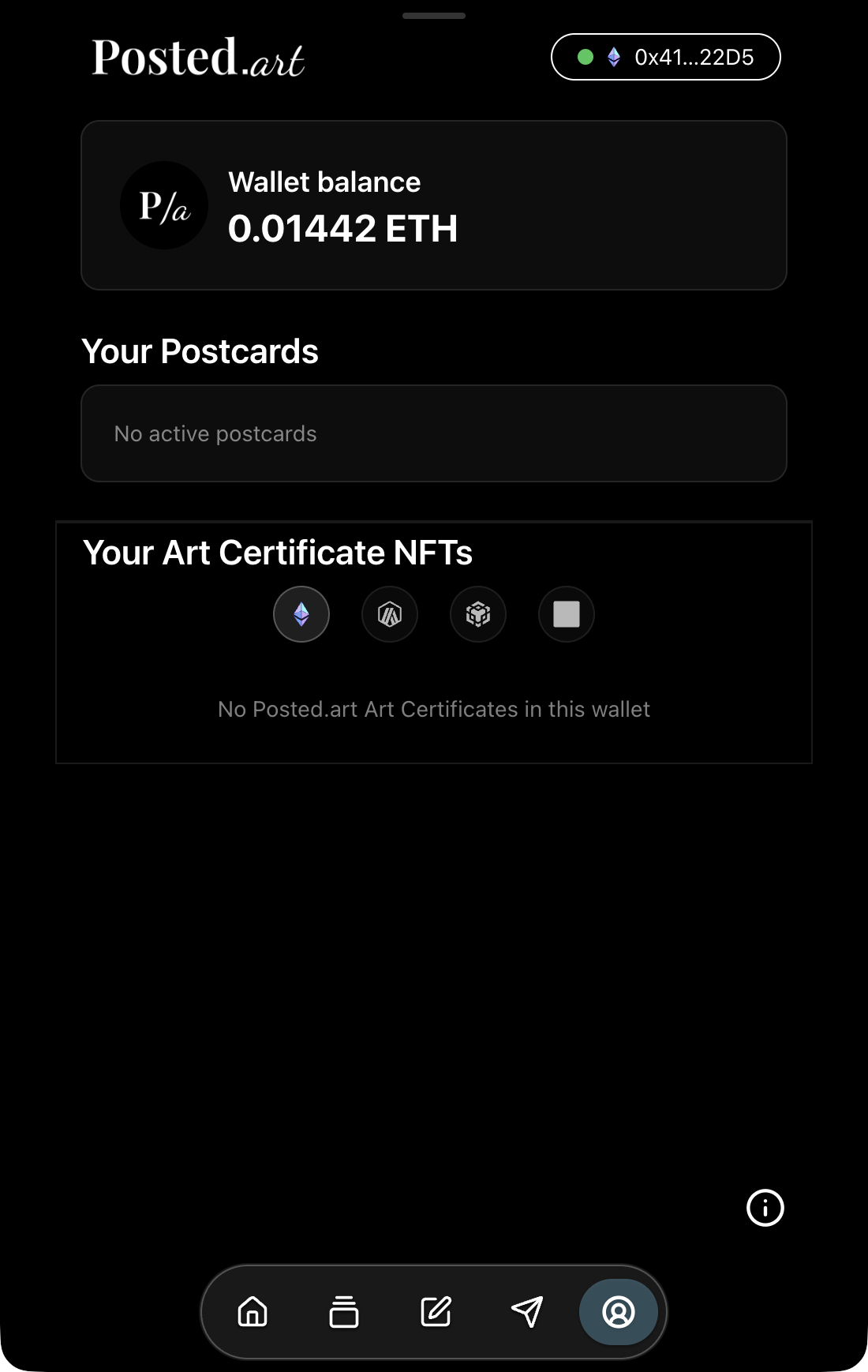
connected Account 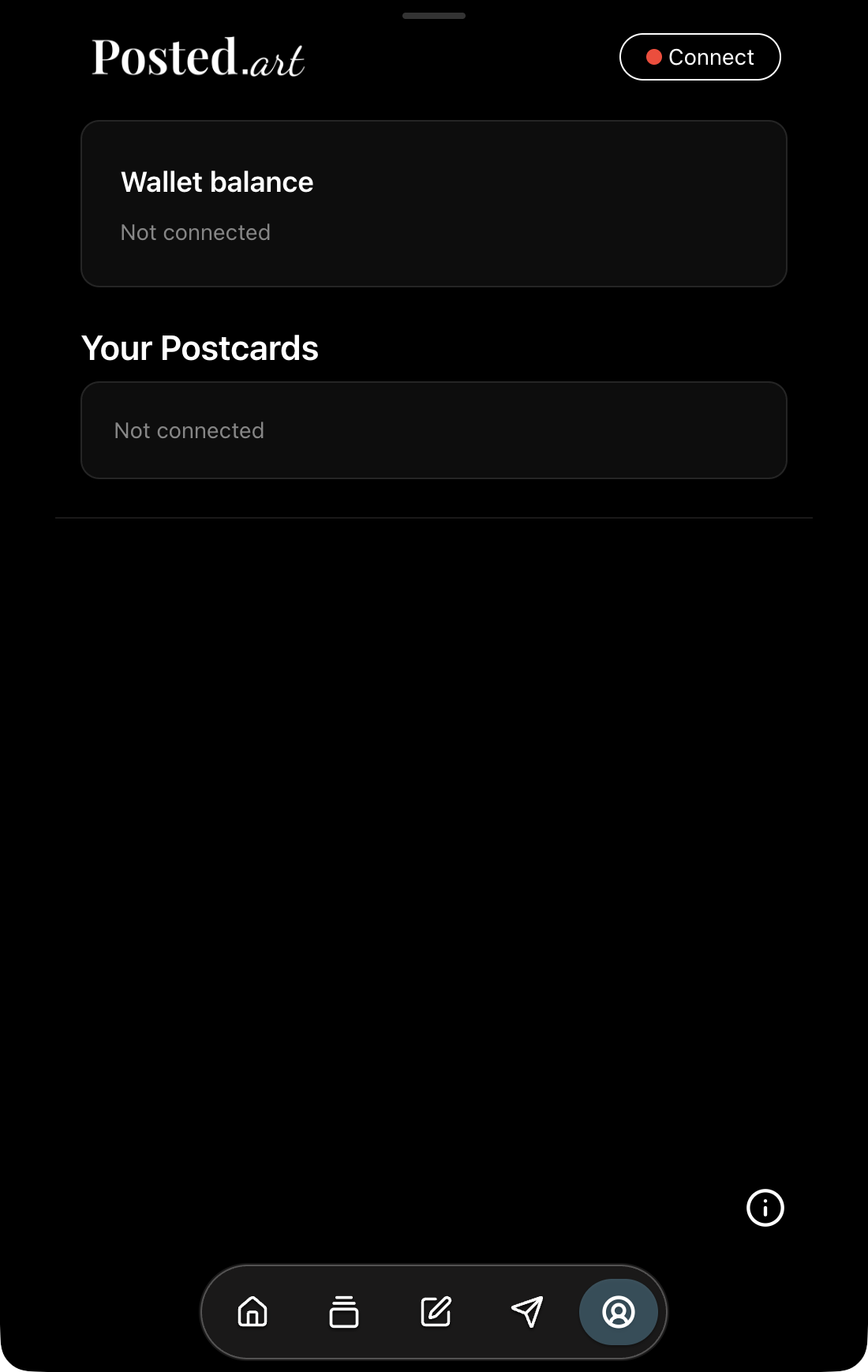
disconnected Account
A Solana-specific connected Account screenshot is not available. Explain that screen in text rather than showing an EVM NFT collection or Telegram account as a Solana account. Farcaster users can use matching wallet-interface illustrations, but wallet approval screens can differ by host.
For common controls outside Account, all clients can reuse the matching Home, Card, Write and Share screenshots. The screenshot guidance lists the reusable images and client-specific exceptions.