
Home, Search & Series
Part of Postcards — create and send. New to Posted.art? Start with How to create and send a Postcard for the complete personal Postcard flow.
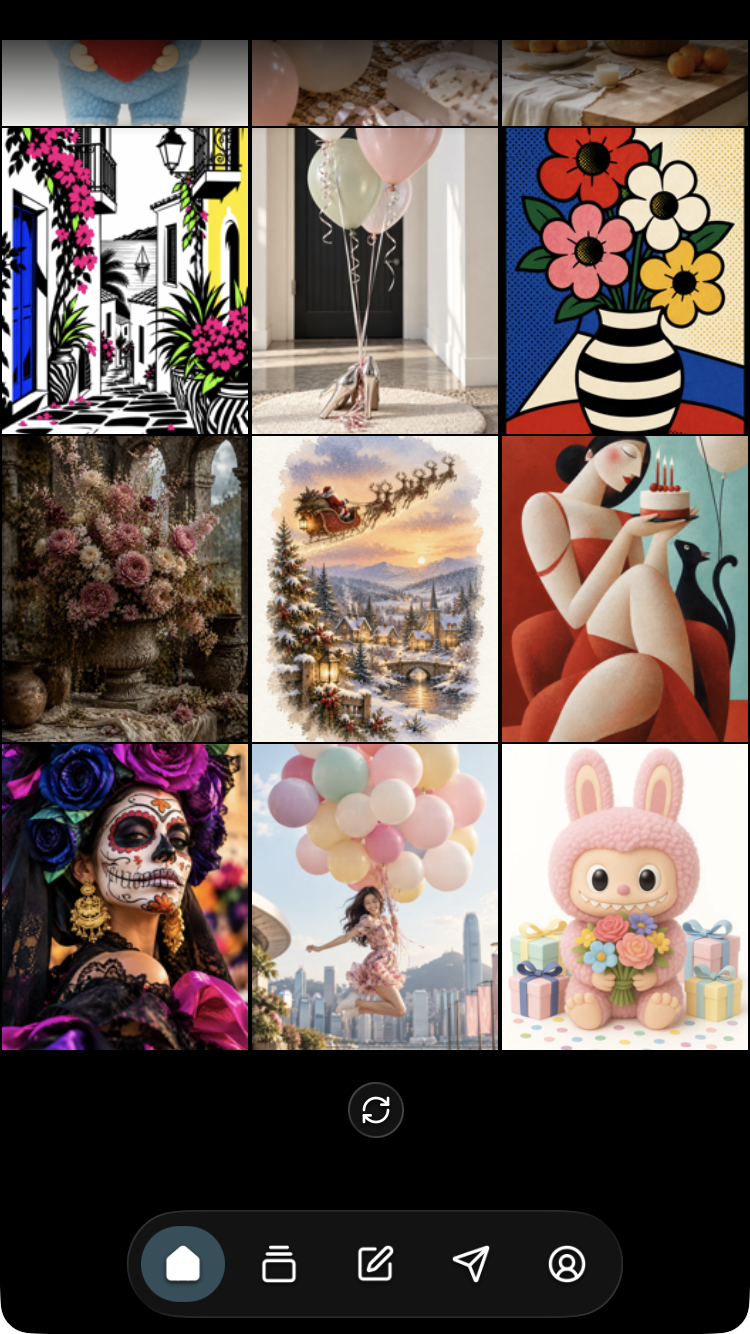
Home shows a selection of artwork from the Posted.art library. Choose an artwork to open its Card page, headed Explore, then continue to Write and Share when you want to make a personal Postcard.
Get around
Use the bottom navigation to open Home, Card, Write, Share or Account. The top arrows move through the relevant steps: on Card, the left arrow returns to Home and the right arrow opens Write.
Top controls change with the task. For example, active text editing uses a checkmark to finish editing, and a completed Share screen uses an X to close the workflow. Follow the current step's control rather than assuming every top-right button has the same action.
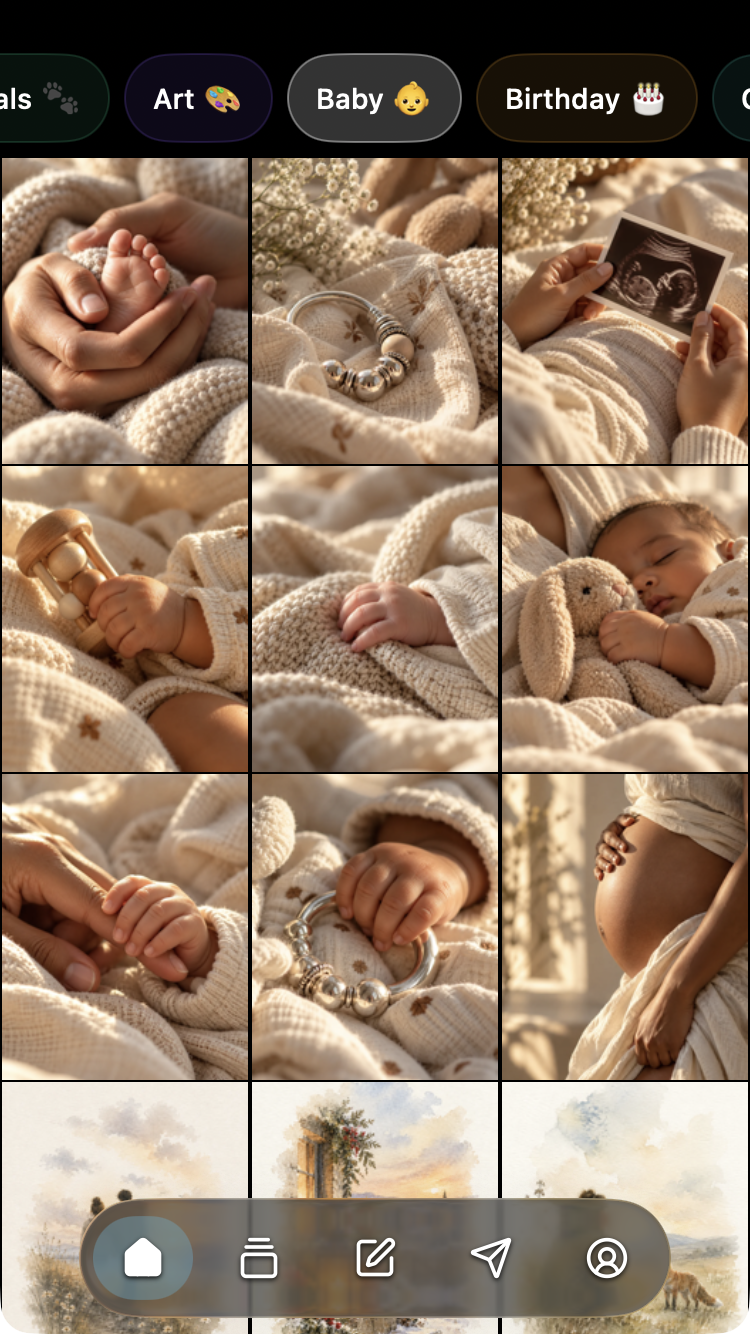
Search and filter the current selection
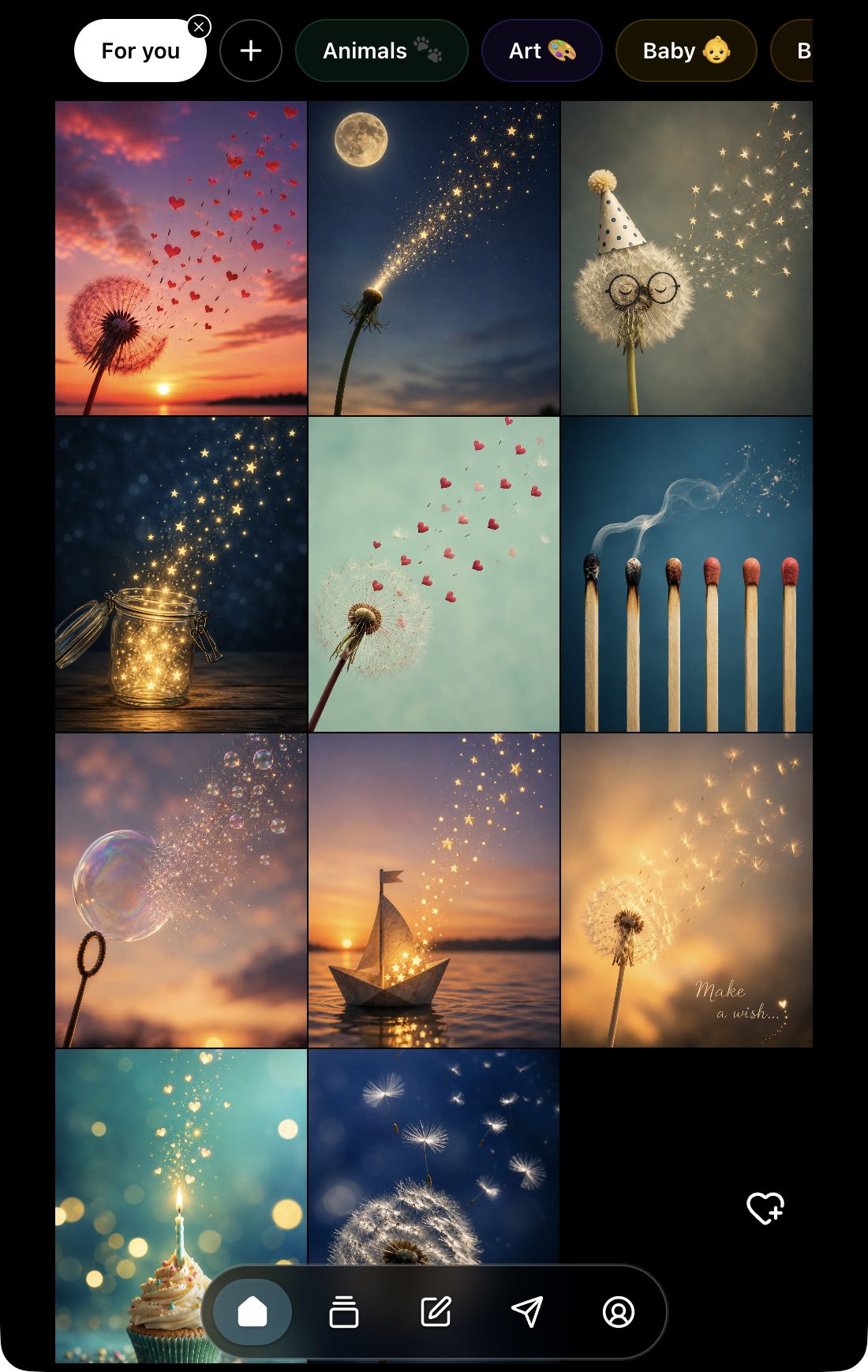
Use the top category row to browse, or select its plus to open Search. Choose the relevant options, such as a series, and apply the search. Some options, including Favorites, load their results directly.
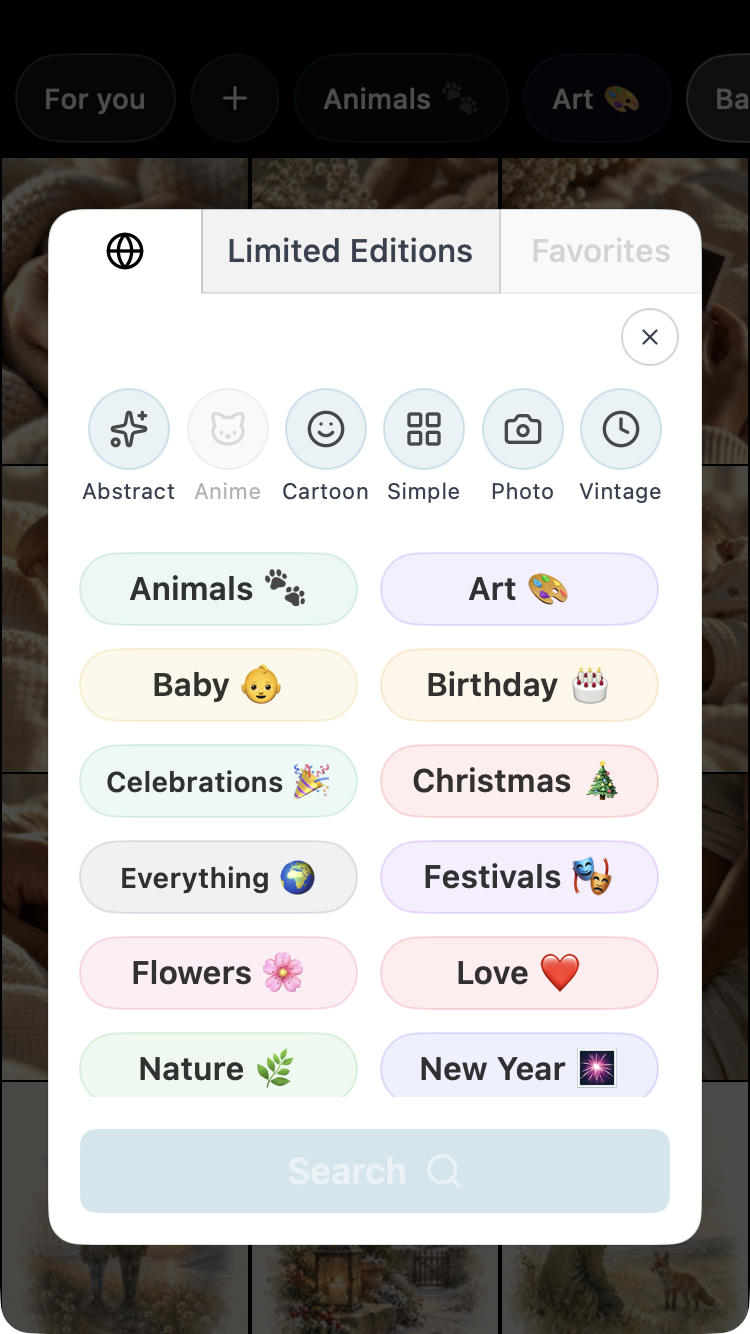
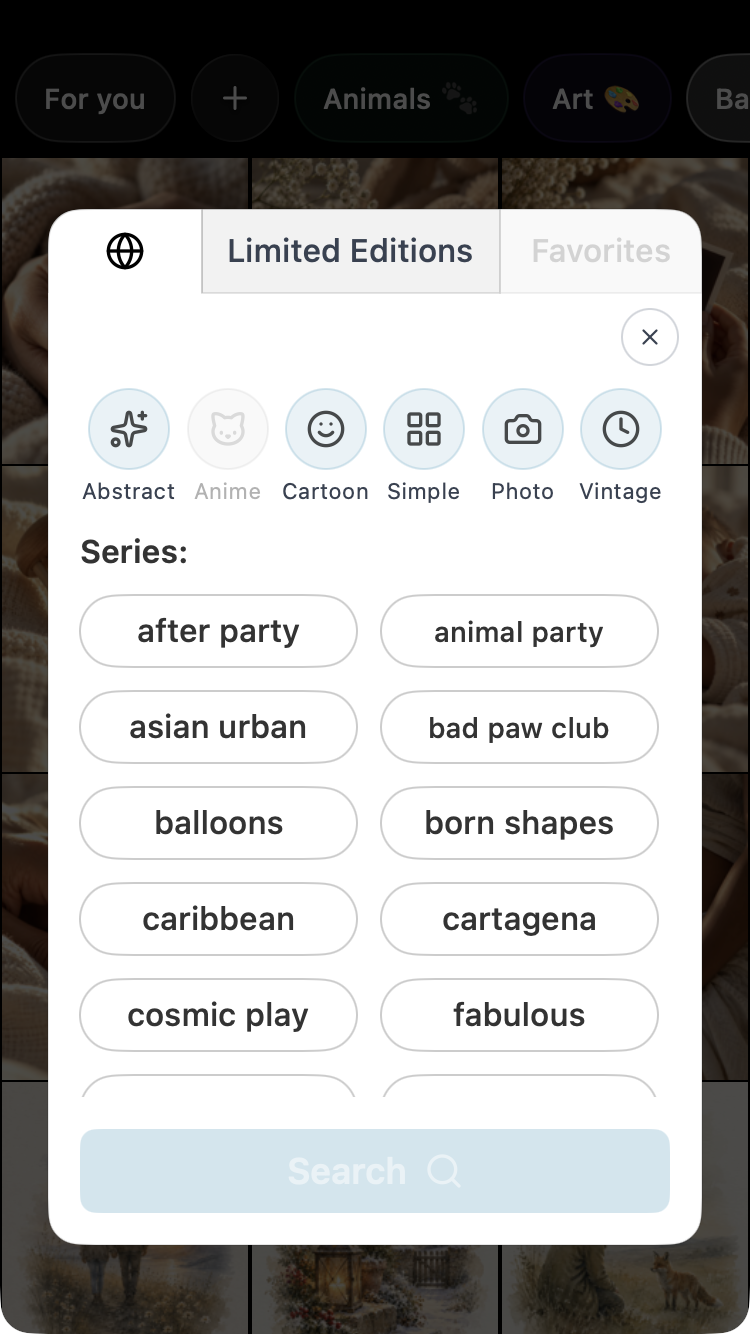
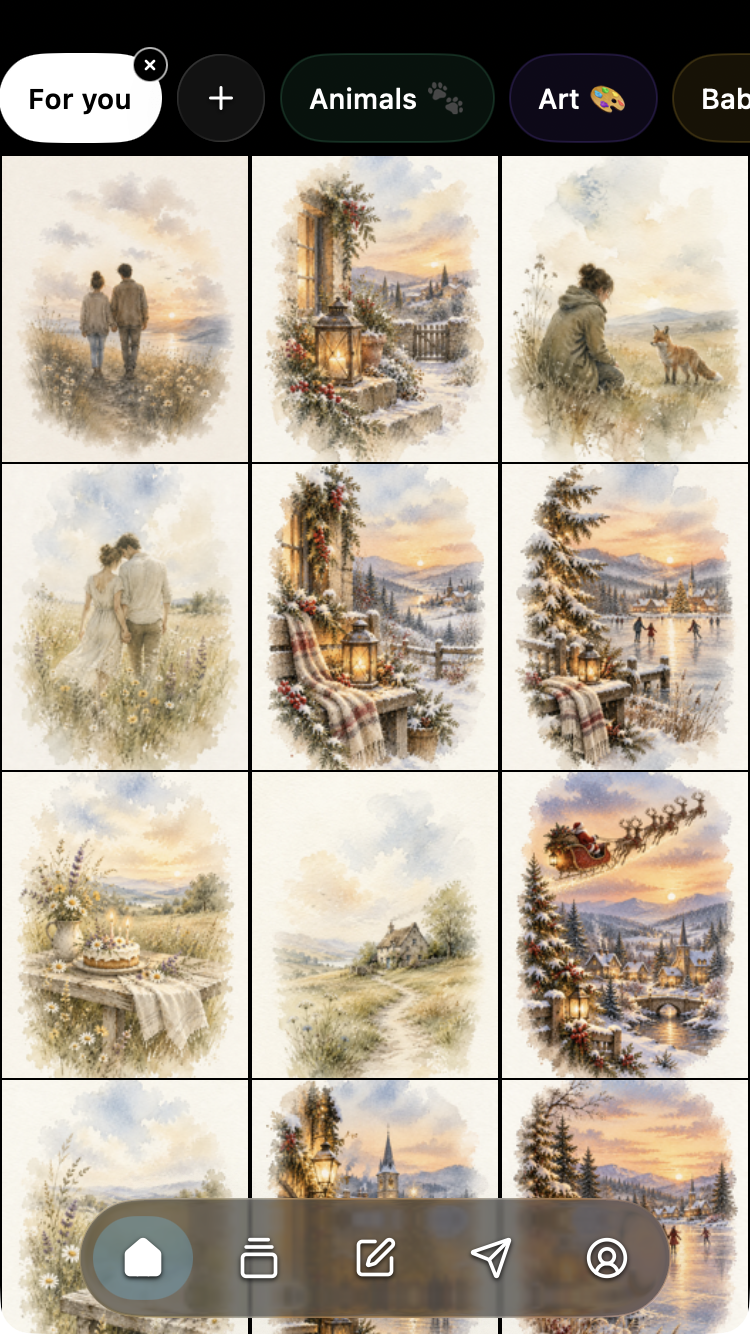
Ordinary Home browsing loads a selection of up to 600 artworks. Standard searches filter that selection, so an artwork can be absent from a particular set of results without being absent from the library. Favorites, Limited Editions and creator results have their own retrieval behaviour; do not assume every special view is restricted to that ordinary selection.
For saved artwork, see Favorites.
Why does Home show only part of a series?
Selecting a series in Search shows matching artwork in the current Home selection. To browse the full series, open any matching artwork on Card. Series browsing can include artwork that was not present in your Home results.
For example, selecting Star Dust filters the loaded selection to Star Dust artwork. Opening one result lets you browse the rest of that series without repeatedly refreshing Home.
An artwork opened from an owned Art Certificate can instead use single-artwork mode. That route does not open the full series. See the artwork screen.
Load a fresh selection
Scroll to the bottom of Home and select the circular refresh-arrows button. Home loads a fresh selection and returns to the top.
Refresh keeps an active search applied to the new selection. If Star Dust is selected, the refreshed results show matching Star Dust artwork from the new batch without requiring you to choose the series again.
Selections can overlap, so refreshing does not guarantee that a specific artwork will appear. Open a matching artwork to browse its full series instead.
Browse a creator
In the web app, select the creator information on Card to open Home filtered to that creator's artwork. You do not need a wallet connection for this browsing action.
In iOS, the creator logo opens an Art Certificate explanation instead. See artwork controls for the client difference.
Find Create & Earn
The heart-plus Upload postcard icon appears at the lower right of Home, above navigation, for an authenticated supported EVM connection in the web app. It is separate from the heart used to save artwork to Favorites.
It is hidden in disconnected web sessions and unavailable in Solana, Telegram and the standalone Posted.art iOS/Android apps. Inside Farcaster, availability follows the connected wallet network.
View Home with the EVM upload control. See Create & Earn for submission requirements.
Screenshot reuse across clients
The shared Home controls, Search, series choices, filtered results and refresh control apply to matching common interface states across iOS, Android, web/PWA, Telegram and Farcaster.
Use the separate EVM Home screenshot only when explaining the supported upload control. The shared images do not imply that EVM-only features are available to every client. See screenshot guidance.