Card: View Artwork
Part of Postcards — create and send. New to Posted.art? Start with How to create and send a Postcard for the complete personal Postcard flow.
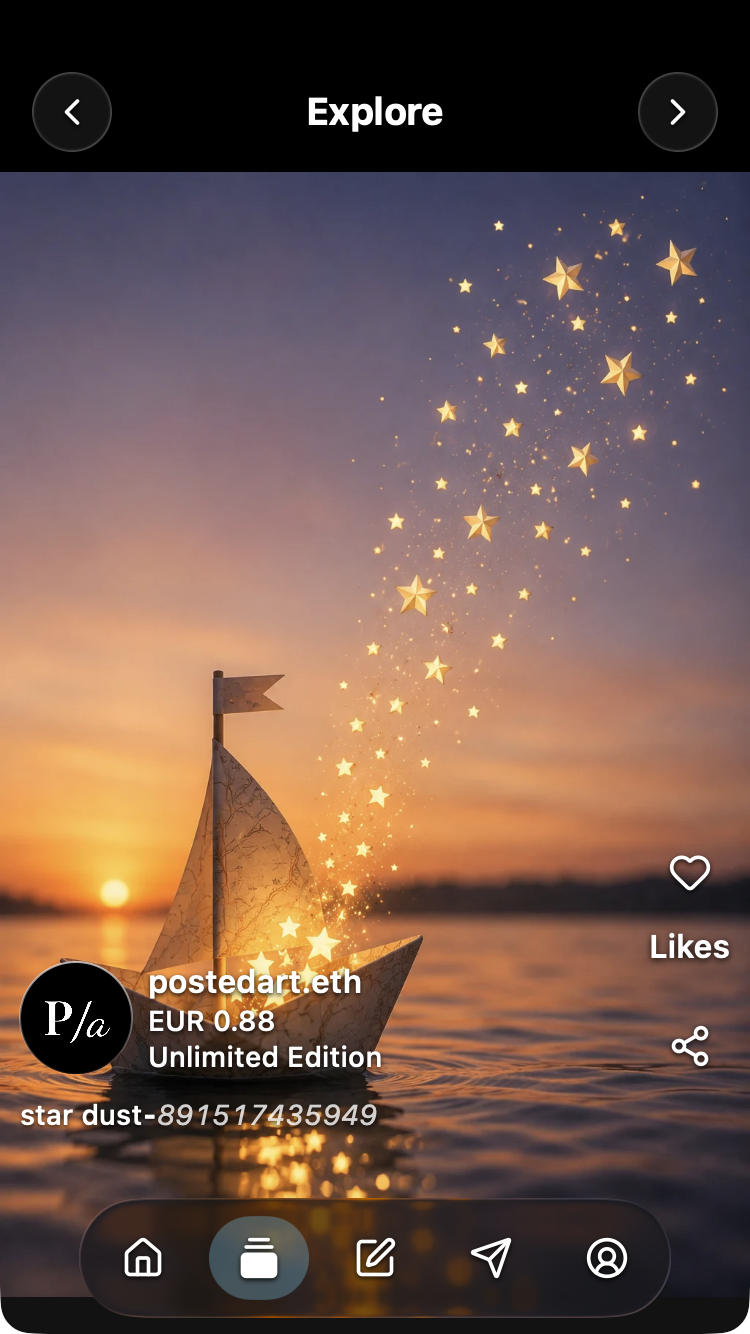
Open an artwork from Home to view it on the Card page, headed Explore. From here, browse the series, save a Favorite, share the artwork or continue to Write to create a personal Postcard.
Artwork details and controls
| Item | What it means or does |
|---|---|
| Creator name | Identifies the artwork's creator. A readable wallet name belongs to the creator and is separate from your connected account. |
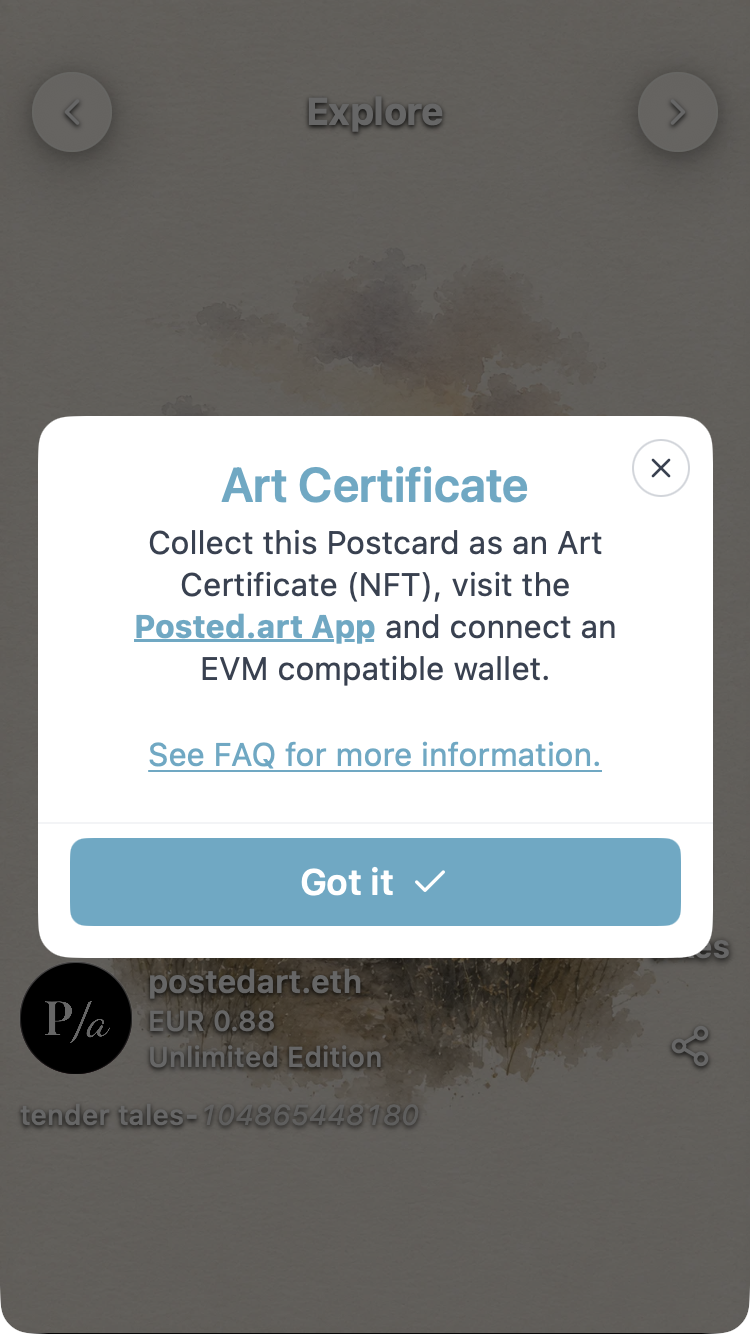
| Creator logo in iOS | Opens an Art Certificate explanation about optional NFT collecting through the web app. |
| Creator information in the web app | Opens Home filtered to that creator's artwork. You do not need a wallet connection to browse a creator. |
| Price | The optional Art Certificate purchase price, separate from personal Postcard delivery and hosting. Standard artwork uses regional display currencies; premium artwork has its individual USD price. |
| Edition label | Shows Unlimited Edition or information about a limited edition. NFT editions do not restrict ordinary use of the artwork in a personal Postcard. |
| Artwork title | Combines the series name with the first twelve digits of the artwork's token ID. Select the title to copy the full token ID; a brief checkmark confirms the action. This identifies the edition within its collection, rather than each purchased copy. |
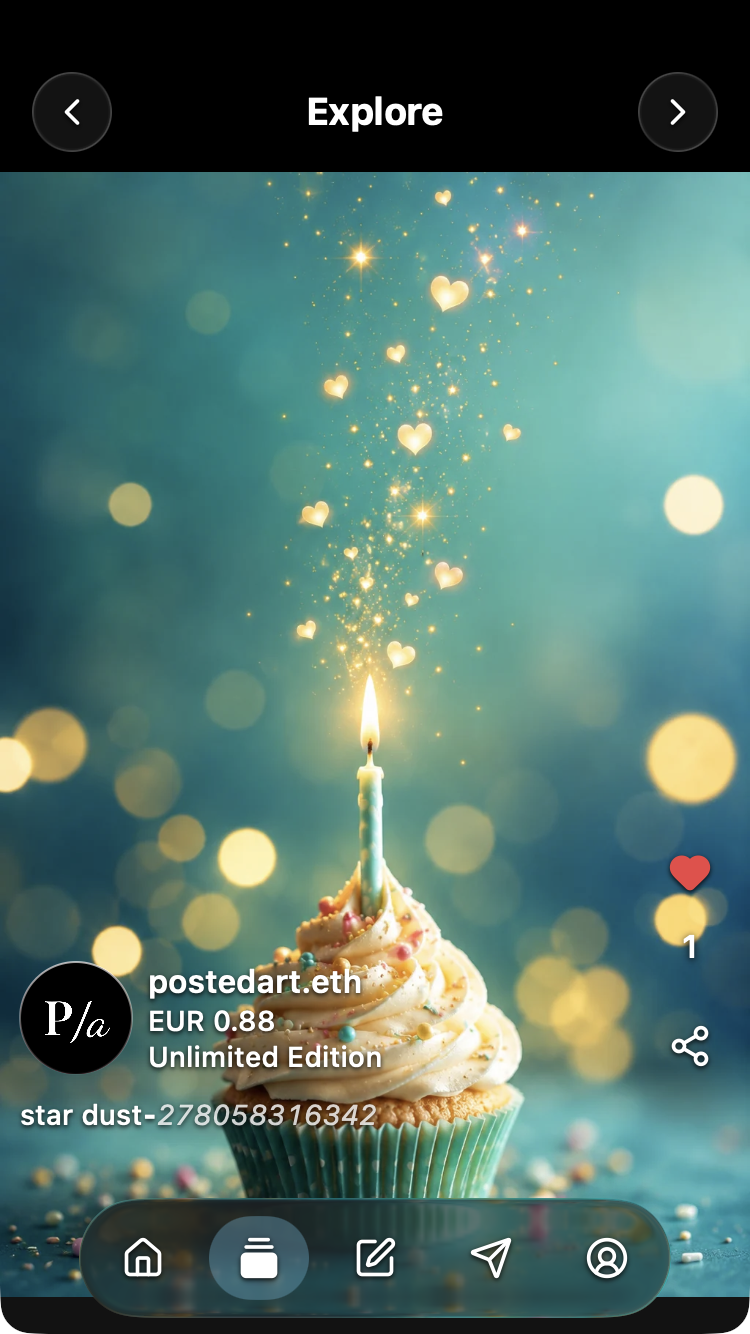
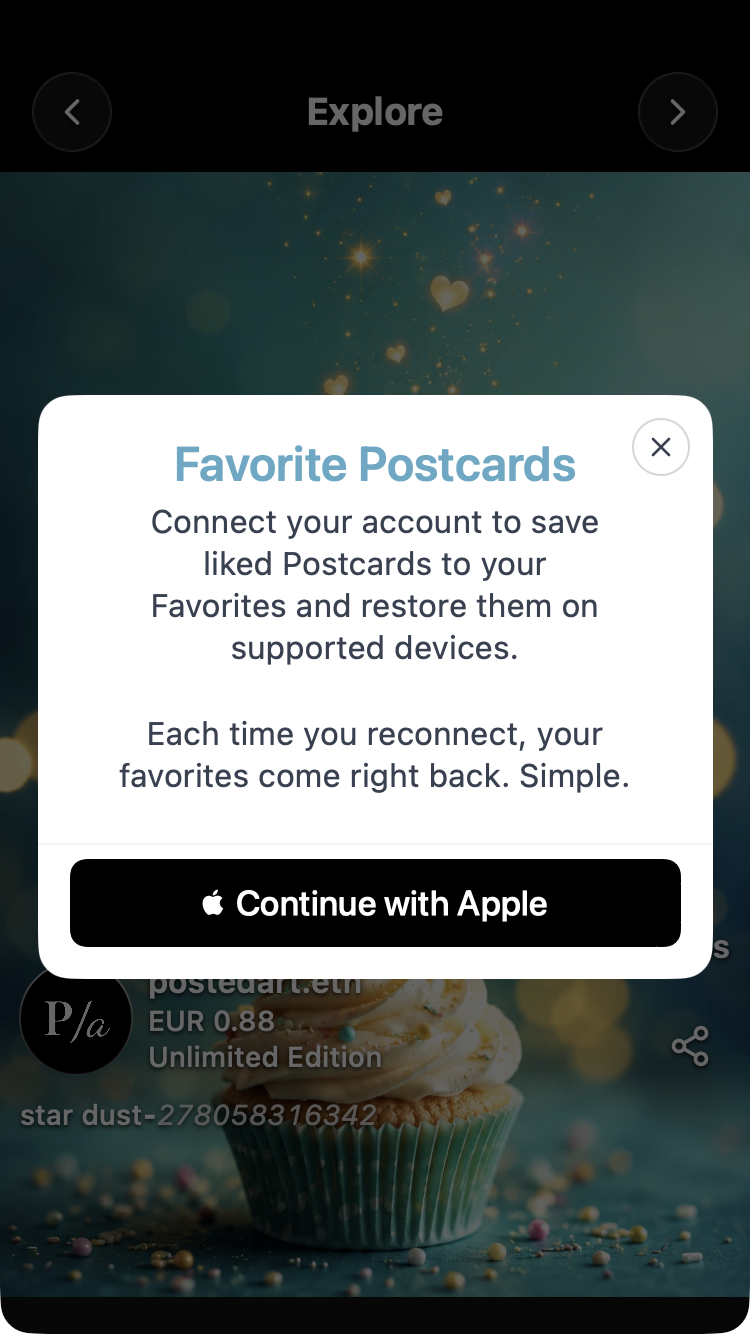
| Heart | Saves the artwork to your connected account's Favorites. Red means saved; select it again to remove it. If disconnected, follow the connection prompt. |
| Number beneath the heart | Shows total likes across accounts. Each connected identity can contribute one active like. When the count is zero, the label is Likes. |
| Artwork share icon | Shares an artwork link. It does not include your personal message, music or gift. Continue to Write to make a personal Postcard. |
| Top-left arrow | Returns to Home, also accessible through the bottom house icon. |
| Top-right arrow | Opens Write, also accessible through the bottom pencil icon. |
The like total is shared across accounts, but the heart's red or outline state belongs to the currently connected identity. A like from another account can increase the total without making your current heart red.
Browse the artwork's series
Card can browse a full series beyond the selection currently loaded on Home. See Home and series browsing for navigation and filtering. An artwork opened through an owned Art Certificate can use single-artwork mode instead; that route does not open the full series.
Find the Art Certificate purchase icon
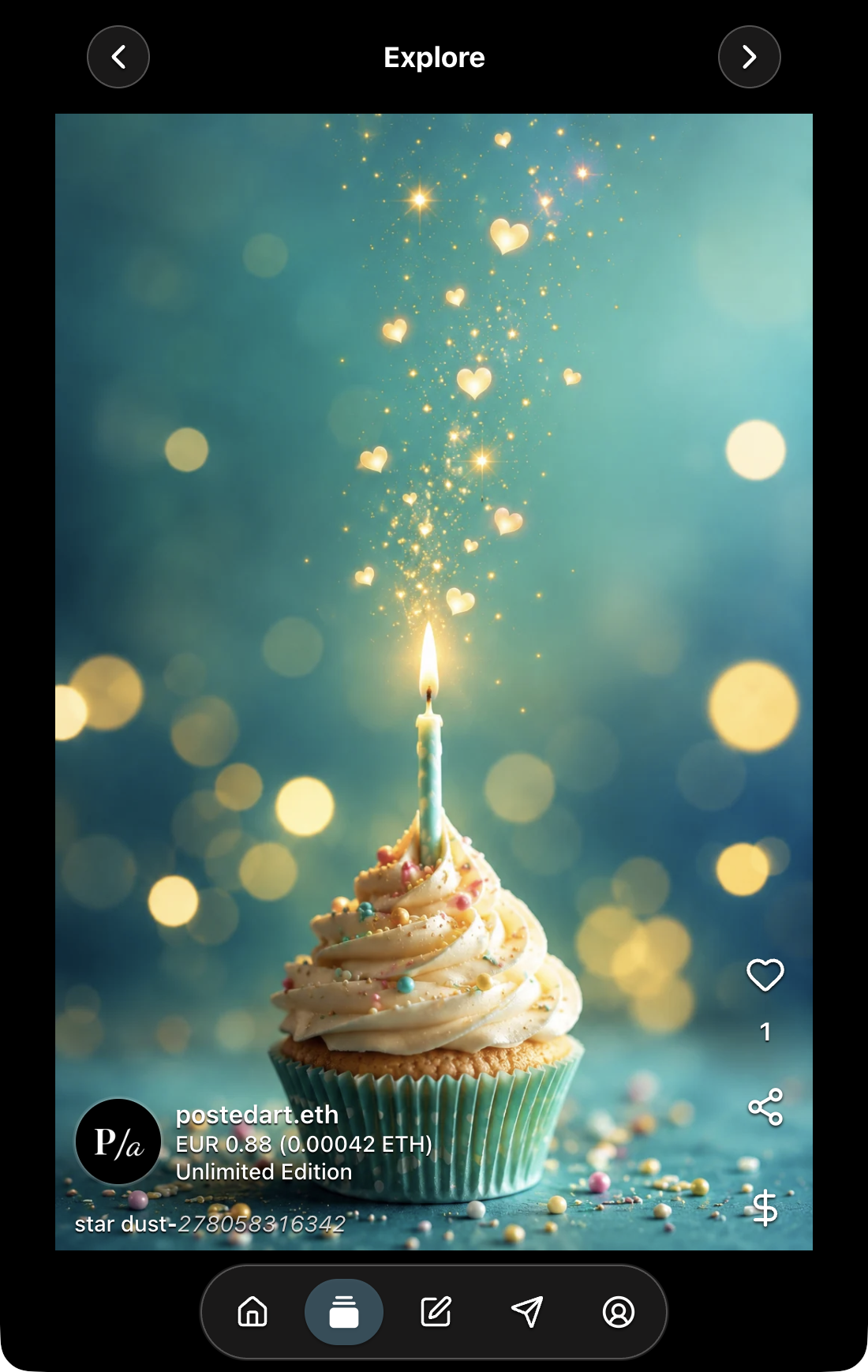
In the web app, connect and authenticate a wallet on Ethereum, Base, BNB Chain or Arbitrum to use supported EVM Art Certificate features. The Card-page dollar-sign purchase icon opens the optional NFT purchase flow.
This icon is hidden in a disconnected web session and is unavailable for Solana and Telegram. Signing in to the standalone iOS or Android app does not enable web NFT purchasing. Inside Farcaster, availability follows the connected wallet network.
The Card-page purchase icon is separate from the Share-page dollar sign, which creates or pays for a personal Postcard.
View the connected EVM Card page with its token price and purchase icon. Continue with Art Certificate purchasing.
Understand the displayed price
For current Art Certificate reference prices, see the FAQ pricing section.
For EVM Art Certificate purchases, Ethereum, Base and Arbitrum use ETH; BNB Chain uses BNB. The web Card view can show a regional fiat reference alongside the token amount.
Standard token prices are refreshed approximately every fifteen minutes. This does not mean an already-open screen continuously refreshes. Premium artwork uses a separate purchase quote. Review the current purchase details and wallet request for the amount and network fee before approving. Screenshot amounts are examples, not fixed prices. See pricing.
Limited editions and copies remaining
An Unlimited Edition has no configured NFT supply cap. Limited-edition quantities apply separately on each supported network.
With a supported EVM connection, Card can show the copies remaining on the selected network, or Sold Out. For example, a 2,000-copy edition would have 1,999 remaining after its first purchase once the supply information refreshes.
If network supply information is not yet available, the label can instead show the configured edition limit. Distinguish that limit from a count explicitly labelled as remaining. Neither is the same as the copies your wallet owns, shown in the owned Art Certificate preview.
Screenshot reuse across clients
The common Card view and liked artwork illustrate matching controls across iOS, Android, web/PWA, Telegram and Farcaster. Their capture device does not restrict that shared use.
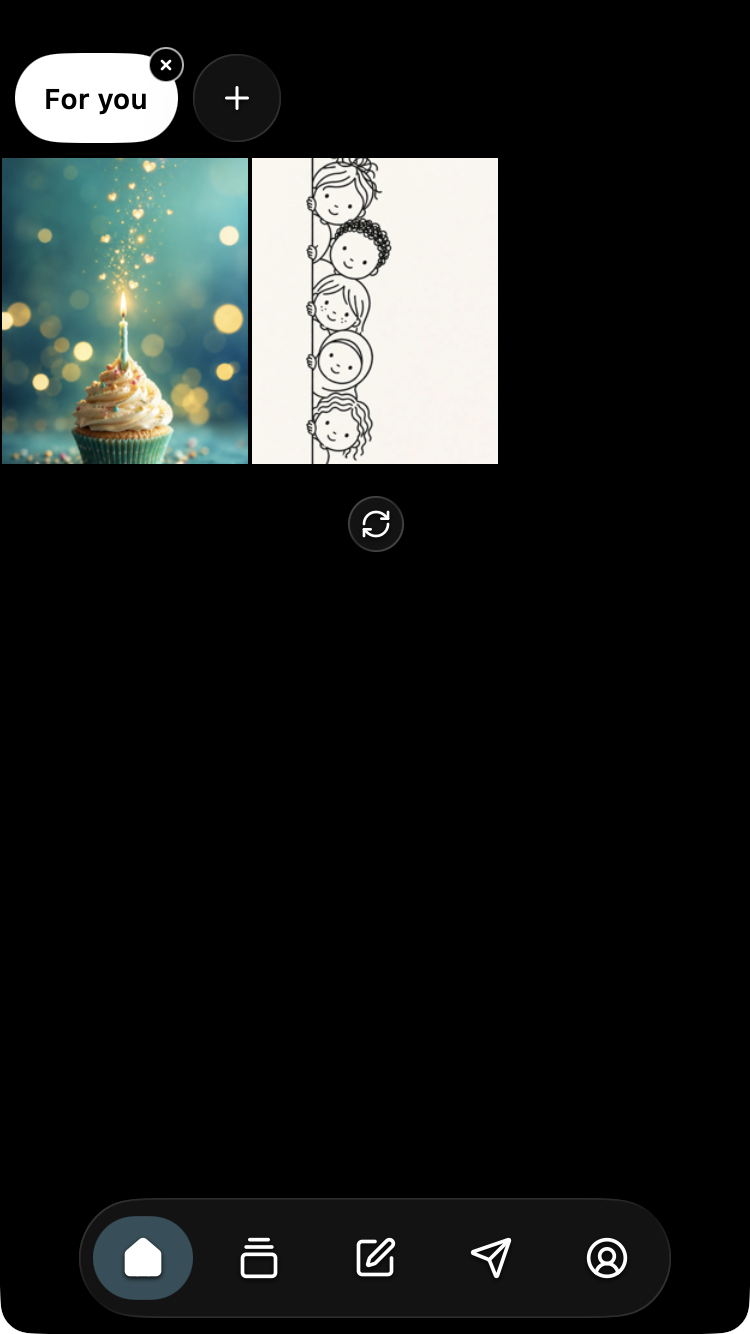
Use the EVM Card example only for a supported EVM state with the NFT purchase control. For the iOS creator-logo explanation, use Art Certificate information; for its disconnected Favorites prompt, use the iOS connection-required example. Favorites results use the shared Home interface.
See screenshot guidance for client and state selection. Do not substitute an EVM purchase screen for native or Telegram browsing instructions.