Connect a Wallet
The web app uses Reown AppKit / WalletConnect for EVM and Solana wallet connection and ownership-signing. Available choices depend on your wallet, browser or host app.
Check the FAQ's current supported networks before choosing a connection. Network names and menu screenshots below illustrate the available flows; the FAQ maintains the current list. Check support for the particular feature, since Postcard payments and Art Certificates have different availability.
Use the network actually connected to determine your features. A wallet brand alone does not establish an EVM or Solana connection. See Solana and Farcaster for those flows.
Desktop browser
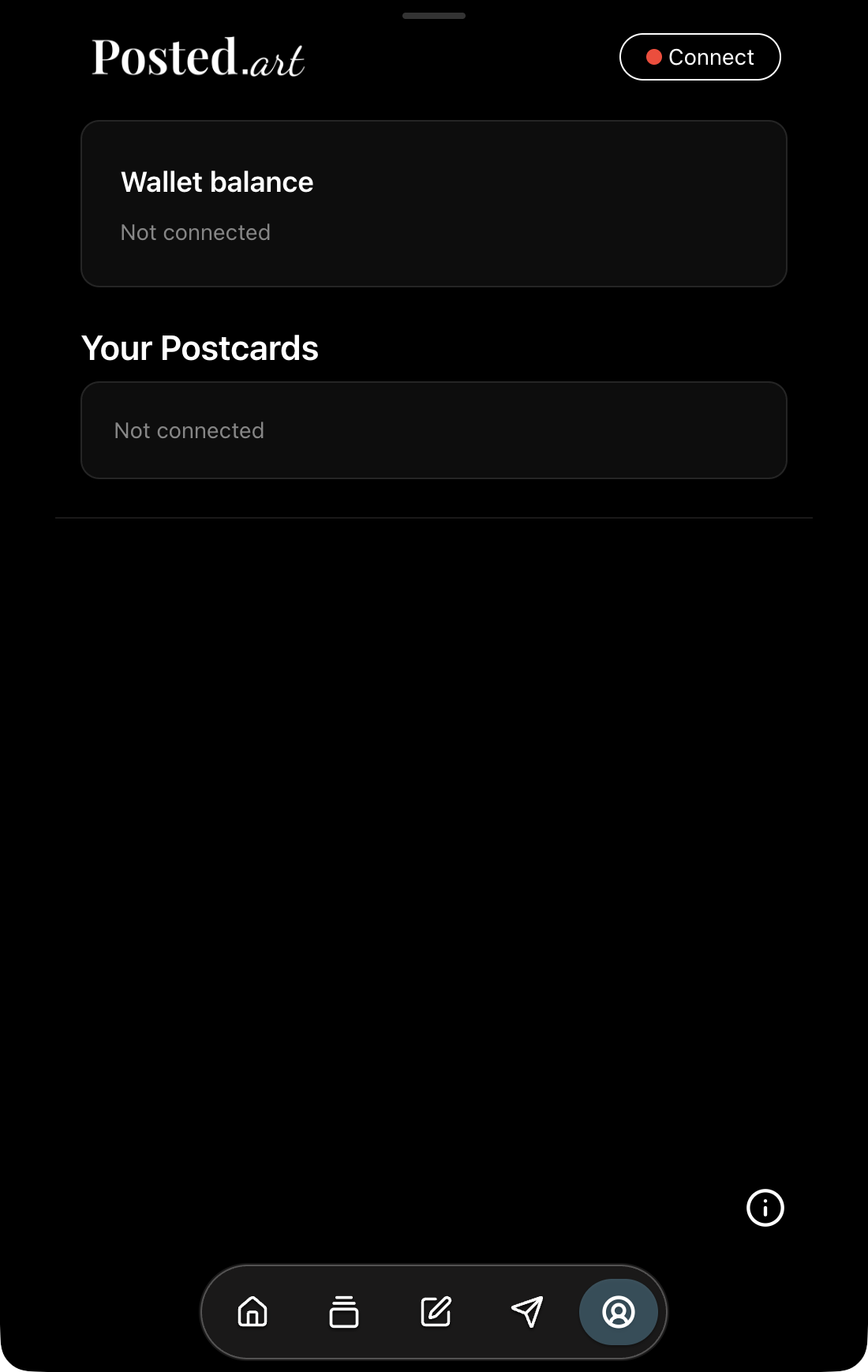
Before connection, Account shows Wallet balance — Not connected and Your Postcards — Not connected.
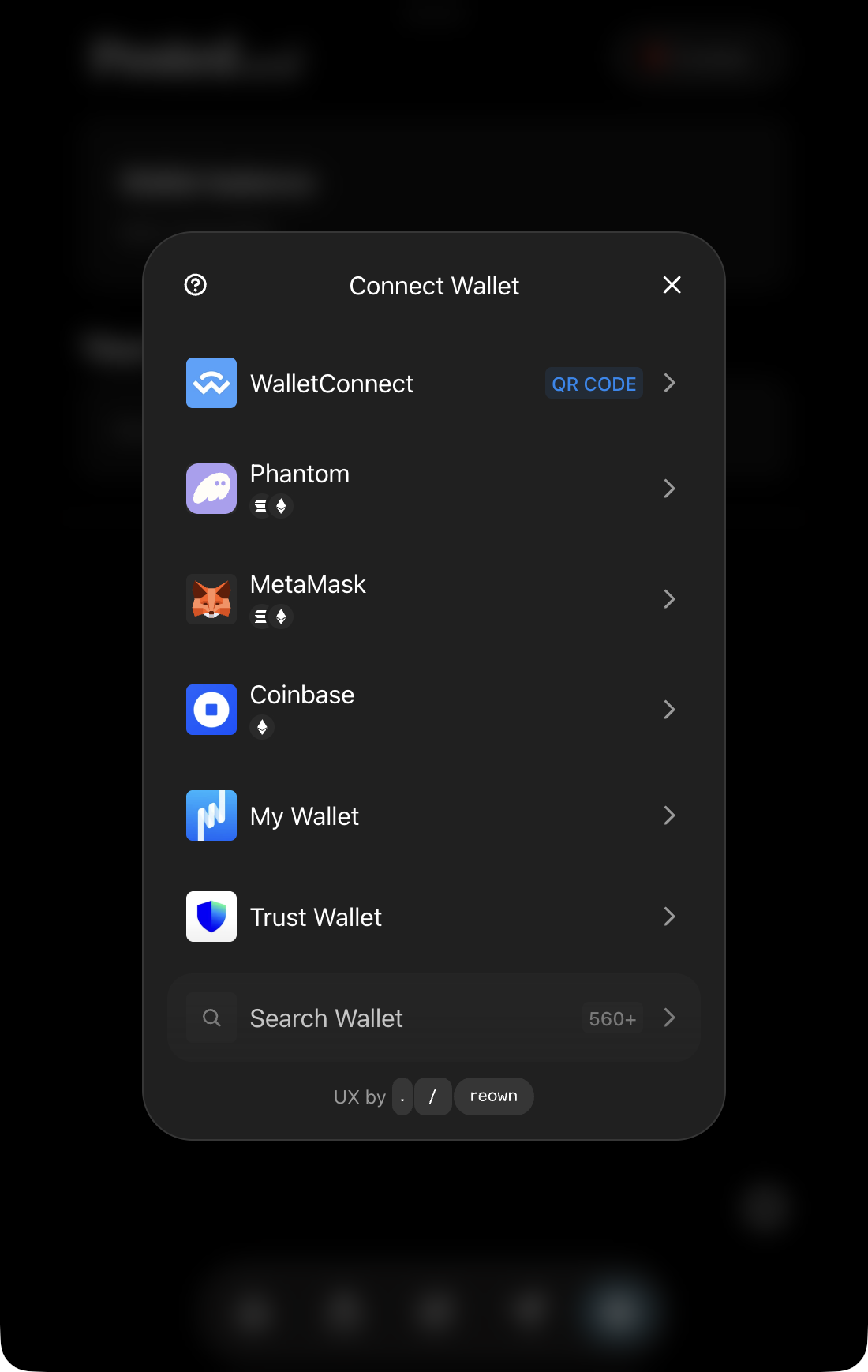
Select Connect to open Connect Wallet. Choose your wallet, use Search Wallet, or select WalletConnect for compatible QR pairing. An installed wallet extension is one connection route, rather than a requirement for every wallet.
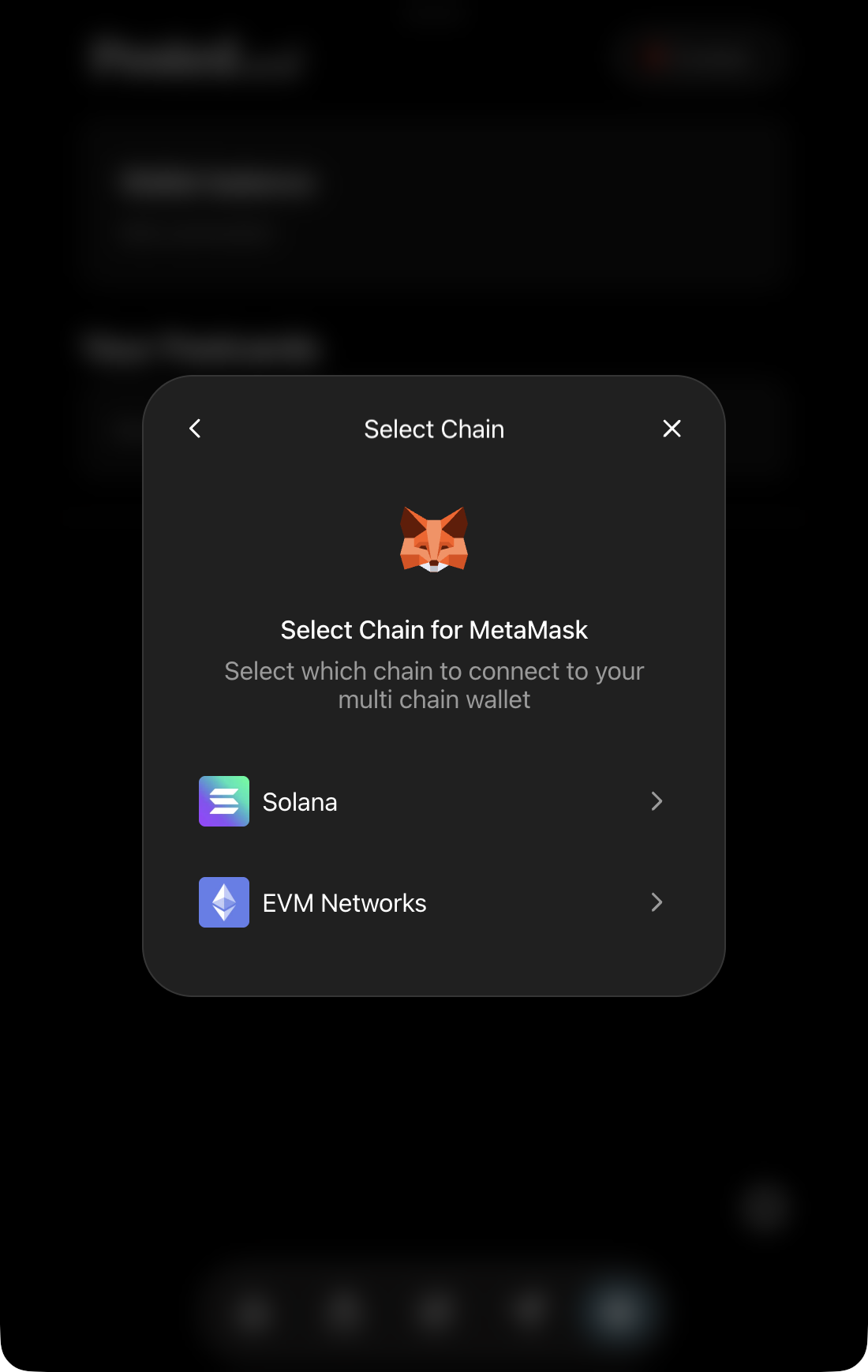
A wallet may offer more than one network family. For example, MetaMask's selection panel can offer Solana and EVM Networks. Choose the type you want; available options can differ between desktop and mobile versions.
Approve connection, then sign in
The wallet first asks to connect to Posted.art. Check the requesting site, selected account and permissions, then approve if they match your intended connection.
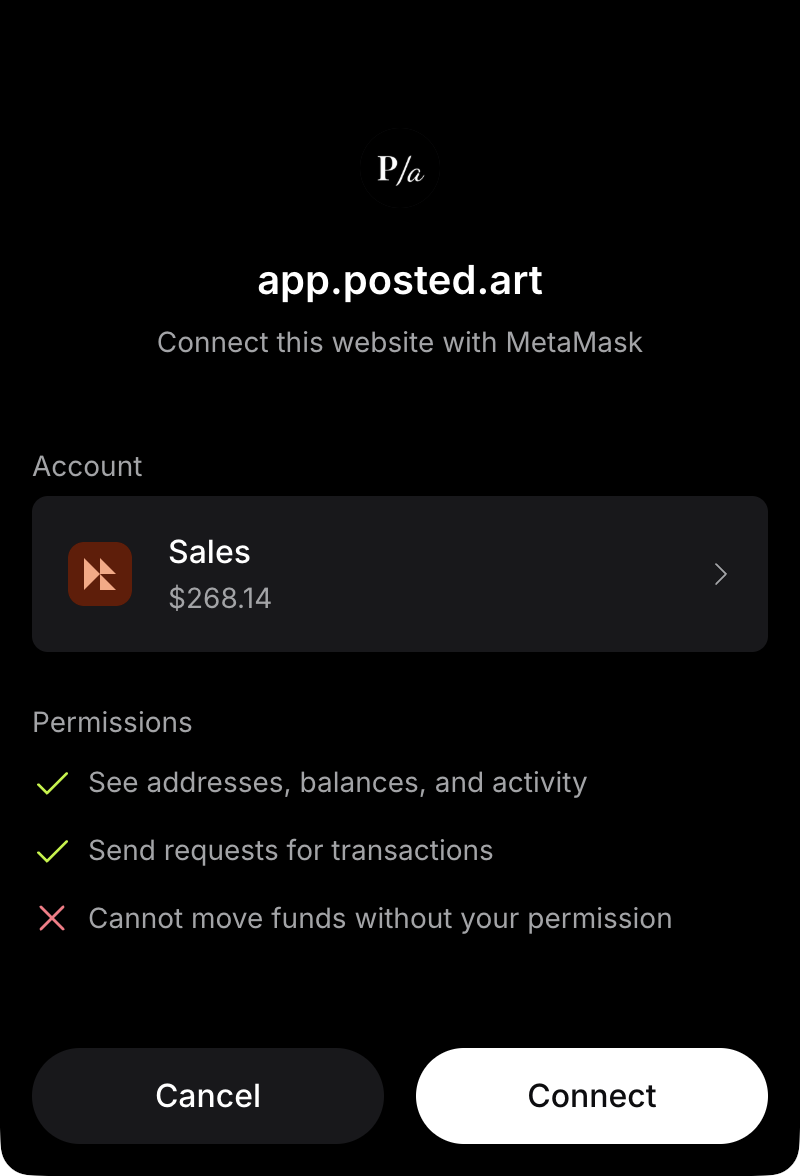
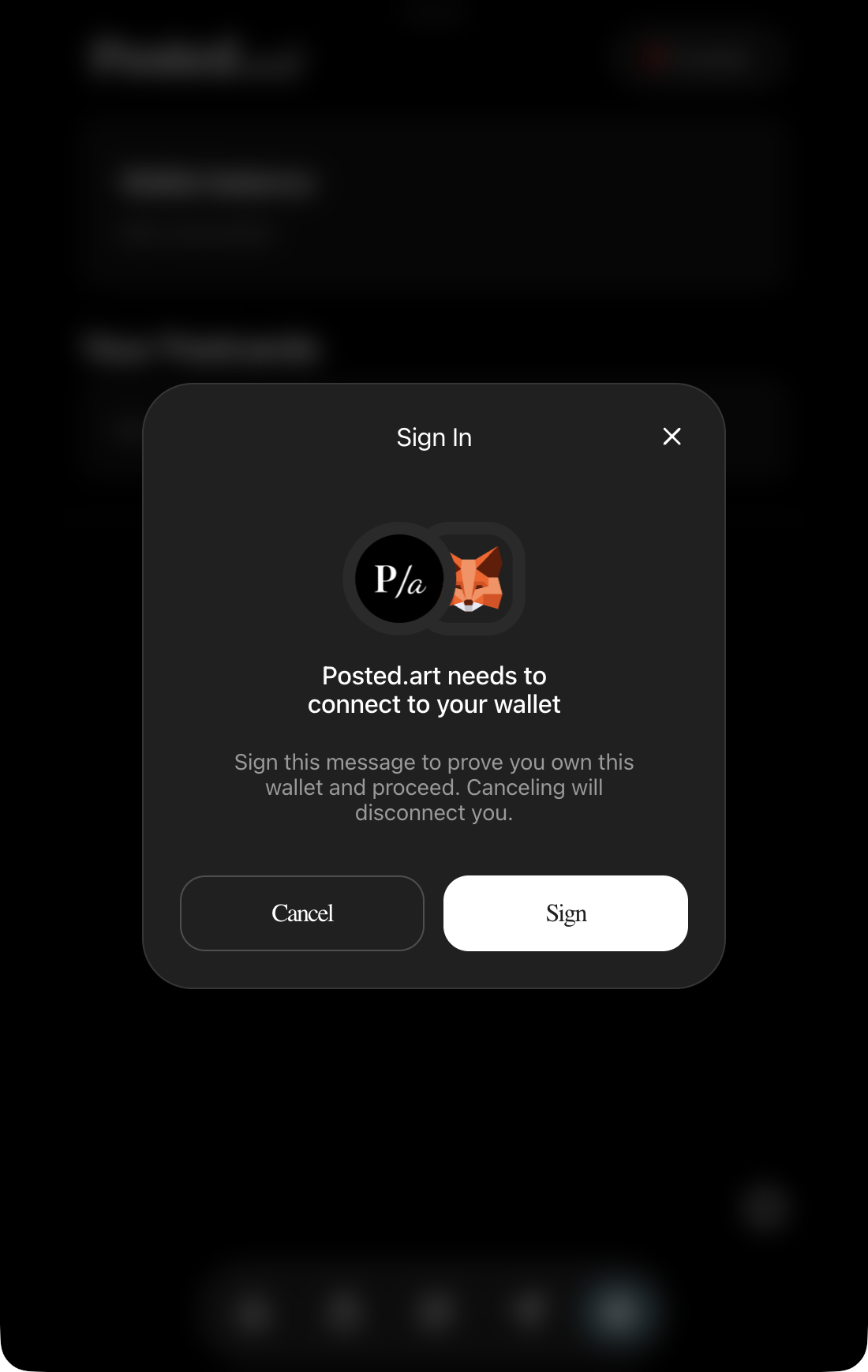
Connection and sign-in are separate steps. Posted.art then requests a message signature to prove that you control the wallet. The Sign In panel explains that cancelling disconnects you. Select Sign to request the message in your wallet, then review the wallet's actual signature prompt.
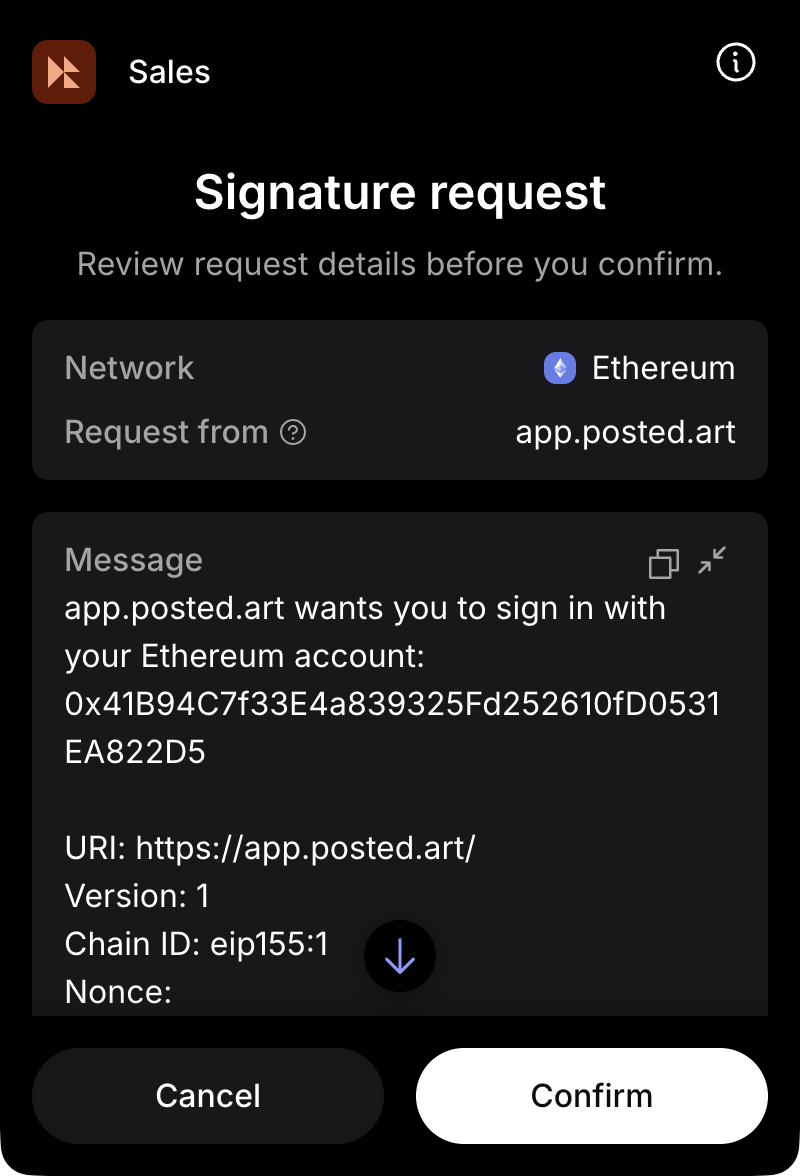
Check the site, account, network and message before signing. A payment transaction or token-spending approval is different from this sign-in message. You do not need to copy or send an authentication token to connect.
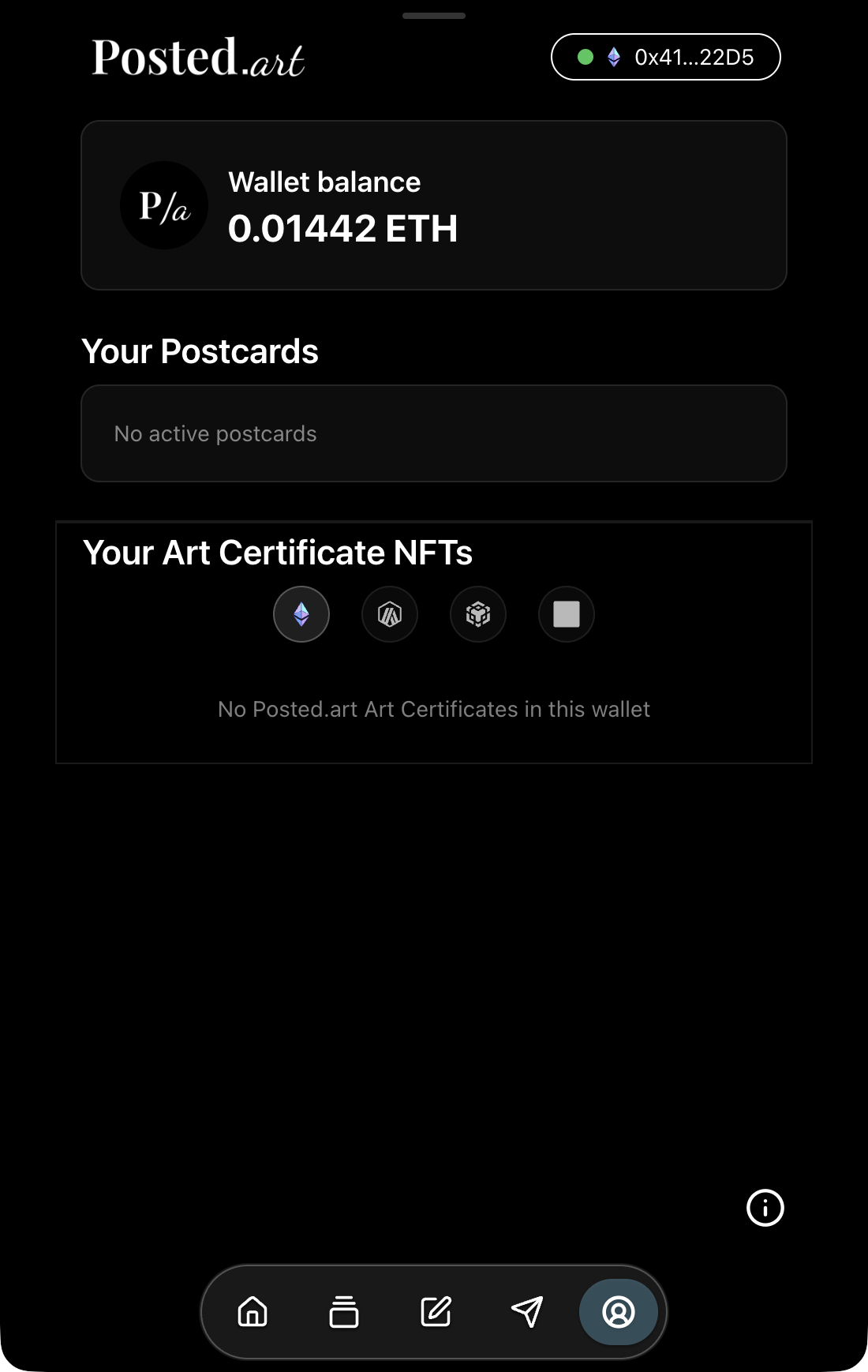
After successful sign-in, Account shows your wallet information and Your Postcards. A supported EVM connection also shows Your Art Certificate NFTs. An empty NFT collection does not mean sign-in failed.
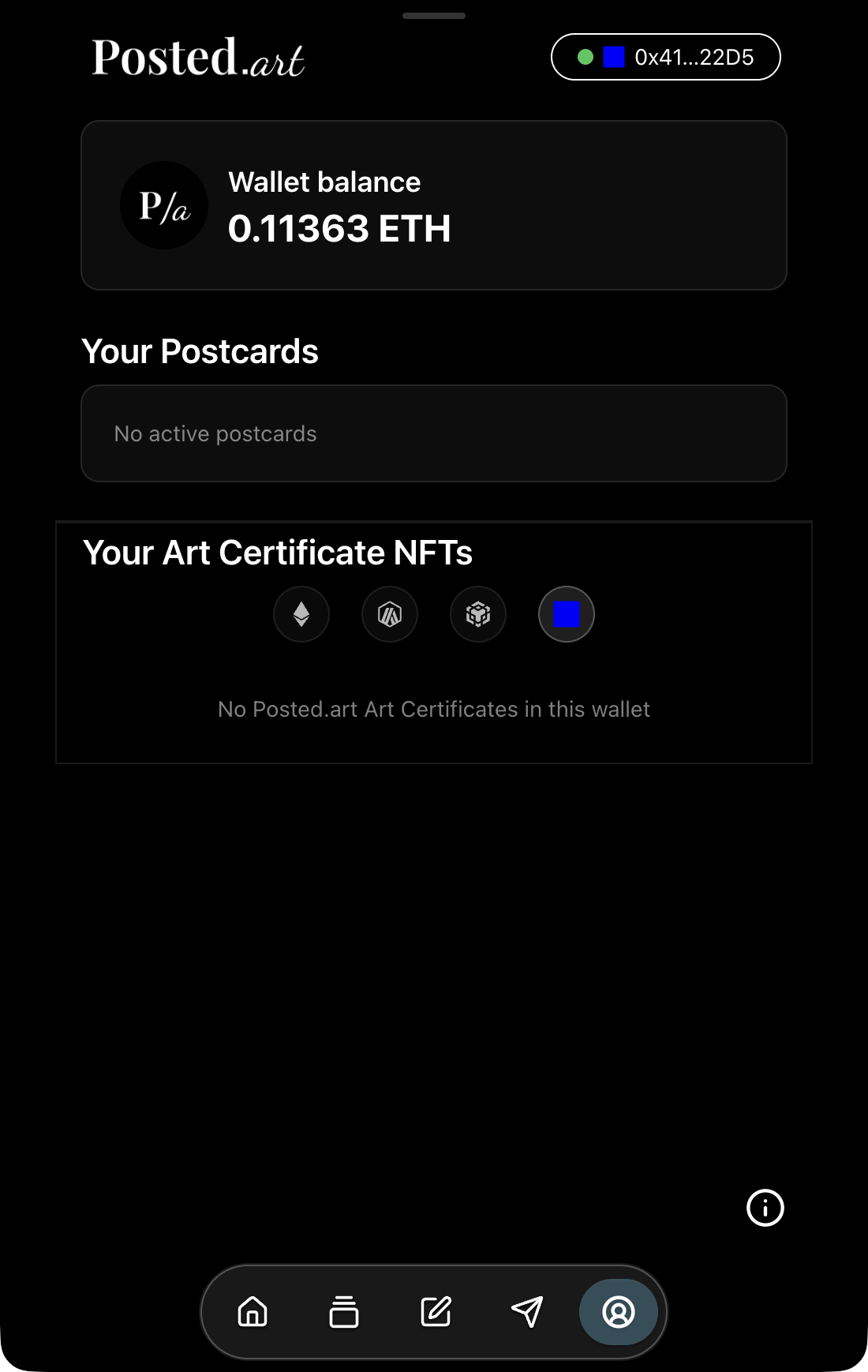
Mobile wallet browser
One practical route on a phone is to open your wallet app's built-in browser, navigate to app.posted.art, and select Connect. MetaMask with a supported EVM network and Phantom with Solana are examples; they do not define every network those wallet products support.
If switching between the phone's normal browser and a wallet repeatedly loses the connection, try the wallet's built-in browser. Compatibility varies by wallet, browser and integration; do not assume every external-browser handoff works or that all iOS browser-to-wallet connections are impossible.
Open the network selector
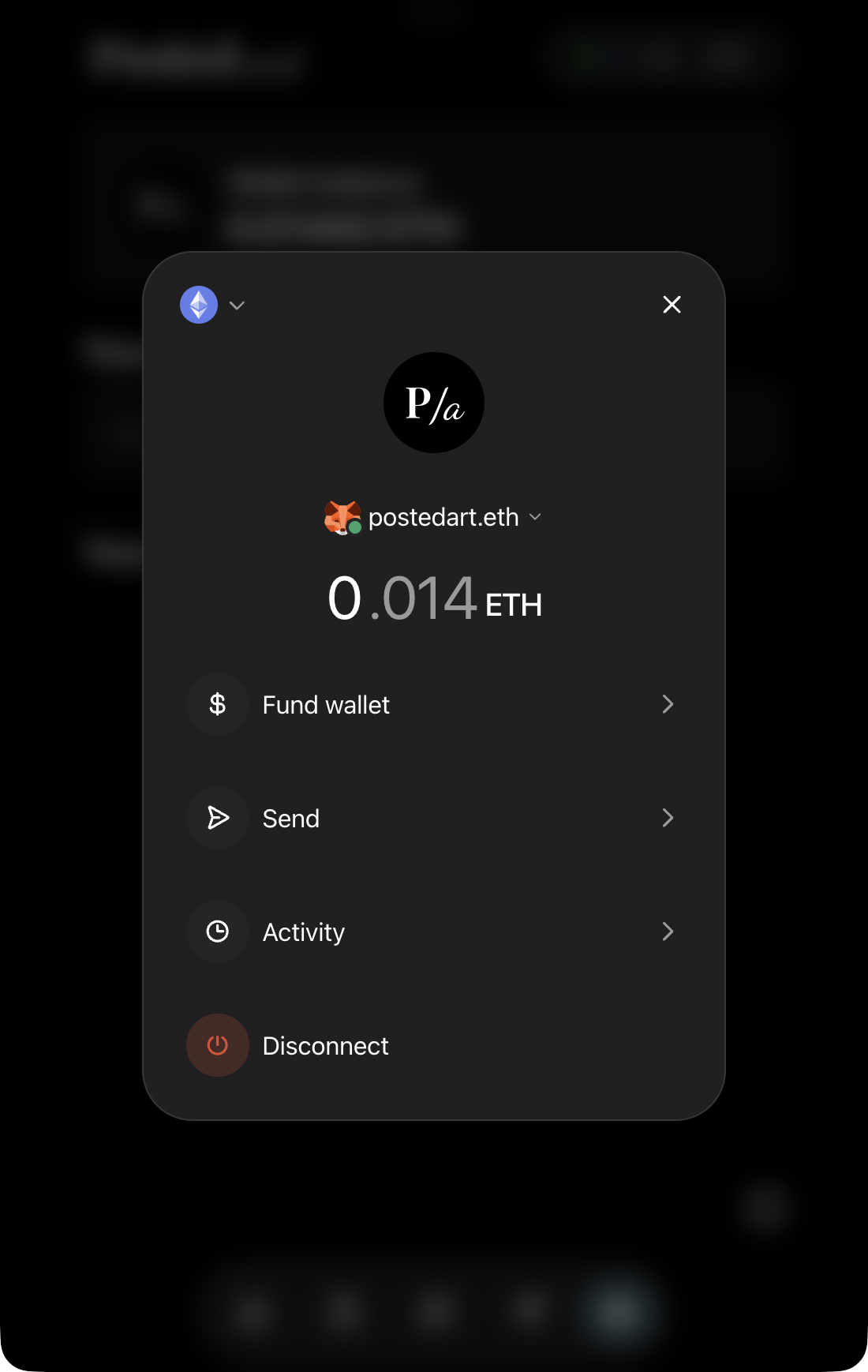
Select Posted.art's connected wallet-address button to open the wallet account menu. At its top left, select the current network icon and downward arrow. This is different from the account-name dropdown near the centre.
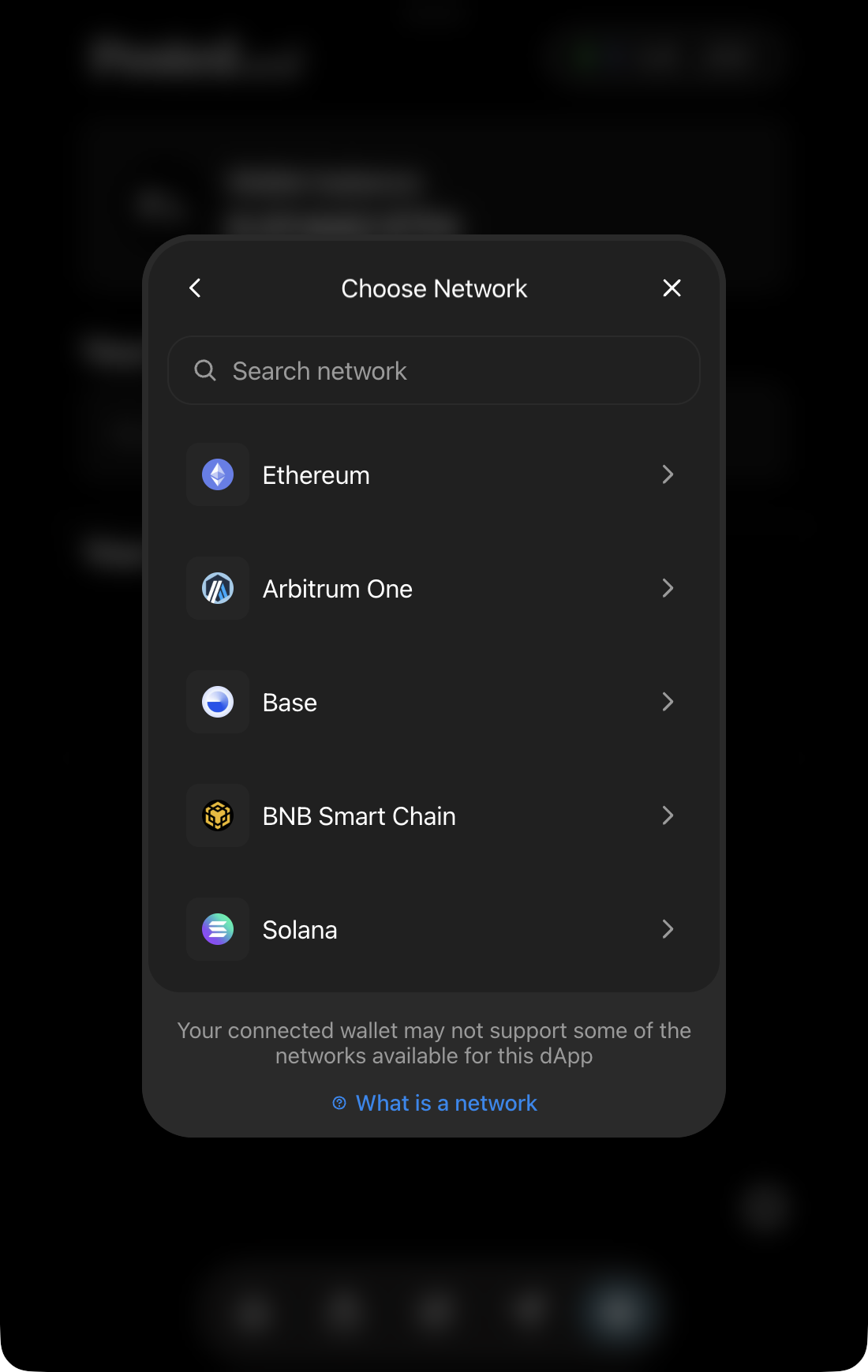
Choose Network lists the configured options: Ethereum, Arbitrum One, Base, BNB Smart Chain and Solana. A connected wallet may not support every listed network.
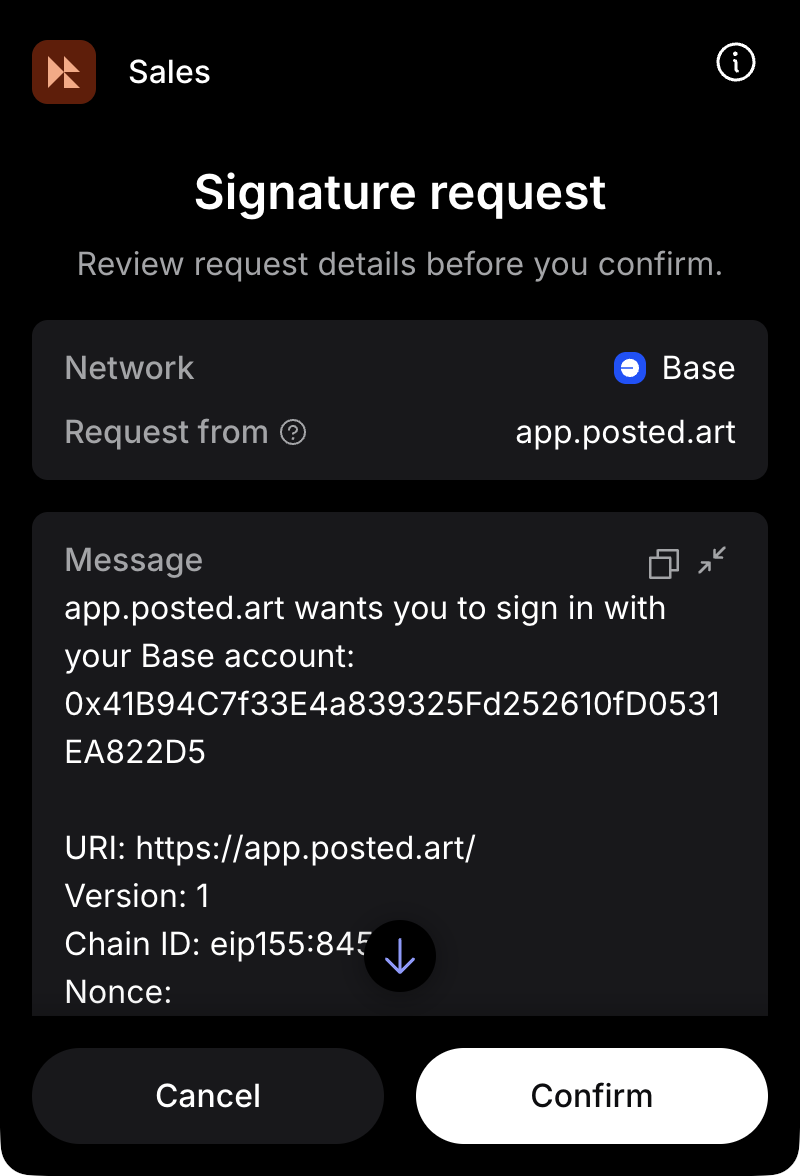
Switching between supported EVM networks uses the existing wallet connection and can request a fresh sign-in signature. Review the selected network in the request. For example, switching to Base can display a Base sign-in request.
To change from EVM to Solana, disconnect and reconnect using the Solana option so the correct account is selected. An EVM address does not simply become a Solana account.
The menu's Send action belongs to the wallet interface; it is not Posted.art's Postcard Share action.
Which features should appear?
| Connection | Posted.art features |
|---|---|
| Supported EVM network: Ethereum, Base, BNB Chain or Arbitrum | Personal Postcards, Art Certificate purchasing/collection and Create & Earn. |
| Solana | Personal Postcards paid in SOL; no Art Certificate section, Card NFT-purchase control or Create & Earn. |
Before a supported EVM connection, the NFT collection, Card purchase icon and Home Upload control are hidden in the disconnected web view. If you want to contribute, connect and authenticate an EVM wallet, then find the heart-plus Upload icon on Home. See Create & Earn.
For an Art Certificate, open the artwork's Card page and select its dollar icon. This is different from Share's dollar sign for personal Postcard creation. See Art Certificate purchasing.
Browsing artwork and using the web creator filter do not require NFT ownership controls. Native Posted.art subscription settings do not enable web wallet features.
Wallet names and profile images
An EVM wallet can resolve an ENS name and avatar; a Solana wallet can resolve an SNS name and profile image. If no image resolves, a generated geometric avatar is used. Registering an ENS or SNS name is optional for connection and Postcard sending.
Configure the relevant avatar for your connected wallet to personalize its profile. A name alone does not guarantee that an image is available. The wallet menu can show a resolved name while Posted.art's header shows a shortened address for the same account.
See Account for sender-photo behaviour.
Wallet connection and signing support
Connection and signature requests depend on compatibility between Posted.art, Reown/WalletConnect, the wallet and the host browser or app. Some issues require SDK or wallet updates; a connection failure does not establish which component caused it.
If a request stalls or fails:
- Note the wallet, device, browser/host, selected network, failed step and visible error.
- Close the connection dialog, reopen the app and try again. On mobile, consider the wallet's built-in browser.
- Check that your wallet supports the selected network and that the request belongs to the site and account you intended.
- If the problem persists, use the FAQ contact section.
Never share recovery words or private keys. If a payment already completed, follow payment recovery rather than immediately paying again.
Shared screens after connection
The matching Home/search, Card, Write and Share screenshots apply across clients. Account, connection, NFT and wallet-payment steps use the relevant wallet images.
The MetaMask desktop images illustrate that wallet's prompts, not every wallet or Farcaster approval screen. Use text when no matching system prompt has been captured. See screenshot guidance.